Nothing brings office productivity to a screeching halt faster than the dreaded "Printer Offline" message. In 90% of cases, the culprit isn't a mechanical failure—it's a Network Identity Crisis. Whether you are moving to a new office in Chicago or simply trying to fix an IP conflict, mastering how to change your IP address on a printer is a mandatory skill for any modern administrator or power user in 2026.
"In my 20 years of managing enterprise fleets, I've seen that the biggest mistake is letting a printer use a Dynamic IP. A printer is a 'Server' in your network; it must have a Static assignment. If its identity shifts via DHCP allocation, every Windows or Mac computer in the building will lose the path to the device."
1. The Printer's Identity: Why You Must Go Static
By default, most printers (HP, Canon, Brother, Epson) arrive with DHCP enabled. This means your router gives them a "temporary" name. The moment the router restarts, your printer gets a new Private IP, and your computer—which is still looking for the old one—gives up.
The DHCP Problem
Dynamic IPs shift every few days. This causes "Printer Offline" errors because the Network Path on your PC is no longer valid.
The Static Solution
A Static assignment locks the printer to one address (e.g., 192.168.1.50). This is the gold standard for network documentation.
Pro Tip: Before assigning a new IP, make sure it's not already in use. Use our Network IP Audit Tool to see every occupied address in your subnet.
2. Method 1: Using the Printer’s Physical Control Panel
This is the most direct way to change the identity of your hardware. Most modern touch-screen printers (like HP OfficeJet or Canon Maxify) follow a similar SOP (Standard Operating Procedure).
- 01 Navigate to Setup or Network Settings on the printer screen.
- 02 Select Ethernet or Wi-Fi Settings.
- 03 Locate TCP/IP Settings and switch "IP Address Method" from Automatic to Manual.
- 04 Enter your new IP Address, Subnet Mask (usually 255.255.255.0), and Default Gateway. Tap Apply.
3. Method 2: The Embedded Web Server (EWS) Approach
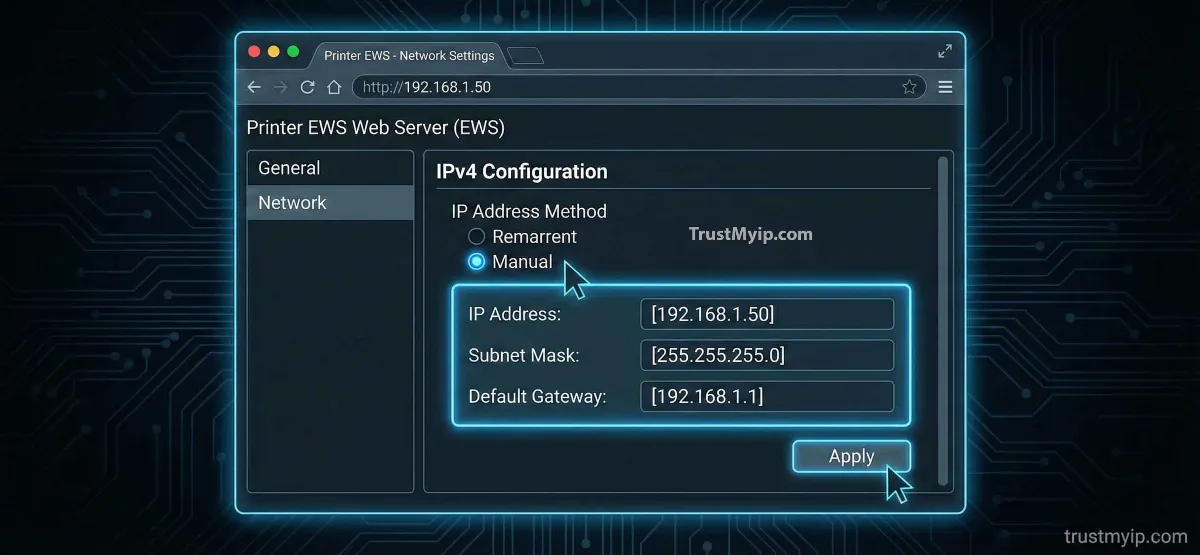
If your printer doesn't have a screen, you must access its "Internal Brain." Every network printer has an Embedded Web Server (EWS)—a hidden website inside the device used for IT auditing and configuration.
Accessing the EWS
Type the printer's current Private IP into your web browser. This will open the manufacturer's management portal.
Updating the Stack
Go to the Networking tab > IPv4 Configuration. Select Manual IP and enter your new details. This method is preferred by Senior Network Architects because it allows for precision and detailed DNS Resolution settings.
4. Method 3: Router DHCP Reservation (Pro Solution)
Instead of telling the printer what its IP is, you tell your Router to always give that specific printer the same address. This is done using the printer's MAC address.
Why use Reservation?
If you reset the printer to factory defaults, it will automatically get its "Static" IP back from the router. It’s the ultimate disaster recovery strategy.
How to set it up
Find your printer's MAC Address using our MAC Lookup Tool. Then, in your router settings under "DHCP Server," add a new reservation for that MAC.
5. Comparison: Manual IP vs. DHCP Reservation
Use this technical breakdown to decide which IP change method fits your corporate security goals.
| Feature | Manual IP (On Printer) | DHCP Reservation (On Router) |
|---|---|---|
| Setup Difficulty | Low (Direct) | Moderate (Network Admin) |
| Failure Risk | IP Conflict if not tracked | Virtually Zero |
| Best For | Small Offices | Enterprise / Large LANs |
6. Method 4: Assigning IP via ARP (The Legacy Hack)
If your printer is old and has no screen and no web interface, you can "force" an IP through the Layer 2 Data Link using the ARP (Address Resolution Protocol) command.
Open CMD on Windows and type:
arp -s [Desired_IP] [Printer_MAC_Address]
Then, ping the IP. The printer will see the ping directed at its MAC address and "adopt" that IP as its own. This is a classic infrastructure engineer trick for unmanaged hardware.
7. Troubleshooting: Why won't my Printer IP change?
If you've followed the steps but the printer is still not reachable, you are likely hitting these technical constraints:
- Subnet Mismatch: If your router is 192.168.1.1 and you set your printer to 192.168.0.50, they are in different "rooms" and cannot talk. Always match the first three sets of numbers.
- DNS Caching: Your PC might still be trying to talk to the old address. Restart your Print Spooler service or reboot your computer to clear the DNS Resolution cache.
- Port 9100 Blocking: Some office firewalls block Port 9100 (Standard TCP/IP port). Ensure this is open in your network access control settings.
Printer Networking FAQ
Do I need to change my PC settings after changing the printer IP?
Yes. You must go to "Printers & Scanners" on your PC, select your printer > Properties > Ports, and update the IP address to match the new one.
What is the default password for my printer's web interface?
Most manufacturers use "admin" or leave it blank. For HP, it might be the PIN found on a sticker inside the cartridge door.
Does a printer have a permanent MAC address?
Yes. Every network card inside a printer has a permanent hardware address. You can find this by printing a "Network Configuration Page" from the printer menu.
Conclusion: Controlling Your Print Infrastructure
Mastering how to change your IP address on a printer is the first step toward a reliable, lag-free office environment. By shifting away from unreliable DHCP allocation and implementing a strict Static assignment strategy, you eliminate the "Printer Offline" nightmare forever. In 2026, as corporate security and network complexity grow, having a perfectly documented printer fleet is a mandatory hallmark of an expert administrator.
Is Your Printer Leaking?
Printers are often the most vulnerable devices in a network. Use our forensic toolkit to audit your internal IP conflicts, check for DNS leaks, and identify hardware manufacturers in one click.