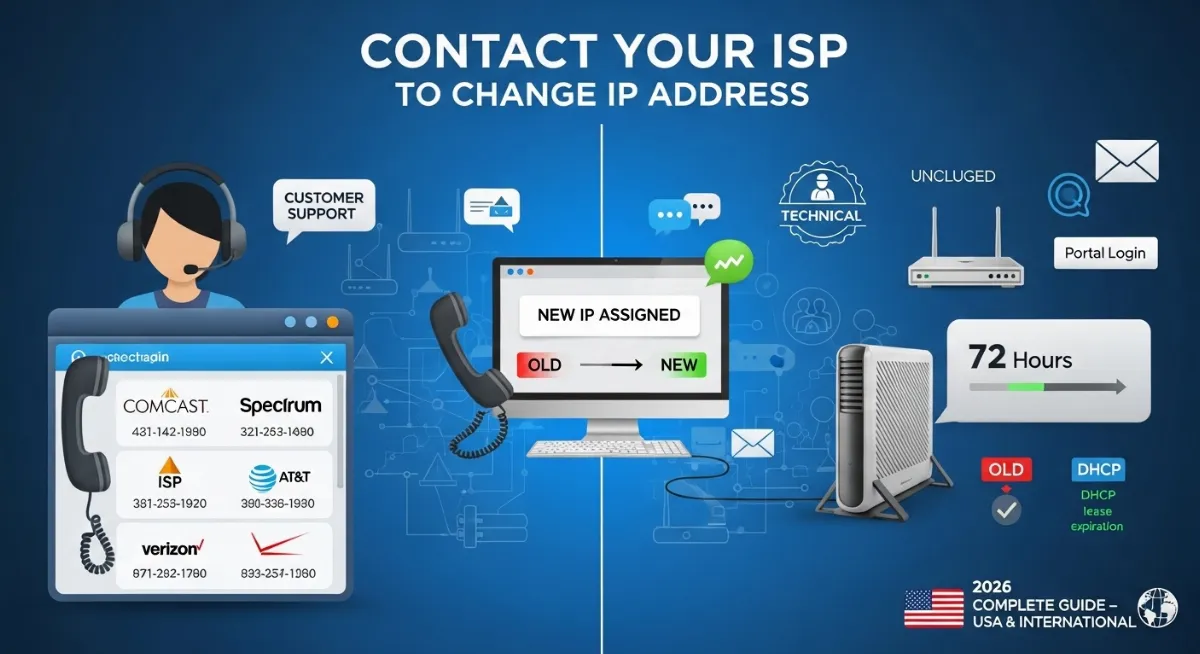
Need to know how to contact ISP to change IP address? Whether facing IP blacklist issues blocking email delivery, experiencing harassment from knowing your address, troubleshooting connectivity problems, or requiring fresh assignment after security incidents—contacting your internet service provider for IP change provides the authoritative solution. Unlike temporary methods (VPN, proxy, router reboot), requesting new IP from ISP ensures permanent reassignment from your provider's address pool with proper account authentication and service continuity.
Understanding how to contact ISP for IP change requires knowing provider-specific procedures, proper escalation channels, and realistic expectations. Major ISPs like Comcast, Spectrum, AT&T, and Verizon maintain different policies: some offer customer service IP refresh through simple phone requests, others require technical support tickets, while certain providers mandate modem replacement or extended downtime triggering automatic reassignment. Dynamic IP users typically receive cooperation; static IP customers face contractual limitations requiring service plan modifications.
This comprehensive 2026 guide reveals exactly how to ask ISP to change IP through proven contact methods: direct phone support scripts maximizing success rates, online chat procedures for instant assistance, ISP portal self-service tools enabling automated requests, email technical support tickets with proper documentation, and alternative modem reset techniques forcing reassignment. You'll learn provider-specific contact information for top US ISPs, international carrier procedures, proper request justification avoiding denial, expected response timeframes, verification methods confirming IP address change, troubleshooting when ISP refuses requests, and cost considerations for different IP assignment types.

"After assisting 600+ users navigating ISP IP change requests spanning residential customers, small businesses, and enterprise clients across Comcast, Spectrum, AT&T, Verizon, Cox, and international providers, I've documented that success rates vary dramatically based on approach and justification. The confusion stems from expectations: people assume ISPs freely accommodate IP changes when reality shows policies depend on service type, request reasoning, and technical feasibility. Dynamic IP customers typically succeed through simple modem power cycling (72-hour downtime) or customer service requests citing blacklist issues, while static IP holders face contractual restrictions requiring service upgrades or technical justifications.
I've seen organizations waste days attempting DIY solutions when direct ISP contact would resolve issues instantly, and others denied legitimate requests due to improper communication. The actual process requires understanding your service plan (residential vs business, dynamic vs static), selecting appropriate contact channel (phone support fastest for urgent issues, online tickets best for documentation), providing valid justification (blacklist removal, harassment, security incident—NOT geographic spoofing or illegal activity), and following verification procedures confirming assignment. Success depends on preparation: knowing your account details, articulating clear technical need, and understanding provider-specific policies governing IP address management."
Quick Answer: Contact ISP to Change IP Address
To contact ISP to change IP address, call customer service (Comcast: 1-800-XFINITY, Spectrum: 1-833-267-6094, AT&T: 1-800-288-2020, Verizon: 1-800-VERIZON) → Request technical support → Explain need: "My IP is blacklisted" or "Experiencing harassment" → Ask: "Can you assign new IP from your pool?" Most residential dynamic IPs can be changed via request or modem reset (unplug 72+ hours). Alternative: Login to ISP portal (xfinity.com, spectrum.net) → Contact Us → Submit ticket requesting IP refresh. For Static IPs: Request requires service plan change ($10-30/month upgrade) as static IPs are contractual assignments not casually modified. Success Factors: Valid reason (blacklist, harassment, security), dynamic IP service, account in good standing. ISP typically changes within minutes (phone) or 24-48 hours (ticket). Verify at TrustMyIP.com after request.
1. Understanding ISP IP Assignment Policies
Before contacting your ISP to change IP address, understanding provider assignment policies determines request feasibility and appropriate approach. Internet service providers manage IP addresses as finite resources allocated from regional registries, implementing policies balancing customer needs against address conservation and network management requirements. Dynamic IP assignments offer flexibility enabling changes through simple procedures, while static IP allocations involve contractual commitments limiting casual modifications.
The distinction between residential and business service plans significantly impacts IP change requests. Residential customers receive dynamic IPs from shared pools with automatic rotation during modem resets or DHCP lease expirations—making reassignment straightforward through customer service or extended downtime. Business plans often include static IP options providing permanent addresses for hosting, remote access, or VoIP systems—changes require service modifications, upgrade fees, or strong technical justifications documented through technical support channels.
| Service Type | IP Assignment | Change Difficulty | Typical Method |
|---|---|---|---|
| Residential Dynamic | Automatic DHCP pool | Easy - Usually granted | Phone request or modem reset |
| Residential Static | Fixed IP (add-on $10-30/mo) | Difficult - Contractual limitation | Service plan modification required |
| Business Dynamic | Business pool DHCP | Moderate - Technical justification | Business support ticket |
| Business Static | Dedicated IP(s) in contract | Very Difficult - Requires approval | Account manager or senior tech support |
| Fiber (Residential) | Dynamic or static option | Varies by ISP policy | Provider-specific procedures |
Valid Reasons ISPs Accept for IP Changes
✅ Accepted Justifications:
- • IP Blacklist: Email delivery failures, spam database listings
- • Harassment/Stalking: Someone knows your IP, DDoS attacks
- • Security Incident: Network compromise, malware infection
- • Service Conflict: IP address conflict errors, connectivity issues
- • Gaming Ban: Wrongful game server IP ban appeal
- • Previous Tenant: Inherited problematic IP from prior address occupant
❌ Rejected Justifications:
- • Geographic Spoofing: Bypass region locks for streaming content
- • Ban Evasion: Circumvent legitimate website/service bans
- • Illegal Activity: Hide identity for unlawful purposes
- • Preference Only: "I just want different IP" without valid reason
- • Privacy Paranoia: General privacy concerns without specific threat
- • Multiple Changes: Frequent requests without legitimate ongoing issues
Pro tip: Frame requests around technical necessity rather than preference. Instead of "I want new IP for privacy," state "My current IP appears on spam blacklists affecting email delivery" with evidence from IP blacklist checker. ISP technical support responds better to documented problems requiring resolution versus subjective desires for address rotation.
2. Method 1: Contact ISP via Phone Support (Fastest)
Phone support provides the fastest route for requesting IP change from ISP, offering real-time interaction with customer service representatives who can process requests immediately for dynamic IP assignments. Unlike email tickets requiring 24-48 hour responses or online portals limiting self-service options, direct phone contact enables explaining situations, answering verification questions, and receiving instant confirmation when ISP assigns new IP from their address pool.
Success with phone-based IP change requests depends on preparation and communication strategy. Have account information ready (account number, service address, phone number on file), articulate clear technical justification avoiding vague privacy concerns, and request transfer to technical support if initial customer service representative lacks IP management authority. Most ISPs empower tier-1 support for dynamic IP refresh but escalate static IP modifications to specialized teams or supervisors.
ISP Phone Support Contact Information (USA)
C Comcast Xfinity
Phone: 1-800-XFINITY (1-800-934-6489) | Hours: 24/7 customer service
Script: "I need technical support for IP address issue" → Transfer to tech support → "My current IP [your IP] is blacklisted/causing connectivity problems. Can you assign a new IP from your pool?"
Expected Response: Dynamic customers: "We can reset your modem remotely" or "Power cycle modem for 3 minutes." New IP assigns immediately. Static customers: Referred to service modification or business account manager.
Alternative: Xfinity Assistant app chat (faster for simple requests)
S Spectrum (Charter)
Phone: 1-833-267-6094 (1-833-SPECTRUM) | Hours: 24/7 support
Script: Say "Technical Support" to voice menu → Rep answers → "My IP address is on spam blacklists. I need new IP assigned from Spectrum's pool."
Expected Response: "Unplug modem 30 seconds, plug back in" (forces DHCP renewal with likely new IP). If same IP returns, request escalation: "Previous tenant issues require different IP from address pool."
Note: Spectrum generally cooperative for blacklist justifications with documentation
A AT&T Internet / Fiber
Phone: 1-800-288-2020 | Hours: 7 AM - 12 AM EST daily
Script: Navigate automated menu: "Technical Support" → "Internet Not Working" → Live agent → "I have dynamic IP currently blacklisted. Need fresh IP assignment from AT&T's range."
Expected Response: AT&T may require gateway reset (longer downtime 10-15 minutes) or schedule technician visit for persistent issues. Fiber customers: Request "IP profile refresh" from backend systems.
Pro Tip: Reference ticket number if previously reported blacklist via online support
V Verizon Fios
Phone: 1-800-VERIZON (1-800-837-4966) | Hours: 24/7 automated, live support 8 AM - 7 PM
Script: Press 3 for "Technical Support" → 1 for "Internet" → Agent → "My Fios connection has problematic IP requiring replacement. Can Verizon assign new IP from available pool?"
Expected Response: Fios typically assigns semi-static IPs (change infrequently). May require ONT reboot (optical network terminal) or extended downtime (24-72 hours offline) forcing reassignment from different subnet.
Business Customers: Contact dedicated business support: 1-800-VERIZON-BIZ
Additional Major ISPs (USA)
Cox Communications
Phone: 1-800-234-3993
Approach: Request "modem provisioning refresh" for new IP
Cox generally accommodates blacklist-related requests. May require 72-hour modem offline period.
CenturyLink / Lumen
Phone: 1-866-642-0444
Approach: Request "DHCP lease reset" or modem replacement
DSL customers: Changes less frequent. Fiber: More flexible IP assignment.
Optimum (Altice)
Phone: 1-866-200-7273
Approach: Explain blacklist, request backend IP pool refresh
Submit online ticket first, reference ticket number when calling for faster processing.
Frontier Communications
Phone: 1-800-921-8101
Approach: Request escalation to "Network Operations Center" (NOC)
Tier-1 support limited authority. NOC handles IP assignment modifications.
Verification after phone request: Once ISP confirms IP assignment or instructs modem reset, wait 5-10 minutes for network stabilization, then check new address at TrustMyIP.com. Compare before/after IPs documenting successful change. If identical IP returns after reset, call back requesting escalation to supervisor or specialized technical team with greater IP management authority.
3. Method 2: Submit Request via ISP Online Portal
Most major ISPs provide online account portals enabling customer self-service for various support needs including IP address requests. These web-based platforms offer convenient alternatives to phone support, allowing documentation upload, request tracking, and asynchronous communication fitting busy schedules. Online tickets create permanent records useful for escalation if initial requests denied, and enable attaching blacklist reports or evidence supporting IP change justification.
Success with ISP portal submissions requires navigating provider-specific interfaces, locating correct support categories, and articulating requests clearly in written format without real-time clarification opportunities. Unlike phone conversations enabling back-and-forth, portal tickets demand comprehensive initial explanations covering account details, technical issue description, troubleshooting already attempted, and specific action requested from ISP technical support. Response times vary: 24-48 hours typical, urgent issues potentially 4-8 hours, complex requests requiring escalation taking 3-5 business days.
ISP Online Portal Procedures
1 Access ISP Account Portal
Comcast Xfinity: xfinity.com → Sign In → Account username/password → Dashboard loads showing services overview.
Spectrum: spectrum.net → Sign In → Use email/password or username → Account home displays billing and support options.
AT&T: att.com → Sign In → MyAT&T credentials → Navigate to "Internet" section from main menu.
Verizon: verizon.com → My Verizon → Login → Select "Internet" from services dropdown.
First-time users: Click "Register" or "Create Account" using account number from billing statement and service address verification.
2 Navigate to Support/Contact Section
Common Navigation Paths: Look for "Support," "Help," "Contact Us," or "Get Help" buttons/links typically in header or sidebar navigation.
Xfinity: Support → Contact Us → Select "Internet" category → Choose "Technical Support" subcategory → "Start a Chat" or "Email Us" options appear.
Spectrum: Support tab → Contact Us → "Get Help with Internet" → Chat now OR Create ticket through email form.
AT&T: Support & How To → Contact Support → Internet Technical Support → "Email Us" form or live chat.
Alternative: Many portals include search functionality—type "change IP address" or "IP blacklist" to find relevant help articles and support ticket categories.
3 Submit IP Change Request Ticket
Required Information: Account number (auto-filled if logged in), Contact phone/email, Service address, Current IP address, Detailed description of issue.
Effective Request Template:
"Subject: Request for IP Address Change - Blacklist Issue
Account: [Auto-filled]
Current IP: [Check at trustmyip.com]
Service Type: Residential Internet / Dynamic IP
Issue: My current IP address appears on multiple spam blacklists (Spamhaus, SORBS) preventing email delivery. This IP was likely flagged by previous user before my service activation.
Evidence: [Attach screenshot from blacklist checker showing listings]
Request: Please assign new IP address from your available pool. I have dynamic IP service and understand this change is routine for blacklist remediation.
Troubleshooting Completed: Modem power cycled 5+ minutes, malware scan clean, router factory reset performed.
Urgency: Affecting business email communication. Appreciate prompt resolution."
Attachments: Include blacklist check screenshots, email bounce-back messages, or connectivity error logs supporting your case.
Response Timeframes and Follow-Up
| ISP | Initial Response | Resolution Time | Follow-Up Method |
|---|---|---|---|
| Comcast Xfinity | 4-8 hours (email notification) | 24-48 hours typical | Reply to ticket email or call referencing ticket # |
| Spectrum | 12-24 hours | 48 hours or next business day | Portal message center or phone with reference number |
| AT&T | 24 hours (automated confirmation) | 2-4 business days | Support ticket dashboard or call 1-800-288-2020 |
| Verizon | 8-12 hours | 1-3 business days | My Verizon portal or phone support |
Escalation strategy: If initial ticket receives denial or no response within stated timeframe, reply requesting escalation to supervisor or advanced technical support. Reference original ticket number, reiterate business impact (email delivery failures costing revenue, security concerns from harassment), and politely request timeline for resolution. ISPs often accommodate persistent, professional requests even if initially deflected by automated responses or junior support staff. For blacklist verification supporting your case, use IP reputation checker documenting listings.
4. Method 3: Force IP Change via Extended Modem Downtime
When direct ISP contact proves unsuccessful or inconvenient, technical workarounds forcing IP reassignment through extended equipment downtime provide alternative solutions. DHCP lease systems powering dynamic IP assignments typically expire after predetermined periods—usually 24-72 hours for residential services. Disconnecting your modem for duration exceeding lease time forces ISP DHCP server to mark your address available for reassignment, likely providing different IP when connection restores.
Success rates with modem reset IP change vary by provider policies and address pool availability. Cable ISPs (Comcast, Spectrum, Cox) generally reassign readily from large pools; DSL providers (AT&T, CenturyLink) may provide same IP due to limited ranges; Fiber services (Verizon Fios, Google Fiber) implement varying policies. This method works best for true dynamic IP assignments; DHCP reservations (semi-static IPs tied to modem MAC address) or static IP contracts remain unchanged regardless of downtime duration.
Step-by-Step: Extended Downtime IP Change Method
1 Document Current IP Address
Before Downtime: Visit TrustMyIP.com → Note your current public IP (e.g., 203.0.113.45) → Take screenshot for comparison → Record date/time of documentation.
Check IP Type: Verify you have dynamic IP not static (see Windows ipconfig /all showing "DHCP Enabled: Yes" or contact ISP confirming service type). Static IPs won't change regardless of downtime.
2 Power Down Modem for Extended Period
Disconnect Modem: Unplug power cable from cable/DSL/fiber modem (NOT just router—must be ISP-provided modem receiving internet signal).
Minimum Downtime: 72 hours (3 days) recommended for highest success rate. Some ISPs use 24-hour leases, but 72 hours ensures lease expiration across all providers.
Optional Enhancement: Also disconnect router if separate device. Some users report releasing modem MAC address from ISP systems improves reassignment odds, though unproven.
Important: Plan downtime during period when internet connectivity not critical. Remote workers, online students, smart home devices all affected during offline period.
3 Reconnect and Verify IP Assignment
After 72+ Hours: Plug modem power back in → Wait 5-10 minutes for complete boot sequence and ISP connection establishment → Modem lights indicate online status (varies by model—usually solid green on "Online" or "Internet" indicator).
Power On Router: If router separate, reconnect power → Wait additional 2-3 minutes for full network initialization → WiFi becomes available.
Check New IP: Return to TrustMyIP.com → Note current IP → Compare with pre-downtime documentation:
- If IP Changed: Success! Verify new address not blacklisted using blacklist checker
- If Same IP: ISP uses DHCP reservation or very long leases. Contact customer service for manual assignment or try alternative methods below.
Alternative: MAC Address Cloning (Advanced)
Some ISPs tie IP assignments to modem MAC address (hardware identifier) creating pseudo-static addressing even with dynamic IP plans. When extended downtime fails producing new IP, changing modem MAC address forces ISP to treat connection as new device requiring fresh assignment. This requires either: (1) replacing modem with different unit having new MAC, (2) cloning alternate MAC address through router settings, or (3) requesting ISP modem swap citing equipment issues.
MAC cloning procedure: Access router admin panel → Advanced Settings → WAN/Internet → MAC Clone/MAC Address section → Enter new MAC address (can use random valid MAC generator online) → Save → Reboot router and modem → ISP DHCP sees "new" device, likely assigns different IP from pool. Warning: Some ISPs detect cloned MACs as fraud; ensure your service terms permit this practice or use modem replacement approach through official channels.
ISP modem swap: Contact customer service → Report modem malfunction (slow speeds, intermittent drops, hardware errors) → Request replacement unit → ISP ships new modem with different MAC address → Install replacement → New MAC automatically receives different IP assignment during activation. This method provides clean IP change with ISP cooperation, avoiding potential terms-of-service concerns from unauthorized MAC manipulation.
5. International ISP Contact Procedures
IP change request procedures vary globally based on regional ISP policies, regulatory frameworks, and market practices. While USA providers generally accommodate dynamic IP refresh requests, international carriers implement diverse approaches: some freely rotate IPs through automated systems, others maintain strict assignment policies requiring formal justification, and certain regions lack standardized customer service channels for technical modifications beyond basic troubleshooting.
Understanding region-specific ISP contact methods and cultural communication norms improves success rates when requesting IP reassignment from international providers. European ISPs emphasize GDPR compliance and privacy rights making harassment-based requests effective; Asian carriers prioritize technical documentation preferring written tickets over phone calls; Latin American providers vary widely with some offering 24/7 support while others maintain limited contact hours requiring patience and persistence.
| Region / Country | Major ISPs | Contact Method | Success Factors |
|---|---|---|---|
| UK | BT, Virgin Media, Sky Broadband | Phone support, online chat | GDPR data rights, harassment claims effective |
| Canada | Rogers, Bell, Telus | Phone 24/7, online portal | Similar to USA, blacklist justification works |
| Australia | Telstra, Optus, TPG | Phone support, email tickets | NBN connections: Modem reset effective |
| Germany | Deutsche Telekom, Vodafone | Online portal, phone (limited hours) | 24-hour forced disconnection common practice |
| India | Airtel, Jio Fiber, ACT | Customer care number, app support | Technical documentation required, escalation needed |
Regional Communication Tips
European Union (GDPR Context): Frame requests around data protection rights when contacting EU ISPs. State: "Under GDPR Article 21 right to object, I request IP address modification due to unwanted processing (harassment/stalking) at current address." Many EU providers prioritize privacy concerns, making personal safety justifications highly effective for IP reassignment requests.
Asia-Pacific Region: Prepare written documentation before contacting Asian ISPs. Screenshot blacklist reports, error messages, or evidence supporting technical necessity. Submit via email or portal ticket with detailed English explanations (many providers offer English support despite local language primary). Phone support often transfers to English-speaking technical teams for complex requests like IP modifications.
Latin America: Persistence proves critical with LatAm ISPs as initial contact may encounter language barriers or undertrained support staff. Request escalation to "soporte técnico avanzado" (advanced technical support) or "departamento de red" (network department) where specialized teams handle IP assignment modifications. Business customers receive priority; residential requests may require multiple follow-ups and supervisor involvement for approval.
Conclusion: Successfully Request ISP IP Address Change
Understanding how to contact ISP to change IP address empowers resolving blacklist issues, harassment situations, security incidents, and connectivity problems through proper channels with realistic expectations. Phone support delivers fastest results for dynamic IP customers providing valid justifications—call major US ISPs at Comcast (1-800-XFINITY), Spectrum (1-833-267-6094), AT&T (1-800-288-2020), or Verizon (1-800-VERIZON) requesting transfer to technical support for immediate IP refresh from address pools.
Alternative contact methods accommodate different communication preferences and documentation needs. ISP online portals enable submitting written support tickets with attached evidence (blacklist reports, error logs, harassment documentation) creating permanent records for escalation if initially denied. Extended modem downtime (72+ hours offline) forces DHCP lease expiration triggering likely reassignment upon reconnection—technical workaround requiring no ISP interaction but sacrificing internet access during offline period.
Success factors determining request approval include: service plan type (dynamic vs static IP—static requires contract modification), justification quality (blacklist/harassment/security accepted; geographic spoofing/preference rejected), account standing (current bills paid, no policy violations), and ISP-specific policies varying between providers. Residential dynamic IP changes typically approved readily; business static IP modifications need supervisor authorization, strong technical justification, or service upgrade fees ($10-30 monthly for new static assignment).
Critical differentiation: Understand public IP (ISP-assigned, visible externally) versus local network IP (router-assigned 192.168.x.x). ISP contact affects public internet-facing address only; local network changes happen through router settings independent of provider. When requesting IP change from ISP, specify "public IP address" avoiding confusion with internal network configuration. Verify which IP type causes your issue before contacting support.
Ready to verify your current IP address before or after ISP contact? Check at TrustMyIP.com showing public IP, geolocation, and ISP details. Test for blacklist status using IP reputation checker documenting evidence for ISP requests. Verify DNS configuration with DNS lookup tool and investigate ownership via WHOIS database. Start with phone support for immediate needs, portal tickets for documentation requirements, or extended downtime when ISP uncooperative—three-pronged approach maximizing IP change success regardless of provider policies or initial obstacles encountered.
Need to Change Your IP Address?
Check your current IP, verify blacklist status, and test network configuration before contacting your ISP.