You're trying to cast your phone screen to your TV, but the casting app demands your smart TV IP address. You check the TV menu, scroll through network settings, and find... nothing clear. Frustrated, you search online only to discover confusing instructions that don't match your TV's actual menus.
Learning how to find IP address of smart TV shouldn't require a networking degree. Whether you need the IP address for screen mirroring, setting up a Plex server, configuring a static IP address, or troubleshooting connection settings, finding this information varies dramatically between brands—Samsung, LG, Roku, Sony, Vizio, and TCL all hide it in different menus.
The challenge intensifies when you've lost your remote, your TV's settings menu seems deliberately obscure, or you're dealing with a brand that doesn't display the IP address in obvious locations. Many users waste hours hunting through system settings when simpler methods exist—checking your router's connected devices list, using network scanner apps like Fing, or accessing brand-specific companion apps.
This comprehensive 2026 guide reveals five proven methods to find your smart TV IP address across all major brands, including step-by-step instructions for Samsung, LG, Roku, Sony, Vizio, and TCL TVs. You'll learn how to locate your smart TV IP address with or without a remote, troubleshoot common issues like TVs showing 0.0.0.0, and understand when you need a static IP versus accepting the dynamic IP address your router assigns automatically.

"After helping thousands troubleshoot network configuration issues across every major smart TV brand, I've seen the same confusion repeatedly: manufacturers hide IP addresses in wildly different menu structures with zero standardization. I've documented that Samsung buries it four menus deep, LG requires clicking 'Wi-Fi Connection' seven times, and Roku offers a secret menu shortcut nobody knows about. The frustration peaks when users lose their remote and assume they're stuck—not realizing their router or a simple free app reveals the IP instantly. Understanding network discovery tools and router admin panels eliminates 90% of TV IP finding struggles. Master these methods once, and you'll never waste time clicking through confusing TV menus again."
Quick Answer: How to Find Smart TV IP Address
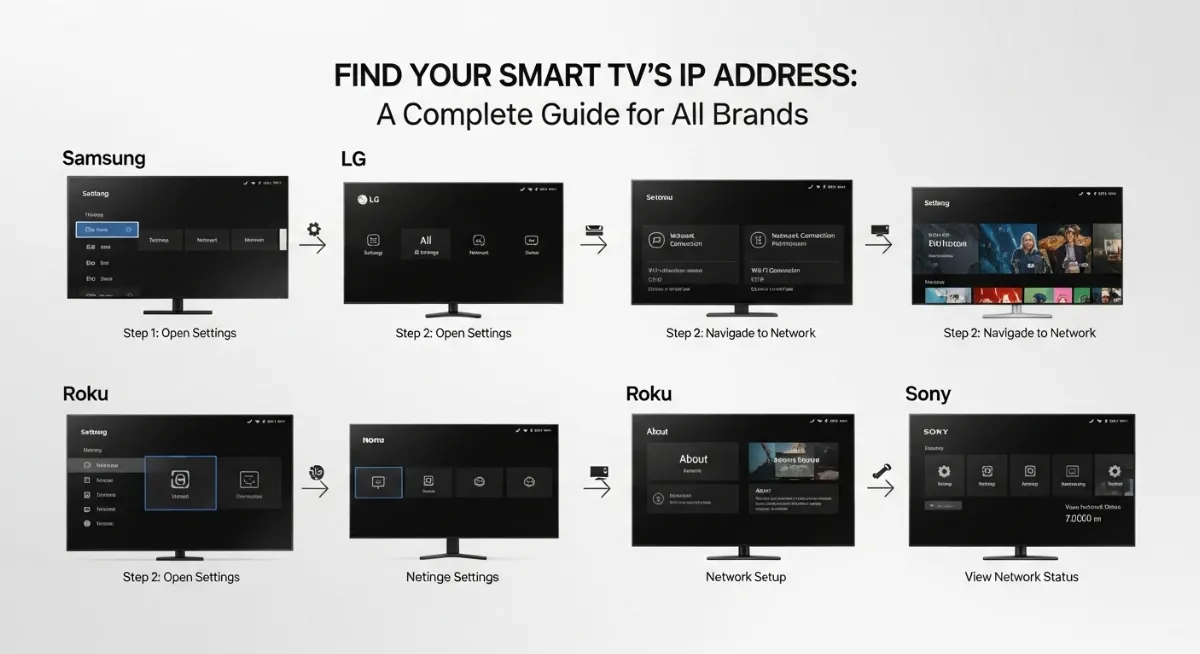
To find your smart TV IP address, use one of five methods: (1) Check TV settings: Navigate to Settings → Network → Network Status (Samsung/LG) or Settings → Network → About (Roku). (2) Check router's connected devices: Login to router admin panel (usually 192.168.1.1), view DHCP client list or connected devices page. (3) Use network scanner apps: Install Fing (Android/iOS), scan network, identify TV by name or MAC address. (4) Without remote: Use phone as remote via brand app (SmartThings, LG ThinQ, Roku app) or access router method. (5) Secret menus: Roku TV—press Home 5× then Fast Forward 3× for diagnostic menu showing IP. For Samsung: Settings → General → Network → Network Status → IP Settings. For LG: Settings → Network → Wi-Fi Connection → Advanced Wi-Fi Settings. For Roku: Settings → Network → About. Most TVs display IP address under Network Status, Network Information, or About sections in settings menu. If TV shows 0.0.0.0, check WiFi connection first—no network means no IP assignment.
1. Why You Need to Know Your Smart TV IP Address
Before diving into methods, understanding why you need your smart TV's IP address clarifies which approach works best for your specific situation. Different use cases require different levels of IP stability and accessibility.
The most common reason involves screen casting or screen mirroring from phones, tablets, or computers. Cast apps need the exact IP address to establish direct connections between devices. Remote control apps that turn smartphones into TV remotes also require IP addresses for initial setup and reconnection after network changes.
Advanced users need TV IP addresses for Plex media server configurations, IPTV service setup, network troubleshooting when connectivity fails, assigning static IP addresses to prevent DHCP reassignments breaking configurations, and accessing TV web interfaces for advanced settings some models offer. Check your current IP address format with our IP lookup tool.
| Use Case | Why IP Needed | IP Type Required |
|---|---|---|
| Screen Casting | Casting apps need TV's local IP address for direct connection | Dynamic OK |
| Remote Control Apps | Phone apps replacing remote require TV IP for initial pairing | Dynamic OK |
| Plex/IPTV Setup | Media servers need consistent IP for reliable streaming | Static Preferred |
| Network Troubleshooting | Ping tests and connectivity diagnosis require knowing exact IP | Dynamic OK |
| Port Forwarding | Router needs TV's IP to forward specific ports for services | Static REQUIRED |
Most casual users only need the current IP address temporarily for one-time setup tasks. Advanced configurations requiring permanent IP references demand converting from DHCP-assigned dynamic IPs to manually configured static IP addresses—a process covered later in this guide.
2. Method 1: Find IP Address in Smart TV Settings Menu
The most direct method to find your smart TV IP address involves navigating your TV's built-in settings menu to view network status information. Every connected smart TV displays its IP address somewhere in network settings—though manufacturers hide it in wildly different menu structures.
This method works perfectly when you have your remote, your TV's menus respond normally, and you don't mind clicking through multiple settings screens. The advantage: you're accessing information directly from the TV without needing external tools or devices. The disadvantage: menu navigation differs dramatically between brands, making universal instructions impossible.
Brand-Specific Instructions for Finding IP Address
Samsung Smart TV IP Address Location
- 1. Press Menu or Home button on remote to open main menu
- 2. Navigate to Settings (gear icon) → General or Network depending on model year
- 3. Select Network → Network Status or Network Settings
- 4. Click IP Settings or scroll down to view IP address, subnet mask, default gateway, and DNS server
- 5. Alternative path (newer models): Settings → General → Network → Network Status → View Network (shows full details including IP)
Note: Use SmartThings app as alternative—it displays connected Samsung TV IP addresses automatically without menu navigation.
LG Smart TV IP Address Location
- 1. Press Settings button (gear icon) on LG Magic Remote
- 2. Scroll to Network section at bottom of settings menu
- 3. Select Wi-Fi Connection or Wired Connection (Ethernet) depending on your connection type
- 4. Click Advanced Wi-Fi Settings → Edit or View button
- 5. IP information displays showing IP address, subnet mask, gateway, and DNS
Note: LG ThinQ app shows TV IP automatically. Download from app store and connect to same WiFi network as TV.
Roku TV IP Address Location
- 1. Press Home button on Roku remote to access main screen
- 2. Scroll down and select Settings from menu
- 3. Choose Network → About
-
4.
- ★ SECRET METHOD: Press Home 5 times, Fast Forward 3 times—opens hidden diagnostic menu showing IP instantly. Learn more in our Roku IP guide.
Note: Roku mobile app displays IP address in device settings automatically.
Sony Smart TV / Android TV IP Address
- 1. Press Home button → select Settings (gear icon bottom right)
- 2. Navigate to Network & Internet or Network Settings
- 3. Select your active connection (Wi-Fi or Ethernet)
- 4. Choose Advanced Settings or Status → IP Settings
- 5. IP address shown in network details along with gateway and DNS
Note: Older Sony Bravia models: Home → Settings → Network → Network Setup → View Network Status.
Vizio, TCL, Hisense & Other Brands
- → Vizio SmartCast: Menu → Network → Manual Setup → Static IP (shows current IP even if using DHCP). Or use Vizio SmartCast app showing TV IP in device info.
- → TCL Roku TV: Follow Roku instructions above (Settings → Network → About). TCL with Android TV follows Sony/Android TV steps.
- → Hisense: Settings → Network → Network Status or Advanced Settings → IP Configuration.
- → Philips: Home → Setup → Network Settings → View Network Settings → IP Configuration.
- → Toshiba: Menu → Network → Advanced Settings → Network Information shows IP details.
Menu navigation methods work reliably when you have full TV control but become impossible without a working remote or when settings menus malfunction. For those situations, router-based and app-based methods provide alternatives that bypass TV menus entirely.
3. Method 2: Check Router's Connected Devices List
Your router maintains a comprehensive list of every device connected to your network, including IP addresses, MAC addresses, and device names. Accessing the router admin panel provides a universal method to find your smart TV IP address that works regardless of TV brand, lost remotes, or menu accessibility.
This method proves especially valuable when troubleshooting network issues, verifying TV connectivity, or needing IPs for multiple devices simultaneously. The router's DHCP server assigns IP addresses to all connected devices—viewing this assignment list shows every active device including your TV.
Most modern routers display friendly device names ("Samsung TV Living Room"), making identification easy. Older routers might only show MAC addresses or generic manufacturer names, requiring you to identify your TV by process of elimination or cross-referencing known device IPs.
Step-by-Step Router Method
Complete Router Access Guide
Step 1 - Find Router IP: Your router admin page typically lives at 192.168.1.1, 192.168.0.1, or 10.0.0.1. Check router label or manual. On Windows: open Command Prompt, type "ipconfig", note "Default Gateway" IP.
Step 2 - Login to Router: Open browser, enter router IP in address bar. Login with admin credentials (check router label or manual—common defaults: admin/admin, admin/password). Change default password if you haven't for security.
Step 3 - Find Device List: Look for sections named "Connected Devices", "DHCP Client List", "Device List", "Attached Devices", or "LAN Status". Location varies by router brand (Netgear, TP-Link, Asus, Linksys all differ).
Step 4 - Identify Your TV: Scan list for entries showing your TV brand (Samsung, LG, Roku, etc.) or recognizable device names. Note the IP address next to your TV entry.
Step 5 - Verify (Optional): Check if the found IP matches your TV by pinging it or entering IP in browser (some TVs have web interfaces).
Router Brand-Specific Locations
Netgear: Advanced → Attached Devices (shows IP, name, connection type)
TP-Link: Advanced → DHCP → DHCP Clients List or Status → Wireless Statistics
Asus: Network Map → Clients or General → Network Map → View List
Linksys: Status → Local Network → DHCP Clients Table or Smart Wi-Fi → Network Map
Google Nest WiFi: Open Google Home app → WiFi → Devices → Shows all connected devices with IPs
Ubiquiti UniFi: UniFi Controller → Clients → Shows comprehensive device list with IPs and traffic stats
The router method works even when TV menus are completely inaccessible, making it ideal for troubleshooting network configuration problems. Once you identify the TV's current IP, you can also configure DHCP reservations ensuring the TV always receives the same IP automatically.
If you can't identify which device is your TV in the router list, disconnect the TV from WiFi temporarily, refresh the router's device list to see which entry disappears, then reconnect the TV to confirm which device returns—that's your TV with its IP address displayed.
4. Method 3: Use Network Scanner Apps to Find TV IP
Network scanner apps provide the fastest, easiest method to find smart TV IP addresses without touching the TV or logging into routers. These tools scan your entire local network, identifying every connected device, their IP addresses, MAC addresses, manufacturers, and often device types.
The most popular network discovery tool is Fing (free for Android and iOS). Fing scans networks in seconds, automatically identifying device manufacturers from MAC addresses, and even recognizes specific smart TV models. Other excellent options include Angry IP Scanner (desktop), Network Analyzer, and brand-specific companion apps.
This method excels when you need IPs for multiple devices, want quick verification without menu diving, or troubleshoot network connectivity across your entire smart home. The apps work from your phone or computer—no TV interaction required.
| App Name | Platform | Best Feature |
|---|---|---|
| Fing | Android, iOS | Auto-identifies TV models |
| Angry IP Scanner | Windows, Mac, Linux | Fast bulk scanning |
| Network Analyzer | Android, iOS | Detailed port scanning |
| SmartThings | Android, iOS (Samsung TVs) | Direct Samsung TV control |
| LG ThinQ | Android, iOS (LG TVs) | Shows LG TV IP automatically |
| Roku App | Android, iOS (Roku TVs) | Roku device details + control |
How to Use Fing to Find Your TV IP Address
Complete Fing Setup Guide
- Download Fing: Install from Google Play Store (Android) or Apple App Store (iOS). Free version includes all features needed for IP scanning.
- Connect to Same Network: Ensure your phone connects to the same WiFi network as your smart TV. Fing only scans the local network you're connected to.
- Run Network Scan: Open Fing, tap "Scan" or "Refresh" button. App scans entire network in 10-30 seconds discovering all connected devices.
- Identify Your TV: Scroll through device list looking for your TV brand (Samsung, LG, Roku, Sony, etc.). Fing shows manufacturer, device name, IP address, and MAC address for each found device.
- View Details: Tap your TV entry to see complete information including exact IP address, subnet mask, first seen date, and sometimes open ports.
- Save for Reference: Tap device name to add custom label ("Living Room TV") making future identification easier.
Network scanner apps work brilliantly for quick IP discovery but require your phone and TV connecting to the same network. They won't help if your TV can't connect to WiFi or your network has client isolation enabled (blocking devices from seeing each other—common on guest networks).
5. Method 4: Find Smart TV IP Address Without Remote
Lost your remote or dealing with broken buttons? Finding your smart TV IP address without remote control seems impossible at first, but multiple workarounds exist that bypass the need for physical remote access entirely.
The router method (Method 2) and network scanner apps (Method 3) already work without touching the TV. Beyond those, most modern smart TVs support smartphone apps functioning as virtual remotes—these apps often display the TV's IP address in device information screens automatically.
Physical on-screen buttons on the TV itself provide another option. Most TVs include power buttons plus basic navigation controls (up/down, select) allowing limited menu access without remotes. The process is tedious but works when other methods fail.
No-Remote Solutions Ranked by Ease
Use Router's Device List (Easiest)
Login to router admin panel, view connected devices, identify TV by name or MAC address. Works 100% of time, requires zero TV interaction.
Use Fing Network Scanner (Very Easy)
Install Fing app on phone, scan network, view all device IPs including TV. Takes 30 seconds, no configuration needed.
Use Brand's Mobile App (Easy)
SmartThings (Samsung), LG ThinQ (LG), Roku app shows TV IP in device settings. Requires initial pairing but many users already have apps installed.
Use TV's Physical Buttons (Tedious)
Navigate settings menu using on-screen buttons (usually on TV side or back). Slow but works when nothing else available.
If your TV completely refuses to connect to WiFi (preventing router and scanner methods) and lacks physical menu buttons, your only option involves buying a universal remote or using HDMI-CEC control from another connected device (gaming console, streaming stick) to access TV settings.
6. Troubleshooting Common IP Address Finding Issues
Even following correct procedures, you might encounter frustrating obstacles preventing easy IP address discovery. Understanding common problems and their solutions saves hours of troubleshooting attempts.
The most frequent issue: TVs displaying 0.0.0.0 as the IP address or showing "Not Connected" in network status. This indicates the TV isn't successfully connected to your network—no connection means no DHCP assignment, thus no valid IP. Fix the WiFi connection first, then find the IP.
| Problem | Cause | Solution |
|---|---|---|
| TV Shows 0.0.0.0 | TV not connected to network or DHCP failed | Reconnect WiFi, restart TV and router, check WiFi password |
| TV Not in Router List | TV using 5GHz when you checked 2.4GHz list (or vice versa) | Check both WiFi bands, refresh router device list, verify TV actually connected |
| Can't Access Settings | Remote broken, menu unresponsive, system crash | Use router method, network scanner, or physical TV buttons |
| Multiple Unknown Devices | Router shows many devices, can't identify which is TV | Disconnect TV, refresh list, reconnect TV, see which device appears |
| IP Changes Constantly | DHCP assigns new IP each connection (normal for dynamic IP) | Set static IP in TV settings or configure DHCP reservation in router |
For persistent connectivity issues where the TV absolutely won't show an IP or connect to networks, factory reset the TV's network settings (not full factory reset—just network). This clears corrupted WiFi configurations causing connection failures.
7. Static IP vs Dynamic IP: When to Use Each
Understanding static IP addresses versus dynamic IP addresses helps you decide whether accepting your TV's automatically assigned IP suffices or if you need permanent IP configuration.
Dynamic IPs come from your router's DHCP server, automatically assigning available addresses to devices when they connect. This works perfectly for casual use—casting, remote apps, basic streaming. The IP might change when the TV reboots, the router restarts, or the DHCP lease expires.
Static IPs are manually configured addresses that never change. Set a static IP when configurations depend on consistent addressing: port forwarding rules for remote access, Plex servers pointing to specific addresses, network monitoring systems tracking devices by IP, or any setup where IP changes break functionality.
How to Set Static IP on Smart TV
Method 1: Configure in TV Settings
Navigate to TV's network settings → IP Settings → Change from "Automatic (DHCP)" to "Manual".
Enter: IP address (choose one outside DHCP range, e.g., 192.168.1.200), Subnet mask (usually 255.255.255.0), Default gateway (router IP, e.g., 192.168.1.1), DNS server (use router IP or public DNS like 8.8.8.8).
Method 2: DHCP Reservation (Better)
Login to router → DHCP settings → Add reservation → Enter TV's MAC address → Assign specific IP.
TV still uses DHCP but always receives the same IP automatically. Easier to manage, works better with network changes.
For most users, dynamic IPs work fine—modern routers rarely reassign addresses unexpectedly. Only configure static IPs when dynamic addressing actively breaks your setup or you're running advanced network services requiring permanent addresses.
Conclusion: Multiple Paths to Find Your Smart TV IP Address
Understanding how to find IP address of smart TV across different brands and scenarios ensures you never get stuck unable to configure network-dependent features. The five methods covered—TV settings menus, router device lists, network scanner apps, no-remote solutions, and secret menu shortcuts—provide redundant approaches that work regardless of specific obstacles.
Samsung, LG, Roku, Sony, Vizio, TCL, and other manufacturers each implement network status displays differently, but every connected smart TV reveals its IP address somewhere in network settings. When menu navigation fails or remotes go missing, router-based discovery and network scanner apps like Fing provide universal alternatives requiring zero TV interaction.
The method you choose depends on your specific situation: use TV menus for direct access when you have working remotes, check router admin panels for remote-less discovery or multi-device IP finding, install Fing for quick mobile-based scanning, leverage brand companion apps (SmartThings, LG ThinQ, Roku) for integrated solutions, or employ secret menu tricks for instant access on compatible models.
Understanding static versus dynamic IP addresses prevents configuration issues when IPs change unexpectedly. Most casual uses tolerate dynamic IPs perfectly, while advanced setups requiring port forwarding, media servers, or permanent device references demand static IP configuration or DHCP reservations.
Whether you need your TV's IP address for casting, remote apps, Plex setup, network troubleshooting, or any other purpose, these comprehensive methods ensure success regardless of TV brand, remote availability, or menu accessibility. Verify your TV's network configuration with our IP address tools and use our DNS lookup service to diagnose connectivity issues when IPs don't resolve correctly.
Check Your Network Configuration!
Verify your IP address, test DNS resolution, and scan for network connectivity issues with our professional network diagnostic tools.