Whether you are navigating the streets of Chicago or the digital corridors of a secure global network, your Android device is constantly broadcasting your location. If you’ve been hit with an unfair IP ban in a game or find yourself geo-blocked from a USA-exclusive streaming service, the fix is in your settings. Mastering how to change your IP address on Android is the first step toward reclaiming your digital freedom in 2026.
"In my years of auditing mobile kernel security, I’ve found that Android 15 and 16 handle DHCP handshakes far more strictly than older versions. If you are trying to hide from a website, a simple Wi-Fi restart won't cut it—you need to understand how to manipulate your Carrier-Grade NAT (CGNAT) or use a dedicated VPN tunnel to mask your external identity."
1. Android IP Architecture: Public vs. Local Addresses
To change your identity successfully, you must first understand that your Android phone holds two different addresses at the same time. If you change the wrong one, your network access control issues will remain.
Public IP (WAN)
Assigned by your cellular carrier (e.g., Verizon, T-Mobile). This is your global face. You change this to bypass geo-blocks or hide your city location from websites.
Local IP (LAN)
Assigned by your router. This identifies your cell phone inside your home network. You change this to fix internal IP conflict errors.
Step 0: Identity Check. Use our Android IP Lookup Tool to see exactly what location and ISP your device is currently reporting to the world.
2. Method 1: The Airplane Mode Hack (Cellular Data Only)
If you are using 5G or LTE data, you can change your public IP in seconds without any apps. This method relies on forcing a new DHCP allocation from your carrier's massive IP pool.
The Logic
By toggling Airplane Mode, you kill the connection to the cell tower. When you reconnect, the tower views you as a "new" request and assigns a fresh address from its Carrier-Grade NAT pool.
The Process
1. Swipe down the notification shade.
2. Tap Airplane Mode ON.
3. Wait exactly 60 seconds.
4. Tap Airplane Mode OFF and check your new IP.
3. Method 2: Manual Static IP Configuration (Wi-Fi Only)
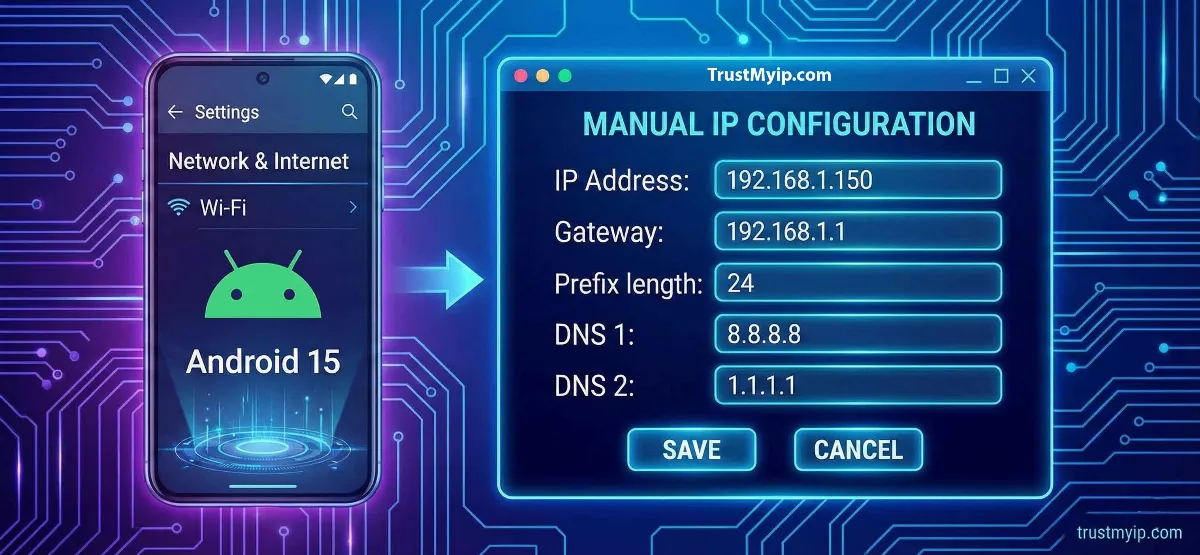
If your Android device is constantly dropping its connection or you need to perform Port Forwarding, you must shift from "Dynamic" to "Static" IP assignment.
Step-by-Step for Android 15/16:
- 01 Go to Settings > Network & Internet > Internet.
- 02 Tap the Gear Icon next to your Wi-Fi name and tap the Pencil (Edit) icon.
- 03 Open Advanced Options and find IP Settings.
- 04 Switch from DHCP to Static. Enter your desired IP address (e.g., 192.168.1.50) and tap Save.
4. Method 3: VPN Tunnels & Proxies (Maximum Stealth)
For users in the USA and worldwide looking to hide their public data from ISPs or bypass geo-blocks, a VPN tunnel is the only professional solution.
VPN Encryption
Encrypted all traffic. Even if a website tries to see your real Public IP, they will only see the VPN server's location. Best for banking and privacy.
HTTP/SOCKS5 Proxies
Only masks your browser traffic. It’s faster but offers zero corporate security or encryption for your Android apps.
Want to verify if your VPN is leaking? Run our Proxy Leak Test to ensure your real identity is hidden.
5. MAC Randomization: The Android Privacy Secret
Starting with Android 10, Google introduced "Privacy MAC" as a default setting. Understanding the difference between MAC address and IP address is vital for mobile troubleshooting.
| Feature | Layer | What it Masks |
|---|---|---|
| MAC Randomization | Layer 2 (Data Link) | Hides your physical hardware address from store Wi-Fi and advertisers. |
| IP Address Change | Layer 3 (Network) | Hides your logical location and ISP details from the global internet. |
For a forensic deep-dive, read our MAC vs IP Ultimate Guide.
6. Why won't my Android IP Address change?
If you've tried the hacks above but your location remains stuck, you are likely hitting these technical constraints common in the USA mobile market:
- DNS Caching: Your Android phone might be "remembering" your old location via DNS Resolution. Clear your browser cache or perform a full reboot.
- IPv6 Leaks: You might change your IPv4, but your carrier is still leaking your IPv6 address. Check your settings to disable IPv6 if privacy is your #1 goal.
- Static ISP Allocation: Some fiber-to-the-home ISPs assign Static assignment by default. In this case, no amount of router restarts will help—you must use a VPN.
Android Networking FAQ
Will Airplane mode change my Wi-Fi IP?
No. Airplane mode only affects your cellular public IP. To change your Wi-Fi IP, you must either restart your router or modify the Wi-Fi settings manually.
Does changing IP improve gaming ping?
Sometimes. If your carrier’s Routing is poor, switching to a high-speed VPN or getting a new DHCP allocation can lower your latency significantly.
Is it safe to change my IP manually?
Yes, but if you enter a Static IP that is already in use by another device in your house, you will create an IP conflict and lose internet access until fixed.
Conclusion: Secure Your Android Edge
Knowing how to change your IP address on Android is more than just a troubleshooting step—it is a mandatory part of mobile hygiene in 2026. From utilizing the Airplane mode hack for a cellular refresh to configuring a Static assignment for internal stability, you now have the tools to control your digital identity. As Android continues to evolve its corporate security features, staying informed will keep you ahead of trackers and connectivity hurdles alike.
Is Your Android Leaking?
Even with a new IP, your Android phone might still be leaking its identity through DNS or proxy settings. Use our forensic toolkit to audit your digital footprint in one click.