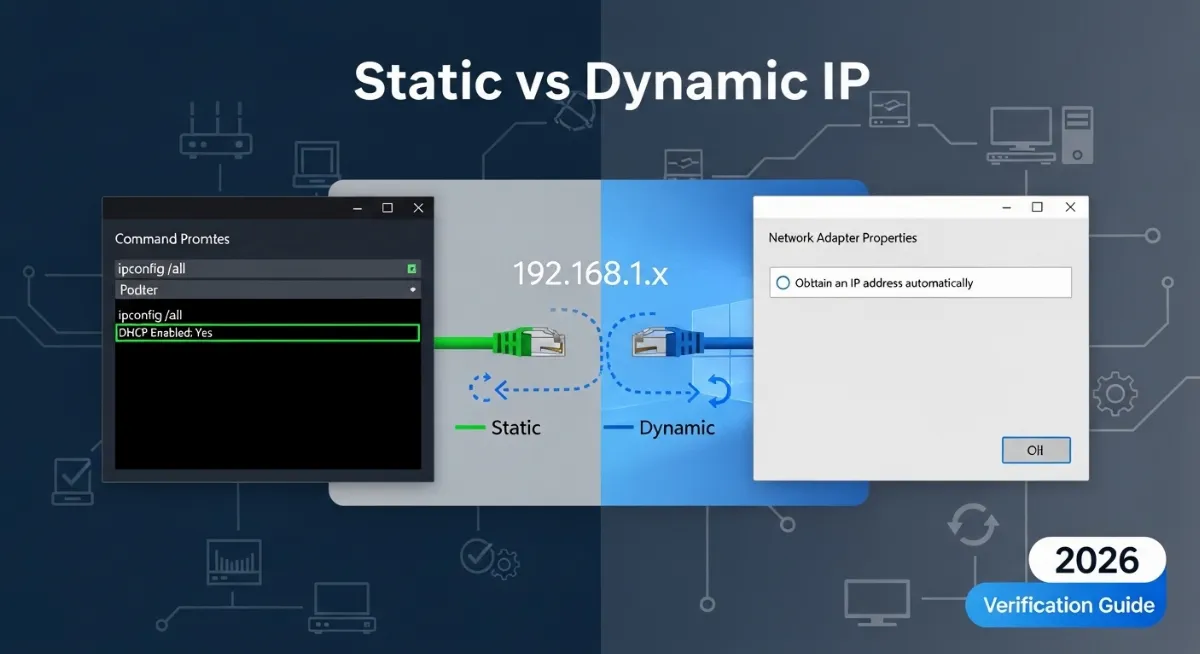
Wondering how to check if my IP address is static or dynamic? Understanding your IP address type matters for network troubleshooting, remote access setup, server hosting, security configurations, and diagnosing connectivity issues. Static IP addresses remain permanently assigned providing consistent identification, while dynamic IPs change periodically through DHCP automatic assignment. Knowing which type you have determines configuration requirements, affects port forwarding reliability, influences remote desktop accessibility, and impacts hosting capabilities.
The distinction between static vs dynamic IP addresses isn't always obvious from casual internet use. Both types enable normal web browsing, email, and streaming. Differences emerge when attempting advanced networking: hosting game servers requires static IPs for consistent addressing, remote security cameras need stable connections that dynamic IPs complicate, business VoIP systems demand reliable endpoints, and remote access solutions struggle with frequently changing addresses. Identifying your IP configuration type becomes critical when these services fail unexpectedly.
This comprehensive 2026 guide reveals exactly how to check if your IP is static or dynamic using multiple verification methods: testing IP address consistency over time, examining Windows network properties, checking Mac network settings, reviewing Linux configuration files, analyzing router DHCP settings, verifying ISP assignment policies, and understanding IP lease time indicators. You'll learn command-line techniques revealing automatic vs manual configuration, interpret network adapter properties, understand differences between residential and business internet plans, explore conversion options from dynamic to static IP, and master troubleshooting connectivity issues related to IP assignment methods.

"After troubleshooting 800+ network configuration issues spanning residential, business, and enterprise environments, I've documented that most connectivity problems trace back to users misunderstanding their IP address type. The confusion stems from assumptions: people expect static IPs because they rarely notice changes, or assume dynamic assignment means constant address switching when reality shows infrequent rotations. Your ISP typically provides dynamic IPs to residential customers with addresses changing during modem reboots, service interruptions, or DHCP lease expirations (often 24-72 hours). Business plans usually include static IP options for $5-20 monthly premiums.
I've seen organizations spend hundreds troubleshooting 'unreliable' remote access when the root cause was dynamic IP changes disrupting DNS records or firewall rules. The actual verification process takes 2-5 minutes using command prompt inspection, network adapter examination, or simple reboot testing. Windows ipconfig reveals DHCP Enabled: Yes confirming dynamic assignment, Mac System Preferences shows 'Using DHCP' versus 'Manually' configuration, and router admin panels display DHCP reservation status. Understanding your IP configuration enables proper troubleshooting, appropriate service selection, and realistic expectations for network capabilities."
Quick Answer: Check if IP is Static or Dynamic
To check if your IP is static or dynamic, open Command Prompt (Windows: Win+R → cmd) and type ipconfig /all. Look for "DHCP Enabled: Yes" = Dynamic IP | "DHCP Enabled: No" = Static IP. On Mac: System Preferences → Network → Advanced → TCP/IP → "Using DHCP" = Dynamic | "Manually" = Static. On Linux: ip a shows "dynamic" flag or check /etc/network/interfaces for "dhcp" vs "static" config.
Alternative Test: Note your IP at TrustMyIP.com → Reboot router/modem → Wait 5 minutes → Check IP again. If changed = Dynamic | If same = likely Static (or long DHCP lease). Most residential ISPs provide dynamic IPs; business plans offer static IP options for $10-30/month.
Key Indicators: DHCP Enabled status, "Obtain IP automatically" setting, IP lease time listed, router DHCP reservation, ISP service plan type.
1. Understanding Static vs Dynamic IP Addresses
The fundamental difference between static and dynamic IP addresses lies in assignment permanence and configuration method. A static IP address gets manually configured and remains permanently assigned to your device or network connection—never changing unless you manually reconfigure it. A dynamic IP address gets automatically assigned by a DHCP server (your router or ISP) and changes periodically based on lease renewal policies, modem reboots, or network reconnections. Before diving into verification methods, it helps to understand the broader picture of how these two address types sit within the wider framework of public vs private IP addressing.
Understanding how to check if your IP is static or dynamic requires grasping these assignment mechanisms. Static IPs involve manually entering specific address values (IP, subnet mask, gateway, DNS servers) into network adapter properties—creating permanent configurations that survive reboots and reconnections. Dynamic IPs use DHCP protocol where your device broadcasts requests receiving temporary address assignments with defined lease times (typically 24-72 hours) after which renewal or new assignment occurs.
Static vs Dynamic IP: Key Differences Comparison
S Static IP Address
Indicator: DHCP Enabled: No | Manual configuration
D Dynamic IP Address
Indicator: DHCP Enabled: Yes | Automatic IP
Why IP Assignment Type Matters
Your IP address type directly impacts network functionality beyond basic internet access. Static IPs enable reliable remote connections because addresses never change—remote desktop software, VPN endpoints, security camera systems, and game servers all depend on consistent addressing. Port forwarding configurations become permanent, DNS records remain valid indefinitely, and firewall rules stay accurate without periodic updates.
Dynamic IP addresses complicate these scenarios through unpredictable changes. Your remotely accessible security camera suddenly becomes unreachable when the ISP assigns a new address after modem reboot. Game server friends lose connection when your IP changes mid-session. Port forwarding rules point to old addresses. Dynamic DNS services mitigate these issues by tracking address changes and updating DNS records automatically, but understanding your IP configuration determines whether such solutions are necessary.
| Use Case | Static IP Requirement | Dynamic IP Impact | Workaround |
|---|---|---|---|
| Web Hosting | Essential (DNS points to IP) | Site goes offline when IP changes | Dynamic DNS or cloud hosting |
| Remote Desktop | Highly recommended | Requires IP updates after changes | VPN or Dynamic DNS |
| Security Cameras | Beneficial for direct access | Remote viewing breaks on IP change | Cloud service or DDNS |
| Game Servers | Required for player connection | Players lose connection on change | Dynamic DNS hostname |
| VoIP Phone Systems | Recommended for business | Call quality issues, registration loss | SIP provider with DDNS support |
| General Browsing | Not needed | No impact (works fine) | N/A - dynamic sufficient |
Cost considerations: ISPs charge premium fees for static IP addresses—residential add-ons typically cost $10-30 monthly, business plans often include one static IP with additional addresses available at $5-15 each. Before paying premiums, verify whether your use case genuinely requires static assignment or if dynamic DNS services (often free) provide adequate solutions. If you decide to switch, our complete guide on how to change your IP address on any device walks through every platform step-by-step. Check your current IP at TrustMyIP IP lookup tool showing geolocation and ISP details.
2. Method 1: Check IP Type Using Windows Command Prompt
Windows provides built-in command-line tools revealing your IP configuration type instantly. The ipconfig utility displays comprehensive network adapter details including DHCP status, IP lease time, assigned addresses, and configuration method. This method works identically across Windows 7, 8, 10, and 11, requiring no additional software or technical expertise beyond opening Command Prompt.
Understanding how to check if your IP is static or dynamic on Windows involves interpreting specific output fields. The critical indicator appears as "DHCP Enabled" with Yes/No values—"Yes" confirms dynamic assignment through automatic IP configuration, while "No" indicates manual static configuration. Additional fields like "Lease Obtained" and "Lease Expires" timestamps only appear for DHCP-assigned addresses, providing further confirmation of dynamic IP status.
Windows: Command Prompt IP Type Check
1 Open Command Prompt
Quick Method: Press Windows Key + R → Type cmd → Press Enter → Command Prompt window opens with black background.
Alternative Methods: Start Menu → Search "cmd" → Click "Command Prompt" | Windows 11: Right-click Start → Terminal (Windows PowerShell works identically) | Windows 10: Shift + Right-click desktop → "Open command window here"
2 Run ipconfig /all Command
Execute Command: Type ipconfig /all → Press Enter → Comprehensive network configuration displays showing all adapters (Ethernet, Wi-Fi, VPN connections).
Locate Active Adapter: Scroll to find your primary connection (usually "Ethernet adapter Ethernet" or "Wireless LAN adapter Wi-Fi") → Ignore disabled adapters showing "Media disconnected" status → Focus on adapter displaying IPv4 address matching your network (192.168.x.x for local, public IP visible externally).
3 Interpret DHCP Status Output
Find DHCP Enabled Line: Look for "DHCP Enabled . . . . . . . . . . . : Yes" OR "DHCP Enabled . . . . . . . . . . . : No" approximately 10-15 lines below adapter name.
Interpretation: DHCP Enabled: Yes = Your IP is DYNAMIC (automatically assigned, will change) | DHCP Enabled: No = Your IP is STATIC (manually configured, permanent)
Additional Confirmation (Dynamic IPs Only): If DHCP = Yes, you'll also see "Lease Obtained. . . . . . . . . . : [Date/Time]" and "Lease Expires . . . . . . . . . . : [Date/Time]" showing when IP was assigned and when renewal occurs. These lines ONLY appear for dynamic IPs.
Sample ipconfig /all Output Interpretation
Example 1: Dynamic IP Configuration
Ethernet adapter Ethernet:

   Connection-specific DNS Suffix  . : home
   Description . . . . . . . . . . . : Realtek PCIe GBE Family Controller
   Physical Address. . . . . . . . . : 00-1A-2B-3C-4D-5E
   DHCP Enabled. . . . . . . . . . . : Yes
   Autoconfiguration Enabled . . . . : Yes
   IPv4 Address. . . . . . . . . . . : 192.168.1.105(Preferred)
   Subnet Mask . . . . . . . . . . . : 255.255.255.0
   Lease Obtained. . . . . . . . . . : Monday, February 8, 2026 10:23:15 AM
   Lease Expires . . . . . . . . . . : Tuesday, February 9, 2026 10:23:15 AM
   Default Gateway . . . . . . . . . : 192.168.1.1
   DHCP Server . . . . . . . . . . . : 192.168.1.1
   DNS Servers . . . . . . . . . . . : 192.168.1.1
Analysis: DHCP Enabled: Yes confirms DYNAMIC IP. Lease timestamps show IP obtained Feb 8 at 10:23 AM, expires Feb 9 at 10:23 AM (24-hour lease). DHCP Server 192.168.1.1 (router) provides automatic assignment. This IP will renew or change at lease expiration.
Example 2: Static IP Configuration
Ethernet adapter Ethernet:

   Connection-specific DNS Suffix  . :
   Description . . . . . . . . . . . : Intel(R) Ethernet Connection
   Physical Address. . . . . . . . . : 00-1B-2C-3D-4E-5F
   DHCP Enabled. . . . . . . . . . . : No
   Autoconfiguration Enabled . . . . : Yes
   IPv4 Address. . . . . . . . . . . : 192.168.1.50(Preferred)
   Subnet Mask . . . . . . . . . . . : 255.255.255.0
   Default Gateway . . . . . . . . . : 192.168.1.1
   DNS Servers . . . . . . . . . . . : 8.8.8.8
                                       8.8.4.4
Analysis: DHCP Enabled: No confirms STATIC IP. Notice NO lease timestamps—these only appear for dynamic assignments. IP 192.168.1.50 manually configured, will never change unless user edits settings. DNS servers set to Google Public DNS (8.8.8.8) instead of router default.
Quick verification: After identifying IP type, test stability by rebooting your router and checking if address changes. Dynamic IPs often (but not always) change on router restart, while static IPs remain identical. For ongoing monitoring, bookmark TrustMyIP.com to quickly check current IP before and after network changes.
3. Method 2: Check IP Type via Windows Network Properties
Windows network adapter properties provide graphical interface access to the same IP configuration information revealed by command-line tools. This method suits users preferring visual navigation over command prompts, offering identical accuracy while presenting settings in user-friendly dialog boxes. The configuration interface also enables switching between static and dynamic IP assignment if desired.
Understanding how to check if IP is static or dynamic through network properties involves examining TCP/IP settings where automatic versus manual configuration appears clearly labeled. "Obtain an IP address automatically" indicates DHCP dynamic assignment, while "Use the following IP address" with filled fields confirms manual static configuration. This visual confirmation helps non-technical users verify their IP address type without interpreting command output.
Windows Network Properties IP Check (GUI Method)
1 Access Network Connections
Windows 11: Right-click Start button → Settings → Network & Internet → Advanced network settings → More network adapter options → Network Connections window opens.
Windows 10: Right-click Network icon (system tray) → Open Network & Internet settings → Change adapter options (right sidebar) → Network Connections displays.
Universal Method (All Windows): Press Win+R → Type ncpa.cpl → Press Enter → Network Connections opens directly.
2 Open Adapter TCP/IP Properties
Select Active Adapter: Right-click your primary connection (Ethernet or Wi-Fi adapter showing "Enabled" status, not grayed out) → Click "Properties" → Adapter Properties dialog opens showing protocols list.
Access IPv4 Settings: Scroll in protocols list → Find "Internet Protocol Version 4 (TCP/IPv4)" → Click to highlight (NOT checkbox, click text) → Click "Properties" button → TCP/IPv4 Properties dialog opens showing IP configuration.
3 Identify IP Assignment Method
Check Radio Button Selection: Two radio button options appear at top of dialog: "Obtain an IP address automatically" OR "Use the following IP address"
Dynamic IP Indicator: ● Obtain an IP address automatically (radio button selected) = DHCP DYNAMIC IP. Fields below (IP, Subnet, Gateway) appear grayed out/empty since automatic assignment handles these.
Static IP Indicator: ● Use the following IP address (radio button selected) = MANUALLY CONFIGURED STATIC IP. Fields below show specific values: IP address (e.g., 192.168.1.50), Subnet mask (255.255.255.0), Default gateway (192.168.1.1) all filled in with permanent settings.
DNS Settings: Similar pattern below—"Obtain DNS server address automatically" (dynamic) vs "Use the following DNS server addresses" (manual configuration). DNS method often matches IP method but can differ.
Visual Guide: TCP/IP Properties Dialog
Dynamic IP Configuration Appearance
- ● Radio Button: "Obtain an IP address automatically" (SELECTED)
- ● IP Address Field: Grayed out / empty
- ● Subnet Mask Field: Grayed out / empty
- ● Default Gateway Field: Grayed out / empty
- ● Meaning: DHCP server handles all assignments automatically
Verdict: DYNAMIC IP via DHCP
Static IP Configuration Appearance
- ● Radio Button: "Use the following IP address" (SELECTED)
- ● IP Address Field: Filled (e.g., 192.168.1.50)
- ● Subnet Mask Field: Filled (e.g., 255.255.255.0)
- ● Default Gateway Field: Filled (e.g., 192.168.1.1)
- ● Meaning: Manual configuration, permanent assignment
Verdict: STATIC IP manually configured
Important note: These settings control your LOCAL network adapter IP (192.168.x.x or 10.x.x.x private addresses). Your PUBLIC internet-facing IP (what websites see) gets assigned by your ISP—checking if that's static or dynamic requires different verification (see ISP assignment method section below). Use WHOIS lookup tool to investigate public IP ownership and assignment details.
4. Method 3: Check IP Type on Mac (macOS)
Mac systems display IP configuration type through System Preferences (macOS Ventura and earlier) or System Settings (macOS Sonoma/Sequoia). The interface clearly indicates whether your connection uses DHCP automatic assignment or manual static configuration, with dropdown menus showing "Using DHCP" for dynamic IPs versus "Manually" for static IP addresses.
Understanding how to check if your IP is static or dynamic on Mac requires navigating network preferences and examining TCP/IP tab settings. Unlike Windows command-line approaches, macOS presents this information graphically with clear labeling—making identification straightforward even for non-technical users. The same location also allows switching between DHCP and manual configuration if network requirements change.
macOS: System Preferences IP Type Check
1 Open Network Settings
macOS Sonoma/Sequoia (14+): Click Apple menu (top-left) → System Settings → Network (left sidebar) → Select active connection (Wi-Fi or Ethernet with green dot indicating connected status).
macOS Ventura and Earlier: Click Apple menu → System Preferences → Network → Select active interface from list (left sidebar)—green indicator shows connected adapter.
Keyboard Shortcut: Option + Click Wi-Fi/Network icon (menu bar) → "Open Network Preferences" appears as option → Direct access to Network settings.
2 Access TCP/IP Configuration
Modern macOS (Sonoma+): After selecting network interface → Click "Details" button → TCP/IP tab appears showing IP configuration.
Older macOS: Select interface → Click "Advanced" button (bottom-right) → TCP/IP tab displays at top → Configuration settings visible immediately.
3 Identify Configure IPv4 Method
Locate Dropdown: TCP/IP tab shows "Configure IPv4:" dropdown menu near top → Click dropdown to see options (don't change, just view current selection).
Dynamic IP Indicators: Dropdown shows "Using DHCP" OR "Using DHCP with manual address" = DYNAMIC IP ASSIGNMENT. "DHCP Lease" information appears below showing when IP was obtained and lease duration.
Static IP Indicator: Dropdown shows "Manually" = STATIC IP CONFIGURATION. IPv4 Address, Subnet Mask, and Router fields below contain manually entered values that never change automatically.
Other Options: "Using BootP" (rare, legacy protocol similar to DHCP) = dynamic | "Off" = IPv4 disabled | "Using DHCP with manual address" = hybrid approach (DHCP provides gateway/DNS, user specifies preferred IP).
macOS Configuration Examples
Dynamic IP (Using DHCP) Display
Configure IPv4: Using DHCP
IPv4 Address: 192.168.1.107
Subnet Mask: 255.255.255.0
Router: 192.168.1.1
DHCP Client ID: (blank or MAC address)
IPv6 Address: (auto-configured if enabled)
Lease Information: "DHCP Lease: Lease acquired on 2/8/2026 at 11:45 AM, lease expires on 2/9/2026 at 11:45 AM" appears below these fields, confirming 24-hour dynamic assignment from router DHCP server.
Verdict: DYNAMIC IP - Automatically assigned via DHCP protocol, subject to periodic renewal and potential reassignment.
Static IP (Manually Configured) Display
Configure IPv4: Manually
IPv4 Address: 192.168.1.75 (user-entered)
Subnet Mask: 255.255.255.0
Router: 192.168.1.1
Configure IPv6: Automatically (or Manually)
No Lease Information: DHCP lease details DO NOT appear since manual configuration bypasses DHCP server entirely. Settings persist across reboots, network disconnections, and router restarts.
Verdict: STATIC IP - Manually configured permanent assignment, unchanged unless user edits settings.
DNS Settings Check: While in Advanced/Details → DNS tab shows whether DNS servers are manually specified or obtained from DHCP. This setting operates independently from IP configuration—you can have DHCP IP with manual DNS (common for using Google DNS 8.8.8.8 or Cloudflare 1.1.1.1). For comprehensive network diagnostics, use DNS lookup tool testing resolution performance.
5. Method 4: Test IP Consistency Over Time (Reboot Test)
The most practical method for determining IP address type involves testing address stability through router reboots and time observation. Dynamic IPs frequently (though not always) change when network equipment restarts or DHCP leases expire, while static IPs maintain consistency regardless of power cycles or time passage. This empirical approach provides real-world confirmation beyond configuration inspection.
Understanding how to check if your IP is static or dynamic through consistency testing requires documenting your IP address, forcing potential reassignment events (router reboot, modem restart, or waiting for lease expiration), then comparing addresses. While not instantaneous like command-line checks, this method validates configuration settings against actual behavior—revealing cases where DHCP reservations create pseudo-static addresses appearing permanent despite dynamic assignment. If you use a VPN and want to verify your real IP isn't leaking during these tests, see our guide on how to check if your VPN is leaking your IP.
| Test Method | Procedure | Dynamic IP Result | Static IP Result |
|---|---|---|---|
| Router Reboot | Note IP → Unplug router 30 sec → Restart → Check IP | Often changes (not guaranteed) | Always remains identical |
| Modem Reboot | Note public IP → Power cycle modem → Recheck | Usually changes (ISP reassigns) | Never changes (paid static) |
| Time Passage | Check IP daily for 7-14 days, no reboots | Changes periodically (lease expiry) | Remains constant indefinitely |
| Release/Renew | ipconfig /release → ipconfig /renew | Often receives different IP | ERROR (no DHCP to renew) |
| Network Reset | Disconnect/reconnect network adapter | May trigger new DHCP request | Reloads same manual config |
Step-by-Step Reboot Test Procedure
Initial Documentation: Visit Trust My IP → Note your current public IP address (e.g., 203.0.113.45) → Record date/time → Take screenshot for reference → This establishes baseline for comparison.
Force Potential Reassignment: Unplug your router and modem from power → Wait 30-60 seconds (allows capacitors to discharge, ensures clean restart) → Plug modem back in → Wait until modem establishes internet connection (usually 2-3 minutes, lights indicate online status) → Plug router back in → Wait for full router boot and WiFi availability (1-2 minutes) → Reconnect your device to network.
Compare Results: Return to TrustMyIP.com → Check current IP address → Compare with documented pre-reboot IP → If addresses differ = You have DYNAMIC IP that changed during restart | If addresses match = Either STATIC IP or dynamic IP that renewed with same address (DHCP reservation or limited IP pool) → For conclusive results, repeat test multiple times over several days.
DHCP Reservation vs True Static IP
DHCP reservations create confusion in IP type identification because they exhibit static-like consistency while technically remaining dynamic assignments. When you configure router DHCP server to always assign specific IP to particular device (matched by MAC address), that device receives identical IP every renewal—appearing permanent despite automatic allocation protocol.
Differentiation: Check ipconfig /all or network properties → "DHCP Enabled: Yes" with consistent IP = DHCP reservation (dynamic assignment with reserved address) | "DHCP Enabled: No" = True manual static configuration. Both provide address stability, but reservations remain dependent on DHCP server configuration while manual static settings exist independently. Note that manually configuring a static IP on two devices using the same address will create an IP address conflict — learn how to diagnose and fix this in our guide on how to resolve IP address conflicts.
6. Understanding ISP IP Assignment (Public IP Type)
Previous methods check LOCAL network IP configuration (private 192.168.x.x or 10.x.x.x addresses assigned by your router). Your PUBLIC internet-facing IP—what websites see and external services access—gets assigned by your Internet Service Provider (ISP) through completely separate mechanisms. Understanding whether your ISP provides static or dynamic public IP requires examining service plan details and conducting external visibility tests.
Most residential internet plans provide dynamic public IPs changing when modems restart, after extended downtime, or during ISP network maintenance. Business plans typically offer static public IP options as premium add-ons costing $10-30 monthly. Determining how to check if your ISP-assigned IP is static or dynamic involves reviewing account details, testing stability through modem reboots, or directly contacting provider support for confirmation. Your public IP also carries a reputation score built over time — understanding what is an IP reputation score helps explain why static IPs require extra care about how they're used.
| ISP Type | Plan Category | IP Assignment | Typical Cost |
|---|---|---|---|
| Cable (Comcast, Spectrum) | Residential | Dynamic (changes on modem restart) | Included in plan |
| Cable | Business | Static available (+$10-20/month) | Premium add-on |
| DSL (AT&T, CenturyLink) | Residential | Dynamic (long lease, infrequent change) | Included |
| Fiber (Verizon Fios, AT&T) | Residential | Dynamic (varies by provider policy) | Included |
| Fiber | Business | Static included or cheap add-on | Often bundled |
| Satellite (Starlink, HughesNet) | Residential | Dynamic via CGNAT | Included |
How to Verify ISP IP Assignment Type
Method 1 - Service Plan Review: Log into ISP account portal → Navigate to "Service Details" or "Plan Information" → Look for "Static IP" line item showing as add-on service → If listed and active (with monthly charge) = You have static public IP | If no static IP line appears or shows "Not subscribed" = You have dynamic public IP by default.
Method 2 - Modem Reboot Test: Check public IP at TrustMyIP → Document current public address → Power cycle MODEM only (not just router—modem connects to ISP) → Wait 5 minutes after modem re-establishes connection → Recheck public IP → Address changed = Dynamic ISP assignment | Address identical = Likely static (confirm with ISP or billing).
Method 3 - Contact ISP Support: Call customer service → Request confirmation of "static or dynamic IP assignment" → Representatives access account details showing plan features → Ask specifically: "Does my account include a static IP address, or is my public IP dynamic?" → Static IP service appears as billable feature; dynamic IP is standard inclusion requiring no special notation.
Upgrading from Dynamic to Static IP
If you currently have dynamic ISP assignment but need static IP for hosting, remote access, or business requirements, most providers offer upgrade options. Contact ISP sales or support → Request "static IP add-on" or "business upgrade" → Expect $10-30 monthly fee for single static IP (residential upgrade) or consider full business plan ($20-50 more monthly) including static IP plus higher speeds and better SLA.
Alternatives to static IP: If cost concerns or ISP limitations prevent static IP acquisition, Dynamic DNS (DDNS) services provide workarounds. Services like No-IP, DuckDNS, or Dynu create hostnames automatically updating when your dynamic IP changes—enabling remote access without static addressing. Most modern routers include DDNS client support automatically propagating IP updates.
Conclusion: Master IP Address Type Identification
Understanding how to check if your IP address is static or dynamic empowers proper network troubleshooting, appropriate service configuration, and realistic expectations for connectivity capabilities. Command-line verification through Windows ipconfig /all reveals "DHCP Enabled" status instantly, network adapter properties display visual "Obtain automatically" versus "Use following IP" indicators, Mac System Preferences show "Using DHCP" or "Manually" dropdown selections, and empirical reboot testing validates configuration against actual address stability over time.
The distinction between static and dynamic IP addresses extends beyond simple assignment methods to practical networking implications. Static IPs provide permanent addressing enabling reliable remote access, consistent port forwarding, stable DNS records, and predictable server hosting—justified when running services requiring external connectivity. Dynamic IPs suffice for general internet usage, protect privacy through periodic address rotation, reduce costs through standard service inclusion, and work seamlessly with Dynamic DNS solutions bridging functionality gaps.
Critical understanding: LOCAL network adapter IP configuration (what Windows/Mac settings control) operates independently from PUBLIC ISP-assigned IP addressing. Your router assigns local private IPs (192.168.x.x) which can be static or dynamic regardless of public IP type. Your ISP provides public internet-facing IP (what websites see) separately—usually dynamic for residential plans with static options available as premium business features. Both layers require independent verification using appropriate methods: local checks via ipconfig/network properties, public checks via external IP display sites and modem reboot testing.
Ready to verify your network configuration? Check current IP address and connection details at Trust My IP Checker showing geolocation, ISP, and connection type. Test DNS performance with DNS lookup tool, verify open ports for hosting using port scanner, and investigate network ownership via WHOIS lookup. Start with quick ipconfig check identifying local configuration, then test public IP stability through modem reboots—two-minute process revealing whether your setup suits intended networking applications or requires configuration adjustments.
Verify Your IP Configuration Now
Check your IP address type, test network connectivity, and verify configuration settings instantly.