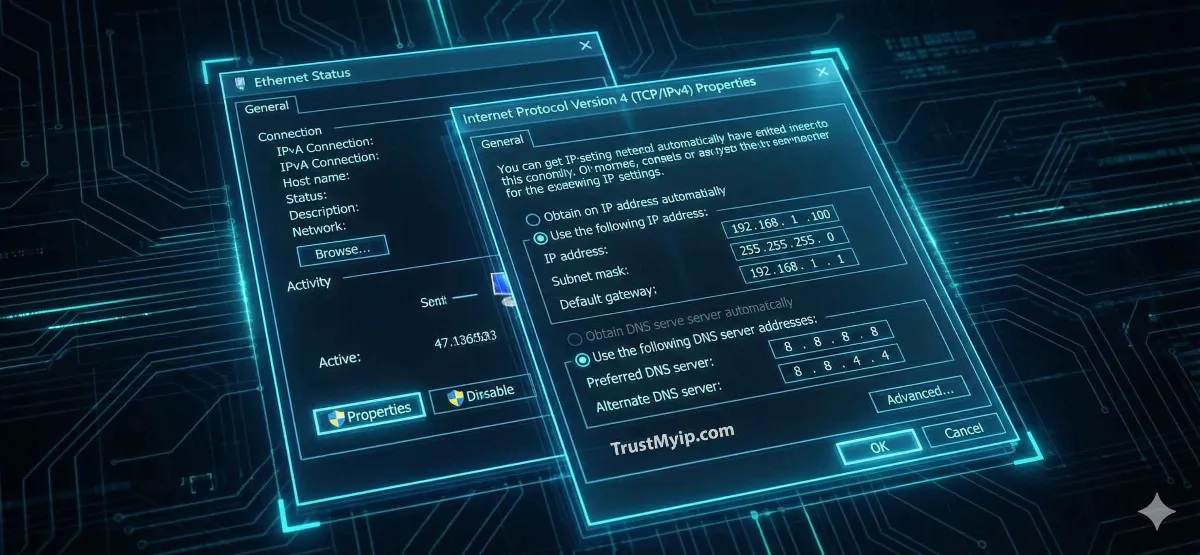
Changing your IP address on Windows means editing one of two completely different things: your private IP, assigned by your router to identify your PC on the local network, or your public IP, assigned by your ISP to identify your connection to the wider internet. Windows 11 and 10 both let you edit the private IP directly through Settings or the command line in under two minutes — the method below works whether you're fixing a "duplicate IP" conflict, setting up a static IP for a home server, forwarding a port for a game you're hosting, or troubleshooting a Hypixel connection ban.
One thing worth knowing before you start, because it changes which section of this guide actually applies to you: Windows 10 reached end of support on October 14, 2025. If you're still running it, Microsoft no longer ships security patches for it outside the paid Consumer ESU bridge program, which itself only runs through October 13, 2026. That doesn't change how you edit an IP address on Windows 10 today, but it does mean the underlying platform is on borrowed time — worth flagging up front rather than pretending nothing changed.

"The question I get most often on Windows networking isn't 'how do I change my IP' — it's 'why did changing it break my internet.' Almost every time, the answer is one of two things: a default gateway that doesn't match the router's real address, or a manually assigned IP that collides with something DHCP already handed out. Check those two before anything else.
The other thing worth being upfront about: Windows 10 sits past its end-of-support date now, and a lot of the "how to change your IP" guides still floating around online were written before that mattered. The steps themselves haven't changed, but if you're on Windows 10 specifically, the more useful conversation is probably about your upgrade timeline, not just your IP settings."
Quick Answer: Change Your IP Address on Windows
On Windows 11, go to Settings > Network & Internet > your connection > Edit next to IP Assignment, switch to Manual, and enter your new static IP. On Windows 10, the same result comes from Network and Sharing Center > Change adapter settings > Properties > IPv4. To change your public IP instead, reboot your router, request a fresh DHCP lease, or connect through a VPN — check your current IP first with our free IP Lookup tool so you know what you're changing from.
What Are You Actually Changing: Private IP or Public IP?
A private IP address — the address your router assigns to your PC's network adapter so devices on your home or office network can find each other — is what you edit when you manually configure Windows networking settings. A public IP address — the address your ISP assigns to your entire connection, visible to every website you visit — is a different thing entirely, and Windows Settings alone can't change it.
This distinction is where most confusion starts. Changing your private IP through Windows fixes local problems: duplicate address conflicts, static assignment for a printer or NAS, or setting up port forwarding for a game server. It does nothing to change what a website, game server, or streaming platform sees when you connect — that's controlled entirely by your public IP, which lives at the router and ISP level, not inside Windows.
The subnet mask that accompanies every private IP — most commonly 255.255.255.0, also written as /24 in CIDR notation — defines how many devices can share that network segment. A /24 mask gives you 254 usable addresses, which is why home routers default to ranges like 192.168.1.1 through 192.168.1.254. Get the subnet mask wrong when setting a manual IP and Windows will report a valid-looking address that still can't reach your router, because it's technically on a different logical network. Windows also assigns an IPv6 address alongside your IPv4 one in most modern home setups, but this is handled automatically through SLAAC (Stateless Address Autoconfiguration) rather than DHCP — manually configuring IPv6 is rarely necessary unless you're managing a more complex network.
Private IP
Assigned by your router to your PC's network adapter. Change this to fix "duplicate IP" errors or set a static assignment for a specific device.
Public IP
Assigned by your ISP (Comcast, AT&T, and similar) to your whole connection. Change this to resolve a website-level IP ban or update your location footprint.
Before changing anything, audit what you currently have. Our free IP Lookup tool shows your current public IP, city, and ISP in one lookup — a useful before/after reference once you make a change.
How Do You Change Your IP Address on Windows 11?
Windows 11 handles this through the modern Settings app rather than the legacy Control Panel. As of the current Windows 11 release, the navigation path below is confirmed accurate — Microsoft has periodically reshuffled other parts of the Settings app across feature updates, so if a menu name looks slightly different on your build, the underlying IP Assignment option is still there.
The Step-by-Step Process:
- 01 Press Win + I to open Settings, then go to Network & Internet.
- 02 Select Ethernet or Wi-Fi, whichever connection you want to modify.
- 03 Find IP Assignment and click Edit.
- 04 Switch "Automatic (DHCP)" to Manual, then toggle IPv4 on.
- 05 Enter your new static IP, subnet mask, and default gateway, then click Save.
Know one Windows 11 pitfall before you rely on this: the 24H2 update introduced a documented bug where automatic DHCP assignment stops working correctly on some PCs after the update installs, leaving devices without a valid IP at all. If your connection worked fine before an update and shows "No Internet Access" afterward without you touching any settings, that update is the first thing to suspect — Section 10 below covers the exact fix.
How Do You Change Your IP Address on Windows 10?
Windows 10 uses the Control Panel for this rather than the modern Settings app, and the steps below are unchanged from when Windows 10 was fully supported. What has changed is the platform underneath them: Windows 10 reached end of support on October 14, 2025, meaning Microsoft no longer ships free security updates for it outside the paid Consumer Extended Security Updates (ESU) program, which covers eligible devices only through October 13, 2026.
If You're Still on Windows 10, Read This First
As of late 2025, an estimated 40% of PCs worldwide were still running Windows 10 — so if that's you, you're far from alone, and the IP-changing steps below work exactly the same as always. But network settings aren't the actual risk here: an unpatched OS is. If your hardware is eligible for the free Windows 11 upgrade, that closes the gap entirely. If it isn't, enrolling in the consumer ESU program buys you security patches through October 2026 while you plan a longer-term move.
None of this affects how you edit your IP address today — it's simply worth knowing what platform you're configuring before you invest more time customizing it.
1. Open Control Panel > Network and Sharing Center.
2. Click Change adapter settings on the left.
3. Right-click your connection and select Properties.
4. Select Internet Protocol Version 4 (TCP/IPv4) and click Properties.
5. Choose "Use the following IP address" and enter your details.
How Do You Change Your IP From the Command Line?
The command line lets you change an IP address without touching any GUI menu, which matters if you're scripting a change across several machines or working over a remote session where Settings isn't convenient. Windows gives you two real options here: the older netsh utility, and the newer PowerShell networking cmdlets that Microsoft has been steering users toward for several years now.
Release & Renew (DHCP Refresh)
ipconfig /release && ipconfig /renew
Forces Windows to release its current lease and request a fresh one from your router's DHCP server.
Manual IP Change (netsh — Command Prompt)
netsh interface ip set address name="Ethernet" static 192.168.1.50 255.255.255.0 192.168.1.1
Replace "Ethernet" with your actual adapter name (check with ipconfig /all first).
Manual IP Change (PowerShell — the modern equivalent)
New-NetIPAddress -InterfaceAlias "Ethernet" -IPAddress 192.168.1.50 -PrefixLength 24 -DefaultGateway 192.168.1.1
PowerShell's networking module treats IP configuration as structured objects rather than parsed text, which is why Get-NetIPAddress and Set-NetIPAddress are worth learning if you're managing more than one machine — they script and error-handle more predictably than netsh.
How Do You Change Your IP Address on Windows 7?
Windows 7 has been out of support far longer than Windows 10 — Microsoft ended extended support back in January 2020 — but it's still running in some legacy manufacturing setups and older private servers where hardware or software dependencies prevent an upgrade. The process is strictly Control Panel-based, with no modern Settings app equivalent.
Access Path
Start > Control Panel > Network and Internet > Network and Sharing Center > Change adapter settings — nearly identical to the Windows 10 legacy path, since Windows 10 inherited this interface directly from Windows 7.
Worth Knowing
With no security updates at all since 2020 (and no ESU option remaining for consumers), a Windows 7 machine should never be your primary internet-connected device. After changing your IP, run ipconfig /flushdns to clear stale DNS cache entries that can otherwise cause connectivity drops.
DHCP Reservation vs. Static IP: Which Should You Actually Use?
A DHCP reservation — a rule set on your router that ties a specific IP address to your PC's MAC address, so the router hands out that same address every time automatically — solves the same problem as a Windows-side static IP, but from the other end of the connection. For most home users, this is actually the better approach, and it's worth knowing before you commit to manually configuring Windows.
The advantage is durability. A static IP set inside Windows lives with that installation — reinstall the OS, replace the PC, or reset network settings, and you have to configure it again from scratch. A DHCP reservation lives on the router instead, tied to hardware that doesn't change as often, and stays visible in one place if you ever need to audit which device has which address. It also sidesteps the single most common static-IP mistake: manually picking an address that's still inside your router's active DHCP pool range, which eventually causes a conflict when the router hands that same address to a different device.
That said, Windows-side static configuration is still the right call in a few specific situations: when you don't have admin access to the router itself — common in dorms, shared housing, or ISP-locked equipment — or when you're configuring a server that needs guaranteed settings independent of whatever the router is doing. Where to find the reservation option varies by router brand, but it's almost always under a label like "LAN Setup," "DHCP," or "Address Reservation" in the router's admin panel, usually reachable at 192.168.1.1 or 192.168.0.1 in a browser.
Setting a Static IP for Gaming and Port Forwarding
Port forwarding — telling your router to send specific incoming traffic straight to one device — only works reliably if that device's private IP never changes, which is exactly why gamers hosting a server or forwarding a port for Hypixel, Minecraft, or a similar game end up needing a static IP or DHCP reservation in the first place. Without one, your router's forwarding rule can silently point at the wrong device the next time DHCP reassigns addresses.
One misconception worth correcting directly: changing your IP address, private or public, does not by itself reduce ping or latency. Latency is a function of the network path and distance to the server you're connecting to — not a property of the address itself. What a stable private IP actually fixes is port forwarding reliability and connection consistency, which can indirectly reduce dropped connections that feel like lag but are really disconnects.
An IP ban on a game server, by contrast, targets your public IP — so no amount of Windows-side private IP configuration will resolve it. That specific problem needs a public IP change: a router reboot, a fresh DHCP lease from your ISP, or a VPN connection, covered in the next section.
How Do You Change Your Public IP Address on Windows?
Every method above changes your private IP only. To change the address the outside internet actually sees — to resolve a website-level ban or update your apparent location — you need to act at the router or connection level instead, not inside Windows itself.
VPN Connection
The most reliable option. Your traffic exits through your VPN provider's server instead of your ISP's address.
Router Reboot
Unplug your router for a few minutes. Many ISPs assign a new address on reconnect, though some issue the same one back — results vary by provider.
MAC Cloning
Cloning your router's MAC address can make your ISP's DHCP server treat the connection as a "new" device, sometimes triggering a new IP assignment.
For the deeper technical distinction between these two identifiers, see our MAC address vs. IP address guide.
Windows 11 vs. 10 vs. 7: IP Management Compared
A side-by-side view of how each version handles IP configuration — and where each one now stands in Microsoft's support lifecycle.
| Feature | Windows 11 | Windows 10 | Windows 7 |
|---|---|---|---|
| Support Status | Fully supported | Ended Oct 14, 2025 (ESU through Oct 2026) | Ended January 2020 |
| Default Interface | Modern Settings App | Control Panel | Legacy Control Panel |
| IPv6 Support | Full (Default) | Full | Limited (Old Stack) |
| CLI Options | netsh + modern PowerShell cmdlets | netsh + PowerShell | netsh only |
Why Does Windows Say "No Internet Access" After Changing Your IP?
Most "No Internet Access" errors after an IP change trace back to one of six specific causes — two of which have nothing to do with the IP address itself.
- IP Conflict: you manually assigned an address another device (often a phone rejoining Wi-Fi) is already using. Switching back to DHCP resolves this instantly.
- Wrong Default Gateway: if the gateway doesn't match your router's actual address (commonly 192.168.1.1 or 192.168.0.1), Windows has no path to reach the internet at all.
- APIPA Address (169.254.x.x): this means your router never responded to Windows' DHCP request, so Windows fell back to a self-assigned, non-routable placeholder. Check your Ethernet cable or Wi-Fi connection first.
-
Windows 11 24H2 DHCP Bug: if this started right after a feature update rather than after any setting you touched, manually run
ipconfig /releasethenipconfig /renewfirst. If that doesn't resolve it, temporarily set a manual static IP as a workaround until Microsoft ships a fix for your specific build. - Domain-Joined PC Overriding Your Change: on a work or school PC joined to a Windows domain, Group Policy can silently reapply the IT department's network configuration on the next policy refresh, undoing a manual change you just made. If your settings keep reverting on their own, this is almost always why — and it needs an administrator to fix at the policy level, not another local change.
- VPN Client Interference: VPN software installs its own virtual network adapter and can rewrite routing priorities, which sometimes makes it look like your IP change didn't take effect when really the VPN's adapter is just taking precedence. Disconnect the VPN client, confirm the change worked on the physical adapter, then reconnect.
Conclusion: Choosing the Right Method for Your Windows Version
The right way to change your IP address on Windows depends less on preference and more on which Windows version you're actually running, and what you're trying to accomplish. Windows 11 favors the Settings app, Windows 10 and 7 rely on Control Panel, and PowerShell or netsh cover both when you're scripting changes across multiple machines. For anything you want to stay fixed long-term — a game server, a printer, a NAS — a router-side DHCP reservation is usually the more durable choice over a Windows-side static IP. If you're still on Windows 10, the IP-changing steps work exactly the same as before — the more useful next step is checking your Windows 11 upgrade eligibility or your ESU coverage window, since that affects your security posture far more than any local network setting does. For changes to your public IP specifically, a VPN remains the most consistent option, with a router reboot as the free fallback worth trying first.
Is Your Windows IP Leaking?
Changing your settings is just the start. Audit your DNS, check for proxy leaks, and review your browser fingerprint in one click.