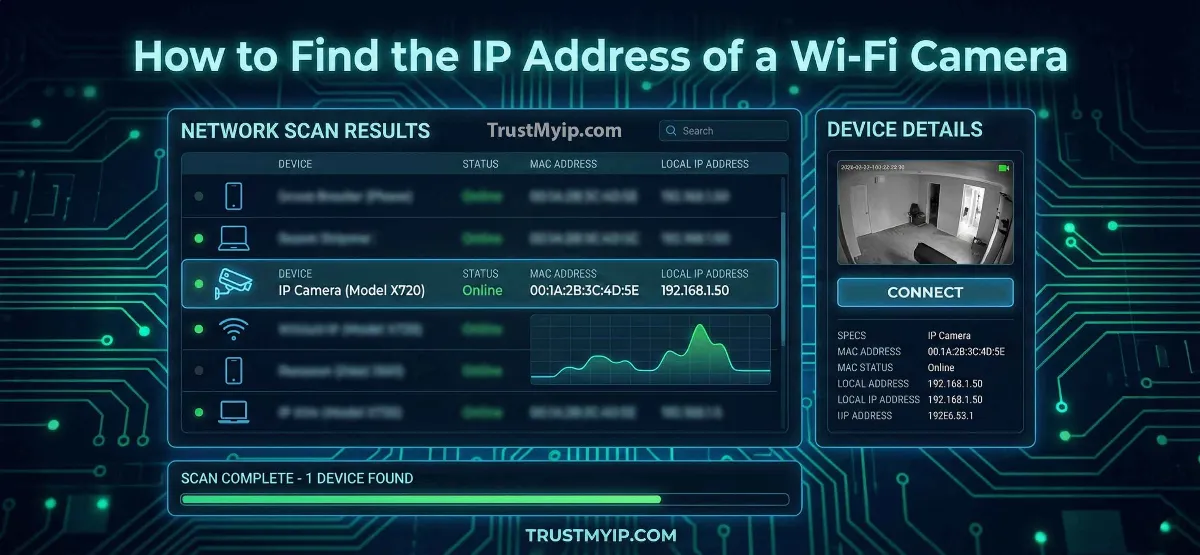
Whether you are setting up a high-end security system in the USA or simply trying to view your Wyze or Eufy cam on a desktop, knowing how to find the IP address of a Wi-Fi camera is a non-negotiable skill in 2026. Without this numeric identity, you cannot perform advanced authorized user tasks like RTSP streaming, NVR integration, or deep network troubleshooting. Finding this address isn't just about clicking a button; it’s about understanding the network path from the device to your router.
"In my 15 years of deploying corporate security camera networks, the biggest hurdle is usually a DHCP allocation mismatch. A Wi-Fi camera might be 'online' but invisible to your app if it’s trapped on a different subnet. To fix this, you must treat your camera as a standard network identity—matching its MAC address to a specific logical IP in the router's client list."
1. Method 1: Using the Camera’s Native App (Android & iPhone)
The fastest way to how to find the ip address of a wifi camera on Android or iPhone is through the official manufacturer’s app (e.g., Wyze, Eufy, Reolink, or Arlo). Most 2026 smart cameras expose their network documentation deep within the settings menu.
Step-by-Step for Mobile Users
- • Launch the App: Open the application where your camera is already synced.
- • Device Settings: Tap the gear icon or the "three dots" next to your camera stream.
- • About Device: Look for sections labeled "Device Info," "Network Status," or "Technical Specifications."
- • Extract the IP: Locate the field labeled IP Address. It will look like a numeric string (e.g., 192.168.1.15).
Step 0: Identity Check. Before troubleshooting, use our Public IP Identity Tool to ensure your phone and camera are on the same gateway.
2. Method 2: The Router Dashboard (The Source of Truth)
If the app is failing or you are trying to find the ip address of a wifi camera without using the proprietary app, the router’s DHCP Client List is your ultimate forensic resource.
Accessing the Router Log
Every device connected to your Wi-Fi is assigned a numeric IP by the router. To find it, you must log into your router's web interface.
Manual Procedure:
1. Open a browser and type your Gateway IP (usually 192.168.1.1 or 192.168.0.1).
2. Enter the admin credentials (found on the router sticker).
3. Navigate to DHCP Client List or Connected Devices.
4. Look for device names like "IP-CAM," "Wyze," "Eufy," or the camera's MAC Address.
Trouble accessing your router? Read our guide on Router Configuration Management.
3. Method 3: Using Command Prompt (Windows) & Terminal (Mac)
For Senior Systems Engineers, using the command line is the most reliable way to find the ip address of a wifi camera using local network protocols like ARP (Address Resolution Protocol).
Windows ARP Search
Open CMD and type arp -a. This lists every network identity your PC has communicated with. Match the MAC Address from your camera's box to the IP in this list.
The Nmap/Fing Audit
Run a network scan. If your camera is active, it will respond to a ping request, revealing its logical address and latency.
4. Advanced Tools: ONVIF & IP Scanners
When standard methods fail—especially with "no-name" or generic 2026 IP cameras—you need specialized network inventory tools.
ONVIF Device Manager
If your camera is ONVIF compliant, this free tool will automatically detect it on your network, regardless of its IP settings. It bypasses standard network access control to show you the internal hardware configuration.
Advanced IP Scanner (Windows)
This is a "point-and-click" forensic tool. Simply hit "Scan," and it will populate a list of every Public IP and Private IP on your local subnet. It often identifies cameras by the "Manufacturer" field (e.g., "Shenzhen Baichuan" for Reolink).
| Tool Name | Platform | Best For |
|---|---|---|
| Fing | Android / iPhone | Fast Mobile Discovery |
| Angry IP Scanner | Mac / Windows | Lightweight Scan |
| Wireshark | PC | Forensic Packet Analysis |
5. Troubleshooting: Why Can't I Find My Camera's IP?
Sometimes, despite your best network documentation, the camera remains invisible. This is usually due to one of three technical constraints.
-
Subnet Mismatch
If your camera was previously used on another network, it might have a Static assignment (e.g., 192.168.0.50) that doesn't match your current router (192.168.1.1). You must perform a factory reset to clear this.
-
Isolation Mode
Some "Guest Networks" use AP Isolation, which prevents devices from seeing each other. Ensure your phone and camera are on the main 2.4GHz Wi-Fi band.
Stuck with a blocked connection? Read our IP Blockade Forensic Guide to see if your router’s firewall is interfering.
6. Using the MAC Address to Identify Your Camera
If your router list shows 50 different "Unnamed Devices," the MAC Address is your best friend. Every manufacturer has a unique prefix (OUI).
"Your camera’s MAC address is a permanent hardware ID. By entering the first six characters into our MAC Lookup Tool, you can identify if that 'unknown' device is actually your Eufy or Wyze camera. Once you have the MAC, finding the linked numeric IP in your ARP table is simple. Don't confuse the two; read our MAC vs IP Breakdown."
7. Securing Your Camera IP After You Find It
Once you find the ip address of a wifi camera, the first thing you must do is protect it. An exposed camera IP is a massive corporate security risk in 2026.
- • Change Default Passwords: Never leave the admin/admin credentials active.
- • Disable UPnP: This prevents the camera from opening ports on your router to the Public IP world.
- • Use a VPN: If you need to view your camera from outside your house, never port forward. Instead, use a secure VPN tunnel. Read our Top VPNs for Remote Access.
Conclusion: Mastering Your Surveillance Network
Knowing how to find the IP address of a Wi-Fi camera is the gateway to professional network management in 2026. Whether you choose the simplicity of a mobile app, the forensic depth of a router's DHCP allocation list, or the advanced precision of ARP table commands, you now have the tools to control your security environment. By auditing your network documentation and understanding the difference between a MAC address and an IP address, you ensure that your home or office remains reachable, resilient, and secure.
Is Your Camera Secure?
Finding the IP is just the start. Use our forensic toolkit to audit your camera's DNS health, detect Proxy leaks, and verify your 2026 IP reputation in one click.