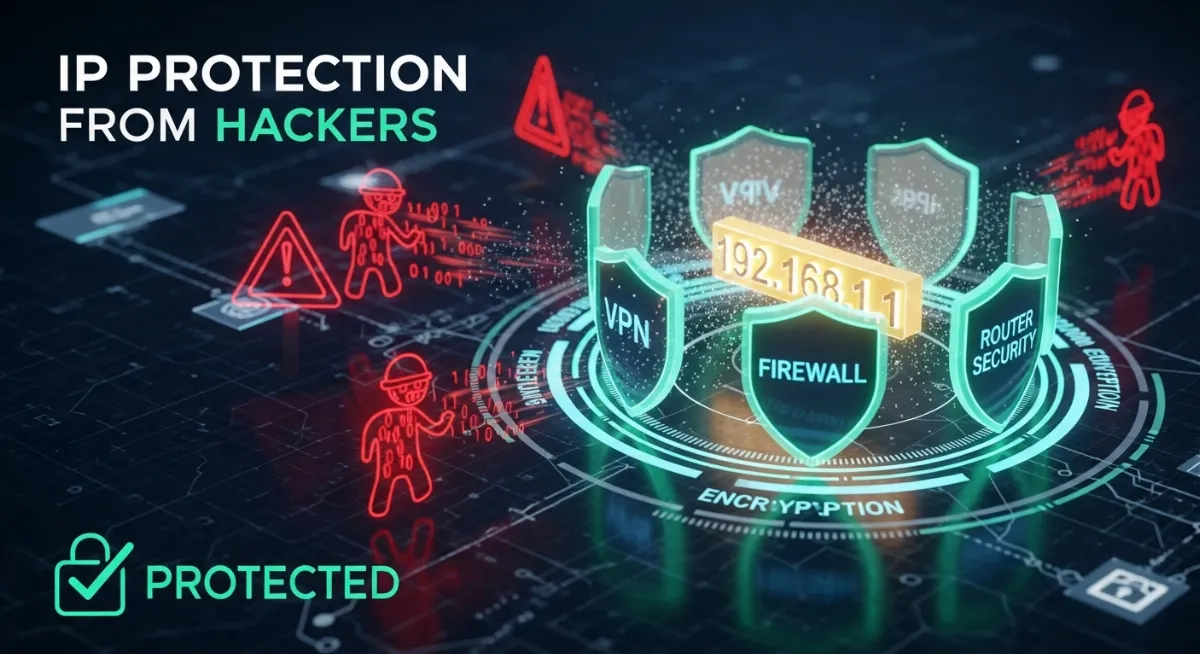
Picture this: You're browsing from your favorite coffee shop when a notification pops up—someone accessed your email account from Eastern Europe. Your IP address was exposed on public WiFi, and cyber criminals exploited it to launch a targeted attack. Within hours, they attempted identity theft, locked you out of accounts, and sold your personal data on the dark web.
Learning how to protect IP address from hackers isn't paranoia—it's essential digital survival. Your IP address acts as your home's street address on the internet. When exposed, hackers can track your location, scan your network security for vulnerabilities, launch DDoS attacks, and use your connection for illegal activities that trace back to you.
Most people never think about IP address security until it's too late—after experiencing unauthorized access, data breaches, or finding themselves victims of phishing attacks. The good news? Protecting your IP address from hackers requires simple steps anyone can implement, from using a virtual private network (VPN) with VPN encryption to securing your router and enabling firewall protection.
This comprehensive 2026 guide reveals exactly what hackers can do with your IP address, how they obtain it, and seven proven methods to keep your IP address safe—including free solutions, device-specific instructions for Android, iPhone, Windows, and Mac, plus advanced cybersecurity practices that stop threats before they reach you.

"After investigating over 10,000 cyberattacks targeting exposed IP addresses, I've witnessed the devastating consequences of inadequate IP address security. A single exposed IP led to a data breach costing a small business $200,000 in ransomware payments. I've tracked cyber criminals who compile databases of vulnerable IPs, running automated port scanners 24/7 searching for open entry points. The attacks I see daily—DDoS floods, man-in-the-middle interceptions on public WiFi, IP spoofing for fraud—all start with one thing: an unprotected IP address. The methods to protect your IP take minutes to implement but prevent years of potential damage. Don't wait for the attack—secure your IP address today."
Quick Answer: How to Protect IP Address from Hackers
To protect your IP address from hackers, use a VPN (Virtual Private Network) with encrypted connection to hide your real IP address and mask your location. A VPN creates a secure tunnel between your device and the internet, making it impossible for hackers to see your actual IP address or intercept your data.
Additional protection methods include using proxy servers, Tor browser for anonymous browsing, securing your router with strong passwords and firewall protection, avoiding public WiFi without security, enabling two-factor authentication (2FA), and keeping software updated with latest security patches. For immediate protection: Download a reputable VPN (NordVPN, ExpressVPN, ProtonVPN), connect to a server, and verify your IP address changed using an IP checker. Enable your router's built-in firewall, use HTTPS encryption on websites, and never click suspicious links that could reveal your IP through phishing attacks. Regular IP address security checks prevent location tracking, DDoS attacks, network security breaches, and identity theft attempts.
1. What Can Hackers Do With Your IP Address?
Understanding the real threats hackers pose with your IP address motivates proper protection. While your IP alone doesn't grant direct access to your device, it opens multiple attack vectors that skilled cyber criminals exploit daily to compromise victims.
Your IP address reveals your approximate geographic location (city, ZIP code, ISP), making location tracking possible. Hackers combine this with other data to build profiles for targeted phishing attacks, social engineering, or physical threats. The IP also exposes your internet service provider, giving attackers information about your connection type and potential vulnerabilities.
Beyond passive tracking, hackers actively weaponize exposed IPs for attacks. They launch DDoS (Distributed Denial of Service) attacks flooding your network until it crashes, scan for open ports using port scanners to find weak entry points, attempt man-in-the-middle attacks to intercept your communications, or use IP spoofing to impersonate your connection for illegal activities that authorities trace back to you. Check your current exposure with our IP address checker.
The Six Major Threats Hackers Execute With Your IP
| Threat Type | How It Works | Potential Damage |
|---|---|---|
| DDoS Attacks | Flood your IP address with massive traffic until connection crashes | Network shutdown, service loss |
| Location Tracking | Determine your city, region, ISP from IP address geolocation data | Privacy invasion, stalking |
| Port Scanning | Use port scanner to find open ports and vulnerable services | Device compromise, malware |
| Service Restrictions | Block your IP address from accessing websites, games, services | Access denial, ban |
| Identity Theft | Combine IP data with other leaks to impersonate you online | Financial loss, legal issues |
| Illegal Activity | Use IP spoofing to make attacks appear from your address | Criminal investigation, arrest |
The misconception that "my IP doesn't matter because I have nothing to hide" ignores these systematic threats. Cyber criminals don't target you personally—they scan millions of IPs automatically looking for any vulnerability. An exposed IP makes you a target of opportunity, not intention. One particularly dangerous technique involves attackers forging your IP to commit fraud or launch attacks in your name—our detailed guide on what IP spoofing is and how to detect it explains how this works and how to protect yourself. Proper IP address security removes you from their radar entirely.
2. How Hackers Get Your IP Address
Hackers employ multiple techniques to capture your IP address, ranging from passive observation to active exploitation. Understanding these methods helps you recognize when you're vulnerable and take preventive action before exposure occurs.
The simplest method involves any direct internet communication—visiting a website, clicking an email link, joining an online game, or using messaging apps. Every connection reveals your IP to the server you're communicating with. Legitimate services protect this data, but malicious sites designed specifically to harvest IPs log every visitor.
More sophisticated attacks include email tracking pixels that report your IP when you open messages, torrent swarms where all participants see each other's IPs, social engineering tricks embedding IP-grabbing links in seemingly innocent content, and exploiting vulnerabilities in outdated software or poorly configured routers. Public WiFi networks represent particularly dangerous exposure points where hackers easily intercept unencrypted traffic and capture IP addresses of all connected users.
Common IP Address Exposure Scenarios
Scenario 1 - Public WiFi: Connecting to coffee shop, airport, or hotel WiFi without VPN protection broadcasts your IP to anyone monitoring the network, including hackers running packet sniffers.
Scenario 2 - Clicking Phishing Links: Phishing emails contain tracking links that immediately log your IP, location, device type, and browser when clicked—data sold to cyber criminals.
Scenario 3 - Online Gaming: Multiplayer games expose IPs to other players. Angry opponents use IP grabbers or DDoS services to attack your connection mid-game.
Scenario 4 - Torrent Files: BitTorrent swarms display your IP to thousands of peers. Copyright monitors, law enforcement, and hackers all harvest these IPs for different purposes.
Scenario 5 - Website Comments: Some websites log visitor IPs in comment databases. Data breaches expose these logs to attackers who cross-reference IPs with other leaked information.
The key insight: your IP leaks constantly through normal internet use. The solution isn't avoiding the internet—it's using tools like VPNs that replace your real IP with a protected alternative for every connection. Without protection, assume your IP is already harvested and analyze by threat actors worldwide.
3. Method 1: Use a VPN to Hide IP Address from Hackers
A Virtual Private Network (VPN) provides the most comprehensive protection for hiding your IP address from hackers. VPNs create an encrypted connection between your device and a remote server, routing all your internet traffic through that server and displaying the server's IP instead of yours.
When you connect to a VPN, hackers monitoring your activity only see the VPN server's IP address—not your real IP address. The VPN encryption (typically AES-256) makes it impossible for attackers to intercept and read your data even if they capture your traffic on public WiFi or compromised networks.
Premium VPN services like NordVPN, ExpressVPN, and ProtonVPN offer additional security features: kill switches that block internet if the VPN disconnects (preventing accidental IP exposure), DNS leak protection ensuring queries don't reveal your location, multi-hop connections routing traffic through multiple servers, and strict no-logs policies preventing even the VPN provider from tracking you. Learn more about VPN security in our VPN encryption guide.
How to Set Up VPN Protection Step-by-Step
Complete VPN Setup Guide
- Choose a Reputable VPN Service: Select providers with proven security (NordVPN, ExpressVPN, ProtonVPN, Surfshark). Avoid free VPNs that log and sell your data—they create more security risks than they prevent.
- Download and Install VPN Software: Get the official app for your device (Windows, Mac, Android, iPhone). Never download VPN apps from third-party sites—only use official sources or app stores.
- Create Account and Login: Sign up with email and payment. Premium VPNs cost $3-12/month. Some accept anonymous payment (cryptocurrency, cash) for maximum privacy.
- Enable Kill Switch: Activate the kill switch feature in settings. This prevents IP leaks if VPN connection drops unexpectedly. Check our kill switch guide for details.
- Select VPN Server Location: Choose a server in your desired country. Closer servers give faster speeds, distant servers provide better location masking. Avoid servers in your actual country for maximum privacy.
- Connect and Verify: Click connect, wait for confirmation. Visit TrustMyIP.com to verify your displayed IP matches the VPN server location, not your real location.
- Test for Leaks: Run DNS leak tests and WebRTC leak tests to ensure no data bypasses the VPN. Most VPN apps include built-in leak testing tools.
VPNs provide comprehensive protection but aren't perfect. They require trusting your VPN provider (choose one with audited no-logs policies), reduce internet speed slightly (typically 10-20% slower), and cost money for reliable services. Free VPNs often log data, inject ads, or sell bandwidth—making them worse than no VPN.
For maximum security, enable the VPN automatically on device startup and use it for ALL internet activity—not just sensitive tasks. Hackers only need one unprotected moment to capture your real IP address and track your location or launch attacks.
4. Method 2: Proxy Servers for IP Masking
Proxy servers offer a simpler alternative to VPNs for hiding your IP address, though with less comprehensive security. A proxy acts as an intermediary between your device and the internet—websites see the proxy's IP instead of yours, but unlike VPNs, proxies typically don't encrypt your traffic.
Three main proxy types exist: HTTP proxies (work only for web browsing), SOCKS proxies (support all internet traffic including torrents and gaming), and transparent proxies (don't hide your IP at all—used by organizations to filter content). For IP address security, you need HTTP or SOCKS proxies that actually mask your real IP.
Proxy servers work well for bypassing geo-restrictions, accessing blocked websites, or casual anonymous browsing. They're faster than VPNs (no encryption overhead) and often free. However, they don't provide encrypted connection protection, meaning hackers on public WiFi or compromised networks can still intercept your unencrypted traffic even though your IP is hidden.
| Proxy Type | Use Case | Security Level |
|---|---|---|
| HTTP Proxy | Web browsing, accessing geo-blocked sites | LOW (no encryption) |
| SOCKS5 Proxy | Torrenting, gaming, all internet traffic | MEDIUM (IP hidden, no encryption) |
| Residential Proxy | Advanced scraping, bot protection bypass | MEDIUM (depends on provider) |
| VPN (comparison) | Complete privacy, all devices/apps | HIGH (encryption + IP hiding) |
Free public proxies present serious risks: many are operated by hackers who log all traffic passing through, inject malware into downloads, or steal credentials from unencrypted logins. If you must use proxies, choose paid services from reputable providers or use browser extensions from trusted companies.
For protecting against hackers specifically, proxies alone aren't sufficient—they hide your IP address but leave data vulnerable to interception. Combine proxies with HTTPS encryption (only visit HTTPS websites) or use them temporarily for specific tasks while relying on VPNs for primary protection.
5. Method 3: Tor Browser for Maximum Anonymity
The Tor browser provides the highest level of anonymous browsing by routing your traffic through multiple encrypted relays, making it virtually impossible for hackers to trace your real IP address or monitor your activity. Unlike VPNs or proxies where you trust a single provider, Tor distributes trust across thousands of volunteer-run nodes.
When you use Tor, your connection bounces through at least three random relays before reaching the destination website. Each relay only knows the previous and next hop—no single relay can connect you to your destination. This multi-layer encryption (called "onion routing") makes IP tracking and traffic analysis extremely difficult even for sophisticated attackers.
Tor browser excels for activities requiring absolute anonymity: whistleblowing, journalism in oppressive countries, researching sensitive topics without surveillance, or accessing the dark web safely. However, it comes with significant tradeoffs: extremely slow speeds (3-10x slower than normal browsing), many websites block Tor exit nodes, and improper configuration can still leak your IP address.
Critical Tor Security Warnings
- ⚠ Never Use Tor for Login Accounts: Logging into personal accounts (email, social media, banking) while using Tor defeats anonymity—the account itself identifies you regardless of IP hiding.
- ⚠ Don't Download Files Through Tor: Downloaded files can contain tracking code that executes outside Tor, revealing your real IP address. PDFs, documents, and media often embed metadata.
- ⚠ Never Resize Tor Window: Resizing creates a unique fingerprint. Keep Tor browser at default size to blend with millions of other Tor users.
- ⚠ Avoid Installing Extensions: Browser extensions can bypass Tor's protections and leak your IP. Use Tor browser exactly as downloaded without modifications.
- ⚠ Don't Torrent Over Tor: Torrenting leaks your real IP through DHT and peer connections that bypass Tor. Use VPNs for torrenting, not Tor.
For daily browsing and basic IP protection from hackers, Tor is overkill and impractical due to speed limitations. It's best reserved for specific high-privacy situations. Most users should rely on VPNs for routine protection and only switch to Tor when anonymity requirements justify the usability sacrifices.
Combining Tor with a VPN ("Tor over VPN" or "VPN over Tor") provides layered security but requires understanding the configuration implications. Some VPNs offer built-in Tor support. For most users, using either VPN or Tor separately (based on the situation) provides better performance and adequate security.
6. Method 4: Change Networks to Reset Your IP Address
Simply changing your network connection provides an immediate (though temporary) IP address reset without installing any software. This method works when you need to quickly secure your IP address after exposure or bypass IP-based restrictions, though it doesn't provide ongoing protection like VPNs.
Most home internet connections use dynamic IPs that change periodically. Restarting your modem/router forces your ISP to assign a new IP—disconnecting power for 5-10 minutes usually triggers reassignment. Switching from WiFi to mobile data (or vice versa) instantly changes your IP since cellular networks use completely different infrastructure. Public WiFi networks each provide different IPs, though using public WiFi without VPN protection creates worse security risks than the IP hiding benefits.
Ways to Change Your IP Address Quickly
Restart Your Modem/Router
Unplug power for 5-10 minutes, plug back in. Your ISP usually assigns a new IP when the modem reconnects. Check if IP changed at TrustMyIP.com.
Switch to Mobile Data
Disconnect WiFi, enable mobile data. Cellular networks use different IP pools. Provides temporary IP change but consumes data allowance.
Contact Your ISP
Request manual IP change. Most ISPs comply for security reasons. Some charge fees, but it guarantees a completely new IP address.
Use Different Network
Connect to a friend's WiFi, different coffee shop, library, or any alternative network. Each location provides different IP—but avoid unsecured public WiFi without VPN.
Network changing provides no encryption or ongoing protection—it only gives you a different IP temporarily. Hackers can capture your new IP just as easily as the old one. This method works for escaping immediate IP-based attacks or restrictions but doesn't prevent future IP tracking or surveillance. If you're finding that websites repeatedly block your connection after changing IPs, there may be deeper reputation issues at play—our guide on why websites block certain IP addresses explains the common triggers and how to resolve them.
Consider network changing as a supplementary tactic, not a primary defense. After changing IPs to escape an active attack, immediately implement permanent protection via VPN before resuming normal internet use. The new IP helps you start fresh, but only continuous protection keeps you safe.
7. Method 5: Secure Your Router from Hackers
Your router acts as the gateway protecting your entire home network—if hackers compromise your router, they control everything connected to it regardless of other security measures. Router security prevents attackers from accessing your network, stealing data, or using your connection for illegal activities.
Most routers ship with terrible default security: predictable admin passwords (admin/admin, admin/password), outdated firmware full of known vulnerabilities, insecure WiFi passwords, and features like WPS (WiFi Protected Setup) and UPnP (Universal Plug and Play) that create easy attack vectors. Hackers scan the internet constantly searching for poorly configured routers to compromise.
Securing your router requires changing default credentials, updating firmware regularly, disabling unnecessary features, and configuring firewall protection properly. These steps take 15-20 minutes but dramatically reduce your attack surface against network security threats. Use our port scanner tool to check for open ports exposing your router.
Router Security Hardening Checklist
Essential Router Security Configuration
- 1. Change Default Admin Password: Access router settings (usually 192.168.1.1 or 192.168.0.1), login with default credentials, immediately change admin password to unique strong password (20+ characters, mixed case, numbers, symbols).
- 2. Update Router Firmware: Check for latest firmware version in router admin panel. Enable automatic updates if available. Old firmware contains known security vulnerabilities hackers exploit systematically.
- 3. Change WiFi Network Name (SSID): Don't use default names revealing router model (NETGEAR47, Linksys_Default). Use generic names that don't identify you personally or reveal equipment details.
- 4. Use WPA3 or WPA2 Encryption: Never use WEP (cracked in minutes) or leave network open. WPA3 preferred, WPA2 acceptable. Set complex WiFi password different from admin password.
- 5. Disable WPS (WiFi Protected Setup): WPS has known vulnerabilities allowing hackers to bypass passwords. Turn off completely—inconvenient but secure.
- 6. Disable Remote Management: Unless you absolutely need external access to router, disable remote administration. This prevents internet-based attacks on router interface.
- 7. Enable Router Firewall: Activate built-in firewall protection. Most routers include basic firewalls—ensure they're enabled and configured to block incoming unsolicited connections.
- 8. Disable UPnP: Universal Plug and Play creates security holes. Gaming and some apps need it, but disable if you don't specifically require UPnP functionality.
- 9. Create Guest Network: Set up separate WiFi for visitors. Isolates guest devices from your main network—if guest's device has malware, it can't spread to your computers.
Router security complements IP protection rather than replacing it. A secured router prevents local network attacks, but websites and online services still see your ISP-assigned IP address. Combine router hardening with VPN usage for comprehensive defense—secured router protects your home network perimeter while VPN hides your IP from external threats.
Check router security quarterly—new vulnerabilities emerge constantly, manufacturers release security patches irregularly, and firmware updates often reset configurations. Regular maintenance prevents gradual security degradation that hackers exploit to gain initial network access.
8. Method 6: Enable Firewall Protection
Firewall protection creates a barrier between your device and incoming network threats, blocking unauthorized access attempts from hackers trying to exploit your IP address. Firewalls monitor network traffic and prevent suspicious connections from reaching your system—essential defense against port scanning, malware, and remote attacks.
Modern operating systems include built-in firewalls: Windows Defender Firewall, macOS Firewall, and Linux iptables/ufw. Despite being pre-installed, many users never enable them or configure them properly. Activating your device's firewall takes seconds and immediately blocks most automated attack attempts targeting your IP address.
Firewalls work by examining each network connection request—incoming (someone trying to access your device) and outgoing (your apps connecting to internet). Based on rules you configure, the firewall allows legitimate traffic while blocking suspicious attempts. This prevents hackers from exploiting open ports, installing remote access tools, or using your IP for DDoS attacks.
How to Enable Firewall on Different Devices
Windows 10/11: Open Settings → Privacy & Security → Windows Security → Firewall & network protection → Turn on for Private, Public, and Domain networks. Configure "Allow an app through firewall" for legitimate programs needing internet access.
macOS: System Preferences → Security & Privacy → Firewall tab → Click lock to make changes → Turn On Firewall. Click Firewall Options to configure advanced settings and stealth mode (invisible to port scanners).
Android: No built-in firewall (requires root access or third-party apps like NetGuard, NoRoot Firewall). Better to rely on VPN and avoid suspicious apps than use questionable firewall apps.
iPhone/iPad: iOS has built-in firewall (not user-configurable). Automatically active, blocking incoming connections. Configure via VPN apps offering firewall features or use iOS's limited network permissions.
Beyond system firewalls, advanced users implement application firewalls (controlling individual program access), network firewalls (hardware devices protecting entire networks), or cloud-based firewalls (filtering traffic before it reaches your network). For most users, enabling the built-in OS firewall plus router firewall provides adequate protection.
Firewalls aren't perfect—they can't protect against phishing attacks (you clicking malicious links), malware you intentionally install, or connections you approve. Think of firewalls as your locked door—critical for basic security but useless if you keep opening it for attackers. Combine firewall protection with VPNs, strong passwords, and careful browsing habits for comprehensive defense.
9. Method 7: Security Best Practices & Advanced Protection
Beyond specific tools, adopting comprehensive cybersecurity best practices creates layered defense preventing hackers from exploiting your IP address even if individual protections fail. These habits form the foundation of long-term IP address security that withstands evolving threats.
The principle of "defense in depth" means implementing multiple overlapping security measures—if hackers bypass one protection, others still block them. Relying solely on VPNs or firewalls creates single points of failure. Comprehensive security combines technical tools with behavioral vigilance.
| Security Practice | Implementation | Protection Level |
|---|---|---|
| Two-Factor Auth (2FA) | Enable on all accounts—prevents access even if password leaks | CRITICAL |
| Software Updates | Install OS, browser, app security patches immediately when available | CRITICAL |
| HTTPS Everywhere | Only visit HTTPS sites—avoid HTTP (unencrypted) connections | HIGH |
| Password Manager | Use unique strong passwords for every account (20+ chars random) | HIGH |
| Public WiFi Caution | Never use public WiFi without active VPN—assume all traffic monitored | CRITICAL |
| Email Link Caution | Verify sender before clicking links—phishing harvests IPs and credentials | MEDIUM |
Daily Security Habits Checklist
Every Day: Verify VPN is connected before browsing, check for software updates, scan suspicious emails before clicking links, use HTTPS websites only.
Every Week: Review account login activity for unauthorized access, check router admin panel for unknown connected devices, test IP address to confirm VPN working correctly.
Every Month: Update router firmware, change critical passwords (email, banking), review and revoke unused app permissions, backup important data securely.
Every Quarter: Run full antivirus scan, audit all online accounts and close unused ones, review credit reports for identity theft signs, test firewall configuration.
Security requires ongoing maintenance, not one-time fixes. Hackers continuously develop new attack methods, software vendors discover fresh vulnerabilities, and your own usage patterns evolve creating new risk areas. Regular security hygiene catches problems before they escalate into compromises.
10. Device-Specific IP Protection Tips
Different devices and operating systems require tailored approaches to protect IP addresses from hackers. While VPNs work universally, each platform has unique vulnerabilities and protection opportunities that optimize security when addressed specifically.
Mobile devices face different threats than desktops—constantly switching networks (WiFi to cellular), running apps with varying permission requirements, and lacking robust security configurations. Desktop systems provide more control but suffer from legacy software vulnerabilities. Understanding platform-specific risks enables targeted protection.
Platform-Specific Security Configurations
Android IP Protection
- → Install VPN app from official Google Play Store (NordVPN, ExpressVPN, ProtonVPN). Enable "Always-on VPN" and "Block connections without VPN" in Settings → Network & Internet → VPN.
- → Disable WiFi and Bluetooth when not using. Android broadcasts location through WiFi scanning even when not connected—allowing location tracking.
- → Use Private DNS (Settings → Network & Internet → Private DNS) set to Cloudflare (1.1.1.1) or Google (8.8.8.8) to prevent DNS leaks revealing activity.
- → Review app permissions regularly. Revoke location, network access for apps that don't need it. Many apps harvest IP addresses for advertising/tracking.
iPhone/iOS IP Protection
- → Download VPN from Apple App Store, enable in Settings → VPN → Connect. iOS VPN integrates system-wide automatically.
- → Enable "Limit IP Address Tracking" in Settings → Privacy → Tracking. This requests apps not track via IP (not foolproof but reduces exposure).
- → Use iCloud Private Relay (requires iCloud+ subscription). Apple's built-in privacy feature similar to VPN—hides IP from websites and trackers in Safari.
- → Turn off WiFi Assist (Settings → Cellular → WiFi Assist). This feature automatically switches to cellular when WiFi is poor—can leak IP during transitions.
Windows 10/11 IP Protection
- → Install VPN client, configure to start automatically on Windows boot. Enable kill switch to prevent IP leaks when VPN disconnects unexpectedly.
- → Disable WebRTC in browsers—major IP leak source. Install browser extensions like "WebRTC Leak Prevent" or disable in browser settings (Firefox: about:config → media.peerconnection.enabled → false).
- → Enable Windows Defender Firewall for all network profiles. Configure inbound/outbound rules blocking suspicious connections.
- → Disable IPv6 if your VPN doesn't support it (most don't). IPv6 can leak around VPN protection—disable in Network Adapter Properties.
macOS IP Protection
- → Install VPN app, enable "Connect on Demand" to automatically activate VPN when accessing internet. Configure in System Preferences → Network → VPN.
- → Enable macOS Firewall in System Preferences → Security & Privacy → Firewall. Activate "Stealth Mode" to make Mac invisible to port scanners.
- → Use Safari's "Hide IP Address" feature (Safari → Preferences → Privacy → Hide IP address from trackers). Limited to Safari but helps alongside VPN.
- → Disable Handoff and AirDrop when not needed—these features can leak device information and location through wireless broadcasts.
Device-specific configurations complement but don't replace core protections like VPNs and router security. Apply both universal security practices and platform-specific hardening for comprehensive defense against IP-based attacks across all your devices.
Conclusion: Comprehensive IP Protection Requires Layered Defense
Understanding how to protect IP address from hackers reveals it's not a single tool or tactic—it's a comprehensive security strategy combining multiple defenses that together create robust protection against the evolving threat landscape.
Hackers exploit exposed IP addresses for DDoS attacks, location tracking, port scanning vulnerabilities, identity theft, service restrictions, and framing victims for illegal activities. These threats aren't theoretical—they impact millions of users annually, causing financial loss, legal complications, and privacy violations.
The seven protection methods covered—VPNs with encryption, proxy servers, Tor browser, network changing, router security, firewall protection, and security best practices—work synergistically. VPNs provide the foundation by hiding your real IP address, while router hardening secures your network perimeter, firewalls block malicious connections, and behavioral vigilance prevents social engineering attacks.
Device-specific protections for Android, iPhone, Windows, and Mac address platform vulnerabilities that universal solutions miss. Enabling always-on VPNs, configuring private DNS, disabling WebRTC, and applying OS-specific hardening creates comprehensive coverage across your entire digital ecosystem.
Start with immediate action: install a reputable VPN, verify your IP changed using our IP checker tool, enable device firewalls, secure your router with strong passwords and updated firmware, and adopt security-conscious browsing habits. These steps take under an hour to implement but provide lasting protection against IP-based cyberattacks. Don't wait for the attack to prioritize IP address security—proactive protection prevents the damage reactive responses can't undo. Test your security now with our IP fraud detection tool.
Check Your IP Protection Now!
Verify your IP address isn't exposed to hackers. Use our professional IP analysis and security testing tools to ensure maximum protection.