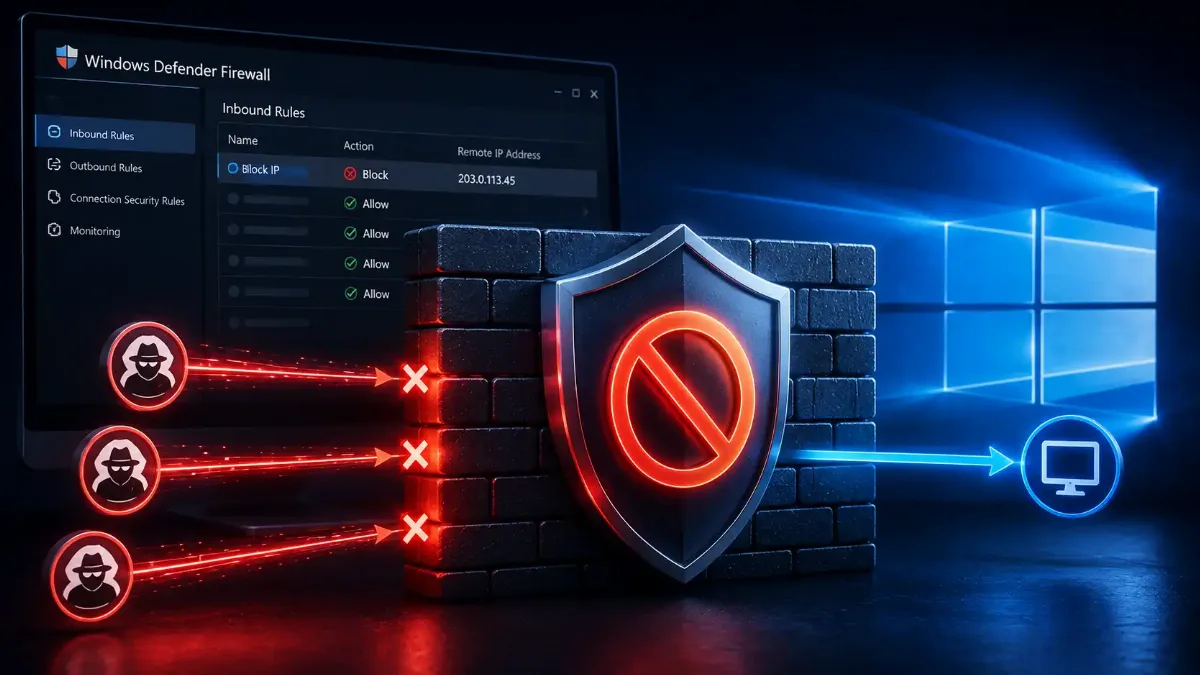
Blocking an IP address in Windows Firewall takes about ninety seconds through the wizard. Most of the guides showing you those ninety seconds stop at "click Finish", which is a problem, because the overwhelming majority of questions people actually ask about this are some version of the same sentence: I created the rule and it did nothing.
There is one screen where that goes wrong more than anywhere else. The Windows Firewall Scope page asks two questions that look almost identical, and putting the offending address in the wrong one produces a rule that is enabled, green-ticked, and completely inert.
This guide covers the wizard, the two command-line routes and when each is right, the six reasons a working-looking rule fails, why Windows Firewall cannot simply allow one address, and how to prove a block actually fired instead of assuming it did.

The call I get is never "how do I make the rule". It is "the rule is there, I can see it, and the address is still hitting us." Nine times out of ten we open the rule, click the Scope tab, and the address is sitting in the local box instead of the remote one. The wizard phrases those two questions so similarly that reading quickly is enough to get it wrong, and nothing in the interface ever tells you.
My honest position is that the wizard is fine for one or two addresses and a poor tool for anything beyond that. The moment you have a list, PowerShell does in one line what the wizard does in eleven screens, and it lets you feed the list from a file. I would also say plainly that a host firewall rule is the last layer, not the first — if this traffic is reaching a Windows box at all, something upstream had a chance to stop it and did not.
Quick Answer: Blocking an IP in Windows Firewall
Open wf.msc, create a Custom inbound rule, and on the Scope page put the address under remote IP addresses, not local. Choose Block the connection, tick all three profiles, then repeat the whole thing as an outbound rule. Confirm what you are blocking first with an ownership and location check on the address.
Which Firewall Are You Actually Opening?
The one behind wf.msc, which is the only place per-address rules live. Microsoft has renamed this component repeatedly, so Windows Firewall, Windows Defender Firewall and Windows Firewall with Advanced Security all describe exactly the same thing, and search results use all three interchangeably. The friendly Control Panel applet cannot block an address at all — it only toggles applications on and off.
To block a single address you have exactly one route: press Win+R, type wf.msc and press Enter. That console is Windows Firewall with Advanced Security, and on current builds the Windows Defender Firewall page in Settings links straight to it under Advanced Settings. If you need to know how to block an IP on Windows Server, it is the same console, reached from Server Manager under Tools. Everything in this guide happens in that window.
| Where | Can It Block An Address? | Use It For |
|---|---|---|
| Control Panel applet | No | Allowing or blocking whole apps |
| wf.msc console | Yes — Scope tab | One or two addresses, by hand |
| PowerShell NetSecurity module | Yes, and in bulk | Lists, files, anything repeatable |
| netsh advfirewall | Yes | Batch files and older scripts |
| Group Policy | Yes, across many machines | Domain-wide policy |
Worth knowing before you follow any screenshot: Windows 10 reached end of support on 14 October 2025, with paid extended updates running to 13 October 2026. A large share of the tutorials still ranking were captured on Windows 10, and while the firewall console itself has barely changed, the surrounding menus have.
Once the console is open, one screen decides whether any of this works.
Local IP or Remote IP — Which Box Does the Address Go In?
Remote. Always remote, when the Windows Firewall rule is meant to block somebody else. The Scope page asks which local IP addresses the rule applies to and which remote IP addresses it applies to, and those two questions mean completely different things despite sitting inches apart on the same screen. Get them the wrong way round and the rule is valid, enabled, and matches nothing at all.
Microsoft's own reference for that screen is explicit about the distinction. The local address setting describes your own machine's adapters — it decides whether the rule applies to traffic arriving on a particular interface of yours. The remote setting is the other end of the conversation. Local IP address vs remote IP address in scope comes down to which end you mean, and the attacker, the scanner or the address in your logs is always the remote end.
Guidance in circulation gets this wrong
Several widely shared walkthroughs, including ones ranking today, point readers at the local box on the Scope page or leave it ambiguous which of the two they mean. A rule built that way looks perfect in the console. It has a green tick, it shows Block, and it will never fire. If you are troubleshooting an existing rule right now, open it, click the Windows Firewall Scope tab, and check which box the address is in before you change anything else.
With that settled, the wizard itself is straightforward.
How Do You Create the Block Rule?
Eleven screens, and the defaults are already correct on most of them. To block an IP address in Windows Firewall you need the New Rule wizard, reached from Inbound Rules in wf.msc. On the Rule Type page choose Custom, because a Windows Firewall custom rule is the only kind that exposes the Scope page. Leave All programs selected, leave Protocol type Any as it is, and click Next until Scope appears.
On Scope, under the remote question, choose These IP addresses and click Add. Enter a single address, or pick This IP address or subnet to enter CIDR notation. To block an IP range, Windows Firewall accepts a start-and-end pair under This IP address range. Add as many as you like here — one rule holds many addresses, and you do not need a separate rule per offender.
Then Block the connection, tick Domain, Private and Public, name it something a colleague will understand at 3am, and Finish. Adding more addresses later does not need a new rule either: double-click the existing one, open the Scope tab, and add them there.
Inbound vs outbound rule: one is half a rule
An inbound rule stops that address reaching you. It does nothing about your machine reaching out to it, which matters if the concern is a compromised host phoning home or software you do not trust calling a known-bad destination. Repeat the entire wizard under Outbound Rules with the same address. Two rules, same scope, opposite directions.
Eleven screens twice over is tolerable once. It stops being tolerable at address number five.
Should You Use netsh or PowerShell?
PowerShell, unless you are maintaining an existing batch file. You can block an IP with PowerShell in a single line, and both routes drive the same Windows Firewall underneath. The NetSecurity module accepts an array of addresses in one rule, reads a list straight from a text file, and does things netsh cannot — Microsoft notes that adding rules to a custom rule group is not possible in netsh.
PowerShell — both directions, run as Administrator
New-NetFirewallRule -DisplayName "Block 203.0.113.100 IN" `
-Direction Inbound -RemoteAddress 203.0.113.100 `
-Action Block -Profile Any -Enabled True
New-NetFirewallRule -DisplayName "Block 203.0.113.100 OUT" `
-Direction Outbound -RemoteAddress 203.0.113.100 `
-Action Block -Profile Any -Enabled True
You can block an IP address with netsh in a single line, as the table below shows, but the parameter that makes PowerShell worth learning is -RemoteAddress, which takes an array. Single addresses, CIDR blocks and start-to-end ranges can all sit in the same rule, and the list can come from a file rather than your keyboard.
A list, mixed formats, loaded from a text file
# one entry per line in the file
$ips = Get-Content C:\ops\blocklist.txt
Get-NetFirewallRule -DisplayName "Block Bad Hosts IN" |
Set-NetFirewallRule -RemoteAddress $ips
| Task | Command |
|---|---|
| Block with netsh | netsh advfirewall firewall add rule name="..." dir=in action=block remoteip=203.0.113.100 |
| Find rules for an address | Get-NetFirewallRule | Get-NetFirewallAddressFilter |
| Check which profile is live | Get-NetConnectionProfile |
| Remove a rule | Remove-NetFirewallRule -DisplayName "..." |
On the naming question, be precise about what is actually deprecated. Microsoft has flagged the older netsh firewall context as a candidate for removal and recommends the advfirewall context instead. The advfirewall context is not deprecated, whatever some guides claim. It is simply the less capable of the two remaining options.
Command or wizard, the same six things stop a finished rule from working.
Why Doesn't Your Firewall Rule Work?
Usually the Scope tab, and after that the profile. A Windows Firewall rule fails quietly more often than it fails loudly. A rule can be enabled, correctly written and entirely inactive because the machine is currently on a network profile the rule does not cover, or because Group Policy is quietly discarding locally created rules. None of those states announces itself in the console, which is why this section exists at all.
| Symptom | Cause | Check |
|---|---|---|
| Rule looks perfect, matches nothing | Address in the local box | Scope tab, remote section |
| Works at the office, not elsewhere | Wrong profile active | Get-NetConnectionProfile |
| Rule exists but is never applied | Group Policy discards local rules | Firewall policy settings |
| Blocked address still connected | Session established before the rule | Drop the session, retest |
| Outbound traffic unaffected | Only an inbound rule exists | Outbound Rules list |
| New allow rule changed nothing | Allow rules add, they never restrict | Edit the existing rule instead |
Row two is a Windows Firewall profile mismatch, and it wastes the most time of any of them. Network Location Awareness classifies a connection as Domain, Private or Public and does not always get it right, so a domain machine on a mislabelled connection quietly runs the wrong rule set. Run Get-NetConnectionProfile to see which category Windows has actually assigned, then correct it with Set-NetConnectionProfile if the answer surprises you. Widening the rule itself with Set-NetFirewallRule -Profile Any removes the question entirely.
Underneath that sits a simpler problem worth ruling out early. Addresses handed out by DHCP move, so a rule aimed at yesterday's address may be aimed at nobody today, which our explainer on how addresses get assigned and reassigned covers in full. Where the address sits on your own network, a duplicate-address clash can also look like hostile traffic, and our guide to tracking down two devices claiming the same address covers that case.
Row three deserves separate emphasis because it is genuinely silent. Where Group Policy firewall rules are in force and the option permitting local rules is switched off, an administrator can still create rules in the console. Microsoft's own guidance on policy-managed firewalls states plainly that those rules will not be applied. You get no warning, no error and no visual difference.
One precedence rule saves a lot of hunting. Where a block rule and an allow rule both match the same traffic, Windows Firewall gives block rules priority over allow rules, so an allow you added later will not reopen something an earlier block already closed.
Work those six in order and the cause is nearly always in the first two. The rest are rarer, but each one produces a rule that looks entirely healthy while doing nothing at all.
One more question generates as many threads as all six of those combined.
How Do You Allow Only One IP Address?
Not the way you expect, because there is no Windows Firewall exclude IP range option anywhere in the product. There is no box for everything except this address, and adding a new allow rule for one address does not restrict anyone else — allow rules grant permission, they never remove it. This is the single most misunderstood behaviour in the whole component and it produces the same forum thread over and over.
To make Windows Firewall allow only specific IP addresses, two approaches actually work. The cleaner one is to edit the existing rule that permits the service and narrow its remote scope to the address you trust. To block RDP by IP that means opening the built-in Remote Desktop rules rather than writing anything new. The other is to write a block rule covering two ranges, one either side of the permitted address, which is ugly but effective.
Narrow an existing rule instead of adding a new one
Get-NetFirewallRule -DisplayName "Remote Desktop - User Mode (TCP-In)" |
Set-NetFirewallRule -RemoteAddress 203.0.113.25
If you take the two-range route, work the boundaries out properly rather than by eye — an off-by-one at either edge either locks out the address you meant to keep or leaves a gap. Our guide to splitting an arbitrary range into clean blocks covers the arithmetic, and you can test whether a specific address falls inside a range before you commit to it.
Whichever route you take, assuming it worked is the last mistake available.
How Do You Prove the Block Actually Fired?
Read the Windows Firewall log rather than trusting the console. A rule showing green means only that it parsed and loaded, which says nothing at all about whether any traffic has ever matched it. Real confirmation comes from dropped-packet logging, which Windows keeps switched off by default, and from the firewall's own event log where a blocked connection leaves a record.
There are two routes and the easy one comes first. To make Windows Firewall log dropped packets, open the firewall properties, and on each profile tab open Logging and set Log dropped packets to Yes. Drops then land in a plain text file under LogFiles\Firewall named pfirewall.log. Watch that file while the offending address tries again, and if nothing appears the rule is not matching and you are back to the Scope tab.
The richer route is the Security event log, which needs Filtering Platform auditing switched on first. Once it is, a blocked packet writes event 5152 and a blocked connection writes event 5157, each recording the source address. On Windows 11 and Windows Server 2022 onward both events also carry a Filter Origin field naming the rule responsible, so you can confirm your own rule did the blocking.
Test from outside as well as inside. A connection attempt from another machine tells you what an attacker actually experiences, which is not always what the local console implies.
That covers making it work. The remaining risk is what happens when it works too well.
How Do You Deploy Without Locking Yourself Out?
Check what you are about to block against how you are currently connected to the machine. A block rule takes effect instantly, and a wide enough scope on a remote server will cut your own RDP session mid-click, along with WinRM and file sharing. Recovering from that means console access you may not have, so the check costs seconds and the mistake costs an afternoon.
Six Checks Before The Rule Goes Live
1 Write down your own address first
On a remote machine, note the address your session is arriving from. If it falls anywhere inside the range you are about to block, stop and narrow the range. This single check prevents the worst outcome available here.
2 Confirm which profile is active
Run Get-NetConnectionProfile and read the network category. Tick all three profiles on the rule unless you have a specific reason not to, because a rule scoped to the wrong one is indistinguishable from no rule.
3 Put the address in the remote box
On the Scope page or Scope tab, the offending address belongs under remote IP addresses. Leave the local setting on Any unless you deliberately want the rule tied to one of your own network adapters.
4 Create the outbound rule too
Repeat with the direction reversed. Inbound alone leaves your machine free to initiate connections to the same address, which is the half people forget until something on the box starts talking to it.
5 Enable logging, then test from outside
Switch on dropped-packet logging and have the connection attempted from elsewhere. Seeing the drop recorded is the only proof that matters; a green tick in the console is not evidence of anything.
6 Name it properly and set a review date
Include the reason and the date in the rule name. Host firewalls accumulate rules nobody remembers creating, and an address blocked in anger two years ago now belongs to somebody else entirely.
Step one is the one experienced admins never skip. Everyone else learns it once, usually on a server three time zones away.
That is the whole path from wizard to verified block. Here is the short form.
The Short Version
Open wf.msc, build a Custom inbound Windows Firewall rule, and put the offending address under remote IP addresses on the Scope page. That one box is where most failed rules go wrong, and a rule with the address in the local field looks completely healthy while matching nothing. Then repeat the whole thing as an outbound rule, because one direction is half a rule.
Move to PowerShell the moment you have a list. New-NetFirewallRule accepts an array of addresses in a single rule, mixes CIDR blocks with ranges, and reads straight from a text file. The netsh advfirewall context still works and is still supported; it is the older netsh firewall context that Microsoft has flagged for removal.
When a rule looks right and does nothing, check the Scope tab, then the active profile, then whether Group Policy is discarding local rules. Remember that Windows Firewall has no exclusion, so allowing one address means narrowing an existing rule rather than adding a new one. And treat the host firewall as the last layer — our comparison of where a blocking rule belongs covers the layers that should have caught this first, including stopping it at the edge and rules that live in the web server itself.
Check The Range Before You Commit
Work out the exact boundaries of a block before you paste it into a rule, and generate a harmless test address to confirm the rule fires. Free, instant, no account.