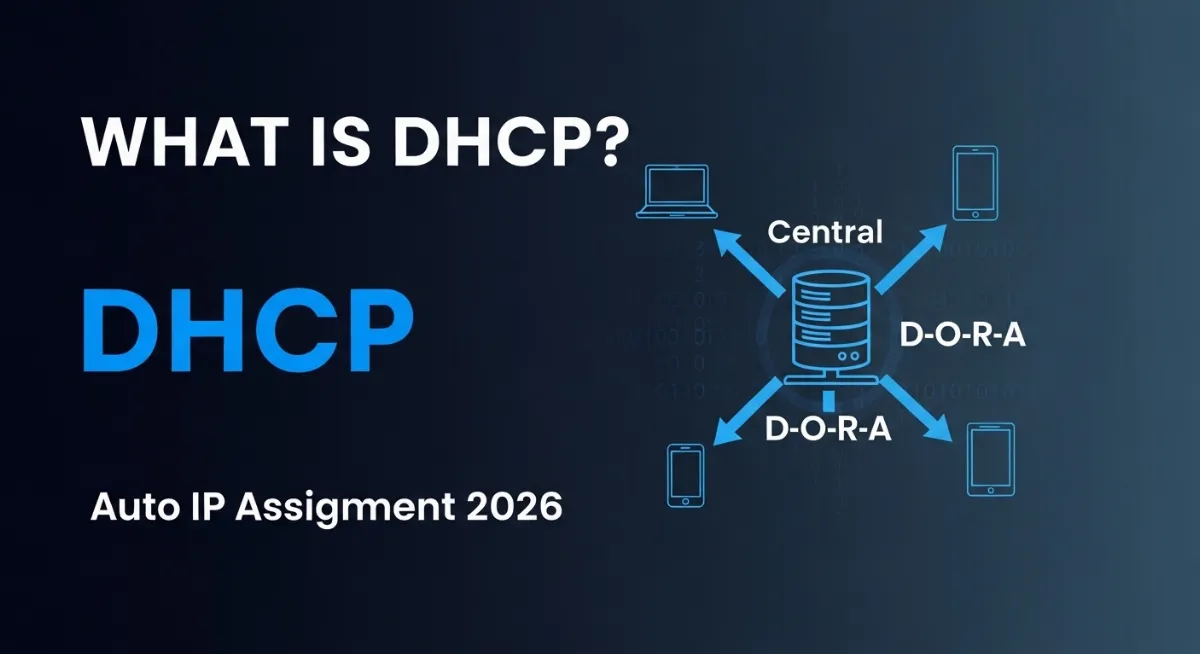
Ever wondered how your phone, laptop, or smart TV automatically connects to Wi-Fi and just works — no manual configuration needed? The magic behind this seamless connectivity is DHCP (Dynamic Host Configuration Protocol). Every time you join a network, a DHCP server automatically assigns your device an IP address, subnet mask, gateway, and DNS servers in milliseconds. Without DHCP, you'd manually configure network settings for every device, every time you connected to a new network.
DHCP is a network protocol that automates IP address assignment and configuration across networks of any size — from home Wi-Fi with five devices to enterprise networks managing thousands. When your device connects, it broadcasts a DHCP Discover message asking "Is anyone a DHCP server?" The server responds with an available IP address, your device confirms it wants that address, and the server acknowledges the assignment. This four-step handshake — called the DORA process — happens so fast users never notice it.
This complete 2026 guide explains what DHCP is, how the DORA process works step-by-step, why DHCP leases expire and renew automatically, static vs dynamic IP addressing, how DHCPv6 differs for IPv6 networks, common DHCP problems and fixes, security vulnerabilities in DHCP, and modern alternatives like SLAAC. Whether you're troubleshooting connectivity issues, setting up a home network, or understanding enterprise network architecture — this guide covers everything.

"After configuring DHCP servers across hundreds of networks — from three-person startups to 50,000-employee enterprises — I can tell you that DHCP is both the most underappreciated and most critical network service. When it works, nobody thinks about it. When it breaks, the entire network stops functioning within hours as devices lose connectivity. I've seen companies lose millions because someone accidentally configured two DHCP servers on the same network, creating conflicting IP assignments that brought down operations.
The brilliance of DHCP is its simplicity. Four packets — Discover, Offer, Request, Acknowledge — and your device has everything it needs to communicate: IP address, subnet mask, default gateway, DNS servers, lease time. The protocol handles IP address conflicts, reclaims unused addresses, and manages address pools efficiently. Modern DHCP implementations in 2026 handle IPv4, IPv6, and hybrid networks simultaneously. Understanding DHCP isn't just about knowing what it does — it's about recognizing how IP addressing would be utterly unmanageable without it."
Quick Answer: What is DHCP?
DHCP (Dynamic Host Configuration Protocol) automatically assigns IP addresses and network configuration to devices when they connect to a network. Instead of manually configuring each device, a DHCP server (usually your router) hands out available IP addresses from a pool, along with subnet mask, gateway, and DNS servers. Addresses are leased temporarily and automatically renewed. This automation makes plug-and-play networking possible. Check your DHCP-assigned IP instantly at TrustMyIP.com or verify if your IP is static or dynamic with our static vs dynamic IP guide.
1. What is DHCP? The Simple Explanation
DHCP (Dynamic Host Configuration Protocol) is a network management protocol that automatically configures devices with the information they need to communicate on an IP network. Think of it as an automated network receptionist — when a new device arrives, DHCP hands it a temporary visitor badge (IP address) and directions to key locations (gateway, DNS servers).
Without DHCP, network administrators would manually assign a unique IP address, subnet mask, gateway, and DNS servers to every device. Imagine managing 500 laptops, 200 phones, 100 printers, and dozens of IoT devices — manually tracking which IP addresses are used, avoiding conflicts, updating configurations when devices move between networks. DHCP eliminates this nightmare by automating the entire process.
DHCP was standardized in 1997 (RFC 2131) but the concept originated even earlier with BOOTP in the 1980s. Today, DHCP runs on virtually every network — from home routers serving five devices to enterprise DHCP servers managing tens of thousands. Your home router likely functions as both your gateway and DHCP server, handing out addresses in the 192.168.x.x range. Understanding how broadcast addresses work helps explain how DHCP discovers servers on a network.
| Configuration Item | What DHCP Provides | Why It Matters |
|---|---|---|
| IP Address | 192.168.1.105 (example) | Unique identifier for your device on network |
| Subnet Mask | 255.255.255.0 | Defines network size and address range |
| Default Gateway | 192.168.1.1 | Router address for reaching internet |
| DNS Servers | 8.8.8.8, 1.1.1.1 | Translate domain names to IP addresses |
| Lease Duration | 24 hours (typical) | How long you keep the IP before renewal |
| Domain Name | example.local (optional) | Network identification for local naming |
2. The DORA Process: How DHCP Works Step-by-Step
DHCP uses a four-step process called DORA — an acronym for Discover, Offer, Request, Acknowledge. This handshake happens automatically every time a device connects to a network. The entire process typically completes in less than one second.
Understanding DORA helps troubleshoot connectivity problems. If your device gets stuck at "obtaining IP address," one of these four steps is failing. Let's break down each stage of the DHCP conversation.
DHCP DORA Process — The Four-Way Handshake
D Discover — Client Broadcasts Request
What happens: Your device doesn't have an IP yet, so it broadcasts a DHCP Discover packet to 255.255.255.255 (broadcast address) asking "Is anyone out there a DHCP server?"
Source IP: 0.0.0.0 (device has no IP yet)
Destination IP: 255.255.255.255 (broadcast to all)
Contains: Device's MAC address, requested IP (if previously assigned), hostname
Why broadcast? Device doesn't know DHCP server's IP, so it asks everyone
O Offer — Server Responds with Available IP
What happens: DHCP server receives the broadcast, checks its address pool for an available IP, and sends back a DHCP Offer packet proposing an address and configuration.
Source IP: 192.168.1.1 (DHCP server)
Destination IP: 192.168.1.105 (offered IP) or broadcast
Contains: Offered IP address, subnet mask, gateway, DNS servers, lease time
Note: Multiple DHCP servers can respond — device typically accepts the first offer
R Request — Client Accepts the Offer
What happens: Device broadcasts a DHCP Request packet saying "I accept this IP address offer from this specific DHCP server." Broadcast ensures other DHCP servers know their offers were declined.
Source IP: 0.0.0.0 (still no confirmed IP)
Destination IP: 255.255.255.255 (broadcast)
Contains: Accepted IP address, server identifier, requested parameters
Why broadcast again? Informs all DHCP servers which offer was accepted
A Acknowledge — Server Confirms Assignment
What happens: DHCP server sends a DHCP Acknowledge (ACK) packet confirming the IP address assignment is official. Device can now use the IP address for network communication.
Source IP: 192.168.1.1 (DHCP server)
Destination IP: 192.168.1.105 (newly assigned IP)
Contains: Final configuration, lease start time, lease duration
Result: Device configures network interface with all received parameters and starts communicating
Total Time: Typically 500ms to 2 seconds for the entire DORA process
What if it fails? Device retries Discover after timeout. If no response after multiple attempts, falls back to APIPA (169.254.x.x self-assigned address) or shows "no internet" error.
3. DHCP Leases: Why IP Addresses Expire and Renew
IP addresses assigned by DHCP aren't permanent — they're leased for a specific duration, typically 24 hours for home networks or 7-8 days for enterprise networks. This leasing system prevents address exhaustion and allows efficient address pool management.
Why leases? Imagine a coffee shop Wi-Fi with 100 available IP addresses. Hundreds of customers connect throughout the day, but only 50 are present at any moment. Without leases, addresses would stay assigned to devices that left hours ago, eventually exhausting the pool and preventing new customers from connecting. Leases automatically reclaim addresses from devices that disconnect, keeping addresses available.
Your device automatically attempts to renew its lease at 50% of the lease duration (T1 timer). If the server doesn't respond, it tries again at 87.5% (T2 timer). If renewal fails entirely, the device releases the IP when the lease expires and starts the DORA process again from scratch. Most users never notice renewals happening in the background.
DHCP Lease Lifecycle Timeline
Manual Release/Renew: Windows: ipconfig /release then ipconfig /renew | Mac/Linux: sudo dhclient -r then sudo dhclient
4. Static IP vs Dynamic IP (DHCP) — Key Differences
Not all IP addresses come from DHCP. Static IPs are manually configured and never change, while dynamic IPs are automatically assigned by DHCP and can change over time. Each approach has distinct advantages and use cases.
Most home users rely entirely on DHCP without realizing it — plug in a device and it just works. But certain scenarios require static IPs: servers that other devices need to find, printers that everyone accesses, network equipment like routers and switches, security cameras, and game console port forwarding setups. Understanding the trade-offs helps decide which approach fits your needs. Learn how to check if your IP is static or dynamic in our detailed guide.
| Feature | Static IP | Dynamic IP (DHCP) |
|---|---|---|
| Configuration | Manual — set IP, mask, gateway, DNS | Automatic — DHCP handles everything |
| Address Stability | Never changes unless reconfigured | Can change when lease expires or network changes |
| Best For | Servers, printers, network equipment, cameras | Laptops, phones, tablets, guest devices |
| Management Effort | High — track used IPs, avoid conflicts | Low — DHCP manages everything automatically |
| Scalability | Poor — manual config for each device | Excellent — handles thousands of devices |
| Conflict Risk | High if improperly managed | Low — DHCP prevents duplicate assignments |
| DNS Registration | Manual DNS record creation needed | Dynamic DNS updates automatically |
| Typical Use | ~5% of devices on most networks | ~95% of devices on most networks |
DHCP Reservation: Best of Both Worlds
Many routers support DHCP reservations (also called static DHCP or address reservation) — the device still uses DHCP, but the server always assigns the same IP based on the device's MAC address. This combines DHCP's automation with static IP's predictability, perfect for home servers, smart home hubs, and network printers.
5. DHCPv6 and IPv6 Address Assignment in 2026
As networks transition to IPv6, IP address assignment has evolved. IPv6 offers two methods: DHCPv6 (similar to DHCP for IPv4) and SLAAC (Stateless Address Autoconfiguration) — a completely new approach that doesn't require a DHCP server at all.
SLAAC is IPv6's revolutionary feature: routers periodically broadcast Router Advertisements containing network prefixes. Devices listening to these broadcasts automatically generate their own IPv6 addresses by combining the network prefix with a device-specific identifier (derived from MAC address or randomly generated for privacy). No DHCP server required — truly stateless configuration.
However, SLAAC has limitations — it doesn't provide DNS server information or other advanced options that DHCPv6 offers. Modern IPv6 networks often use a hybrid approach: SLAAC for address assignment combined with DHCPv6 for DNS and additional configuration. This combination provides automation without sacrificing flexibility. Learn more about IPv6 addressing fundamentals in our comprehensive guide.
| Feature | DHCP (IPv4) | DHCPv6 | SLAAC (IPv6) |
|---|---|---|---|
| Address Source | DHCP server assigns from pool | DHCPv6 server assigns | Device generates own address |
| Server Required | Yes — dedicated DHCP server | Yes — DHCPv6 server | No — routers provide prefix |
| State Management | Stateful (tracks assignments) | Stateful or stateless modes | Stateless (no tracking needed) |
| DNS Provision | Yes | Yes | No (use DHCPv6 or manual) |
| Broadcast Used | Yes (255.255.255.255) | No (multicast ff02::1:2) | No (multicast ff02::1) |
| Typical Use 2026 | Standard IPv4 networks | Enterprise IPv6 with control | Home IPv6, mobile networks |
6. Common DHCP Problems and How to Fix Them
DHCP is generally reliable, but specific issues can prevent devices from obtaining IP addresses. Recognizing these problems helps troubleshoot connectivity failures quickly.
Problem 1: "Obtaining IP Address" Stuck Forever
Cause: Device sends DHCP Discover but never receives Offer. DHCP server down, network cable unplugged, Wi-Fi authentication failed, or broadcast traffic blocked by firewall.
Solution:
- Verify physical connectivity (cable plugged in, Wi-Fi connected)
- Restart router/DHCP server
- Check if DHCP service running on server
- Temporarily disable firewall to test if blocking DHCP traffic
- Try manual static IP to test if issue is DHCP-specific
Problem 2: Device Gets 169.254.x.x Address (APIPA)
Cause: DHCP failed completely. Device falls back to Automatic Private IP Addressing (APIPA) — self-assigned link-local address allowing communication with other APIPA devices but no internet access.
Solution:
- Confirm DHCP server running and accessible
- Check network switch/router between device and DHCP server
- Release and renew:
ipconfig /release && ipconfig /renew - Restart network adapter: Disable, wait 10 seconds, re-enable
Problem 3: IP Address Conflict Error
Cause: Two devices have the same IP. Usually happens when DHCP assigns an address that's also configured statically on another device, or when two DHCP servers operate on same network with overlapping pools.
Solution:
- Identify conflicting device using
arp -acommand - Check if static IPs fall within DHCP pool range — separate them
- Ensure only ONE DHCP server per network segment
- Restart affected device to get new IP from DHCP
Problem 4: DHCP Pool Exhausted
Cause: All available IP addresses assigned. New devices can't get IPs because the pool is full. Common in networks with short lease times or many transient devices.
Solution:
- Expand DHCP address pool range
- Shorten lease duration to reclaim unused addresses faster
- Review devices holding leases — disconnect abandoned devices
- Segment network — use VLANs with separate DHCP scopes
7. DHCP Security: Risks and Protection Measures
While DHCP simplifies network management, it also creates security vulnerabilities. Attackers exploit DHCP's trust model — devices blindly accept configuration from any DHCP server. Understanding these risks helps implement proper protections.
DHCP Security Threats
- ⚠Rogue DHCP Server: Attacker runs fake DHCP server, assigns malicious gateway/DNS, redirects all traffic through attacker
- ⚠DHCP Starvation: Attacker requests all available IPs, exhausting pool and denying service to legitimate devices
- ⚠DHCP Spoofing: Send fake DHCP packets to poison device configuration with attacker-controlled settings
- ⚠Man-in-the-Middle: Use rogue DHCP to position attacker between victim and internet for traffic interception
- ⚠Fingerprinting: DHCP requests reveal device OS, vendor, and model — privacy leak for tracking
Protection Strategies 2026
- ✓DHCP Snooping: Switch feature that blocks unauthorized DHCP servers — only trusted ports forward DHCP Offers
- ✓Port Security: Limit MAC addresses per switch port, preventing DHCP starvation attacks
- ✓802.1X Authentication: Require device authentication before allowing network access and DHCP
- ✓Network Segmentation: Separate guest/IoT devices from critical systems using VLANs with isolated DHCP scopes
- ✓Monitor DHCP Traffic: Alert on multiple DHCP servers, unusual lease patterns, or pool exhaustion
8. How to View Your DHCP-Assigned Configuration
Checking your current DHCP configuration helps troubleshoot issues and understand your network setup. Every operating system provides simple commands to view DHCP-assigned information.
Windows 10/11
Command: Open Command Prompt → type ipconfig /all
Look for: "DHCP Enabled: Yes" | "DHCP Server: 192.168.1.1" | "Lease Obtained" and "Lease Expires" timestamps | IP address, subnet mask, gateway, DNS servers
macOS
Command: Open Terminal → type ipconfig getpacket en0 (replace en0 with your interface)
GUI Method: System Settings → Network → select connection → Details → TCP/IP tab shows "Configure IPv4: Using DHCP"
Linux
Command: ip addr show or ifconfig shows current IP
DHCP Lease Info: cat /var/lib/dhcp/dhclient.leases (path varies by distribution)
NetworkManager: nmcli connection show displays DHCP status
Online Method
Visit TrustMyIP.com to instantly see your public IP address and basic network info. For detailed subnet calculations including your network's DHCP range, use our subnet calculator tool.
Conclusion: DHCP Makes Networks Work Automatically
DHCP (Dynamic Host Configuration Protocol) is the invisible infrastructure powering plug-and-play networking. The four-step DORA process — Discover, Offer, Request, Acknowledge — automatically assigns IP addresses, subnet masks, gateways, and DNS servers in under a second. Lease-based assignment ensures efficient address pool management, automatically reclaiming addresses from disconnected devices while allowing active devices to renew seamlessly.
The key takeaways: DHCP eliminates manual IP configuration, preventing human error and making networks scalable. Most devices use dynamic IPs, while static IPs serve servers and network equipment. IPv6 introduces SLAAC as an alternative to DHCPv6, enabling truly stateless address configuration. Common problems include DHCP server failures, address conflicts, pool exhaustion, and security threats from rogue DHCP servers — all solvable with proper troubleshooting and security measures.
Check your DHCP-assigned IP address instantly at TrustMyIP.com. Learn whether your IP is static or dynamic and understand the implications for your network configuration.
Continue exploring networking fundamentals: understand broadcast addresses that DHCP uses for discovery, learn about subnet masks that define address ranges, and explore DNS resolution that works hand-in-hand with DHCP-provided DNS servers.
Check Your IP Configuration
See your DHCP-assigned IP address and network details instantly.