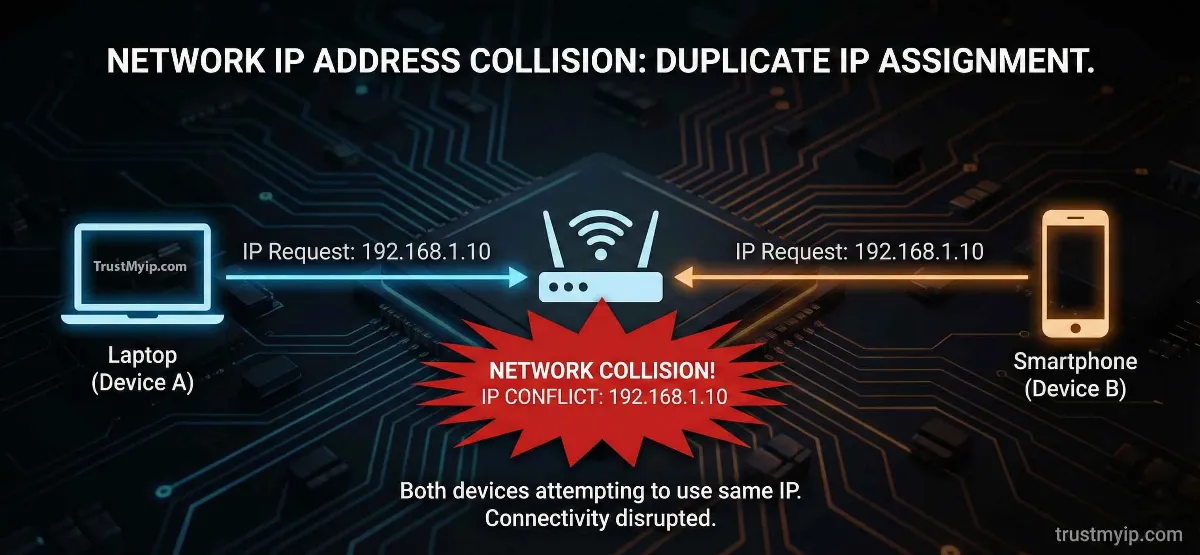
Imagine you are driving down a one-way street in New York and suddenly see another car heading straight for you in your lane. This is exactly what happens inside your router when an IP Address Conflict occurs. It is a digital head-on collision where two devices—perhaps your iPhone and your Windows PC—try to claim the same identity. The result? Total connectivity blackout. Mastering how to resolve an IP address conflict is the first step toward building a resilient, lag-free network in 2026.
"In my 11 years of managing global networks, I've seen that most conflicts aren't caused by the router—they are caused by poor network documentation. When an admin manually assigns a Static IP that is still inside the router's DHCP allocation pool, a collision is inevitable. To fix this, you must understand the difference between a MAC address and an IP address to identify which device is the 'imposter'."
1. Forensic Analysis: What is an IP Address Conflict?
An IP conflict happens when two or more devices on the same Local Area Network (LAN) are assigned the same Private IP address. Because the OSI Layer 2 (Data Link) relies on unique identities to deliver frames, having two devices with the same IP confuses the switch and router, causing both devices to lose internet access.
The Static Conflict
Happens when a printer or server is manually assigned an IP that the router later gives to another device via DHCP.
The DHCP Bug
Occurs when a router’s DHCP allocation table becomes corrupted after a power surge, causing it to "forget" which IPs are already in use.
Step 0: Identity Audit. Use our Network IP Audit Tool to see if your current IP is being reported correctly or if it's trapped in a collision state.
2. How to Resolve IP Address Conflict on Windows 10 & 11
Windows is very vocal about conflicts. You will often see a popup saying "There is an IP address conflict with another system on the network." To fix this, you need to force a refresh of the TCP/IP stack.
The Command Line SOP:
1. Open Command Prompt (CMD) as Administrator.
2. Type ipconfig /release and hit Enter. This drops your current identity.
3. Type ipconfig /renew and hit Enter. Your PC will ask the router for a fresh DHCP allocation.
4. If this fails, you may need to follow our guide on How to Change IP on Windows to set a manual address outside the conflict zone.
3. How to Resolve IP Address Conflict on Mac (macOS)
Apple’s macOS handles networking differently, often showing a "self-assigned IP" (169.254.x.x) when a conflict occurs. This is known as APIPA, and it means your Mac has given up on the router.
The macOS Refresh Hack
Go to System Settings > Network > Details > TCP/IP. Click the Renew DHCP Lease button. This forces a Unix-level reset of the network interface. For a deeper fix, check our macOS IP Management Guide to ensure your authorized users are on the right subnet.
4. Fixing IP Conflicts on Android & iPhone (iOS)
Mobile devices are the #1 cause of conflicts in 2026 because they frequently join and leave networks, causing DHCP leases to get tangled.
iPhone Solution
Go to Wi-Fi settings, tap the "i" next to your network, and tap Forget This Network. Reconnect to get a fresh identity. See our iPhone IP Guide for manual setup.
Android Solution
Long-press your Wi-Fi name > Modify Network > Advanced > IP Settings. Change from DHCP to Static to manually bypass the conflict. Full details are in our Android IP Masterclass.
5. Long-Term Fix: Router Configuration & DHCP Reservation
If you keep having conflicts, your router configuration is likely the problem. You need to separate your "Dynamic Pool" from your "Static Assets."
Infrastructure Pro-Tips:
- • Shrink the Pool: Set your DHCP range to 192.168.1.100 - 192.168.1.254.
- • Reserve Static IPs: For devices like Printers, use DHCP Reservation. This ties a specific IP to the device's MAC address so the router never gives it to anyone else.
- • Reboot Every 30 Days: A simple reboot clears the router's internal ARP cache and stale leases. Read our Router IP Master Guide for more.
6. Conflict Resolution: Method Comparison
Use this forensic table to decide which method is best for your specific network documentation needs.
| Solution | Device | Success Rate | Technical Level |
|---|---|---|---|
| ipconfig /renew | Windows | High | Moderate (CMD) |
| DHCP Reservation | Router | 100% (Permanent) | Professional |
| Power Cycle | Any | Moderate | Beginner |
7. The Root Cause: MAC Address vs. IP Address
To truly understand how to resolve ip address conflicts, you must know that your router uses ARP (Address Resolution Protocol) to map IPs to hardware.
A conflict happens when the router has one IP address mapped to two different MAC addresses in its table. By identifying the manufacturer of the conflicting device using our MAC Lookup Tool, you can quickly find out which physical machine (e.g., a rogue smart bulb or an old laptop) is causing the chaos. For a deep-dive, read our MAC vs IP Logic Guide.
8. Troubleshooting: Conflict Still Persistent?
If refreshing and rebooting didn't work, you might be facing these technical constraints:
- Rogue DHCP Server: If someone accidentally plugs another router into your network, it starts handing out duplicate IPs. This is a common corporate security nightmare.
- VPN Interference: Some VPNs create virtual adapters that don't release their IPs correctly. Learn more in our Stealth IP Guide.
- Static assignment Errors: Always check your Network Documentation to ensure you haven't manually assigned the same IP to two different servers.
IP Conflict FAQ
Can two computers have the same IP on the internet?
No. Every Public IP must be unique. However, millions of people can share the same Private IP (like 192.168.1.1) because they are on separate, isolated networks.
Does a router reboot fix all IP conflicts?
Usually, yes. It forces all connected devices to perform a new DHCP Discover and get fresh DHCP allocations.
Is an IP conflict a security risk?
Not directly, but it can be used in "ARP Spoofing" attacks where a hacker purposefully creates a conflict to intercept your public data. Always resolve conflicts immediately.
Conclusion: Controlling the Digital Traffic
Learning how to resolve an IP address conflict is about more than just clearing an error message—it is about mastering your network's flow. By using DHCP reservations, keeping accurate network documentation, and understanding the core mechanics of MAC address filtering, you turn a chaotic network into a high-performance infrastructure. In 2026, as more IoT devices join our homes, these best practices for maintaining network topology maps will be your best defense against connectivity failure.
Is Your Network Stable?
Don't wait for the next collision. Use our forensic toolkit to audit your IP health, identify rogue MAC addresses, and check your DNS propagation in one click.