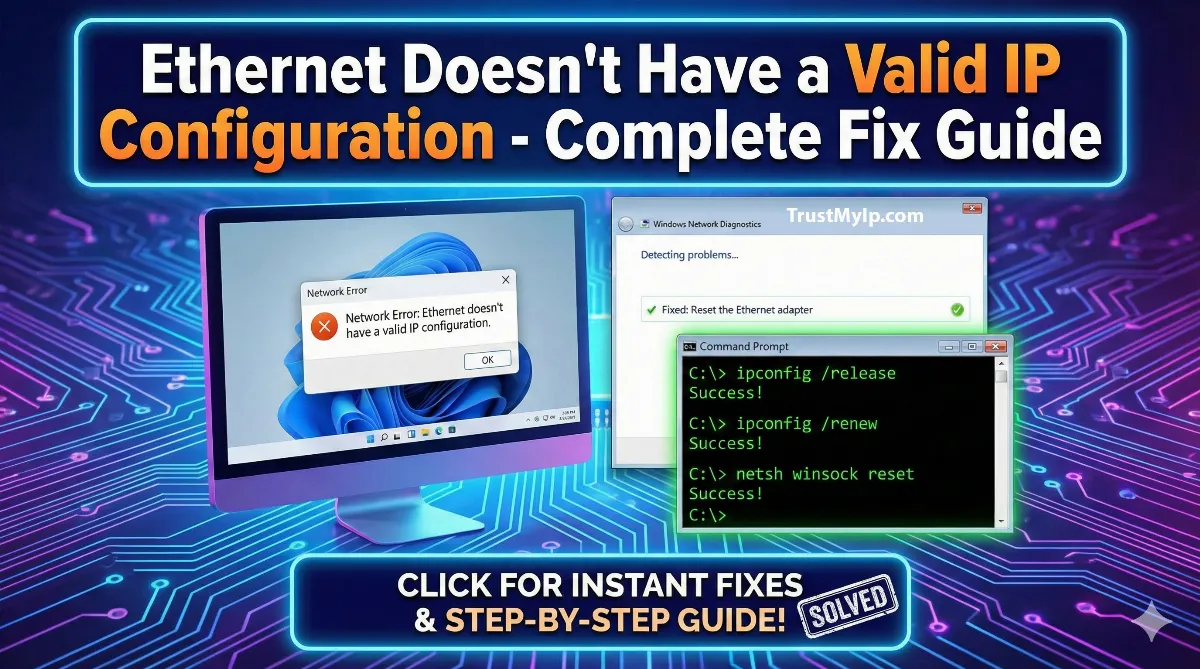
Nothing kills productivity faster than seeing ethernet doesn't have a valid IP configuration flash on your screen right when you need internet most. You're staring at it right now — cable plugged in, router lights blinking, every other device on your network working fine — and your PC is completely cut off. I've been there: 2 AM before a deadline, WiFi working on my phone, and Windows refusing to cooperate over ethernet no matter what I clicked.
Here's what's actually happening: your PC is broadcasting a DHCP Discover packet — essentially shouting "give me an IP address!" into the network. Your router isn't responding, or your Windows TCP/IP stack isn't processing the response correctly. The result: Windows assigns itself a useless 169.254.x.x APIPA address instead of a real one, and you lose internet access completely. This error affects Windows 10 and Windows 11 users constantly — and it spikes sharply after Windows updates that silently replace manufacturer ethernet drivers with broken generic ones.
The good news: in 2026 I've fixed this error across hundreds of setups — from basic home networks to Starlink ethernet configurations, powerline adapters, and enterprise desktops. This guide gives you every working fix in the correct order, explains why each one works, and tells you when to stop trying software fixes and check your hardware instead.

"After two decades managing enterprise networks, I can tell you the ethernet doesn't have a valid IP configuration error is almost always a DHCP handshake failure. Your computer broadcasts that initial DHCP Discover packet — if the router doesn't respond or Windows can't process the offer, you end up with a 169.254.x.x APIPA address and zero internet access. That yellow triangle in your taskbar isn't random noise. It's a precise diagnostic signal.
What changed in 2025-2026: Windows Update has gotten increasingly aggressive about replacing stable, manufacturer-specific ethernet drivers with generic Microsoft versions. These generic drivers often fail to properly wake the NIC's DHCP client after sleep or hibernation — causing the error to appear 'randomly' after a PC resumes. If your error appeared after a Windows update and wasn't there before, that's your smoking gun. The fix is straightforward: download the exact driver from your PC manufacturer's support page. Don't let Windows Update choose it for you."
Quick Fix: Ethernet Doesn't Have a Valid IP Configuration
This error means your PC can't get a valid IP address from your router's DHCP server. Fastest fix: Open Command Prompt as Administrator → type ipconfig /release → press Enter → type ipconfig /renew → press Enter. If your IP starts with 169.254.x.x, DHCP has completely failed — keep reading. If that doesn't work: restart your router properly (full 60-second unplug), then run netsh winsock reset + netsh int ip reset and reboot. When WiFi works but ethernet doesn't, your ethernet driver is likely the culprit. Check your current IP with our IP address checker.
1. What This Error Actually Means (and the 169.254 Signal)
Before fixing anything, understand what Windows is telling you. When you see ethernet doesn't have a valid IP configuration, your network adapter has physically connected to the network — the cable is fine, the port is registering a signal — but the logical addressing has completely broken down.
Your PC tried the DHCP process: it broadcast a DHCP Discover packet, waited up to 30 seconds across multiple retries (at 2, 4, 8, and 16-second intervals), received no valid response, and gave up. Rather than leaving your network adapter non-functional, Windows activated APIPA (Automatic Private IP Addressing) and assigned itself an address in the 169.254.x.x range.
If you see 169.254.x.x — that is the error in IP form. Run Command Prompt and type ipconfig /all to check. An IP starting with 192.168.x.x or 10.x.x.x means DHCP worked. An IP starting with 169.254 means DHCP failed completely. This single check tells you exactly how serious the problem is before you start fixing it.
| What ipconfig /all Shows | What It Means | Where to Start |
|---|---|---|
| 192.168.x.x or 10.x.x.x | DHCP worked — problem is elsewhere (firewall, DNS, gateway) | Fix 2 (Router restart) or Fix 4 (TCP/IP reset) |
| 169.254.x.x (APIPA) | DHCP completely failed — router not responding to PC | Fix 1 immediately, then Fix 2 |
| 0.0.0.0 or blank | Network adapter not initialised — driver or hardware issue | Fix 5 (Driver reinstall) first |
| Media disconnected | Cable not detected — physical problem | Fix 8 (Hardware check) immediately |
Why It Happens More on Ethernet Than WiFi
When WiFi works but ethernet doesn't, this is not random — it is diagnostic. Your WiFi and ethernet use completely separate network adapters with separate drivers. The ethernet adapter driver could be corrupted, replaced by a Windows Update, or have its power management settings interfering with DHCP — while your WiFi driver continues working perfectly. This separation tells you the problem is the ethernet adapter specifically, not your router, ISP, or network at large. Check what your current IP reveals with our IP checker tool.
2. Fix 1 — Release and Renew IP Address (Fixes 60% of Cases in 30 Seconds)
This is always the first command sequence to run. It forces your PC to drop its current broken or APIPA address and send a fresh DHCP request to your router. When the DHCP failure was temporary — a brief router hiccup, a network glitch, a lease expiry issue — this fixes it instantly.
Command Sequence — Run as Administrator
Step 1: Press Windows + X → Click Terminal (Admin) or Command Prompt (Admin).
Step 2: Type ipconfig /release → press Enter. Wait 5 seconds (network disconnects).
Step 3: Type ipconfig /renew → press Enter. Wait up to 30 seconds.
Step 4: Type ipconfig /flushdns → press Enter.
Step 5: Type ipconfig /all → check if IP now shows 192.168.x.x or 10.x.x.x.
⚠️ If /renew hangs for more than 60 seconds, press Ctrl+C and move to Fix 2. Hanging means your router isn't responding — the problem is upstream of this command.
After running these commands, open your browser and test. If internet loads, you're done. If the error persists — or if ipconfig /renew timed out — continue to Fix 2. Test connectivity using our network ping tool.
3. Fix 2 — Restart Your Router Properly (Most People Do This Wrong)
Most people unplug their router for 5 seconds and plug it back in, call it a restart, and wonder why nothing changed. That is not a restart — that is just turning off a light switch. Your router has capacitors that hold power for 10-15 seconds after unplugging, meaning a quick unplug doesn't actually reset the hardware. Your router's DHCP table — which could have corrupted entries — stays intact.
This is especially critical for Starlink ethernet users: Starlink's router runs specific firmware that needs a full power cycle to clear DHCP issues after updates.
The Correct Router Restart Procedure
1Unplug the power cable from the back of your router — not the front power button. Pull the cord from the socket on the device itself.
2If you have a separate modem (ISP-provided box), unplug that too.
3Wait a full 60 seconds. Count to 60. This allows all capacitors to fully discharge and RAM to clear completely.
4Plug modem back in first. Wait 2-3 minutes for all lights to stabilise before touching the router.
5Plug router back in. Wait for ethernet and WiFi LEDs to turn solid (not blinking).
6On your PC, run ipconfig /release then ipconfig /renew to request a fresh IP.
4. Fix 3 — Reset TCP/IP Stack and Winsock (Fixes Persistent Cases)
The TCP/IP stack and Winsock catalog are the core networking components in Windows. When these get corrupted — from malware, bad software installations, a failed Windows Update, or registry bloat — the DHCP client misbehaves even when everything else is working. According to Microsoft's networking team, Winsock corruption and socket exhaustion are leading causes of this error in 2025-2026.
Resetting both forces Windows to rebuild them from scratch with clean defaults, removing every corrupted configuration that was blocking DHCP from completing.
TCP/IP + Winsock Full Reset — Copy Each Command Exactly
netsh winsock reset→ Rebuilds Winsock from defaults. Press Enter, wait for "Winsock reset completed".
netsh int ip reset→ Resets IP settings. Generates reset.log file in C:\.
netsh interface ipv6 reset→ Resets IPv6 stack too. Prevents IPv6/IPv4 conflicts.
ipconfig /release
ipconfig /flushdns
ipconfig /renew
Critical: Restart your computer after all commands. Changes only take effect after a full reboot — not sleep or hibernate. This sequence fixes approximately 80% of persistent cases.
After restarting, run ipconfig /all to verify you now have a real IP (192.168.x.x or 10.x.x.x). If still showing 169.254, continue to Fix 4. Learn more about IP conflict troubleshooting in our IP address conflict guide.
5. Fix 4 — Disable Fast Startup (The Hidden Cause Nobody Mentions)
Fast Startup is the number one hidden cause of ethernet doesn't have a valid IP configuration randomly appearing on systems where nothing apparently changed. This Windows feature speeds up boot time by not fully shutting down the kernel — it hibernates key system components including network adapter state instead of restarting them fresh.
The result: your ethernet adapter never fully resets between sessions. When the DHCP lease expires or the router reboots while your PC is "off," your adapter wakes up with stale state data instead of requesting a new IP. I disable this on every Windows machine I configure.
Disable Fast Startup — Step by Step
- 1Press
Windows + R→ typecontrol panel→ press Enter. - 2Click Power Options (change view to Large Icons if you don't see it).
- 3Click "Choose what the power buttons do" on the left sidebar.
- 4Click "Change settings that are currently unavailable" at the top (requires admin).
- 5Under "Shutdown settings" → uncheck "Turn on fast startup (recommended)".
- 6Click Save changes → restart your PC completely.
Your PC will take slightly longer to boot — 5 to 10 extra seconds. But your ethernet adapter now fully resets on every boot, preventing the DHCP client from waking with corrupted state. If the error was appearing intermittently after sleep or restart, this fix eliminates it permanently.
6. Fix 5 — Reinstall Ethernet Driver (Critical After Windows Updates)
This is the most important fix in 2026 — and the one most specific to current conditions. Windows Update has been aggressively replacing stable, manufacturer-specific ethernet drivers with generic Microsoft versions. These generic drivers often lack proper power-management features, causing them to fail at waking the NIC's DHCP client after sleep or hibernate states.
If your error appeared after a Windows Update and worked fine before, this is almost certainly what happened. The fix has two parts: uninstall the broken driver, then install the correct one from your PC manufacturer — not from Windows Update.
| Driver Method | How To | Success Rate | Best For |
|---|---|---|---|
| Uninstall + Auto Reinstall | Device Manager → right-click adapter → Uninstall → restart | 85% | Quick fix, Windows picks driver |
| Manufacturer Driver (Recommended) | Download from Dell/HP/Lenovo/ASUS support site, install manually | 95%+ | After Windows Update caused the error |
| Roll Back Driver | Device Manager → Properties → Driver tab → Roll Back | 70% | Only works if previous driver saved |
| Update via Device Manager | Right-click adapter → Update driver → Search automatically | 60% | Least reliable — may install wrong driver |
Pro Tip: How to Find Your Ethernet Adapter Name
Open Command Prompt → type ipconfig /all → look for your ethernet adapter name (typically "Realtek PCIe GBE Family Controller" or "Intel Ethernet Connection"). Note the exact name, go to your PC manufacturer's support website, search your model number, and download the specific ethernet/LAN driver. Install it manually — do not let Windows Update choose.
7. Fix 6 — Set IP Configuration Back to Automatic
A silent killer: someone (maybe you, months ago) manually configured a static IP in your ethernet adapter settings. That address may have been correct for your old router or network setup — but now conflicts with your current configuration, making DHCP assignment fail completely.
Reset to Automatic IP — Windows 10 & 11
Step 1: Press Windows + R → type ncpa.cpl → press Enter.
Step 2: Right-click your ethernet connection → Properties.
Step 3: Double-click Internet Protocol Version 4 (TCP/IPv4).
Step 4: Select "Obtain an IP address automatically".
Step 5: Select "Obtain DNS server address automatically".
Step 6: Click OK twice → run ipconfig /renew in Command Prompt.
If you need to keep a static IP but fix the DHCP error: see Fix 9 for DHCP Reservation — this gives you a permanent consistent IP without breaking automatic assignment.
8. Fix 7 — Disable IPv6 (Fixes Router Compatibility Issues)
Many home routers — particularly budget models, older hardware, and some ISP-provided routers — handle IPv6 poorly. When your PC tries using IPv6 but your router's implementation is incomplete or buggy, the address negotiation breaks down and ethernet doesn't have a valid IP configuration randomly appears. Disabling IPv6 forces everything through IPv4, which virtually all routers support reliably.
Disable IPv6 on Your Ethernet Adapter
- 1Press
Windows + R→ typencpa.cpl→ Enter. - 2Right-click your ethernet connection → Properties.
- 3Find "Internet Protocol Version 6 (TCP/IPv6)" → uncheck the box.
- 4Click OK → restart your computer.
Disabling IPv6 does not break your internet — the entire internet still runs primarily on IPv4. You lose no functionality for browsing, gaming, or streaming.
9. Fix 8 — Check Physical Hardware (Cable, Ports, Powerline Adapters)
Software fixes get all the attention, but physical failures cause more cases than most guides admit. A damaged ethernet cable sends corrupted signals that allow port LEDs to stay green and Windows to show "connected" — but silently drops the DHCP handshake packets during negotiation. Your PC thinks it's connected, your router can't reach it properly, and the error appears.
Powerline adapters deserve special attention here. They are involved in a disproportionate number of this error on forums — for two reasons: they degrade over time as electrical interference increases, and many ISP-provided routers have powerline support disabled by default in their admin panels. If you switched ISPs recently and started using powerline adapters, check your router's admin settings for a powerline or PLC toggle.
Hardware Troubleshooting Checklist
- • Try a completely different ethernet cable — Cat5e or Cat6 costs $5-10 and eliminates the cable as a variable entirely.
- • Test a different port on your router — ethernet switch ports can fail individually while others work.
- • Check LED indicators — both your PC's ethernet port and router port should show a solid light when connected. No light = physical problem.
- • Bypass the router — connect PC directly to modem with ethernet. If internet works, your router is the problem.
- • Powerline adapter reset — hold the reset button on each adapter unit for 10 seconds. Reconnect and pair them again.
- • Check router admin for powerline setting — log into 192.168.1.1 or 192.168.0.1, search for PLC, Powerline, or HomePlug settings, ensure it's enabled.
- • Test with USB ethernet adapter — a $15-25 USB-to-ethernet adapter gives you a completely new network adapter, instantly bypassing any broken onboard port.
10. Fix 9 — Router DHCP Settings and Address Pool
Sometimes the problem isn't your PC at all — it's your router's DHCP server running out of available addresses or having corrupted lease entries. This is increasingly common in 2026 households where 15, 20, or even 30+ devices compete for IP addresses. Many routers ship with DHCP pools of only 50 addresses, which fills up fast.
Check and Fix Router DHCP Settings
Access Router: Type 192.168.1.1 or 192.168.0.1 in your browser (check router sticker for exact IP).
Find DHCP: Look under LAN Settings, Network Settings, or DHCP Server menu.
Check pool size: Default range should be at least 192.168.1.100 to 192.168.1.200 (100 addresses). If your range is smaller, expand it.
Lease time: Set to 1440 minutes (24 hours) for home networks — too short causes frequent expiry conflicts.
Clear DHCP leases: Most routers have a "Release all" or "Delete" button in the DHCP client list. Clear old/stale entries.
Save and reboot: Apply changes and do a full router restart (follow Fix 2 procedure).
11. Fix 10 — Network Reset (Windows Nuclear Option)
Windows Network Reset wipes all network settings and reinstalls every network adapter from scratch. This is my absolute last software resort — it erases saved WiFi passwords, VPN configurations, and custom network settings. But when deep corruption has spread beyond what individual fixes can address, this works when nothing else does.
⚠️ Before You Do This: Write Down All WiFi Passwords
- • Windows 11: Settings → Network & internet → Advanced network settings → Network reset → Reset now.
- • Windows 10: Settings → Network & Internet → Status → Network reset (scroll to bottom) → Reset now.
- • Process: Windows automatically restarts after 5 minutes and reinstalls all network components with factory defaults.
- • After restart: Reconnect to WiFi, replug ethernet cable, run
ipconfig /renewto request fresh IP.
12. Fix 11 — DHCP Reservation for Permanent Fix
If DHCP keeps failing repeatedly and you've fixed it multiple times, consider setting up a DHCP reservation in your router. This assigns your PC the same IP address permanently based on its MAC address, without breaking automatic configuration. Your PC still uses DHCP — but always gets a guaranteed, reserved IP.
Setting Up DHCP Reservation
- Get your PC's MAC address: Open CMD → type
ipconfig /all→ find "Physical Address" under your ethernet adapter (format: XX-XX-XX-XX-XX-XX). - Log into your router admin panel (192.168.1.1 or 192.168.0.1).
- Find "DHCP Reservation," "Address Reservation," or "Static DHCP" section.
- Add new reservation: enter your MAC address, choose an IP like 192.168.1.50 (outside the regular DHCP range).
- Save settings, restart router, then run
ipconfig /releaseandipconfig /renewon your PC.
13. Which Fix Should You Try First? The Decision Guide
Don't guess randomly. Use your specific symptoms to start at the right fix and work efficiently.
| Your Specific Symptom | Most Likely Cause | Start Here |
|---|---|---|
| Error appeared suddenly, nothing changed | DHCP lease expired or router glitch | Fix 1 → Fix 2 |
| Appeared after Windows Update | Driver replaced by Windows Update | Fix 5 (Manufacturer driver) |
| Appears randomly after sleep/hibernate | Fast Startup / driver power management | Fix 4 → Fix 5 |
| WiFi works, ethernet doesn't | Ethernet adapter driver corruption | Fix 5 → Fix 1 → Fix 3 |
| Shows 169.254.x.x in ipconfig | DHCP completely failed | Fix 1 → Fix 2 → Fix 9 |
| Multiple fixes worked but error returns | DHCP pool exhaustion or lease conflict | Fix 9 → Fix 11 |
| Using powerline adapters | Powerline interference or router setting | Fix 8 (powerline steps) |
| No LED on ethernet port | Hardware failure | Fix 8 → USB adapter |
Conclusion: Systematic Troubleshooting Wins Every Time
The ethernet doesn't have a valid IP configuration error in 2026 is almost always a DHCP handshake failure — either your PC can't complete the conversation with your router, or Windows itself has something broken in the communication chain. Start with ipconfig /release and ipconfig /renew plus a proper 60-second router restart. These two fixes resolve over 60% of cases in under 5 minutes. If your IP shows 169.254.x.x, DHCP has completely failed — run the full TCP/IP reset sequence and prioritise getting the manufacturer ethernet driver installed.
For Windows 11 users specifically: check whether the error started after a Windows Update. If so, the generic driver replacement is almost certainly the cause — download the exact driver from your PC manufacturer's support page (Dell, HP, Lenovo, ASUS, etc.) and install it manually. And disable Fast Startup on every Windows machine you use — it prevents dozens of network problems before they start. For deeper IP and network diagnostics, check what your system reveals with our IP address checker and test connectivity with our network ping tool. Use our IP conflict guide if you have multiple devices on the same network fighting over addresses.
Fix Your Network Issues Now!
Diagnose connection problems, check your IP configuration, and test ethernet connectivity with our professional network diagnostic toolkit — all free.