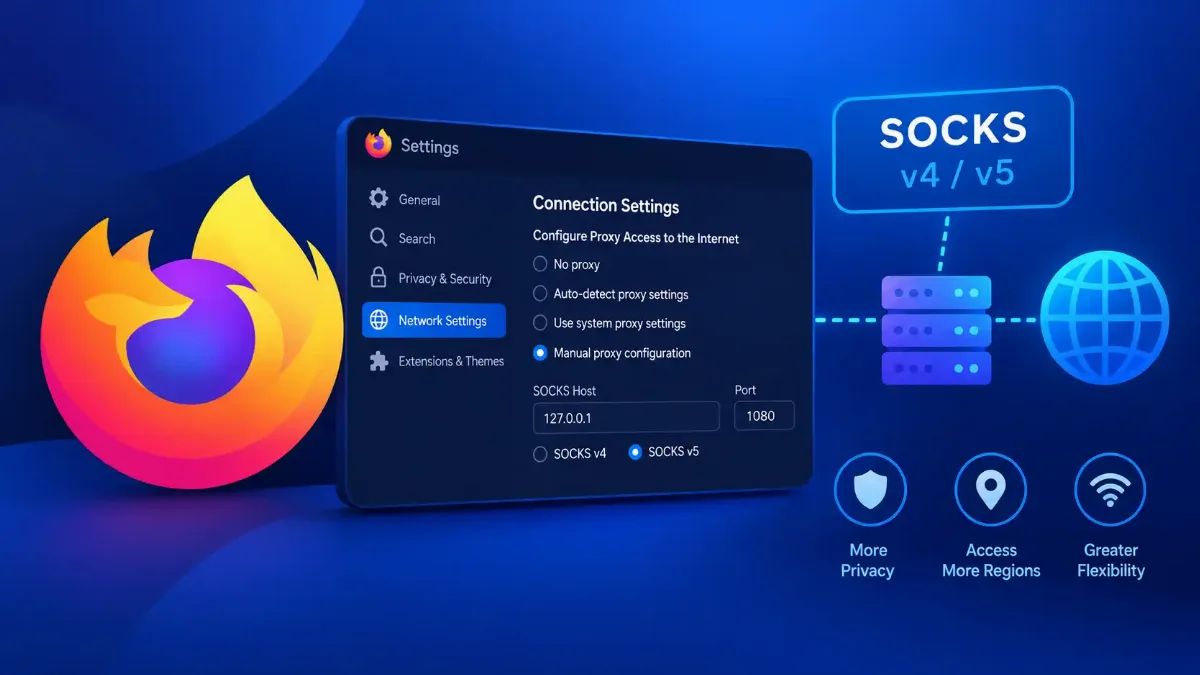
Firefox proxy settings live inside Firefox rather than in your operating system, which is why turning a system proxy off does not always stop Firefox using one. The dialog holds a SOCKS host pair, a version radio, two separate Proxy DNS checkboxes and an authentication option, and Mozilla's support article for that dialog names none of them.
That omission is why the guides you find are built around screenshots. A screenshot shows you where the boxes are. It cannot tell you what the two Proxy DNS checkboxes change, why there are two of them, or which of them is in force on your machine right now.
Every field name, tooltip and error sentence below is quoted from Firefox's own source files, and the preference behind each control is named so you can read your own value rather than trust mine. Where a source would not give me the same answer twice, I have said so instead of filling the gap. And the setup section ends in a test, because a proxy you have configured and not checked is a proxy you are guessing about.

Quick Answer: Firefox Proxy Settings
Where Firefox Proxy Settings Actually Live
Start with the thing that makes Firefox different, because it explains half the confusion. Chrome on Windows and macOS reads the operating system's proxy configuration. Firefox keeps its own, and it ships set to follow the system, which is not the same as having none.
That is why somebody who cleared a proxy in Windows settings can still be proxied in Firefox and nowhere else. If that is your symptom, the fix is in the browser: open Connection Settings and select No proxy, which is the only option that ignores the system outright. Use system proxy settings is not an off switch, it is an instruction to inherit whatever the machine says, and the machine can change under you.
Two of the other options confuse people before they get anywhere near a host box. Auto-detect proxy settings for this network asks the network to hand Firefox a configuration, which on a corporate or campus network means the network decides. Alongside it sits Use system Web Proxy Auto-Discovery setting, which defers the same discovery to the operating system. Neither is a proxy you typed, and neither will use an address you did type.
So the answer to how to use proxy in firefox splits on one question: did somebody give you an address, or does somebody manage this for you? If you were handed an address, Manual proxy configuration is the only option that uses it, and it gives you a proxy for Firefox alone rather than one the whole machine inherits. If not, one of the automatic modes is the honest choice. Typing an address and leaving a different mode selected is a failure the dialog will never warn you about, because every mode is a legitimate choice and it cannot know which one you meant.
On how to open it, I am going to be more careful than the guides, because Mozilla currently publishes two different routes. In the older arrangement the proxy section sits in the General panel under Network Settings, and you press Settings…. In the newer one, which Mozilla documents for Firefox 152 and later, it has moved: Privacy and security, then the Connection and software security section, then Advanced settings, then Proxy settings, then Configure proxy. Either way the window that opens is titled Connection Settings.
Check which route your build uses rather than trusting a screenshot. Guides for this dialog are still circulating that send readers through a Tools menu, a path Firefox has not had for years, and a screenshot is only evidence of what the browser looked like when somebody took it. For the wider question of what you are configuring when you fill any of this in, our explainer on what actually changes about a connection once a proxy is in it is the background.
Browser Proxy Settings in Firefox: Every Control, and Which Ones Mozilla Documents
Search browser proxy settings firefox and the results hand you pictures of this dialog without saying what half of it does. So here is the whole window, control by control, with each label quoted from connection.ftl, the string file Firefox builds the dialog from. The third column scores each control against one specific document: Mozilla's support article Connection settings in Firefox, which I read on 25 September 2026. That column, not the screenshots, is why this page exists.
| Control, as Firefox labels it | What it does | In Mozilla's article? |
|---|---|---|
| No proxy | Direct connections, ignoring whatever the system is set to. This is the off switch | Yes |
| Auto-detect proxy settings for this network | Asks the network for a configuration rather than you supplying one | Yes |
| Use system proxy settings | Follow the operating system. This is the setting people mistake for "off" | Yes |
| Use system Web Proxy Auto-Discovery setting | Hands auto-discovery to the operating system instead of doing it in the browser | Yes |
| Manual proxy configuration | You type the addresses. The host and port boxes stay grayed out until this is selected | Yes |
| HTTP Proxy, and Port | The web proxy pair. The article says each proxy "requires a hostname and a port number" | Yes |
| Also use this proxy for HTTPS | Reuses the HTTP values for HTTPS, and grays out the pair below while it is ticked | Yes |
| HTTPS Proxy, and Port | A different address for HTTPS, available only when the tick above is clear | Yes |
| SOCKS Host, and Port | A separate host and port for a SOCKS relay. Not the same boxes as HTTP and not interchangeable with them | No |
| SOCKS v4 / SOCKS v5 | Which version Firefox speaks to that host. The two are not compatible and the difference is not cosmetic | No |
| Automatic proxy configuration URL, and Reload | A PAC script, and a button to re-fetch it. Greyed out unless this mode is the selected one | Yes |
| No proxy for | Destinations that bypass the proxy. Its own hint gives the format: "Example: .mozilla.org, .net.nz, 192.168.1.0/24" | Yes |
| Do not prompt for authentication if password is saved | Stops the credential prompt reappearing once Firefox has the password stored | No |
| Proxy DNS when using SOCKS v4 | Whether the proxy or your machine resolves hostnames, for version 4. Section 4 is about this pair | No |
| Proxy DNS when using SOCKS v5 | The same decision for version 5, as a separate checkbox with its own preference behind it | No |
| Disable Extension | Appears when an add-on has taken over the configuration. Until you press it, your choices above are not the ones in force | Not scored. It is conditional, and Section 5 is where it becomes the answer |
The five controls marked No are four SOCKS controls and one authentication control, and Mozilla's article names none of them. That is not a complaint so much as an explanation of your search history: the documentation covers the straightforward part of the dialog, so the hard part gets written from pictures of it.
Two things are worth noticing while the table is in front of you. There is no username or password field anywhere in this window, which stops people holding credentials for a relay in their tracks, and Section 4 says what to do instead. And the dialog carries one sentence that saves you a wasted entry in No proxy for: right beside that box, Firefox states that "Connections to localhost, 127.0.0.1/8, and ::1 are never proxied." You do not need to list them. Guides that tell you to are padding a field the browser already handles.
If what you are unsure about is what these boxes are for in the first place, rather than how Firefox words them, that is a different question and we answered it separately in what the proxy boxes on a settings screen are asking you for.
The Firefox SOCKS Proxy Fields, and Why They Are Not the HTTP Boxes
There is one mistake in this dialog that produces no error message at all: a Firefox SOCKS5 proxy address typed into the HTTP Proxy box. The dialog will accept it. Nothing will work, and nothing will tell you why.
They are different boxes because they are different protocols. The HTTP pair speaks HTTP to a proxy that understands web requests. The SOCKS Host pair speaks SOCKS, which relays a connection without reading it, and that is what lets it carry things that are not web traffic at all. A relay handed the wrong one simply fails.
That distinction has a practical edge. An HTTP proxy can read the request, so it can cache a page, rewrite a header or refuse a hostname, which is what a filtered office network needs. A SOCKS relay can do none of that, and in exchange it will carry a mail client, a database session or anything else that never speaks HTTP. So when somebody hands you a firefox proxy server without naming a protocol, the first question is which of those two it is, because the answer decides which pair of boxes the address belongs in.
The version radio matters for the same reason, and the difference is sharper than the labels suggest. Version 5 added UDP support, added address types for IPv6 and for hostnames, and added a negotiated authentication step. Version 4 has none of those. It does still carry a username, but it has no field for a password at all. Firefox's own SOCKS implementation says so twice in its source, in a comment reading "Passwords not supported by V4."
So a provider who issued you a username and a password has given you something version 4 can only half deliver. We took the protocol apart from its specification in what the SOCKS standard defines and what software actually implements.
That raises a fair objection worth answering rather than leaving as a loose end. If version 4 cannot carry a hostname, what is a Proxy DNS when using SOCKS v4 checkbox for? The answer is an extension written SOCKS4a, and Firefox documents it in the comment beside the code that builds the request. It adds "the full name, null-terminated, to the request according to SOCKS 4a", using "a fake IP address, with the first four bytes set to 0 and the last byte set to something other than 0" as the signal.
So hostnames are not simply a version 5 feature. Version 5 defines an address type for them outright, and version 4 acquired one by extension. That checkbox is the extension.
One honest limit, and one finding that came out of chasing it. Firefox stores all of this as preferences you can read yourself in about:config, and the dialog binds each control to one of them. network.proxy.socks_version ships as 5, which is in Firefox's preference defaults in plain sight.
The two DNS checkboxes are a different matter and I am not going to state their shipped values. The file that defines them would not give me the same answer on two reads, and a default I cannot reproduce is not a default I will print. Read your own instead, and note which preference name goes with which box, because it is not what you would guess.
How to Set Up a SOCKS5 Proxy in Firefox Without Leaking Your DNS
This is the part the walkthroughs skip, and it is where a proxy either does the job you wanted or quietly does not.
When Firefox connects to a site through a SOCKS proxy, something has to turn the hostname into an address. Either your machine does it, using whatever resolver your network gave you, and then hands the proxy a numeric address. Or Firefox passes the name itself and the proxy resolves it. The protocol allows both, because its request carries an address type byte and one of the permitted values is a domain name.
The checkbox labeled Proxy DNS when using SOCKS v5 is that choice, exposed. Ticked, Firefox hands over the name and the lookup happens at the relay. Clear, and your own resolver sees every hostname you visit even though the traffic itself is going through the relay. The connection is proxied and the lookup is not, which means anyone positioned to watch your DNS still has the list of where you went.
There is a second checkbox, Proxy DNS when using SOCKS v4, and the two are not linked. Firefox does more than ignore the one you are not using: it grays it out. Select v5 and the v4 checkbox is disabled, and the other way round, so whichever box is live is the one your version radio chose. Select No proxy and both go dead.
( ) SOCKS v4
(o) SOCKS v5 <-- the version you select here
[ ] Do not prompt for authentication if password is saved
[ ] Proxy DNS when using SOCKS v4 <-- grayed out while v5 is selected
[x] Proxy DNS when using SOCKS v5 <-- the live one in this state
# TICKED = Firefox sends the NAME, the relay resolves it.
# CLEAR = your own resolver sees the name first, even
# though the traffic goes through the relay.
#
# The preferences behind the two boxes, readable in
# about:config:
# v4 box -> network.proxy.socks_remote_dns
# v5 box -> network.proxy.socks5_remote_dns
Read those last two lines twice, because they are the trap. The preference named socks_remote_dns, with no version number in it, is the version 4 checkbox. The version 5 box is socks5_remote_dns.
That matters beyond trivia. Chrome's own proxy documentation, explaining that Chrome has no equivalent option, points readers at network.proxy.socks_remote_dns as the Firefox setting for this, and it is the wrong one of the two. Flip that preference by hand on the strength of that sentence and you have changed the v4 behavior and left v5 exactly as it was.
Firefox is unusual in exposing the choice at all. Chromium's documentation states that when a proxy's scheme is set to SOCKSv5, name resolution is always done proxy side, and that Chrome has no equivalent option. Neither behavior is wrong, but only one of them is visible, and a reader who assumes Firefox behaves like Chrome will leave the box clear and never know. The full comparison of what Chrome reads and refuses is in why Chrome's proxy behavior is decided somewhere else entirely.
One correction before the procedure, because it is the thing readers get wrong next. DNS over HTTPS is not in this dialog. Its controls live in the Privacy and Security panel, and they answer a different question: not whether your machine resolves the hostname, but how it resolves when it is the one resolving. Encrypting a lookup still leaves it happening from your address; handing the name to the relay stops it happening from your address at all.
Turning both on is not a belt-and-braces upgrade either. There is an open bug against Firefox's settings UI, filed in the Settings UI component and still marked NEW seven years later, in which the reporter describes exactly that combination and observes that the "DNS request is made via both the remote SOCKS proxy in a traditional manner (i.e. no DNS over HTTPS is used at all) and also via Cloudflare's DNS over HTTPS from Firefox's inbuilt TRR." That is one person's report on an unresolved bug rather than documented behavior, and I am giving it to you as exactly that.
Take it as a reason to choose one of the two deliberately rather than switching both on and assuming they stack. An open bug is not proof, but it is the only account of the combination I could find written down anywhere, and nothing in Mozilla's documentation contradicts it.
1 Select Manual proxy configuration first
2 Put the address in the SOCKS Host box, not the HTTP one
3 Tick the Proxy DNS box for that version
4 Put your exceptions in No proxy for, while the dialog is still open
5 Press OK, then let Firefox ask for the credentials
6 Now separate what you can prove from what you have only set
about:config tells you the configuration, and only your resolver's own query log tells you the behavior. A lookup of a hostname from our side rather than yours gives you an answer to compare against, and it is a comparison, not a proof.That last step is the whole reason this section exists. A ticked box is a stated intention, and DNS is where intentions and behavior come apart. The same logic applied to a tunnel rather than a relay is in how to tell whether traffic is really going where a client claims.
When Firefox Says the Proxy Server Is Refusing Connections
If you arrived from an error page, the heading on it was "The proxy server is refusing connections", and underneath it Firefox said: "The connection was refused when attempting to contact the proxy server you have configured. Please check your proxy settings and try again."
Read the heading rather than the advice, because the heading is the diagnosis. Refusing means the relay was reached and said no. It is not the same failure as Firefox being unable to find the proxy at all, and Firefox keeps the two apart internally with a different set of suggestions for each.
# page heading: "Unable to find the proxy server"
neterror-proxy-resolve-failure-settings
"Check the proxy settings to make sure that they are correct."
neterror-proxy-resolve-failure-connection
"Check to make sure your computer has a working network
connection."
neterror-proxy-resolve-failure-firewall
"If your computer or network is protected by a firewall or
proxy, make sure that { -brand-short-name } is permitted to
access the web."
# FAMILY 2: the proxy was found and REFUSED
# page heading: "The proxy server is refusing connections"
neterror-proxy-connect-failure-settings
"Check the proxy settings to make sure that they are correct."
neterror-proxy-connect-failure-contact-admin
"Contact your network administrator to make sure the proxy
server is working."
# { -brand-short-name } is a substitution token. On your
# screen it reads Firefox.
The heading tells you which family, so act on the difference
Notice what the two families share. "Check the proxy settings to make sure that they are correct" is the first suggestion in both, and "Please check your proxy settings and try again" ends both descriptions. It is what Firefox says when it does not know which of your settings is wrong, so it is the sentence to skip. The suggestions that differ between the families are the ones carrying information.
So for Family 1, read the host box character by character, then ask whether that name is supposed to exist on the network you are on right now. For Family 2, the host was fine, so check the port next, and then whether the relay is running at all; that is the case where Firefox's own advice to ask the administrator is the correct advice rather than a brush-off.
There is a third situation neither family covers, and it is the one that makes people reinstall the browser. You open Connection Settings, select No proxy, press OK, and the error comes back.
That means your selection is not the one in force. When an add-on has taken over the proxy configuration, Firefox puts a Disable Extension button in this very dialog, and while that button is there, everything you change above it is being overruled. Press it before you touch anything else.
A browser error is also not the only layer this can fail at, and the other browser handles the same situation with a message of its own that we took apart in the suggestion Chrome prints instead of a diagnosis. If you are not sure whether what you are looking at came from the browser, the proxy or the destination, the layer-by-layer way to place a proxy error sorts that out first.
Do You Need a Firefox Proxy Addon?
Short answer: not for setting a proxy. The fields above do that, and an extension that only fills them in has added a moving part without adding a capability.
What an extension genuinely buys you is switching. The dialog holds one configuration at a time, so changing relay means opening it and retyping, whereas a firefox proxy switcher stores several and swaps between them, and some will apply different proxies to different sites rather than all or nothing. That is a real saving if you switch several times a day and no saving at all if you set one and leave it.
This is also the honest answer for people searching a specific tool by name, proxy switchyomega firefox being one that gets typed in that way. The question worth asking is not whether one particular extension exists for Firefox, but whether you need per-site switching. If you do, any switcher solves it and the rest is a judgement about the developer: how many users, how recently updated, whether the source is public, and what permissions it asks for. If you do not, the dialog you already have is the smaller attack surface.
State the cost plainly rather than leaving it to the permissions screen. An extension that manages proxies has to see and redirect your traffic, which is a broad grant to a third party on top of the one you are already extending to the relay operator. What a page or an extension can see about your connection is the subject of our test of what your browser reveals beyond the address it connects from, and it is worth running once before installing anything that sits in the traffic path.
One consequence to carry forward. Once an extension holds the proxy configuration it takes the dialog out of the decision, which is the situation the Disable Extension button in Section 5 belongs to. Install a switcher, forget it, and the boxes you edit months later will have no effect at all.
Adding a Proxy Server to Firefox, and What to Check Afterwards
Section 4 gave the procedure, so this section covers the two things that happen after you close the dialog: what the credential prompt is telling you, and what is worth checking.
Take the credentials first. The saved-password setting is labeled Do not prompt for authentication if password is saved, and its tooltip is the plainest sentence in the dialog: "This option silently authenticates you to proxies when you have saved credentials for them. You will be prompted if authentication fails."
Read the second half, because it is a diagnostic. If you have this enabled and Firefox starts prompting again, that is not the browser forgetting. It is the browser telling you the saved credentials stopped working, which points at the provider rather than at your settings.
Then the cost, which is worth knowing before you save anything. The username and password you hand a SOCKS5 relay are sent in the clear. Firefox's own SOCKS code, at the point where it builds that exchange, carries the comment "password. WARNING: Sent unencrypted!" beside the line that writes it.
That is not a Firefox defect. It is the authentication method the protocol defines, and Firefox is being candid about it in its own source. The practical reading: a credentialed SOCKS5 relay on a network you do not trust is protecting your destination and not your login.
Then check, in this order, and keep the two checks separate. First, confirm the address the destination sees is the relay's and not yours, which is what the checker linked at the top of this page reports. Second, run the two-load test from Section 4 if you have a name that supports it, so the DNS checkbox has shown you a pass and a fail rather than a tick. And if the address that comes back turns out to be flagged rather than merely different, that is a separate problem with its own causes, which we set out in why a site may reject the address a relay gives you.
The position to leave with is narrow and it is this. To add proxy to Firefox, put the relay's address in the pair that matches its protocol, tick Proxy DNS for the version you selected, and confirm it from outside the browser, because the dialog cannot confirm anything. Firefox proxy settings are the browser's own, so the system panel is the wrong place to look; the DNS checkbox is the one control here that changes who can see where you went; and it is the one Mozilla's documentation does not mention. Everything else in this window is putting an address in the right box.