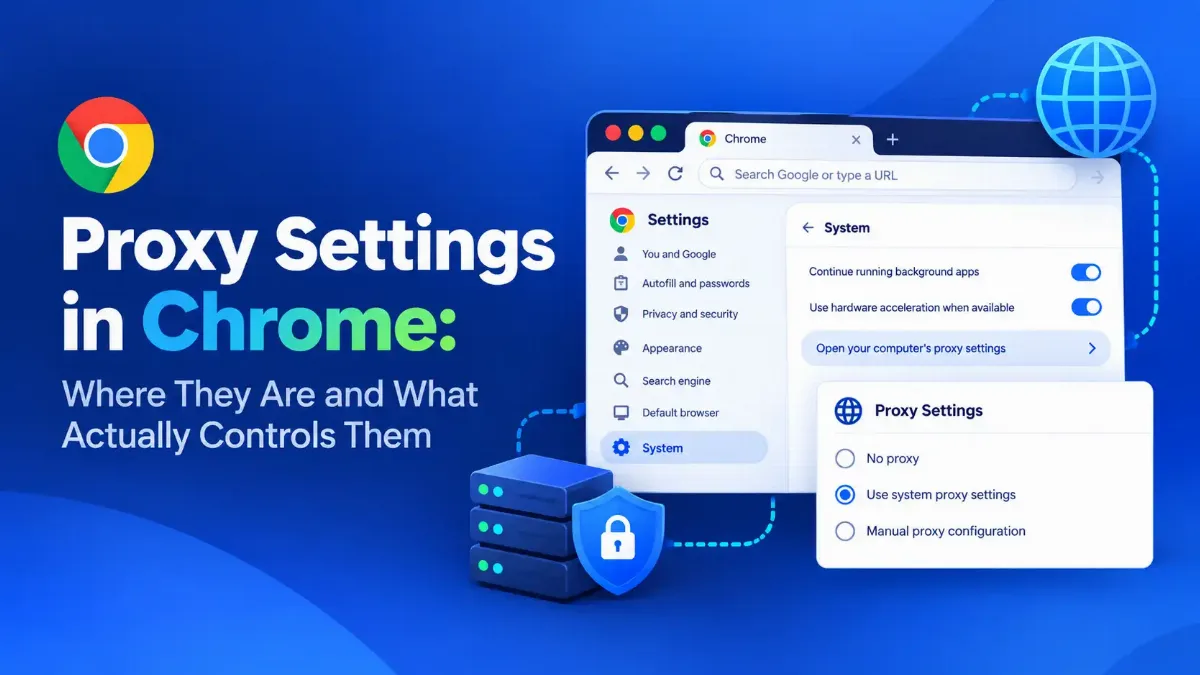

Chrome has no proxy settings of its own on Windows, macOS or Linux. The button inside Chrome opens your operating system's panel, and every guide that stops there is describing one of four places a proxy can come from.
Chromium's own networking documentation lists all four: managed policy, command-line flags, extensions, and the system settings. They do not carry equal weight. Chrome's preference system ranks them, with policy at the top and the panel you were sent to at the bottom. That ranking is why a machine can show an empty proxy panel and still route the browser through something.
This guide covers all four in the order Chrome actually resolves them, adds the fifth that exists only on Linux, and ends on the one nobody sets at all, because since Chrome 140 the browser runs a proxy of its own in Incognito. It also covers what Chrome flatly cannot do with a proxy, and why the proxy extension that worked for you last year may simply not exist any more.

Quick Answer: Proxy Settings in Chrome
Does Chrome Have Its Own Proxy Settings?
On Windows, macOS and Linux, no. What people call Google Chrome proxy settings is really the machine's own configuration, read by Chrome and reachable from a shortcut button inside it. On ChromeOS the answer flips, because a Chromebook has real proxy settings of its own, set per network, which is covered further down.
What the guides miss is that the system panel is only one input. Chromium's own documentation on proxy support in Chrome, read against the current source tree in September 2026, lists the settings as coming from managed Chrome policy, command-line flags, per-profile Chrome extensions, and per-network system proxy settings. Four sources, and exactly one of them, the launch flag, leaves no trace anywhere in Chrome's own interface.
None of this changes what a proxy is or does. The mechanism is the same one described in the full explanation of how a proxy server works and where it sits in a network. What changes in Chrome is only who gets to decide that a proxy is used at all.
| Source | Scope | Where you can see it |
|---|---|---|
| Managed policy | Whole browser, set by an administrator | An enterprise indicator on the proxy row, plus the full entry at chrome://policy |
| Extension | Per Chrome profile | Chrome shows a banner saying an extension is controlling the setting |
| Command-line flag | Whichever shortcut you launched from | Nowhere in Chrome. Only in the shortcut's target |
| System settings | Your Windows user account, or a single macOS network service | Yes, this is the button |
That table is in rank order, and the ranking is the part no proxy guide states. Chromium's networking document lists the four sources without prioritizing them, so the answer is in the code rather than the docs. Chromium's preference store header carries the rule in a comment above the list: the stores "must be listed here in order from highest to lowest priority".
That list reads managed policy, supervised user, extension, command line, user. Strip out the one that does not apply here and the proxy hierarchy is policy, extension, flag, panel.
Google's ProxySettings policy documentation says the same thing from the top end: it configures the proxy for Chrome and for Android apps on ChromeOS, which ignore all proxy-related options specified from the command line. The screen Chrome sends you to sits at the bottom of that list. It is still the screen almost everybody is looking for, so it is worth knowing exactly where it opens on each platform.
Where Proxy Settings in Chrome Actually Live
The route to the proxy setting in Chrome is the same on every desktop platform. Open Chrome's menu, then Settings, then System, then "Open your computer's proxy settings". You can also paste chrome://settings/system straight into the address bar.
That button does not open anything belonging to Chrome. It launches the operating system's own panel, and whatever you change there applies to every application on the machine that reads the system configuration, not just the browser.
| Platform | Where the button lands you | What it affects |
|---|---|---|
| Windows | Settings, Network & internet, Proxy | Every app using the Windows configuration |
| macOS | System Settings, Network, the active service, Details, Proxies | That network interface, all apps |
| Linux | The GNOME or KDE Network Proxy panel | Desktop apps. Chrome also reads proxy environment variables |
| ChromeOS | Chrome's own settings, per network | That network on that Chromebook |
Linux deserves the extra line in that table, because on Linux the count goes from four to five. Chromium's Linux proxy documentation states that Chromium on Linux has several possible sources of proxy info: GNOME or KDE settings, command-line flags, and environment variables. Chrome uses the desktop's settings when it detects GNOME or KDE. On any other desktop, the environment variables in your shell profile are frequently what is actually in force, and no panel anywhere will show them to you.
Chromium reads http_proxy, https_proxy and no_proxy, and also all_proxy, which its own source describes as a shortcut that saves defining the other three. If a Linux machine is proxied and nothing in the settings explains it, all_proxy is the line to look for.
So the honest version of "how to change proxy settings in Chrome" is that you are changing your computer's proxy settings from a Chrome shortcut. Which is fine, until it is not what you wanted.
How to Change Proxy Settings in Chrome
Use this when you want the proxy to apply to the whole machine and you were given a server and a port to enter. If you only want Chrome behind the proxy, skip to the next section instead, because this route cannot do that.
1 Open the panel
2 Switch to manual and enter the two values
3 Add the bypass list if you were given one
4 Quit Chrome completely, then start it again
5 Confirm the address actually changed
Do not put a username and password in these fields
That covers the whole machine. The more common request is narrower.
How to Set a Proxy for Chrome Only
The system panel cannot do this, because what it holds is a machine setting and not a Chrome browser proxy. Two things can: a command-line flag on the shortcut you launch, or an extension. A flag installs nothing and leaves the rest of the machine untouched, which makes it the cleaner of the two.
One caveat falls straight out of the ranking above. An extension outranks a flag, so if a proxy or VPN extension is already holding the setting, the flag will not win.
Chromium's networking documentation names the flags, and they behave the same on all three desktop platforms. Note before you start that --proxy-server only affects HTTP and HTTPS requests, and that it takes a per-scheme form as well as the single-address form, so one launch can send plain HTTP one way and everything else another.
Two things trip people up before a flag ever gets a chance to work. Chrome has to be fully quit first, because launching with flags while a Chrome process is already running just opens another window in the existing one and the flags are discarded. And to run a proxied Chrome beside a normal one, the new launch needs a profile directory of its own, which is what --user-data-dir is for.
# Windows — in a shortcut's Target field, or in Command Prompt
chrome.exe --user-data-dir="%TEMP%\chrome-proxy" --proxy-server="http://192.0.2.10:3128"
# macOS — the binary inside the app bundle, not the app name
/Applications/Google\ Chrome.app/Contents/MacOS/Google\ Chrome --user-data-dir=/tmp/chrome-proxy --proxy-server="http://192.0.2.10:3128"
# Linux — SOCKS instead of HTTP
google-chrome --user-data-dir=/tmp/chrome-proxy --proxy-server="socks5://192.0.2.10:1080"
# per scheme: plain HTTP one way, everything else through SOCKS
--proxy-server="http=http://192.0.2.10:3128;socks=socks5://192.0.2.20:1080"
# the ONLY flag that pairs with --proxy-server. Add it to a line above.
--proxy-bypass-list="*.internal.example;localhost"
# these two REPLACE --proxy-server. Do not add them to the lines above.
# --no-proxy-server overrides every other proxy flag on the command line.
--proxy-pac-url="http://192.0.2.10/proxy.pac"
--no-proxy-server
Point two launches at two different profile directories and you have a proxied browser and an untouched one running side by side. That is the arrangement the system panel structurally cannot give you, and it is the only way to run a proxy in Chrome without every other program on the machine inheriting it.
One limit worth stating before you rely on it. A browser-level proxy moves the address your browsing leaves from, and nothing else about the browser. WebRTC can still reveal a local address to a page that asks for it, which is worth testing separately. Our guide to finding and fixing a WebRTC leak covers what that exposes and how to check it.
Why Chrome Says a Proxy Extension Is in Control
Because one is. Chrome exposes the chrome.proxy API to extensions, and any Chrome proxy extension that asks for the proxy permission can set the browser's proxy for its own profile. When that happens the setting stops being yours, and Chrome says so on the settings page rather than pretending otherwise.
Chrome tracks this with a control level for the setting, which its API calls levelOfControl. Google's extension types reference describes the four states a setting can be in: not controllable at all, controlled by another extension, controllable by this one, or controlled by this one. And when two extensions both want it, the tie-break is blunt. The extension installed most recently takes precedence.
What this explains
There is a second version of this problem in 2026, and it is the opposite one: the extension is not controlling your proxy because the extension is gone. Chrome spent several years retiring Manifest V2, the older extension format, and Google's own deprecation timeline puts the end of it in Chrome 138 and 139 in July 2025, when the enterprise policy that let administrators keep such extensions alive was itself removed. On 31 August 2026 the remaining Manifest V2 listings were deleted from the Chrome Web Store outright.
For proxy users this was not a background housekeeping change. Proxy SwitchyOmega, for years the default answer to "which proxy switcher should I use", is one of the casualties. Its developer posted in January 2025 that the extension had been disabled in Chrome and removed from the store because the project could not be rewritten for the new format, and pointed people to community forks instead.
So if your proxy switcher vanished from chrome://extensions, stopped switching, or is sitting there grayed out with a warning, nothing is wrong with your settings. Open its listing and check whether a Manifest V3 build exists before you spend an evening on the system panel.
Extensions are still a reasonable tool for this, with the usual caveat that an extension able to set your proxy is an extension able to see where you go. The general case is covered in our look at whether free proxy services are safe to use, and it applies just as much to a free extension as to a free endpoint.
How to Turn Off or Remove a Proxy in Chrome
To turn off a proxy in Chrome properly, work down the four sources in the order Chrome ranks them, highest first. Starting at the panel is the reason people disable a proxy in Chrome and find it still running afterwards.
- → Policy first. Open chrome://policy and search for "proxy". What you are looking for is a ProxySettings entry; ProxyMode and ProxyServer are fields inside it, not policies of their own. If it is there, an administrator is pushing it and local changes will not survive a restart. Ask whoever manages the machine.
- → Then extensions. Open chrome://extensions and disable anything proxy, VPN or privacy related. This is the layer that beats both the flag and the panel, and it is the one Chrome flags for you on the settings page if you scroll to it.
- → Then the launch flag. On Windows, right-click the Chrome shortcut, open Properties, and clear everything after chrome.exe in the Target field. On macOS, check any custom launcher, Automator app or script you were handed. On Linux, check the .desktop file and the proxy environment variables in your shell profile.
- → Last, the system panel. Only now does clearing it accomplish anything. Turn off every proxy option rather than the first one, then quit Chrome completely and start it again.
Once all four are clear you have removed every proxy from Chrome that this machine controls. If the address still has not changed, what is left is either upstream on the network you are attached to, or Chrome itself.
What Chrome Cannot Do With a Proxy
These are documented limits rather than configuration mistakes, and each one produces a setup that cannot be made to work from inside Chrome however carefully the fields are filled in.
Chrome supports no authentication for SOCKS5 at all. Chromium's documentation puts it in a single line: no authentication methods are supported for SOCKSv5 in Chrome, although some do exist for the protocol. If your provider issued a SOCKS5 endpoint with a username and password, Chrome will not use it, and no flag or setting changes this. A Chrome SOCKS5 proxy has to be open or allowlisted by address, while HTTP proxy authentication works normally.
One thing SOCKS5 does get right in Chrome is worth knowing if you chose it for privacy. The same documentation states that when a proxy's scheme is set to SOCKSv5, Chrome always resolves the target name on the proxy side, even though the protocol permits the client to do it. SOCKSv4 is the opposite: name resolution is always done client side, which means your own DNS resolver still sees every hostname you visit even though the traffic itself is proxied. If the point of the proxy was to stop that, the version number is not a detail.
The macOS limit needs its qualification stated, because most write-ups drop it. Chrome on macOS does not support DHCP-based WPAD when it is set to auto-detect. But macOS itself may perform that discovery and embed the resulting PAC URL into the system proxy settings, so a Mac left on the system settings often behaves as though Chrome supported it. The failure appears when somebody switches Chrome to auto-detect in order to fix a problem and quietly removes the thing that was working.
| What people try | Does Chrome support it? | What to do instead |
|---|---|---|
| SOCKS5 with a username and password | No, no SOCKS5 authentication at all | Ask the provider for an HTTP endpoint, or allowlist your address with them |
| Credentials typed into the manual proxy fields | No, Chrome ignores embedded credentials | Leave them blank and let Chrome prompt you when the proxy asks |
| Auto-detect finding a PAC file published by DHCP on macOS | No, that discovery is Windows and ChromeOS only | Stay on the system settings, or enter the PAC URL by hand |
| A proxy that applies to Chrome on Android | No browser setting exists | Edit the saved Wi-Fi network and set it there, then verify each app you care about |
None of the four is a bug, and none has a workaround inside Chrome. If a provider hands you SOCKS5 credentials and tells you to enter them in a browser, they are describing a different browser.
Chromebooks and Android Work Differently
ChromeOS is the one platform where Chrome really does own the proxy server settings. They are set per network, or globally by an administrator, and the modes are the familiar four: manual, a PAC script, auto-detect by WPAD, or direct.
Google publishes the order these are resolved in, which is worth knowing when a Chromebook will not behave. Its Chrome Enterprise and Education help page on configuring proxy settings on ChromeOS puts user policy first, then extensions, then per-network policy, then the device policy, and only then the network settings screen a user can reach. If you are changing the last of those and nothing happens, one of the four above it is holding the setting. The shape is the same as on desktop, with different names on the layers.
Chrome on Android has no proxy screen of its own. The proxy is a property of the saved Wi-Fi network, set when you edit that network rather than anywhere inside the browser, and it is an HTTP proxy setting that each app has to read for itself. Treat it as covering your browsing and verify anything else. If what you are really after on a Chromebook is a different address rather than a proxy, the methods that work are in our walkthrough of changing the IP address on a Chromebook.
The Short Version
Chrome proxy settings are not in Chrome. On desktop the browser borrows the machine's configuration and gives you a shortcut to it, and three other things, being policy, an extension and a launch flag, can override that borrowing. On Linux, environment variables make a fourth. In Incognito, Chrome proxies some traffic itself and none of the four has any say in it.
So the useful question is never "where are the settings" but "which source is in charge". Check chrome://policy, then chrome://extensions, then the shortcut target, then the system panel. That is the order Chromium's own preference system ranks them in, which makes it the order of who wins.
If you want a proxy in Chrome and nowhere else, quit Chrome first, then launch it with a --proxy-server flag and its own --user-data-dir. If you were handed a SOCKS5 endpoint with a username and password, stop. Chrome cannot use it, and no amount of configuration will change that.
Before changing anything, and again afterwards, look at what the browser is actually presenting to the outside world. Our browser leak test shows what a page can read from your browser beyond the address, and the IP trust score checker tells you how the address you are leaving from is classified. And if the question underneath all of this is what the setting is for in the first place, start with what that configure-proxy setting is asking for on whichever device sent you here.