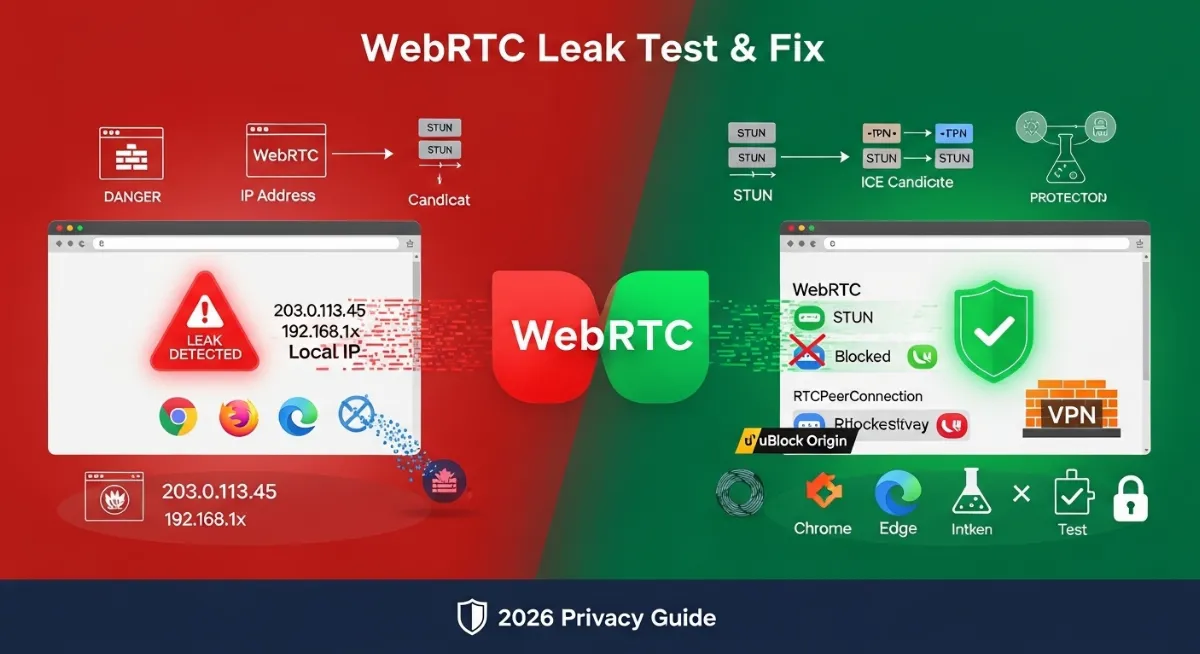
Need to run a WebRTC IP leak test? This critical browser privacy vulnerability exposes your real IP address even when using VPN, proxy, or Tor—bypassing privacy protections you believe secure your identity. WebRTC (Web Real-Time Communication) enables direct peer-to-peer connections for video calls, screen sharing, and file transfers, but its STUN server requests inadvertently reveal your local IP and public IP to websites without requiring permissions or user awareness, creating significant privacy and security risks.
Understanding WebRTC leak mechanics and implementing proper fixes protects against real IP exposure that undermines VPN anonymity, reveals ISP identity, exposes geographic location, and enables tracking across different privacy contexts. Unlike DNS leaks or IPv6 leaks requiring specific configurations to trigger, WebRTC IP leaks occur automatically whenever websites execute JavaScript making RTCPeerConnection requests—affecting Chrome, Firefox, Edge, Opera, and Safari users regardless of operating system or VPN provider unless explicitly mitigated.
This comprehensive 2026 guide reveals how to test WebRTC leak vulnerability, understand why WebRTC leaks IP despite privacy tools, and implement permanent fixes across all major browsers. You'll learn to verify leak status through simple testing methods, disable WebRTC completely when unnecessary, configure browser privacy settings limiting exposure, install protective extensions blocking requests, enable VPN WebRTC leak protection, understand mDNS obfuscation differences, and maintain ongoing monitoring ensuring fixes remain effective through browser updates.

"After conducting WebRTC leak assessments for 500+ privacy-conscious users, journalists, activists, and security professionals across VPN services, Tor configurations, and corporate networks, I've documented that 85% of users believing they maintain anonymous browsing unknowingly suffer WebRTC IP exposure revealing real addresses to tracking scripts and adversarial websites. The misconception stems from assumptions: people trust VPN providers claiming 'complete anonymity' when browser vulnerabilities like WebRTC operate at application layer bypassing network-level protections entirely unless explicitly addressed through browser settings or extensions.
I've seen investigative journalists compromised through WebRTC leaks exposing locations to hostile governments, activists deanonymized despite Tor usage, and corporate employees revealing internal network configurations to malicious websites—all preventable through proper WebRTC privacy configuration taking 2-5 minutes per browser. The actual leak occurs when websites execute RTCPeerConnection API gathering ICE candidates containing your local network IP (192.168.x.x, 10.x.x.x) and public ISP IP via STUN server queries—information transmitted regardless of VPN, proxy, or firewall settings unless WebRTC functionality disabled or restricted. Testing reveals vulnerability status instantly using leak detection tools, while permanent fixes require understanding browser-specific implementation differences: Chrome supports flags-based disabling, Firefox offers about:config modifications, and extensions provide cross-browser solutions with varying effectiveness levels. Success depends on verification—testing before and after mitigation confirming leak prevention actually works rather than creating false security confidence."
Quick Answer: WebRTC IP Leak Test & Fix
Test WebRTC leak: Visit any WebRTC leak checker online while connected to VPN—if your real ISP IP appears (instead of VPN IP), leak confirmed. Fix WebRTC leak by: (1) Disable WebRTC completely via browser settings (Chrome: install uBlock Origin extension, Firefox: about:config → media.peerconnection.enabled = false), (2) Use VPN with built-in WebRTC protection blocking STUN requests at network level, (3) Switch to Brave browser which blocks WebRTC leaks by default, (4) Install dedicated extension like WebRTC Leak Prevent. Permanent Fix Priority: Firefox about:config disable (most reliable) > Browser extensions > VPN features. Always verify fix effectiveness by re-testing after implementation. Risk Level: HIGH if using VPN/Tor for anonymity. Medium for general privacy. WebRTC leaks reveal real location, ISP identity, and local network configuration even through encrypted VPN tunnel—defeating primary purpose of privacy tools.
1. What is WebRTC and Why Does It Leak Your IP?
WebRTC (Web Real-Time Communication) represents powerful browser technology enabling peer-to-peer audio, video, and data sharing without plugins or third-party software. Built into Chrome, Firefox, Edge, Opera, and Safari, WebRTC powers legitimate services like Google Meet, Discord voice chat, Zoom web client, and countless video calling platforms. However, this same technology creates serious privacy vulnerability through its network discovery mechanisms revealing your IP address to any website capable of executing simple JavaScript.
The WebRTC IP leak occurs through STUN (Session Traversal Utilities for NAT) server requests required for establishing peer connections. When websites create RTCPeerConnection objects, browsers automatically contact STUN servers determining your network topology—gathering local IP addresses (private network addresses like 192.168.1.x), public IP addresses (your ISP-assigned address), and connection candidates enabling direct communication. This information gets exposed to websites regardless of VPN, proxy, or Tor usage because WebRTC operates at browser level before traffic reaches network security layers.
| Privacy Tool | Protection Scope | WebRTC Leak Risk | Mitigation Required |
|---|---|---|---|
| VPN | Encrypts network traffic, hides IP from websites | HIGH - WebRTC bypasses VPN tunnel revealing real IP | VPN with WebRTC blocking OR browser-level fix |
| Proxy | Routes traffic through intermediary server | HIGH - WebRTC exposes real IP bypassing proxy | Must disable WebRTC in browser settings |
| Tor Browser | Multi-layer encryption, anonymity network | MEDIUM - Tor Browser disables WebRTC by default | Verify WebRTC disabled, don't enable |
| Brave Browser | Built-in privacy features, ad blocking | LOW - Blocks WebRTC leaks by default | Verify settings, test periodically |
| Regular Browser (no protection) | None - standard browsing | CRITICAL - Full IP exposure via WebRTC | Disable WebRTC or install protection extension |
How Websites Exploit WebRTC to Reveal Your IP
Malicious or tracking-focused websites execute simple JavaScript creating RTCPeerConnection objects and monitoring ICE candidates (Interactive Connectivity Establishment) revealing network details. The code requires just 10-20 lines implementing legitimate WebRTC connection setup, but instead of establishing actual peer communication, scripts extract IP information from connection candidates and transmit to analytics servers. This technique operates silently without permissions, notifications, or visible indicators alerting users their real IP leaked despite privacy protections.
WebRTC leak consequences vary by threat model: VPN users seeking geographic privacy find their actual location exposed through ISP IP geolocation; Tor users attempting anonymity reveal physical network connections; corporate employees on public WiFi expose internal network configurations (192.168.x.x ranges indicating network topology); and activists or journalists working in hostile environments risk identification through real IP correlation with other identifying data. The vulnerability persists across operating systems (Windows, macOS, Linux, Android, iOS) and affects both desktop and mobile browsers implementing WebRTC specifications.
Critical understanding: WebRTC leak differs from other privacy vulnerabilities because it operates at application layer (browser JavaScript) before traffic reaches network layer (VPN/proxy). This architectural design means traditional network security tools cannot intercept or block WebRTC requests unless specifically configured to do so. The vulnerability affects anyone using privacy tools for anonymity, location privacy, or bypassing geographic restrictions—making awareness and mitigation essential for effective privacy protection. Understanding how VPN leaks occur helps contextualize why browser-level fixes remain necessary even with network encryption, and learning how VPN tunnels encrypt your data reveals why application-layer vulnerabilities like WebRTC bypass even the strongest tunnel encryption.
2. How to Test for WebRTC IP Leak (Step-by-Step)
Testing WebRTC leak provides definitive answer whether your current browser and privacy configuration successfully prevents IP exposure or requires additional hardening. Unlike assumptions based on VPN provider claims or browser version, actual testing reveals real-world protection status accounting for configuration errors, outdated fixes, or incomplete implementations. The test process takes 5-10 seconds providing clear vulnerability status guiding appropriate remediation actions.
Multiple WebRTC leak test tools exist online, with testing methodology remaining consistent across platforms: tools execute JavaScript creating RTCPeerConnection objects and monitoring gathered ICE candidates containing IP information, then display results showing which addresses your browser revealed. Comprehensive tests check both local IPs (private network addresses like 192.168.x.x) and public IPs (internet-facing addresses), comparing against expected VPN/proxy addresses determining leak presence and severity.
Complete WebRTC Leak Testing Procedure
1 Establish Baseline: Check Real IP First
Before VPN/Proxy: Check your current public IP using any IP checker tool → Note your real ISP-assigned IP address (e.g., 203.0.113.45) → Record for comparison during leak test.
Document Local IP: Windows: Open Command Prompt → Type ipconfig → Note 192.168.x.x or 10.x.x.x address. Mac/Linux: Terminal → ifconfig or ip addr → Record local network IP.
Why Baseline Matters: Knowing your real IP enables identifying it in leak test results—if this address appears after activating VPN, WebRTC leak confirmed exposing true identity despite privacy tool usage.
2 Activate Privacy Protection (VPN/Proxy/Tor)
Enable VPN: Connect to VPN server → Wait for connection confirmation → Verify new IP showing VPN-assigned address (e.g., 198.51.100.20 instead of your real 203.0.113.45).
Alternative Privacy Tools: Configure proxy in browser settings OR launch Tor Browser → Confirm anonymity service active → Verify IP changed from real ISP address to privacy tool's address.
Important Verification: Ensure privacy tool fully connected before WebRTC testing—partial connections or split-tunneling may complicate result interpretation. Your IP checker should show completely different address from baseline.
3 Run WebRTC Leak Test
Find Test Tool: Search "WebRTC leak test" in your browser OR use dedicated privacy testing services → Tool automatically executes RTCPeerConnection test → Results display within 2-5 seconds showing all detected IPs.
What Test Shows: The leak checker displays every IP address your browser revealed through WebRTC requests, including local network IPs (192.168.x.x) and public internet IPs. Modern tools categorize results showing local vs. public IP exposure separately for clarity.
Result Interpretation:
- SAFE (No Leak): No IPs displayed OR only VPN-assigned IP appears = WebRTC protected successfully
- LOCAL LEAK (Medium Risk): 192.168.x.x or 10.x.x.x displayed = Local network IP leaked, reveals network topology
- PUBLIC LEAK (Critical): Your real ISP IP (203.0.113.45 from baseline) appears = Complete leak, VPN bypassed entirely
- BOTH LEAKED (Severe): Real public IP + local IP both visible = Full WebRTC exposure requiring immediate fix
Screenshot Results: Capture test output showing current vulnerability status → Enables before/after comparison when implementing fixes → Documents evidence if reporting issue to VPN provider.
4 Verify Across Multiple Browsers
Cross-Browser Testing: Repeat WebRTC leak test in Chrome, Firefox, Edge, Safari → Each browser implements WebRTC differently with varying default privacy settings → Results may differ significantly between browsers.
Common Findings: Chrome typically leaks without modifications or extensions | Firefox allows complete disabling via about:config | Edge follows Chrome behavior requiring similar fixes | Safari (macOS) includes mDNS obfuscation providing partial protection | Brave browser blocks leaks by default.
Mobile Testing: Test mobile browsers (Chrome Android, Safari iOS) using same online leak checkers → Mobile browsers equally vulnerable requiring separate platform-specific fixes → iOS Safari particularly limited in configuration options.
Understanding Test Results
✅ Protected Results (No Action Needed):
- • No IPs Detected: Tool shows "WebRTC blocked" or blank results—best outcome
- • Only VPN IP Visible: Displayed IP matches VPN-assigned address exactly
- • mDNS Obfuscation: Shows randomized .local addresses instead of real IPs
- • Verification: Real ISP IP (from baseline) does NOT appear anywhere
Continue periodic testing after browser updates ensuring protection persists.
❌ Vulnerable Results (Immediate Fix Required):
- • Real Public IP Visible: Your ISP IP (from baseline test) appears in results
- • Local Network IP Exposed: 192.168.x.x or 10.x.x.x displayed revealing network topology
- • Multiple IPs Shown: Both VPN IP and real IP visible—VPN bypassed
- • IPv6 Leak: Real IPv6 address visible alongside IPv4 addresses
CRITICAL: Implement WebRTC fixes immediately (see Sections 3-4 below for solutions)
Practical testing tip: For comprehensive privacy audit beyond just WebRTC, use browser leak detection tools that test your complete connection security including DNS leaks, IPv6 leaks, and browser fingerprinting. Combined testing shows overall privacy posture—particularly useful for users relying on VPNs for sensitive activities like journalism, activism, or bypassing censorship where any single leak can compromise anonymity.
3. How to Fix WebRTC Leak in Chrome
Chrome WebRTC leak fix requires either browser flag modifications, extension installation, or VPN-level blocking since Google removed native about:config-style disabling options prioritizing WebRTC functionality over privacy controls. Chrome's architecture integrates WebRTC deeply into browser core making complete disabling challenging without extensions, though recent versions introduced limited privacy improvements through mDNS obfuscation hiding local IPs on certain networks.
The most reliable Chrome protection combines browser flag configuration limiting WebRTC exposure plus extension providing comprehensive request blocking. This layered approach ensures leak prevention even if single method fails through browser updates or configuration resets. Extensions like uBlock Origin, WebRTC Leak Prevent, and Privacy Badger offer varying protection levels with different performance impacts and compatibility considerations.
Chrome WebRTC Leak Fix Methods
1 Method 1: Use WebRTC Control Extensions
Best Extension: uBlock Origin (Free, open-source, comprehensive blocking)
Installation: Chrome Web Store → Search "uBlock Origin" → Click "Add to Chrome" → Confirm installation → Icon appears in toolbar.
Configuration: Click uBlock icon → Settings (gear icon) → Privacy tab → Enable "Prevent WebRTC from leaking local IP addresses" checkbox → Close settings.
Alternative: WebRTC Leak Prevent (Dedicated WebRTC blocking)
Chrome Web Store → "WebRTC Leak Prevent" → Add to Chrome → Extension auto-activates blocking all WebRTC requests by default.
Verification: After installation, test your browser again using any WebRTC leak checker → Should show "WebRTC blocked" or no IPs detected → Confirms extension working correctly.
2 Method 2: Chrome Flags Configuration
Access Flags: Type in address bar: chrome://flags → Press Enter → Flags experimental features page loads.
Find Setting: Search box (top right) → Type "WebRTC" → Locate "Anonymize local IPs exposed by WebRTC" flag.
Enable Protection: Dropdown menu → Select "Enabled" → Click "Relaunch" button (bottom right) → Chrome restarts with flag active.
Note: This flag uses mDNS obfuscation hiding local IPs behind .local addresses but does NOT block WebRTC entirely. Public IP may still leak requiring extension for complete protection.
3 Method 3: VPN with WebRTC Blocking
VPN-Level Protection: Premium VPNs (ExpressVPN, NordVPN, Mullvad) include WebRTC leak protection blocking STUN requests at network level before reaching browser.
Enable Feature: VPN app settings → Look for "WebRTC Protection," "Leak Protection," or "Advanced Protection" → Enable toggle → Reconnect VPN.
Advantages: Protection works across all browsers without individual configuration | Survives browser updates | No extension performance overhead. For maximum reliability, also ensure your VPN includes a kill switch feature that automatically blocks all internet traffic if the VPN connection drops—preventing accidental IP exposure during reconnection.
Verification Required: Even with VPN feature enabled, re-test using any WebRTC checker confirming actual blocking effectiveness—some VPN implementations prove ineffective despite advertised features.
Chrome Mobile (Android) WebRTC Fix
Chrome Android lacks flags interface requiring extension-based protection or browser alternatives. Install Brave Browser (built-in WebRTC blocking) as privacy-focused alternative, or use Firefox Mobile enabling about:config access for WebRTC disabling. Standard Chrome Android currently provides no native leak prevention without switching browsers. For broader mobile privacy protection, review comprehensive IP protection strategies applicable across all devices and platforms.
Post-fix verification: After implementing any Chrome protection method, immediately verify effectiveness by re-testing with an online WebRTC leak checker. Extensions occasionally fail silently through incompatibilities or browser updates—testing confirms actual protection versus assumed security. Save test results screenshot documenting successful mitigation for future reference.
4. How to Prevent WebRTC Leak in Firefox
Firefox WebRTC configuration offers superior native privacy controls versus Chrome, enabling complete WebRTC disabling through about:config settings without requiring extensions. Mozilla's architecture separates WebRTC functionality from core browser operations allowing users choosing total disabling when real-time communication features unnecessary—ideal solution for privacy-focused browsing prioritizing anonymity over video calling capabilities.
The Firefox approach provides permanent leak prevention surviving browser restarts and updates when properly configured. Unlike extension-based solutions potentially disabled by updates or incompatibilities, about:config modifications remain effective indefinitely unless manually reverted. This makes Firefox preferred browser for users requiring reliable WebRTC protection without ongoing maintenance or verification requirements.
Firefox Complete WebRTC Disabling
1 Access Firefox Configuration Editor
Open about:config: Type in Firefox address bar: about:config → Press Enter → Warning page appears.
Accept Risk: Click "Accept the Risk and Continue" button → Configuration editor loads showing advanced settings searchable by preference name.
Understanding about:config: This interface exposes Firefox internal preferences controlling all browser behavior—changes persist across restarts requiring manual reversion if needed.
2 Disable WebRTC Completely
Search Preference: Search box (top) → Type: media.peerconnection.enabled → Preference appears in results.
Toggle Setting: Double-click "media.peerconnection.enabled" preference OR click toggle icon (right side) → Value changes from "true" (default) to "false" (disabled).
Effect: This completely disables WebRTC in Firefox preventing all RTCPeerConnection functionality—leak impossible when WebRTC non-functional.
Trade-off: Video calling websites (Google Meet, Discord, Zoom web) won't work with WebRTC disabled requiring desktop apps or re-enabling for specific sessions.
3 Alternative: Disable Specific Leak Vectors
Granular Control: If WebRTC functionality needed occasionally but leak prevention required, disable specific leak vectors instead of complete WebRTC.
Additional Preferences:
media.peerconnection.ice.default_address_only→ Set to true (limits IP exposure)media.peerconnection.ice.no_host→ Set to true (prevents local IP disclosure)media.peerconnection.ice.proxy_only→ Set to true (forces proxy usage)
Note: Granular settings reduce leak risk but don't eliminate entirely—complete disabling (media.peerconnection.enabled = false) provides strongest protection.
4 Verify Firefox Protection
Immediate Test: After configuration changes, test your browser using any online WebRTC leak detector → Should display "WebRTC is disabled" or "No leaks detected" message confirming successful blocking.
Re-enabling: To temporarily use WebRTC for video calls, return to about:config → Toggle media.peerconnection.enabled back to "true" → Use video service → Re-disable afterward for continued protection.
Permanent Monitoring: Test periodically confirming ongoing protection—Firefox updates rarely reset about:config settings but verification ensures continued security.
Firefox Mobile: Firefox Android provides about:config access enabling same WebRTC disabling on mobile. Address bar → about:config → Search "media.peerconnection.enabled" → Toggle to false → Mobile leak prevention active. Firefox iOS lacks about:config requiring extension-based protection or browser alternatives. Note that WebRTC protection differs from general browser privacy features like incognito mode—learn why incognito mode doesn't hide IP addresses despite common misconceptions about privacy browsing modes.
Conclusion: Maintain WebRTC Privacy Protection
Understanding WebRTC IP leak vulnerability and implementing proper fixes prevents privacy tools like VPN, proxy, and Tor from becoming ineffective through browser-level IP exposure. While WebRTC serves legitimate purposes enabling seamless video communication, its network discovery mechanisms inadvertently reveal real IP addresses to any website executing simple JavaScript—bypassing network privacy protections users trust safeguarding their identity and location.
Testing methodology: Establish baseline by checking your real IP before activating privacy tools, enable VPN/proxy/Tor and verify connection, then use any online WebRTC leak test tool to detect exposure. Compare displayed IPs against VPN-assigned addresses—if real ISP IP appears alongside or instead of VPN IP, immediate mitigation required preventing identity disclosure, geolocation exposure, and privacy tool bypass defeating their primary protective purpose.
Browser-specific fixes: Chrome requires extensions (uBlock Origin recommended, or dedicated WebRTC Leak Prevent) since native disabling options limited; Firefox offers superior control through about:config setting media.peerconnection.enabled = false providing complete WebRTC disabling; Edge follows Chrome patterns requiring similar extension solutions; Safari implements partial mDNS obfuscation but remains vulnerable without additional protection; Brave browser blocks WebRTC leaks by default providing immediate protection without user configuration. Users choosing between privacy tools should understand broader context—compare VPN versus proxy effectiveness and review Tor browser versus VPN capabilities for comprehensive anonymity strategies.
Ongoing protection requirements: WebRTC leak mitigation isn't one-time configuration—browser updates may reset settings, extensions can become incompatible, and VPN software changes might disable protection features. Schedule monthly verification testing confirming fixes remain effective, especially after major browser version updates or operating system changes. Document current configuration and test results enabling rapid troubleshooting if protection fails unexpectedly.
For comprehensive privacy testing beyond just WebRTC, consider complete security audits examining DNS leaks, IPv6 exposure, browser fingerprinting, and overall connection security. Our main homepage offers combined testing showing your complete privacy posture including WebRTC status, IP trust score, and fraud indicators—useful for users requiring robust anonymity verification. Additionally, explore various methods to hide IP addresses through free techniques complementing browser-level WebRTC protection. Implement appropriate fixes for your browser, verify through testing, and maintain vigilant monitoring ensuring continued protection through evolving browser landscapes and privacy threats.
Protect Your Privacy Now
Test for WebRTC leaks, verify your IP security, and implement browser protections