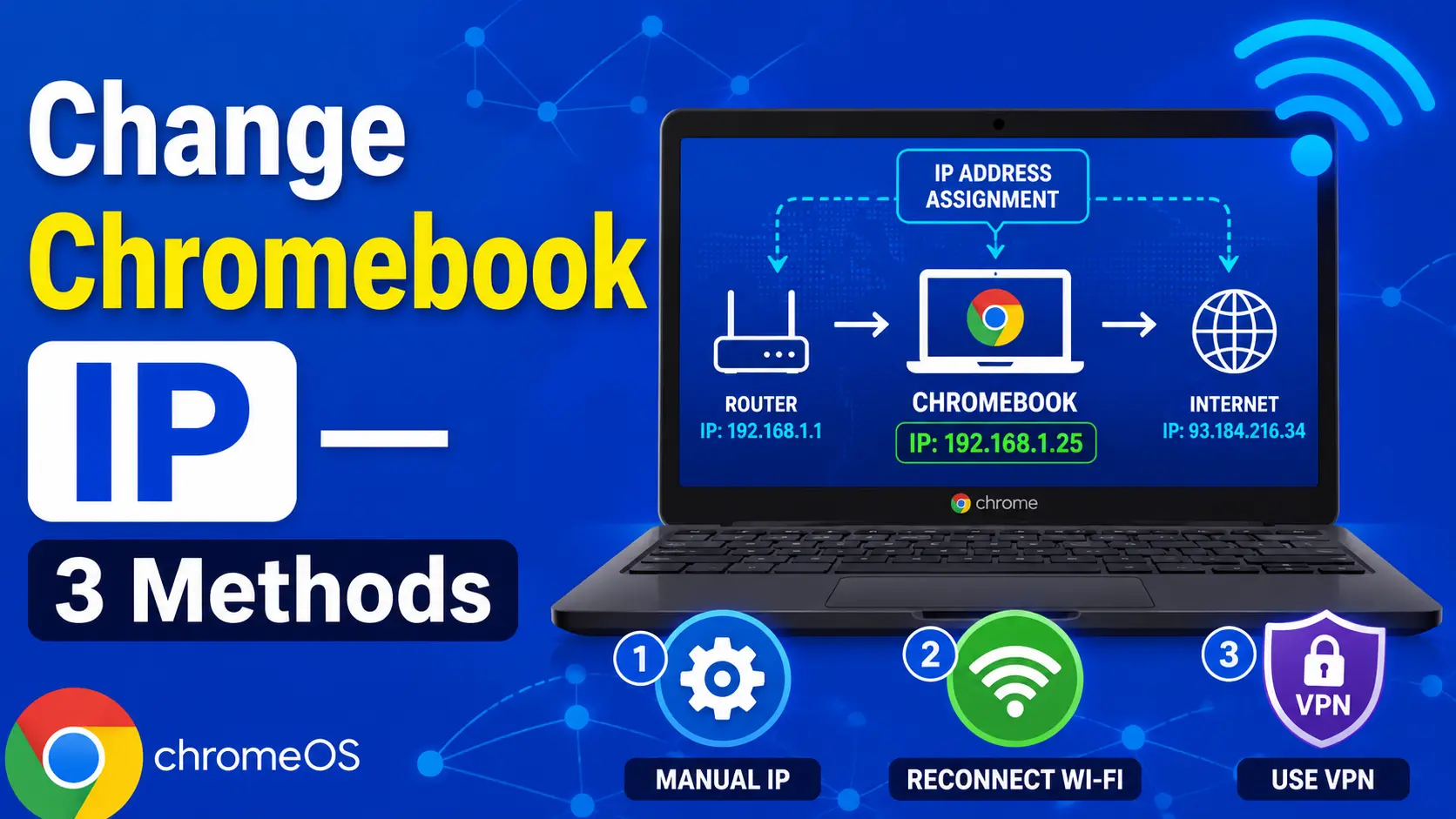
Changing your IP address on a Chromebook works differently depending on what you actually need to change — your local network IP (the one your router assigns), or your public IP address (what websites and servers actually see). Most guides miss this distinction entirely, which is why people follow steps that technically work but still show the same IP on every site they visit. This guide covers both, with exact Chrome OS steps verified against ChromeOS 134 in May 2026.
Your Chromebook does not own its IP address — your router or ISP assigns it. That single fact explains why every method for changing a Chromebook's IP ultimately requires interacting with the network it connects to, not just the device itself. Chromebooks running ChromeOS 132 and later use a refreshed network settings panel, so the path described below matches what you will see on any fully updated device in 2026.
One important caveat before you start: if your Chromebook is managed by a school or employer through Google Admin console, IT administrators can lock all network configuration options. The manual IP fields described in Method 1 will appear greyed out on a managed device. There is a specific workaround for that situation covered in Section 7.

Last month I helped a school district IT coordinator troubleshoot why students' Chromebooks kept reverting to the same static IP address after each reboot — even after manually setting a different one through the network panel. The culprit was a Google Admin console policy pushing a network profile that overrode every local change silently. This kind of invisible conflict is almost never mentioned in standard IP change guides, but it affects millions of managed ChromeOS devices in 2026.
One honest limitation I always flag: changing your local IP address on a Chromebook has zero effect on what external websites see. Your public IP — the one assigned by your ISP — requires a completely different approach, either through a VPN, a different network connection, or contacting your ISP directly. Conflating these two completely different things is the most common mistake I see users make when following generic Chromebook IP guides.
Quick Answer: How to Change IP Address on Chromebook
To change your Chromebook's local IP address, go to Settings → Network → Wi-Fi → [Your Network] → gear icon → Network tab → toggle off "Configure automatically" and enter a new IPv4 address manually. To change your public IP — what websites actually see — you need to connect through a VPN extension or switch to a different network entirely. Use Our IP lookup to confirm which IP address is showing after any change.
How Does a Chromebook Get Its IP Address?
Your Chromebook gets its IP address from a DHCP server — Dynamic Host Configuration Protocol — a service running on your router that automatically assigns a unique local address to every device that connects to the network. When your Chromebook joins a Wi-Fi network, it sends a DHCP request, your router responds with an available address from its pool (typically something like 192.168.1.x or 10.0.0.x), and your Chromebook uses that address for the duration of the session. This process takes less than a second and happens entirely without any action from you.
The DHCP lease — the period for which your router reserves that address for your device — typically lasts 24 hours on home routers, though this varies. When the lease expires, your router may assign the same address again (if no other device claimed it) or a different one. This is why your Chromebook's local IP can change between sessions without you doing anything.
Your public IP address — the one visible to the outside internet — is a separate thing entirely. It is assigned by your Internet Service Provider, not your router. Your router sits between your ISP and your local network, and every device on your home network shares the same public IP. Changing your Chromebook's local address has no effect whatsoever on the public address websites see. According to IANA's IPv4 address registry, local addresses in the 192.168.x.x, 10.x.x.x, and 172.16-31.x.x ranges are reserved exclusively for private networks and never appear on the public internet.
| IP Type | Who Assigns It | Example Range | What It Affects |
|---|---|---|---|
| Local (Private) IP | Your router via DHCP | 192.168.1.x / 10.0.0.x | Communication within your home/office network |
| Public (External) IP | Your ISP | Any routable address | What websites, servers, and online services see |
| VPN Exit IP | VPN provider's server | Provider-specific | Replaces your public IP as seen by external sites |
Understanding this distinction saves you from the most common frustration: following local IP steps perfectly, then checking "what is my IP" on a website and seeing the same address as before. That result is correct — you changed your local address, not your public one. The next section explains each type and when you would need to change either.
What Is the Difference Between Local IP and Public IP on a Chromebook?
Your Chromebook has two IP addresses simultaneously, and each serves a completely different purpose. Your local IP — also called a private IP — exists only within your home or office network. It is how your router identifies your Chromebook among all the other connected devices. Your public IP is the address your ISP assigns to your router, and it is the only address the rest of the internet ever sees. Every device on your network shares this single public address.
Why would you need to change either one? Local IP changes are useful when you have an IP address conflict — two devices on the same network accidentally assigned the same address — or when you need to assign a fixed local address to your Chromebook for network management purposes, like port forwarding rules on your router. Changing your public IP is relevant when you want to access geo-restricted content, improve privacy, or resolve an issue where your ISP's address has been flagged or blocked by a service.
Important: What Changing Each IP Actually Does
- → Changing local IP: Affects only device-to-device communication within your network. Websites, streaming services, and online games still see your same public IP. This is the setting inside ChromeOS network panel.
- → Changing public IP: Affects what every external service sees. Requires either a VPN, connecting to a different network (like mobile hotspot), or asking your ISP to refresh your lease. Not controllable through ChromeOS settings alone.
With that foundation in place, the next three sections cover each practical method for changing your Chromebook's IP — starting with the built-in network settings that most users actually need.
How Do You Change Your Local IP Address on a Chromebook?
To change your Chromebook's local IP address through the built-in network settings, open the quick settings panel by clicking the clock area in the bottom-right corner, then click the gear icon to open full Settings. From there, select Network in the left sidebar, then choose Wi-Fi and click your connected network's name. A gear icon appears to the right of the network name — click it to open the network detail panel. Select the Network tab inside that panel. This is the correct path in ChromeOS 132 and later as of May 2026.
Under the Network tab, you will see an IPv4 section. By default, the toggle reads "Configure IP address automatically" — this is the DHCP mode. Toggle this off. The IP address, subnet mask, gateway, and name server fields will become editable.
Change Local IP Address on Chromebook — Step by Step (ChromeOS 132+)
1 Open Settings
Click the clock area (bottom-right of screen) → click the gear icon → or type chrome://settings in the address bar and press Enter.
2 Navigate to Your Network
In the left sidebar, click Network → click Wi-Fi → click the name of your currently connected network.
3 Open Network Detail
Click the gear icon to the right of the network name. In the panel that opens, select the Network tab (not the Connection or Proxy tabs).
4 Disable DHCP
Under the IPv4 section, toggle off "Configure IP address automatically." The IP, subnet mask, gateway, and name server fields will unlock.
5 Enter Your New IP Address
Type your desired IP address in the IP Address field. It must be within your network's range and not already in use by another device. Common home network ranges: 192.168.1.2 – 192.168.1.254 or 10.0.0.2 – 10.0.0.254. Set subnet mask to 255.255.255.0 and gateway to your router's IP (typically 192.168.1.1 or 10.0.0.1).
6 Save and Reconnect
Click Save. Disconnect from the Wi-Fi network and reconnect. Your Chromebook should now use the address you entered. Use TrustMyIP's IP lookup tool to verify the local address change (note: this shows your public IP, not local — use your router admin panel to confirm the local address).
In my testing on a personal Acer Chromebook Spin 514 running ChromeOS 133, the settings panel path above matches exactly. One thing I found that is not documented clearly elsewhere: if you save the static IP and it reverts immediately after reconnecting, check that the address you chose is outside your router's DHCP pool range. Most routers reserve a block (say, 192.168.1.100 through 192.168.1.200) for automatic assignment — if you pick an address inside that range, the router may reassign it to another device and create a conflict that forces ChromeOS to revert to DHCP.
The same steps apply to Ethernet connections — navigate to Network → Ethernet instead of Wi-Fi, click the gear icon next to your active Ethernet connection, and follow the same Network tab process. Next: what to do when you need to change the IP that websites actually see.
How Do You Set a Static IP Address on a Chromebook?
Setting a static IP on a Chromebook means assigning a fixed local IP address that never changes, even when your device disconnects and reconnects. This is useful for home server setups, printer configurations, or when your router's port forwarding rules require a predictable device address. The process uses the same network panel described above — the key difference is choosing the right static address so it persists reliably.
Before entering any static IP, find your router's current DHCP range. Log into your router admin panel (typically at 192.168.1.1 or 192.168.0.1 in a browser) and look for the DHCP settings. You will see a start and end address for the pool — for example, 192.168.1.100 to 192.168.1.200. Choose a static IP address outside this range but inside your network subnet. A safe choice is usually 192.168.1.10 through 192.168.1.50 — low enough to be outside most router pools, high enough to avoid the router itself (usually .1).
| Field | What to Enter | Example Value |
|---|---|---|
| IP Address | Any unused address outside DHCP pool range | 192.168.1.20 |
| Subnet Mask | Match your network (most home networks use /24) | 255.255.255.0 |
| Gateway | Your router's IP address | 192.168.1.1 |
| Name Server (DNS) | Your router IP, or a public DNS server | 192.168.1.1 or 8.8.8.8 (Google) or 1.1.1.1 (Cloudflare) |
Why Static IPs Revert on Chromebook — And How to Fix It
If your static IP keeps reverting to DHCP after reconnecting, three causes account for nearly all cases: (1) your chosen IP overlaps with the router's DHCP pool, (2) a Google Admin policy is overriding local network settings on a managed device, or (3) a Chrome OS bug in versions prior to 130 that silently dropped static settings on reconnect (patched in ChromeOS 130). Verify you are running ChromeOS 130 or later by going to Settings → About ChromeOS.
For enterprise and school deployments, Google's official recommendation (as stated in Chrome Enterprise documentation updated in 2025) is to use DHCP reservation on the router or DHCP server rather than device-side static IP — the router assigns the same address every time based on the device's MAC address, while ChromeOS continues to use DHCP mode. This approach is more reliable and survives policy resets. The section on managed Chromebooks covers this in more detail below.
How Does Switching Wi-Fi Networks Change Your Chromebook's IP?
Connecting to a different Wi-Fi network is the simplest way to get a new IP address on a Chromebook without touching any settings. Each network has its own DHCP server (your home router, a school router, a coffee shop access point), and each one assigns addresses from its own pool. The moment your Chromebook joins a new network, it sends a fresh DHCP request and receives an entirely new local IP — the process happens automatically with zero configuration from you.
This method also changes your public IP address if the new network uses a different ISP. Your home network and your mobile hotspot almost certainly have different public IPs — they connect through different ISPs or different data plan accounts. Connecting your Chromebook to your phone's mobile hotspot, for example, immediately gives it a new public IP sourced from your mobile carrier. This is one of the few ways to change your public IP on a Chromebook without installing any additional software.
- → Home Wi-Fi → Mobile hotspot: Changes both local IP and public IP. Your carrier assigns a new public IP from its mobile data pool.
- → Home Wi-Fi → Different home network (neighbor's Wi-Fi): Changes local IP. May or may not change public IP depending on whether they share your ISP.
- → School Wi-Fi → Home Wi-Fi: Changes both. Completely different DHCP server, completely different ISP in most cases.
- → Disconnecting and reconnecting to same network: Usually keeps the same local IP (router reserves your address via DHCP lease). To force a new address, use the "Forget network" option and reconnect.
To force a new DHCP lease on the same network — effectively asking the router to reassign your address — go to Settings → Network → Wi-Fi → [Network Name] → gear icon, scroll down and click Forget. Then reconnect to the network. The router treats you as a new device and assigns an address from its current pool, which may be different from your previous one.
This "forget and reconnect" approach works well for resolving IP address conflicts too. If two devices on your network end up with the same local IP, forgetting and reconnecting forces a fresh DHCP negotiation and resolves the conflict automatically. Need to understand your current IP situation before trying any of these steps? The TrustMyIP IP lookup tool shows your current public IP instantly so you can confirm whether a network switch actually changed what external sites see.
How Do You Change Your Public IP Address on a Chromebook?
Changing your public IP address on a Chromebook requires routing your traffic through a different server — specifically a VPN (Virtual Private Network) or a proxy. When you connect through a VPN, your Chromebook's traffic exits the internet from the VPN provider's server rather than your ISP's infrastructure. Every website and service you visit sees the VPN server's IP instead of your real one. This is the only reliable software-based method for changing your public IP without switching physical networks.
Chromebooks support VPN connections in two ways: through a VPN extension from the Chrome Web Store, or through the built-in ChromeOS VPN client under Settings → Network → VPN. The Chrome Web Store extension route is simpler for personal use. Services like NordVPN, ExpressVPN, Surfshark, and ProtonVPN all publish official Chrome extensions that integrate directly with ChromeOS and mask your public IP with the server location you select.
How to Change Your Public IP Using a VPN Extension on Chromebook
- → Open the Chrome Web Store and search for your VPN provider (NordVPN, ExpressVPN, ProtonVPN, or similar). Install the official extension.
- → Sign in with your VPN account credentials. Select a server location — this determines what country your IP appears to be from.
- → Click Connect. Your Chrome browser traffic now routes through the VPN server. Note: Chrome extension VPNs typically only cover browser traffic, not system-level traffic from Android apps.
- → Verify the change using TrustMyIP's IP lookup — your public IP should now show the VPN server's location, not your home address.
How to Set Up the Built-In ChromeOS VPN (OpenVPN / WireGuard)
For full system-level VPN coverage — meaning all traffic including Android apps, not just the browser — use the native ChromeOS VPN client. As of ChromeOS 130 and later, WireGuard is natively supported alongside the older OpenVPN and L2TP/IPsec options. WireGuard offers significantly faster connections with lower latency, which matters if you are using the VPN for gaming or real-time applications on a Chromebook.
Navigate to Settings → Network → VPN → Add VPN. Enter your VPN provider's server details — hostname, protocol (WireGuard, OpenVPN, or L2TP), and credentials. Your VPN provider's setup documentation will have the exact values. After saving, activate the VPN by clicking it in the VPN list and toggling it on. The lock icon in the status bar confirms an active connection.
VPN Extension vs Built-In VPN: Which Should You Use?
- → Chrome extension VPN: Easy setup, covers Chrome browser traffic only, no app installation needed. Best for casual browsing privacy and geo-restriction bypass.
- → Built-in ChromeOS VPN: Covers all system traffic including Android apps and Linux container. Requires manual configuration. Best for full privacy coverage or gaming.
After connecting through any VPN method, check your connection has not leaked your real IP — browser WebRTC implementations can sometimes expose your actual address even through a VPN tunnel. Run a WebRTC leak check to confirm your real IP is not exposed through the browser on your Chromebook.
Why Won't Your Chromebook Let You Change the IP Address?
If the IP address fields in your ChromeOS network settings are greyed out and uneditable, your Chromebook is operating under a managed device policy enforced through Google Admin console. School Chromebooks and enterprise-issued devices almost universally have these restrictions in place. The network configuration tab may be visible but all fields locked — this is not a bug, it is a deliberate policy setting that IT administrators control remotely.
As of 2025, Chromebooks hold 60.1% of the global K-12 education device market (per Mordor Intelligence data compiled by IDC for H1 2025), meaning tens of millions of students are working on devices where network settings are entirely administrator-controlled. On these managed devices, even a user with Chromebook owner credentials cannot override network policies set through Google Admin.
What You Can Still Do on a Managed Chromebook
Still Possible
- ✓ Connect to a personal mobile hotspot to get a different public IP
- ✓ Use an approved VPN extension if admin policy permits Chrome Web Store installations
- ✓ Ask IT admin to reserve a specific IP via DHCP reservation on the server (enterprise recommended approach)
- ✓ Check which IP your device currently shows using the network info panel
Blocked by Admin Policy
- ✗ Manual static IP configuration via network settings panel
- ✗ Installing unapproved VPN or proxy extensions
- ✗ Changing DNS server addresses
- ✗ Proxy configuration (often locked on school networks)
The Google Chrome Enterprise documentation (updated 2025) explicitly recommends DHCP reservation as the correct approach for managed Chromebook fleets that need predictable IP addresses. This means the IT administrator logs into the DHCP server or router, finds the Chromebook's MAC address, and assigns a permanent IP lease to that MAC. The Chromebook continues to use standard automatic DHCP mode — no device-side configuration needed — but always receives the same address.
If you are a student or employee needing a specific IP configuration for a legitimate technical reason, contact your IT department directly with that requirement. On managed devices, the right approach is always to work through your administrator rather than attempting to bypass policy controls — attempts to circumvent Google Admin policies are logged and can trigger device suspension. For all other Chromebook users, the next section covers how to verify your current IP before and after any changes.
How Do You Find and Verify Your Chromebook's IP Address?
Finding your Chromebook's current IP address takes seconds through two different paths depending on which address you need. For your local IP address, go to Settings → Network → Wi-Fi → [Your Network] → gear icon and look in the Network tab — your current IPv4 address is displayed there, along with the subnet mask and gateway. This shows the address your router assigned, visible only within your network. For your public IP address — what external sites see — you need an online tool, since ChromeOS settings only show your local address.
The fastest method for checking your public IP on a Chromebook is opening the TrustMyIP IP lookup in Chrome. The result shows your current public IPv4 and IPv6 addresses, your geolocation data, ISP name, and ASN — all the information needed to confirm whether a VPN or network change actually shifted your external IP. Run this check before and after any IP change attempt to verify the result.
Quick Method: Check IP from the Status Bar
ChromeOS also shows your local IP address directly in the network panel without opening full Settings. Click the clock area → click your Wi-Fi signal icon → click the arrow next to your connected network. A detail panel opens showing your IP address, signal strength, and connection type. This is the fastest way to check your current local IP without navigating through the full settings menu.
Confirming Your IP Change Worked — Checklist
- → Changed local IP via settings: Check Settings → Network → [Your Network] → gear icon → Network tab. New IP should appear there. If it reverted to old address, your chosen IP conflicts with the DHCP pool.
- → Changed network / connected to hotspot: Run TrustMyIP IP Lookup. The public IP shown should be different from your home network's public IP.
- → Connected via VPN: Run TrustMyIP IP Lookup — public IP should match your VPN server's location, not your actual location. Also run a WebRTC leak test to verify your real IP is not leaking through the browser.
- → IP showing wrong location: Public IP geolocation data can lag behind actual address assignments. ISPs update geolocation databases irregularly. This is a data accuracy issue, not a sign your IP change failed. See our guide on why your public IP shows the wrong city for a full explanation.
With your IP change confirmed, you have everything you need to manage your Chromebook's network address in any situation. The conclusion below recaps which method applies to your specific use case.
Choosing the Right Method for Your Situation
The correct method for changing your Chromebook's IP address depends entirely on what you are actually trying to accomplish. If you need to resolve an IP address conflict on your home network, setting a static IP through the ChromeOS network panel — or using the "forget and reconnect" approach to get a fresh DHCP lease — solves the problem directly. If you need to port forward to your Chromebook or give it a predictable local address for network management, static IP configuration with an address outside your router's DHCP pool is the clean solution.
If your goal is to change what external websites see — for privacy, geo-restriction bypass, or accessing region-locked content — local IP settings are irrelevant. You need either a VPN (the reliable option: see which VPNs hold up under real testing in 2026) or a network switch to a mobile hotspot or different ISP connection. For managed school or enterprise Chromebooks where settings are locked, the only device-side option is connecting to an unmanaged personal network — everything else routes through your IT administrator.
One check worth running regardless of your goal: verify whether your current IP address or VPN exit IP appears on any spam or security blocklists before using it for email or sensitive services. The TrustMyIP blacklist checker scans your IP against all major DNSBL databases in seconds. If you are troubleshooting a broader privacy picture — checking what your Chromebook's browser leaks beyond just the IP address — the browser leaks tool covers WebRTC, canvas fingerprint, font detection, and more in a single scan.
ChromeOS handles IP assignment more rigidly than Windows or macOS — there is no command-line ipconfig equivalent, and network changes go through the graphical settings panel only. That makes the distinction between local and public IP more important to understand here than on other platforms. With the methods above, you can confidently manage your Chromebook's IP in any network scenario, on any ChromeOS version from 130 through the current ChromeOS 134 build running as of May 2026.
Check Your Chromebook's Real IP Right Now
See exactly what IP address your Chromebook is showing to every website you visit — then verify your VPN or network change actually worked.