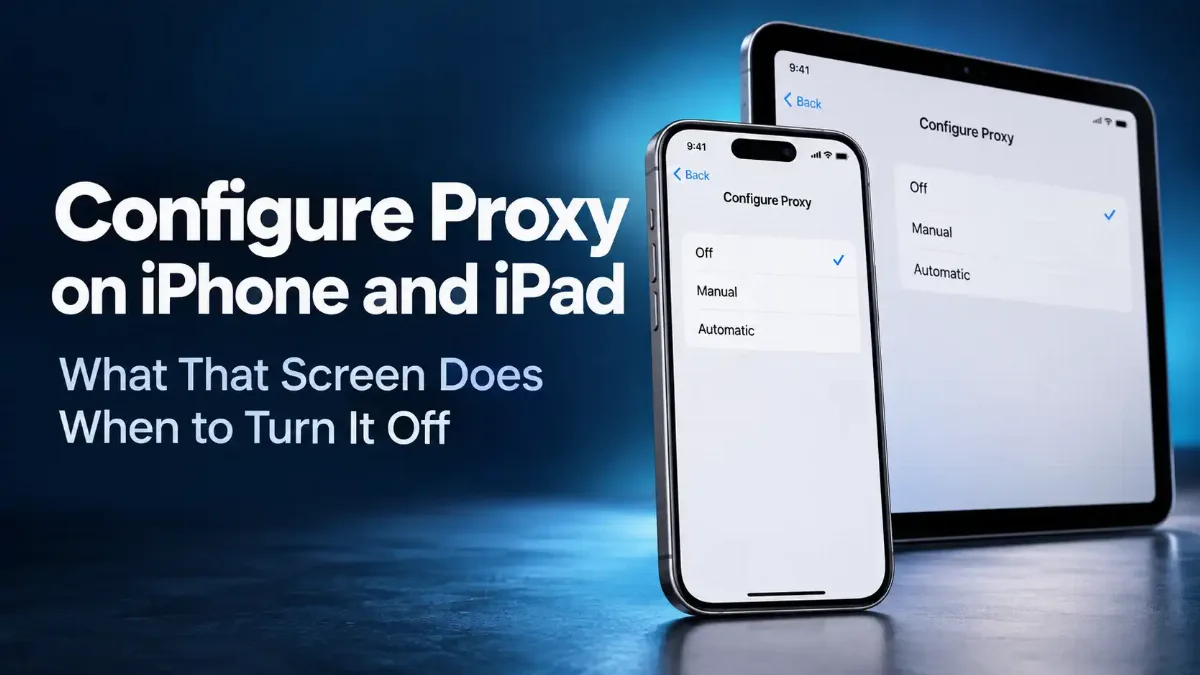
Configure Proxy on iPhone should be set to Off, and on almost every personal phone it already is. It is a field for sending your web traffic through somebody else's server first, and unless a person or an IT department handed you an address to type in, there is nothing there for you to fill.
The reason this question keeps getting asked is that Apple does not explain the screen anywhere. The iPhone User Guide never mentions it. The one consumer-facing reference Apple publishes is a single bullet in a setup article. So when people go looking, every answer they find comes from a company that sells proxies.
This guide covers what the setting actually does on iOS 27 and iPadOS 27, which apps it reaches and which it does not, what to do when the row is grayed out and will not change, and the ordered list of reasons a site still says "proxy" after you have turned it off.

Quick Answer: Configure Proxy on iPhone
What "Configure Proxy" Means on an iPhone
It means: send this network's web traffic to a server I name, and let that server fetch pages on my behalf. Instead of your phone talking to a website directly, it asks a middleman to do it. The website then sees the middleman's address rather than yours.
That is the whole idea, and it is not specific to Apple. The mechanism is the same one described in the full explanation of how a proxy server works and where it sits in a network. What is specific to iPhone is where the setting lives and how narrowly it applies.
On a personal phone the correct value is Off. A proxy is something an organization gives you, not something you switch on for privacy. If you never typed an address into this screen then no web proxy is enabled on that network, and the word sitting there is just a label on an empty field. The same reasoning applies on every device that shows this option, which is covered in our broader look at what that Configure Proxy setting is asking for.
The question underneath this one
So the setting is simple. Finding it, and understanding how little of your phone it actually covers, is where people come unstuck.
Where the Proxy Setting Lives, and What Off, Manual and Auto Do
Open Settings, tap Wi-Fi, tap the blue circled i to the right of the network you are joined to, then scroll to the bottom. Near or at the end of that screen is a block headed HTTP PROXY, and the row inside it is Configure Proxy. The path is identical on iPad.
Apple's documentation for this is close to non-existent, and what exists is not written for you. The one reference I could find is a single bullet, "Set up an HTTP proxy", inside an article on advanced network settings in Setup Assistant that was last updated in March 2025 and is addressed to system administrators, not to the person holding the phone. Everything else lives in Apple's device-management documentation.
| Option | What it does | When you want it |
|---|---|---|
| Off | No proxy. Traffic goes straight out | Every personal phone, unless told otherwise |
| Manual | You type a Server and a Port, and optionally a username and password | Somebody gave you those exact values |
| Automatic, shortened to Auto on some iOS versions | Fetches a configuration script from a URL and follows its rules | A workplace gave you a PAC file address |
| Automatic with the URL box empty | Asks the network to advertise a script, using WPAD discovery | Rarely on purpose. Leave it Off instead |
That last row deserves a sentence of its own, because it is the one people set by accident. Choosing the automatic option and leaving the URL field blank does not mean "do nothing". It means the phone will ask the network whether it has a proxy script to offer, and accept the answer.
On a network you trust that is harmless and usually silent. On a network you do not control, it is a door left open for no reason. If you are unsure why Auto is selected, Off is the safer choice.
iOS 27 and iPadOS 27 shipped on 14 September 2026, and the proxy block survived the update intact. One screen up, something did change. Wi-Fi Assist has been renamed Connectivity Assist and moved: Apple's page for it, published the day iOS 27 shipped, says it "replaces and supersedes Wi-Fi Assist, previously found in Cellular settings", and puts the switch on the main Wi-Fi screen rather than on an individual network's page.
Apple describes it as using "cellular data in addition to Wi-Fi for a more reliable internet connection". Hold on to that, because it matters here more than it looks.
What the Proxy Actually Affects, and What It Does Not
This is where most guides get it wrong, and the error runs in a specific direction: they tell you the proxy is a browser setting. It is not. It is a system setting.
Apple's networking framework exposes a function called CFNetworkCopySystemProxySettings, documented as returning "the current systemwide internet proxy settings", available on iOS and iPadOS since version 2.0. Any app built on Apple's standard networking stack can read that and route through the proxy. Safari is not a special case, and it is not the only thing affected.
So the practical answer to "will this affect my banking app, or Instagram, or Mail" is: quite possibly yes, and that is exactly why a proxy set by somebody else deserves attention. On desktop the picture is different again, because a browser can override what the machine says, which is the situation described in our guide to where Chrome's proxy settings really come from. On iOS there is no such override. There is one setting and apps either honor it or ignore it.
| Traffic | Covered by the Wi-Fi proxy? |
|---|---|
| Safari and other browsers on this Wi-Fi network | Yes |
| Apps using Apple's standard networking stack | Yes, in most cases. Verify anything that matters |
| A different Wi-Fi network | No. The setting is stored per network |
| Cellular data | No. iOS has no proxy field for mobile data |
Those last two rows are where the real confusion lives. Configure Proxy is a property of a saved Wi-Fi network, not of the phone, so setting it at the office changes nothing at home. And the moment you step off Wi-Fi, the proxy is simply not in the path.
Which brings back Connectivity Assist. If Wi-Fi is weak, iOS can lean on cellular, and cellular is not proxied. A proxy that appears to work and then quietly stops can be this rather than a broken configuration, and Apple does let you turn Connectivity Assist off for one particular network if you need a clean test.
One more limit, from Apple's own deployment guide: "Some apps, such as FaceTime, don't use HTTP connections and can't be proxied by an HTTP proxy server." An HTTP proxy only ever sees HTTP and HTTPS. Whatever does not speak those protocols goes around it, on any Apple device.
If Someone Gave You a Proxy to Enter
Use this when an employer, a school or a provider handed you a server address and a port. If you are here because a proxy is already on and you want it gone, skip to the next section.
1 Open the right network
2 Choose Manual and enter the two values
3 Turn on Authentication only if you were given a login
4 Save, then rejoin the network
5 Confirm the address actually changed
Do not copy an example address starting with 127
Setting one is the easy half. Removing one that you did not set is where people actually get stuck.
How to Turn Off a Proxy on iPhone
Settings, Wi-Fi, the blue i beside the network, scroll to HTTP Proxy, tap Configure Proxy, choose Off, then Save. That is how you disable a proxy on iPhone, it is the entire procedure, and for most people it is the end of it.
The part that catches people is repetition. Because the setting belongs to the saved network rather than to the phone, you are not turning off a proxy service on the device so much as clearing one entry, and doing it at home does nothing for the network at work, the one at a relative's house, or the café you joined once in March. If a proxy keeps reappearing, you are almost certainly on a different saved network than the one you fixed.
Two things this does not do, stated plainly so you do not go looking for them. It does not change your IP address, which is a separate question covered in our walkthrough of how to change the IP address on an iPhone. And it does not touch cellular, because there was never a proxy there to remove.
If Configure Proxy will not change at all, the reason is not in this screen.
When Configure Proxy Is Grayed Out: Profiles and Supervised Devices
A row you cannot tap means something is holding it. On iPhone and iPad that something is a configuration profile, and you can see it at Settings, General, VPN & Device Management. If a work or school profile is listed there, it is setting policy on the device and the proxy row is one of the things it can control.
Here is the part nobody explains, and it is genuinely reassuring. A proxy that applies to the whole device rather than to one Wi-Fi network is delivered by an Apple payload called Global HTTP Proxy, and Apple's own developer documentation lists its requirements plainly.
What Apple's documentation actually says
| Kind of proxy | How far it reaches | Who can put it there |
|---|---|---|
| The Configure Proxy row | One saved Wi-Fi network, Wi-Fi only | Anyone who can open Settings on the phone, including you |
| A Wi-Fi configuration profile | The networks the profile defines | Whoever issued a profile you installed |
| Global HTTP Proxy payload | The whole device, Wi-Fi and cellular, but HTTP traffic only | Only an organization that supervises the device |
| A network relay, added by an app | System-wide, for the domains the app names | Any app you install, since iOS 17. No supervision needed |
That last row is the one nobody writes about, so here it is properly. Since iOS 17, Apple has allowed an ordinary app to install what it calls a relay. Apple's own documentation describes it as a "system-wide network relay configuration that uses built-in proxying for TCP and UDP traffic over HTTP/3 and HTTP/2", saved into the system networking preferences, with the app choosing which domains it applies to.
It needs no supervision, no profile and no MDM, and it is not a VPN, so it does not raise the VPN badge either. If something is proxying your phone and none of the four explanations above fits, an installed app holding a relay is the remaining candidate. Delete the app and the relay goes with it.
On a company or school device the honest answer is that you are not going to win this one, and you should not try. The profile is the point of the device being managed. Removing it, where removal is even permitted, usually costs you the email account, the certificates and the network access that came with it.
On a personal phone, a profile you do not recognize is worth examining. Apple documents how to review and delete configuration profiles, and anything you did not deliberately install belongs in front of you before it belongs on your phone.
Why You Cannot Set a SOCKS5 Proxy on iPhone
Because the field is not built for it. The block is labeled HTTP Proxy, it takes an HTTP proxy, and there is no protocol selector anywhere on the screen. No iOS setting exposes SOCKS4 or SOCKS5 for Wi-Fi, and no amount of formatting in the Server box changes that.
What people are usually pointed at instead is an app. Several third-party apps accept SOCKS5 details and route traffic for you, and they do it through Apple's Network Extension framework. Most take the VPN route, which means the app installs a VPN configuration and your phone shows the VPN badge while it runs.
Since iOS 17 there is a quieter option as well. The same framework lets an app save a relay instead, which is system-wide, is stored in your network preferences, and raises no VPN badge at all. Either way the app is carrying your traffic and can see where it goes.
So the accurate version is not "iPhone supports SOCKS5 through an app". It is that iPhone has no SOCKS setting of its own, and an app offering one is running its own tunnel beside the operating system. Judge the app, not the protocol.
It Is Off and Sites Still Say Proxy
This is the most common reason people land here, and the answer is almost never the proxy screen. Work down the list in order.
- → A different saved network. You cleared one. Check whichever network you are actually joined to right now.
- → iCloud Private Relay. Apple's own description says it protects you "when you browse the web in Safari", and it hides your IP address from the sites you visit. Apple never calls it a proxy, which is precisely why people do not connect the two. It needs an iCloud+ subscription and has to be switched on at Settings, your name, iCloud, Private Relay, and when it is on it covers Safari and nothing else.
- → A VPN or content-blocking app. Check Settings, General, VPN & Device Management. Anything with a VPN profile is carrying your traffic whether or not it calls itself a proxy.
- → An app holding a relay. Since iOS 17 an installed app can save a system-wide relay into your network preferences without a profile, without MDM and without showing a VPN badge. Section 6 covers what that is. If nothing else on this list fits, work through the apps you installed around the time the behavior started.
- → Private Wi-Fi Address. This does not change your public IP, but it does change the hardware address your phone shows the network, and some captive portals and filtering systems react to it strangely.
- → Your carrier or your network. On cellular, and on plenty of office and hotel Wi-Fi, traffic passes through equipment you do not control and cannot switch off from the phone.
One more thing worth knowing before you assume you are doing something wrong. A thread on Apple's developer forums, running from 2022 across iOS 14, 15 and 16, reports the Wi-Fi proxy saving without any error and then simply being ignored. Apple's own developer support engineer engaged with it and pointed the reporter to Apple's consumer support channel rather than resolving it, and a participant said resetting network settings was the only thing that had worked for them. Take that as a known rough edge reported by users, not as an Apple fix.
That reset is a real option and it has a real price. Apple's support page, last updated on 14 September 2026, puts it at Settings, General, Transfer or Reset iPhone, Reset, Reset Network Settings, and says plainly: "This resets all Wi-Fi networks and passwords, cellular settings, and VPN and APN settings." Have your Wi-Fi passwords to hand before you tap it.
Before and after any of this, look at what your phone is presenting rather than what the settings claim. Our browser leak test shows what a page can read from your browser beyond the address, and if the confusion is specifically about private browsing, our look at what a private window actually hides covers ground people routinely mistake for a proxy.
The Short Version
Configure Proxy on iPhone belongs on Off unless somebody handed you a server and a port. It is not a privacy feature, it is not something you should turn on to be safer, and an empty field means nothing is happening.
It is narrower than people assume and wider than the guides admit. Narrower, because it is stored per Wi-Fi network and never applies to cellular. Wider, because it is a systemwide setting, so it reaches apps as well as Safari.
If the row is grayed out, a configuration profile owns it, and Apple's documentation confirms that the device-wide Global HTTP Proxy requires a supervised device. That one an organization put there, not an app. If the row is Off and something still reports a proxy, work through Private Relay, a VPN app, another saved network, an app holding a relay, and finally the network itself.
The fastest way to stop guessing is to look at what your phone is actually showing the outside world. Our IP trust score checker tells you how the address you are leaving from is classified, which answers the underlying question far better than any settings screen can.