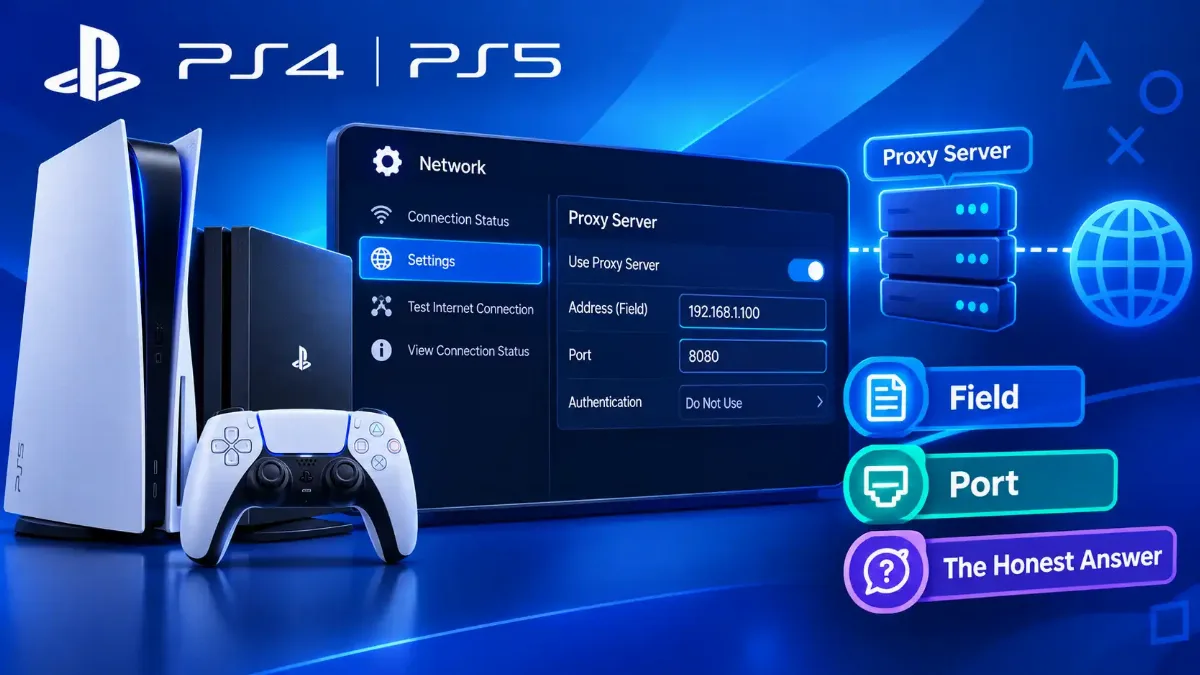
If you are setting up the internet connection on a PS4 or PS5 and the screen has just asked for a proxy server, here is what that field is. It is a box for the address of a machine a network operator runs, and if nobody has given you that address, there is nothing for you to type in. Leave it empty and finish the setup.
One caution before you skip past it. If you are here because the PlayStation will not connect, open the field and look, instead of assuming it is blank, because a value entered on some other network is still saved on the console.
The rest of this post takes the field apart using what Sony actually publishes about it. That includes the one situation where you genuinely do need to fill it in, why no vendor document promises it will speed anything up, and the settings people are really after when they arrive at that menu.

Quick Answer: The Proxy Server Field on a PlayStation
What Is a Proxy Server on PS4 and PS5, and Where Sony Puts the Field
A proxy server is a machine your traffic is handed to instead of going straight out to the internet. It receives your request, passes it on, and gives you back whatever came in reply. The network glossary on Sony's own setup page for both consoles describes it in a single line: "A server that acts as a middleman between your device and the internet, improving security and privacy."
Look up the proxy server PS4 meaning and that single line is all the vendor offers. The words Sony chose are worth holding on to: a middleman, offering security and privacy, with nothing said about speed.
The field itself is not on the main setup screen. Both consoles put it behind the manual route, and the two generations use different names for that route, which is why guides written for one console can send you hunting on the other. The PS4 instruction on that page reads "Select Custom while setting up a wireless or wired connection to adjust the following settings:". The PS5 instruction reads "Select Advanced Settings while setting up a wireless or wired connection to adjust the following settings."
| What you are looking for | On PS4 | On PS5 |
|---|---|---|
| The path to network setup | Settings, Network, Set Up Internet Connection | Settings, Network, Settings, Set Up Internet Connection |
| The route that exposes the proxy entry | Custom | Advanced Settings |
| What that route lets you adjust, in Sony's order | IP address, DHCP Host Name, DNS, MTU, Proxy | IP address, DHCP Host Name, DNS, MTU, Proxy, and Multi Linking Operation on the CFI-7000 hardware group, which is a specific later PS5 revision |
| What Sony says to do if these settings are unfamiliar | "please select Easy or ask your ISP or network administrator" | "please ask your ISP or network administrator" |
Two things follow from that table. The proxy entry sits in the same short list as your IP address, your DNS servers and your MTU, which tells you what kind of setting Sony thinks it is: a manual network override rather than a feature. And the label on the door changed between generations, so a PS5 owner following PS4 instructions will look for Custom and never find it.
What Sony never answers there is which proxy address a PS4 owner should enter, or where such an address would come from. Its advice is both halves of that last row: on a PS4, take Easy instead and skip the manual route entirely, or ask whoever runs your network. That advice makes more sense once you know why anyone puts a machine in the middle of a connection on purpose. Which puts your real question next.
Should You Use a Proxy Server on PS4 or PS5?
Should I use proxy server PS5 settings on a home connection? No. Nobody has given you a proxy, so there is nothing to enter.
A proxy has an address and a port because it is a real machine on a real network, run by whoever runs that network. A home router does not normally provide one, and a consumer internet package does not come with one attached. So on a PS4 the proxy server question comes down to one thing: did somebody give you an address?
One supplier that reasoning leaves out is the one many readers have in mind. A paid proxy service will sell you an address and a port on request. That changes the answer from "there is nothing to enter" into something narrower: there is something you could enter, and no documented reason to. Asked the other way round, should you use proxy server PS4 settings when nobody has required it, the answer stays no for that reason.
On a PS4, whether to use a proxy server only becomes an interesting decision on a network you do not control. Before that case, look at how much Sony actually commits to here.
| The question you arrive with | What Sony's documentation says | Status |
|---|---|---|
| Does the field exist, and where | Yes, under Custom on PS4 and Advanced Settings on PS5 | Documented |
| What a proxy is | "A server that acts as a middleman between your device and the internet, improving security and privacy." | Documented, one sentence |
| Which address to enter | No address, format or example. Sony's advice is to select Easy on a PS4, or to ask your ISP or network administrator | Not documented |
| Which port to enter | Nothing, and no default is suggested | Not documented |
| Which of the console's traffic the proxy setting applies to | Nothing. Sony does not say whether the setting covers all of the connection or part of it | Not documented |
| Whether the proxy setting improves ping, lag or download speed | Nothing about this field. The one sentence describing it claims security and privacy | Not documented |
The four rows marked Not documented split into two different gaps. On the address and the port, the vendor who built the menu will not tell you how to fill it in. On the traffic and the speed, it will not tell you what filling it in does. Any page that answers either pair is going past what Sony's documentation supports, and the next section is about the second pair.
Will a Proxy Server on PS5 Lower Your Ping? What Sony Claims
The claim you will run into is that a PlayStation proxy server gives your game traffic a better route and a shorter trip. Every part of what makes that hard to stand behind comes from the same silence in Sony's own documents.
Sony's one sentence about the field claims security and privacy. Sony's own remedy for a timed-out PS5 connection asks you to open ports a web page would never need: "If possible, try opening these ports. TCP: 80, 443, 3478, 3479, 3480 and UDP: 3478, 3479, 49152~65535." That last range is 49152 to 65535, and you can read the whole instruction on the ports Sony's own error page asks you to open.
So a console's traffic reaches further than the ports a browser uses, and nothing Sony publishes says which part of it the proxy entry touches. That is a gap in the vendor documentation rather than a mechanism, and I am not going to fill it in for you.
What this section can and cannot tell you
There is one case where routing through an intermediary genuinely helps, and this field is not how you reach it. When your own provider throttles game traffic or has a poor path to the game's datacenter, a different route can beat the default one, which is a routing question rather than a proxy-field question. We looked at that properly in the longer answer on what actually moves gaming latency.
If you do go chasing that exception, measure it. Take a round-trip figure before and another after, so you are comparing two numbers instead of two impressions, and you can measure the round trip yourself instead of guessing at it. Which leaves the two values people type in first and regret second.
The PS4 Proxy Server Address and Port Number, and Why 8080 Is Not It
This part works the same on both consoles, and the answer is uncomfortable. Nobody can tell you your PS4 proxy server address and port number, because those values describe a machine on one specific network. They are not a setting with a correct value, the way an MTU has a sensible default.
Where a proxy exists for you, it came with paperwork: an IT department, a hall of residence handbook, a company onboarding page, a venue's connection sheet. Sony's advice on the setup page quoted above points the same way, to your ISP or your network administrator, or to taking Easy instead on a PS4.
That leaves the number that gets repeated in guides, and it turns up in searches like "what is a proxy server ps4 8080". Sony publishes no default port for this field, so 8080 is not a PlayStation value and has never been published as one. Typing it in with no real address behind it configures a route to nothing.
The mistake that costs an evening
So the field stays empty unless a real network handed you real values. There is a narrow case where a network does hand you those values, and it is worth doing in the right order.
How to Set Up a Proxy Server on PS4 or PS5 When You Actually Need One
One condition justifies filling this in: a network operator has told you to, and has given you the values. University halls, school and workplace networks and serviced buildings are where that happens, and on those networks the proxy is a condition of getting online rather than a preference.
Settle one fork before you touch the menu, because the answer decides whether this section applies to you at all. Did the operator give you an address and a port, or did they give you a web page to sign in on? Only the first belongs in this field.
If it is a sign-in page, this field will not help
Two routes are worth trying on either console. Ask the network's operator, whether that is campus IT or a front desk, whether they can register the console by the MAC address in its system information. Registering a device is how managed networks handle hardware that cannot sign in for itself.
The other route is a phone. Connect the console to a mobile hotspot instead of the venue network, which is a setting rather than a conversation. With an address and a port in hand, here is how to set up proxy server PS4 or PS5 values, in order.
1 Get the values in writing, and ask about a password
2 Open network setup and take the manual route
3 Step through the list in Sony's order until you reach the proxy
4 Test the connection, then test something real
5 Write down what you entered, so you can undo it
As for how to use proxy server PS4 settings once they are in: you do not. The console applies them to that saved connection and there is nothing to operate, which is why step five matters more than it looks. If instead the console brought the subject up without you asking, something else is going on.
Why Your PlayStation Is Asking for a Proxy Server
A PlayStation asking for proxy server details mid-setup reads like a requirement, and a field you are offered is not the same as a value you were given. There are three reasons that question can be in front of you, and only the last of them is the network's doing.
Start with the route you took. Choosing the manual option on either console steps you through the whole list, so a PlayStation 4 offering a proxy server entry is the menu working correctly, not the network demanding something. Backing out and taking the automatic path skips it.
Second, a value that is already saved. Settings persist on the console, so an address entered on a different network stays there until something clears it. If your console worked at college and fails at home, check this one first, because the symptom is nowhere near the router.
Third, and this is the hardest of the three to diagnose: something on the network genuinely does route your traffic. An arrangement like that does not always announce itself, and it does not always need anything from you, which is why a console can be the first device in the house to raise the subject out loud.
Check the console last, not first
Once you have established that you do not need the field, clear it properly, which takes slightly more care than it looks.
Turning the Proxy Server Off on PS4 and PS5, and What to Change Instead
Go back in by the route you came, take the manual option again, and step down the same list to the proxy entry. Sony does not document whether choosing not to use a proxy also discards an address you saved earlier. So take the safe order: reach the address and port boxes first, empty both, and only then select the option that turns the proxy off.
Then run the connection test on a screen you have not touched since, so you are confirming the change and not remembering it. That is the whole of how to turn off proxy server PS4 settings. If your connection is still broken afterwards, the problem is somewhere else, and the table below is where to look next.
| What you are trying to fix | The setting that governs it | Where it lives |
|---|---|---|
| A strict NAT type, or friends who cannot join your session | Which ports your router lets through, and whether your line sits behind carrier-grade NAT or a second router, which port forwarding cannot fix | Router admin, using the TCP and UDP list from Sony's PS5 connection-timeout page quoted earlier |
| Timeouts on a connection that tests as fine | MTU, which Sony's glossary calls "the largest size of data packets that can be sent over your connection at one time" | The same manual route as the proxy entry, one step before it |
| Services that resolve slowly or not at all | DNS | The same manual route, two steps before the proxy entry |
| A connection that drops under load | Wired instead of wireless | Sony's wired setup path, using the console's LAN port |
| A connection that times out on the way to PlayStation Network | A static IP address, or a DNS change | The same PS5 connection-timeout page, which says to "set up a static IP address manually" and that it "could be improved by changing DNS settings temporarily" |
That first row is where the real disappointment lives. If a game has told you your connection type is restrictive, the setting that governs it is on the router and not on the console. One thing to know before you start: neither Sony's setup page nor its connection-timeout page mentions NAT type at all, which is part of why this one gets misdiagnosed. Our walkthrough on how opening a port actually works, and what it changes is the one to read for that.
A different region's store is the other thing readers arrive looking for, and this field cannot deliver it. Sony ties store content to the account, not to the connection, and its own account support page is blunt about the account half: "No. You can't change your account's country/region after your account has been created." Alongside that, Sony's page on checking your account's country states that "Content and services available on PlayStation Store vary by country/region."
So no network setting moves a store that is pinned to an account. If you want the routing question answered properly anyway, the honest comparison between routing through a VPN and routing through a proxy sets out what each one does and does not hide. Which is the whole menu accounted for.
The Short Version
What is a proxy server on PS4 or PS5, in the end, is a manual network override that sits in the same list as your IP address, your DNS and your MTU. Sony gives you the route to it, the name of that route on each generation, and one sentence defining a proxy. It gives no address, no port, no default, nothing about which of the console's traffic the field applies to, and no effect on speed. Its instructions are to take the easy path on a PS4 or ask whoever runs your network.
So the decision is simpler than it looks. If an operator gave you an address and a port, enter them and then load a store page, because a connection test passing is not the same as the service working. If nobody did, an empty field is the correct configuration and not a compromise.
The speed pitch deserves one last look. Sony's word for the thing is middleman, Sony's own remedy for a timed-out connection asks you to open ports a web page would never need, and nothing in those documents connects this field to ping or download speed. The one real exception belongs to a bad path from your provider, and that one is measurable.
If you changed the setting and something broke, empty the address and port boxes, turn the proxy off, confirm from a screen you have not touched, then work through ports, MTU, DNS and the cable in that order.