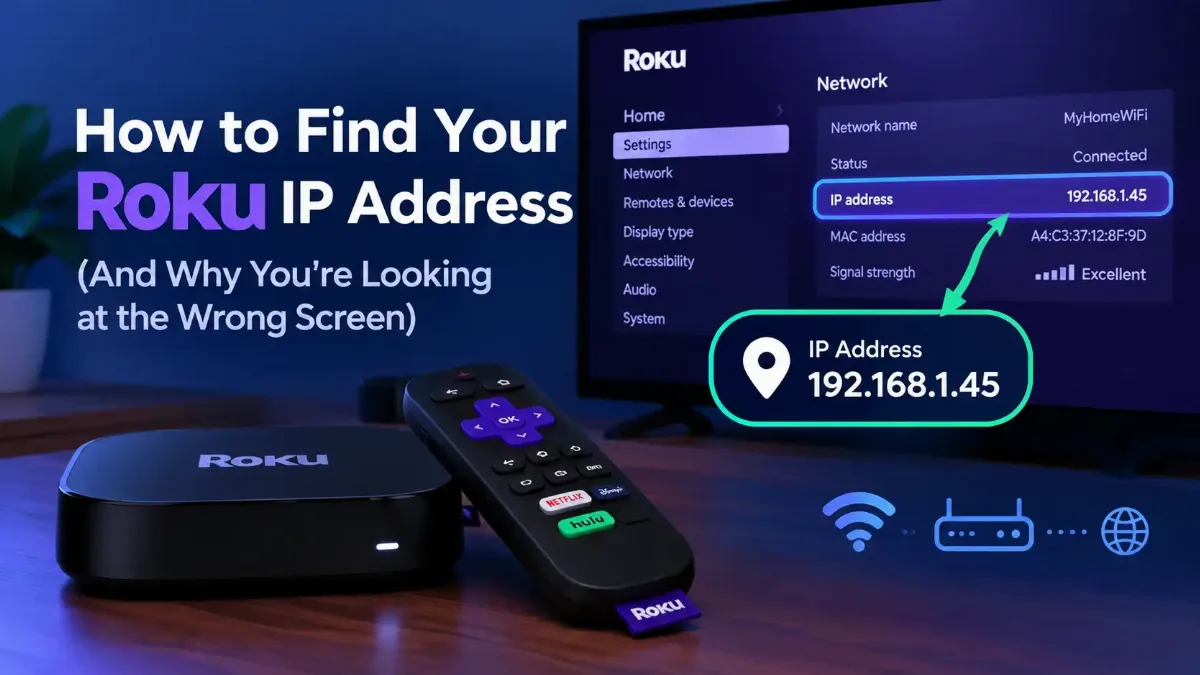

To find your Roku IP address you need one screen, and Roku names it exactly: Settings > Network > About. If you have already been through the menu and came back with a serial number and a software version instead, you were one branch away from the answer.
That is the part almost nobody tells you. A Roku has two different screens called About. The one under System holds the serial number and the device ID. The one under Network holds the address, and only that one does.
This guide covers the exact path with a remote, the routes that still work when the remote is gone, how to pick your Roku out of a router list full of unnamed devices, and a documented check that proves the address you found belongs to a Roku rather than the printer in the next room.

Quick Answer: Finding a Roku IP Address
Where Is the IP Address on a Roku?
Settings, then Network, then About. Roku's own support material states it in one sentence — find the IP address of your Roku device by going to Settings, Network, About — and that page was last updated on 18 June 2026, so it describes the current menu rather than a layout from four Roku OS versions ago. The address appears there with the network name, the wireless channel and the signal strength.
The reason people miss it is that the word About appears twice in the same settings menu. Under System, About lists the serial number, the device ID and the software build. Under Network, About lists the connection.
Both screens are short, both look official, and only one of them answers the question you came with. If you are reading a guide that says "go to Settings, then About" and nothing more, that guide is ambiguous and you have a coin flip ahead of you.
The wrong About screen
| Screen | What It Shows | Use It For |
|---|---|---|
| Settings, Network, About | IP address, network name, wireless channel, signal strength | Everything in this guide |
| Settings, System, About | Serial number, device ID, model, software version | Warranty and support tickets |
| Settings, Network, Check connection | Connection quality rating and a speed result | Proving the link works at all |
An address is only useful once you know what it identifies, and a Roku address identifies a position on your home network rather than the box itself. Our explainer on what an IP address actually identifies covers why that distinction matters more than it sounds.
A Roku TV uses that same menu, with one complication.
Is It Different on a Roku TV?
The path is identical. What changes is which remote opens it and how long the trip takes. A Roku TV runs the same Roku OS as a stick or a box — Roku OS 15.3 is the current release as of September 2026 — so Settings, Network, About sits in the same place on a TCL, an Onn, a Hisense or a Philips set. The manufacturer's name on the bezel changes nothing about the software.
That complication is the remote, and Roku ships two kinds. A Simple Remote is infrared and needs line of sight, so a cabinet door is enough to stop it. A Voice Remote is wireless and has to be paired with the device, which is why a replacement is not always a straight swap.
Worth saying plainly while we are here: the remote itself has no IP address. It talks to the Roku, not to your network.
| Device | How You Reach The Menu | Watch Out For |
|---|---|---|
| Roku TV — TCL, Onn, Hisense, Philips, Sharp | TV remote, Home button | A universal remote may never reach Roku Home |
| Roku Express, Express 4K | Roku remote, Home button | Simple Remote is infrared, so it needs line of sight |
| Roku Streaming Stick, Stick 4K | Roku remote, Home button | Voice Remote is wireless and must be paired to the device |
| Roku Ultra and older players — model numbers like 3930X, 3920X, 3910X, 3900X | Roku remote, Home button | Menu ordering varies on much older Roku OS builds |
If the set in front of you is not a Roku TV at all — and plenty of people searching for this are standing in front of a Samsung or an LG, which run Tizen and webOS rather than Roku OS — the menu will not match anything above. Our walkthrough of the same hunt on other smart TV platforms covers those.
All of which assumes a working remote. Most people reading this do not have one.
How Do You Find a Roku IP Address Without the Remote?
Two routes, and the second one works even when the first refuses. The Roku mobile app reads the same Roku IP address off the device over your Wi-Fi, and your router already knows it because the router handed it out in the first place. Neither route needs the remote, and neither needs you to touch the TV.
The app route is the quicker of the two when it cooperates. Put the phone on the same Wi-Fi network as the Roku, open the Roku app, and the device appears under the Devices tab with its system information behind the three-dot menu.
There is a catch, and it lives on the Roku rather than the phone: Control by mobile apps, under Settings, System, Advanced system settings. Roku's documentation is blunt that when this is switched off the app cannot talk to the device, and that turning it back on requires the physical remote. So if the app cannot see the Roku, that setting is both the first thing to suspect and possibly the one thing you cannot fix from where you are standing.
Working from the router has no such dependency. Sign in to the router's admin page, open the list of connected devices, and the Roku is in there — the difficulty is recognizing it among fourteen entries named things like android-2f4a91. That is what the MAC address is for.
1 Get into the router
2 Open the connected devices list
3 Read the first half of each MAC address
4 Write the address down before you close the page
| Method | What You Need | Fails When |
|---|---|---|
| On-screen menu | A working remote | Remote lost, dead or unpaired |
| Roku mobile app | Same Wi-Fi, app control enabled | Control by mobile apps is switched off |
| Router admin page | Router login, MAC prefix to match | Nobody knows the router password |
| Network scan from a computer | A machine on the same network | Guest network or client isolation is on |
What you actually do with the number
Every one of those routes assumes the Roku is on a network. Strip that away and the question changes shape entirely.
Can You Get a Roku IP Address With No Remote and No Wi-Fi?
Then there is no address to find, and any guide promising otherwise is selling you something. An IP address is not a property the Roku carries around with it like a serial number. It is assigned by a network when the device joins one, and a Roku sitting on a shelf with no network has no address at all — not a hidden one, not a default one, not one printed anywhere.
This matters because the search that brings people here is usually "no remote and no Wi-Fi", and those two problems have different answers. A missing remote is solvable on its own. Wi-Fi has to come first, and until it does, the address question is premature.
Order of operations when both are missing
Assuming the Roku is connected and you have a number in front of you, there is a question worth asking before you use it.
What Does a Valid Roku IP Address Look Like?
It should start with 192.168, 10., or something in the 172.16 to 172.31 band. Those are the private ranges reserved by RFC 1918 for use inside local networks, and a Roku on a normal home network will always land in one of them. Roku's support documentation makes the same point from the other direction, listing the private ranges and warning that an address outside them means the device is using a public address, which usually indicates there is no router in the path.
Two other readings catch people out. An address shown as 0.0.0.0 is not an address at all — it is the placeholder a device displays when it has not been given one, which means the connection failed rather than succeeded.
On models that support it, Roku also runs dual-stack IPv6 alongside IPv4, so you may see a long hexadecimal address separated by colons sitting next to the familiar one. Roku's advanced networking documentation, updated on 19 June 2026, confirms dual-stack support on specific models. The mobile app wants the IPv4 address, not the long one.
None of these is the address the wider internet sees when your household connects to anything, which is a separate number belonging to the router. If you want that one for comparison, check what the internet sees when your household connects and note how little it resembles the number on the Roku screen.
Right kind of address, right network. That still leaves the question of whether it is the right device.
How Do You Prove the IP Address Belongs to a Roku?
Ask the device itself. Every Roku runs a documented HTTP service called the External Control Protocol, and it answers on a fixed port. Roku publishes the port and the endpoint in its developer material, which was last updated on 25 June 2026: the service listens on TCP port 8060, and a GET request to /query/device-info returns an XML document describing the device.
That is the confirmation step no menu gives you. Point a browser or a single command at the address you think is the Roku, and either you get a page of device details back or you do not. The examples below use 192.0.2.50, a documentation address from RFC 5737 — substitute the address you actually found.
# or just open this in any browser on the same network
# http://192.0.2.50:8060/query/device-info
What comes back is an XML document whose fields include the serial number, the device ID, the model name, the software version and both the Wi-Fi and Ethernet MAC addresses. A device that is not a Roku returns nothing useful, usually a refused connection. There is no ambiguity in the result, which is the entire point.
If you would rather not guess at addresses one at a time, the same idea works as a sweep, or you can simply check whether a port is open on a device before bothering with the request.
for i in $(seq 1 254); do
curl -s -m 1 http://192.0.2.$i:8060/query/device-info \
>/dev/null 2>&1 \
&& echo "Roku responding at 192.0.2.$i"
done
One condition attached
Notice which direction that runs. You supply an address and the Roku hands you a serial number. Plenty of people are trying to do the opposite.
Is the Roku IP Address on the Back of the TV or in the Serial Number?
Neither, and both beliefs come from the same reasonable-sounding assumption: that the number is printed on the device somewhere. The label on the back of a Roku TV or the underside of a player carries the serial number and the device ID. Roku's guide to locating the serial number, updated on 19 June 2026, walks through exactly where that label sits on each product line — and mentions no IP address anywhere, because there is none to mention.
The serial number version of the question fails for a more fundamental reason. A serial number is assigned at the factory and never changes, while an address is assigned by your router and changes whenever the lease says so. Nothing connects the two.
That is why no lookup service exists and why Roku support cannot perform one. They can identify your device from a serial number for a warranty claim. What they cannot do is see what your router handed out this morning, because they are not on your network and never have been.
What the label actually gives you
And once you have the address, there is one more disappointment waiting about two weeks from now.
Why Does the Roku IP Address Keep Changing?
Because it was only ever a loan. Your router runs DHCP, which leases addresses for a fixed period and reassigns them when the lease expires or the device drops off the network long enough. A Roku that gets unplugged, or a router that gets rebooted, can easily come back on a different number — which is why the address you carefully wrote into an app last month now connects to nothing. Our explainer on how your router hands out addresses and takes them back covers the mechanism in full.
| What You See | Likely Cause | Where To Look |
|---|---|---|
| Address worked last week, not today | DHCP lease expired and moved | Read it again from the menu |
| Address changes after every reboot | Short lease time on the router | Reserve the address instead |
| Two devices fighting over one address | A manual address inside the DHCP pool | Router DHCP range settings |
| Roku visible on the TV, invisible to the phone | Different networks, or guest isolation | Network name on both devices |
There is a permanent fix for the first two rows, and it belongs on the router rather than on the Roku: reserve the address against the Roku's MAC so the same number comes back every time. Our guide to pinning a Roku to one address for good covers the reservation route and why setting a manual address on the device itself tends to cause the third row.
The last row is a different animal. When the address is correct and current but the Roku app reports that no device was found at that address, the problem has moved from finding the number to what is sitting between the phone and the Roku.
That is the whole path, from menu to verified address. Here is the short form.
The Short Version
Press Home, open Settings, go to Network, then About. That is where the Roku IP address lives, and the reason so many people come away empty-handed is that Settings, System, About carries the same name and none of the same information. One branch apart, and it causes most of the confusion here.
Without a remote you have two working routes. The Roku mobile app on the same Wi-Fi will show you the device's details, provided Control by mobile apps has not been switched off — and if it has, only the physical remote can switch it back. Your router's connected devices list shows the address regardless, and the MAC prefix on the label is how you tell the Roku apart from everything else on that list.
A serial number will never lead you to an address, but an address leads straight to a serial number through the device-info query on port 8060 — the direction that works, and a clean way to prove you found the right box. The address is also temporary by design, so if it stops working, check whether it simply moved before assuming something broke.
Next step, once the number is in hand: open the Roku app, tap Devices, choose Get help then Connect manually, and type it in. To sweep the network instead, our explainer on how wide your network actually is matters more than guesswork, and where two devices claim the same number, our guide to two devices claiming the same address covers the cleanup.