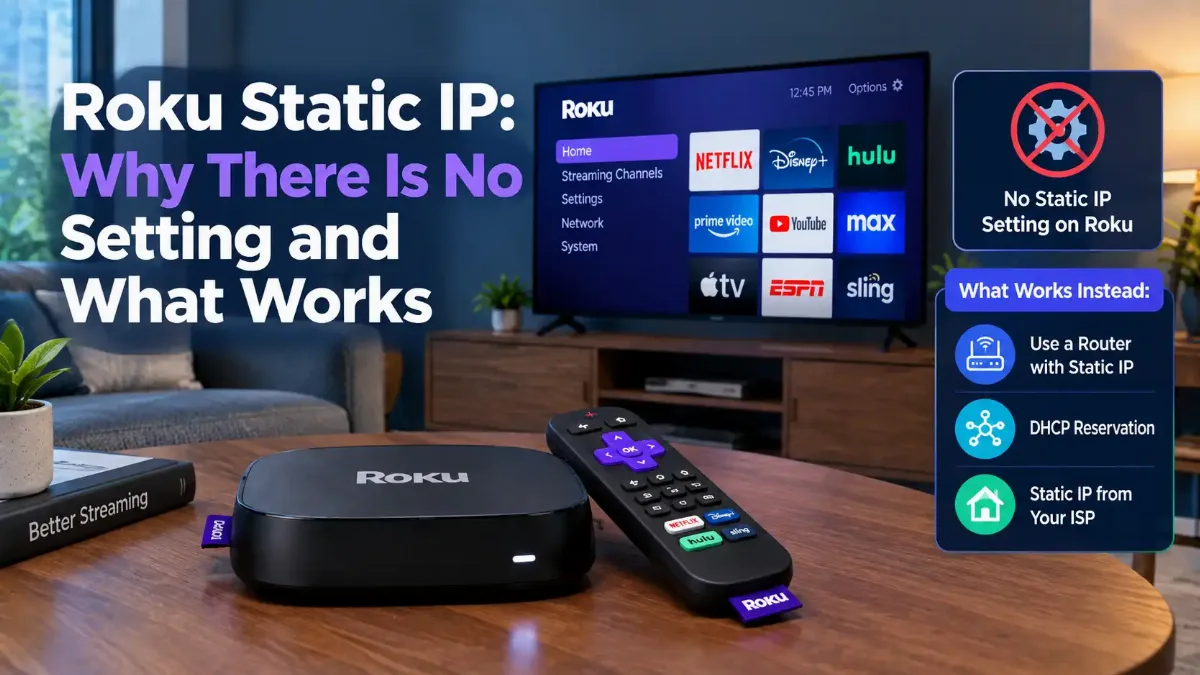

There is no way to set a Roku static IP on the device itself. No manual address field, no subnet mask, no gateway, no DNS box. Every guide that walks you into the Roku settings menu looking for one is describing a screen that is not there.
That is not a bug and it is not a hidden feature waiting to be switched on. Roku's network settings handle the wireless layer and stop there, which is also why you cannot point a Roku at a different DNS server.
What does work sits one device away, on your router, and it produces exactly the result people are after: the same address every time, surviving reboots and lease expiry. This guide covers that method, the one piece of information you need before you start, and how to tell whether it actually took effect.

Quick Answer: Roku Static IP
Can You Set a Static IP on a Roku?
No, and the proof sits in what Roku does document. Roku's own page on advanced networking features, last updated on 19 June 2026, covers 5 GHz connectivity, manual wireless channel selection, DFS channel support and IPv6 dual-stack addressing. Those are genuinely advanced options, so the page is not being lazy. Yet not one word of it concerns an IP address, a subnet mask, a gateway or a DNS server.
The same gap shows up from the other direction. A Smart DNS provider's own Roku setup page states that the device has no advanced network settings and that the only route is changing DNS on the router — which is a business telling customers its product cannot be configured where they expect. The threads still running on Roku's own forums are people arriving at that conclusion one at a time.
| Setting | On The Roku? | Where It Lives Instead |
|---|---|---|
| Manual IP address | No | Router — DHCP reservation |
| Subnet mask and gateway | No | Router — handed out by DHCP |
| Custom DNS server | No | Router — DNS settings |
| Wireless channel selection | Yes | Settings, Network on the Roku |
| Wired connection | Yes, where the model has a port | Plug it in; still DHCP |
This puts the Roku in a different category from most hardware. Phones, laptops and printers all let you type an address in by hand, which is why our guide to changing the address on whatever device you have in front of you reads so differently device to device.
The method that does work is the one network administrators would have picked anyway.
What Works Instead: Reserving the Roku's Address on the Router
A DHCP reservation ties one address to one device permanently. TP-Link's description of address reservation, updated on 17 September 2026, puts it plainly: when you reserve an address for a device on the LAN, that device receives the same address every time it connects to the DHCP server. The Roku carries on asking for an address as normal and the router keeps handing back the same one.
That is the important difference from a hand-typed address, and it is why this approach is better rather than merely available. The router owns the assignment, so it will never offer that address to anything else. A manually configured device is invisible to the router, which will cheerfully hand the same number to a laptop an hour later.
1 Get the Roku's MAC address
2 Open the router's DHCP settings
3 Add the MAC and the address you want
4 Reboot the router if it asks
5 Restart the Roku so it asks again
Getting into the router is its own small adventure if nobody has logged in for years, and our walkthrough of working inside a router's admin pages covers finding the login and the settings once you are there.
Step one is where most attempts stall, so it gets a section of its own.
Where Is the Roku's MAC Address?
On an About screen, but not necessarily the one holding the IP address. This is the detail that turns a quick job into a long one, because Roku splits the two numbers across different menus and the split depends on the model and on how the device is connected.
For a Roku TV on Wi-Fi, TCL's instructions for its own Roku TVs point to Settings, then Network, then About, where the field is labeled Wireless MAC Address. For a wired connection, the University of Minnesota's IT documentation, updated 12 February 2026, points to Settings, then System, then About, where it appears as Ethernet MAC Address. Both are correct, for different setups.
| What You Need | Where To Look | Field Label |
|---|---|---|
| Wireless MAC (Wi-Fi) | Settings, Network, About | Wireless MAC Address |
| Wired MAC (Ethernet) | Settings, System, About | Ethernet MAC Address |
| Current IP address | Settings, Network, About | IP address |
| Both MACs, without the TV | The device-info query over the network | Returned as XML |
Row four is the shortcut when the TV is awkward to reach or the remote has gone missing. Every Roku answers a documented query on TCP port 8060 that returns its details, including both the Wi-Fi and Ethernet MAC addresses, without anyone touching the screen. Our guide to reading the address off a Roku by any available route covers that query and the menu paths in full.
curl -s http://192.0.2.50:8060/query/device-info
# the reply includes the Wi-Fi and Ethernet MAC addresses,
# the model name and the serial number
Whichever route you take, copy the right one. Reserve against the Wi-Fi MAC and then plug in an Ethernet cable and the reservation stops applying, because the router is now dealing with a different hardware address entirely. If the router's list shows several unlabeled entries and you are unsure which is the Roku, a vendor lookup on the prefix settles it in seconds.
With the MAC in hand, the only remaining decision is which address to hand it.
Which Address Should You Reserve for the Roku?
One on your own subnet, and ideally one nothing else is likely to grab. TP-Link's guidance is explicit that the reserved address must sit on the same subnet as the router's LAN address, which on a normal home network means the first three numbers have to match. If your router runs 192.0.2.1 and you try to reserve 198.51.100.40, the reservation is refused or simply ignored.
Beyond that, there are two schools and both work. Reserving inside the DHCP pool is what the router expects — it simply stops offering that number to anyone else. Reserving outside the pool keeps the address clear of the rotation entirely, which some administrators prefer for anything permanent.
The one combination that causes trouble
If you are unsure whether the number you picked falls inside the pool, compare it against the range your router hands out — checking whether an address falls inside a given range answers that without arithmetic.
That covers pinning it. Plenty of people arrive here wanting the opposite.
How Do You Change the IP Address on a Roku TV?
You change it at the router too, and the crude version takes thirty seconds. Removing any existing reservation and restarting both the router and the Roku forces a fresh request, and the device usually comes back on a different number. The menu on the Roku TV itself offers nothing here, exactly as it offers nothing for a fixed address.
The controlled version is the same reservation process aimed at a different number. Set a reservation to the address you want, reboot, and the Roku lands there rather than wherever the pool happened to reach. This is the only method that gives a predictable result, and it works identically on a TCL, an Onn, a Hisense or a Philips set, because the panel maker changes nothing about the networking.
Older players behave the same way
Reservation made, router rebooted, Roku restarted. Whether it worked is a separate question.
How Do You Confirm the Roku Reservation Worked?
Read the address off the Roku again and compare it with what you reserved. A reservation that looks saved in the router means nothing until the device has actually asked for an address and been given that one, which is why the final restart matters more than it sounds.
Two outcomes are worth recognizing. The Roku shows the reserved address and the job is done. It shows the old address instead, which means it is still holding an unexpired lease — restart it again, or wait for the lease to run out, and check once more.
The real test comes a week later
The common reason for doing any of this is an app that cannot find the device, so it is worth checking that too. If the Roku app still fails after the address settles, the problem was never the address, and what to do when the app reports no device at that address works through what else sits between the phone and the Roku.
One honest question remains, and it is worth asking before you start.
Is a Reserved Roku IP Address Worth the Trouble?
Sometimes, and not as often as the internet implies. A moving address only matters when something else is pointed at it, so the honest test is whether anything on your network refers to the Roku by number. If nothing does, the Roku will keep working perfectly on whatever address it is handed and you can close this page.
| Situation | Worth Reserving? |
|---|---|
| You connect the Roku app by typing the address | Yes — this is the main case |
| Home automation controls the Roku directly | Yes — the controller needs a fixed target |
| Router rules by device: schedules, filtering, priority | Often handled by MAC instead — check first |
| You just want everything tidy | Harmless, and satisfying |
| Streaming is buffering or dropping | No — a fixed address fixes nothing here |
Row five deserves emphasis because it sends people down this path for no reason. An address is a label, not a speed setting, and pinning it changes throughput by exactly nothing.
The Short Version
A Roku static IP cannot be set on the Roku. The device has no field for an address, a mask, a gateway or a DNS server, and Roku's own advanced networking documentation quietly confirms it by covering wireless options and nothing else. Searching the menu for longer will not help.
Reserve the address on the router instead, which produces the same result and a better one. Find the Roku's MAC address first — Wireless MAC Address under Network, About on a Roku TV, Ethernet MAC Address under System, About when wired — then add a reservation in the router's DHCP settings, reboot the router if it asks, and restart the Roku so it requests a fresh lease.
Check it afterwards by reading the address off the device rather than trusting the router's saved page, and check again in a week, because the point of a reservation is what happens after a power cut. The mechanism underneath all of this is worth understanding once, which our explainer on how a router hands out and reclaims addresses covers, and the same reservation trick is the right answer for the printer that keeps disappearing for exactly the same reason.