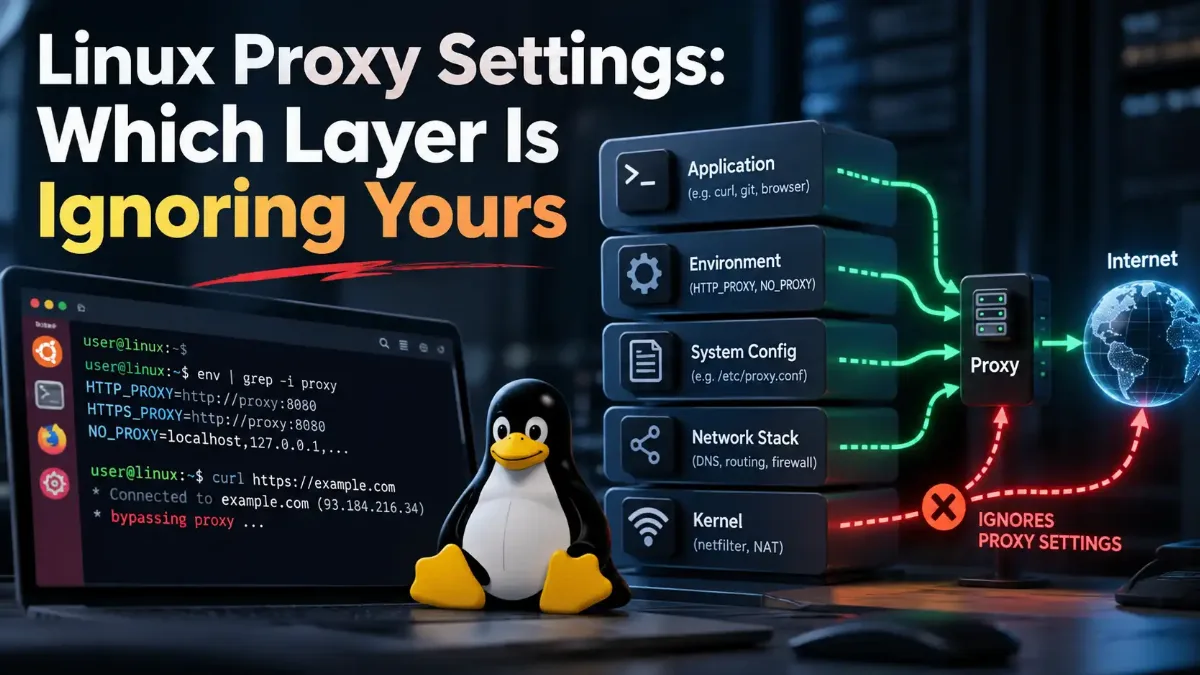
You set http_proxy, and something still will not go through it. Linux proxy settings are not kept in one place, so the question is never where the setting is, it is which layer is ignoring the one you set. No single store is read by every program, and this post maps the layers with a way to read each one back.
Our own platform overview calls Linux the honest outlier, because a desktop panel and the shell variables are two separate settings. Having read the documentation for this post, two undercounts it badly, and some of the layers below cannot read a variable at all.
Everything below is sourced to the projects themselves: Canonical's manual pages and bug tracker, Debian's apt manuals, the sudo project, the GNOME schema, curl's own documentation and Docker's. Where the documentation stops, the post stops and says so on the spot, and where two first-party sources disagree it gives you both.

Quick Answer: Where To Look First
env | grep -i proxy for your shell, then read the layer that is failing rather than the one you set. If your shell has the variable and sudo apt update still ignores it, rule out sudo before apt, and both ways through are written out as commands below. If a graphical application is proxied and your shell is empty, the desktop panel is a separate store. Once you are through, put the question to a server instead of to your own machine and see what actually arrives.
Linux Proxy Settings Are Not One Setting, and Canonical Ships a Service To Prove It
One piece of evidence here outranks anybody's opinion, including mine: Canonical ships a program whose whole job is to write one proxy setting into several places at once. It is called Ubuntu Proxy Manager, and its own manual page describes it like this: "Ubuntu Proxy Manager is a D-Bus mediated service that allows for managing system proxy settings via multiple backends (APT, environment variables and GSettings)."
Read that list again. Three backends for one setting, shipped by the people who make the distribution. That is already one more than the platform overview that calls Linux the honest outlier counts, and it is not the end of the list. The manual adds that it "is not intended to be run by hand, rather by a D-Bus activated systemd service", and its project README names the three files it writes: /etc/environment.d/99ubuntu-proxy-manager.conf, /etc/apt/apt.conf.d/99ubuntu-proxy-manager and a GSettings override under /usr/share/glib-2.0/schemas/.
It also records what it cannot do. The environment-variable backend does not support automatic configuration mode, and the apt backend supports neither that nor no_proxy, so even the purpose-built fan-out cannot express every setting in every backend.
And that list of three leaves out snap, systemd services and Docker, each of which has a mechanism of its own. Before any of that, it helps to know which layer of the stack a proxy actually sits on, because it explains why a program has to opt in to using one at all.
| Layer | Where it is written | One way to read it back |
|---|---|---|
| Your shell, and anything launched from it | ~/.bashrc, /etc/environment, /etc/profile.d/ |
env | grep -i proxy |
| Anything run through sudo | The sudoers file, not your shell | sudo printenv http_proxy |
| apt | A fragment in /etc/apt/apt.conf.d/, or the variable |
apt-config dump | grep -i proxy |
| Graphical applications that follow the desktop | A GSettings schema, edited by the Network Proxy panel | gsettings get org.gnome.system.proxy mode |
| snap, which is a daemon and not your process | snapd's own configuration | snap get system proxy.http |
| systemd services, and containers | Unit drop-in files, and Docker's own config files | systemctl show -p Environment <unit> |
Nothing in that right-hand column is exotic. The reason people spend an afternoon on this is not that the commands are hard, it is that the guides are organized by method rather than by layer, so the middle column never appears as a list anywhere. Searches for proxy settings linux, ubuntu proxy settings, ubuntu terminal proxy and how to set proxy in linux all land on the same handful of pages.
Debian proxy settings work the same way, because apt, sudo and systemd are the same packages on both. On Fedora or Arch the package manager is a different program with its own configuration file, so the apt row moves rather than disappears, while the shell, sudo, desktop and service rows behave the same everywhere. The desktop row depends on which desktop you installed and not on the distribution, so on a KDE machine that setting lives somewhere else and the gsettings command below will tell you nothing about it. And the phrase people type, system wide proxy, is the assumption worth dropping: there is no single switch to find.
The Variables Everyone Tells You To Set, and Which Case Each Tool Reads
Two of the most-read guides give opposite advice, and it is worth settling because it changes what you type. The one ranking first tells you to set both cases, uppercase and lowercase, for maximum compatibility. The most thorough one tells you to always use lowercase. On one variable they genuinely conflict, and curl documents which of them is right about it.
curl's own book states the rule plainly: "All these proxy environment variable names except http_proxy can also be specified in uppercase, like HTTPS_PROXY." One variable is the exception, and the reason is not style. It is "only accepted in its lower case version because of the CGI protocol, which lets users run scripts in a server when invoked by an HTTP server".
Here is why that matters. A web server running a script hands it the incoming request headers as environment variables, prefixed and uppercased, so a request carrying a header named Proxy arrives at the script as HTTP_PROXY. If that script then runs curl, in curl's words, "it is important that curl does not treat that as a proxy to use". The documentation is blunt about the history: "accepting the upper case version of this environment variable has been the source for many security problems".
So the advice to set both cases is, for plain HTTP through curl, advice to set a variable curl deliberately refuses to read, and the refusal is a security fix rather than an oversight. Set lowercase, and add the uppercase forms only for the tools that ask for them.
| Variable | What the documentation actually says |
|---|---|
http_proxy |
curl accepts lowercase only, because of the CGI header collision |
https_proxy, ftp_proxy |
curl accepts either case, and "The lower case version has precedence" |
ALL_PROXY |
"Sets the proxy server to use if no protocol-specific proxy is set." A specific variable wins over it |
NO_PROXY |
Either case. An asterisk alone "matches all hosts"; CIDR notation was added in curl 7.86.0 |
| wget's variables | The GNU manual documents lowercase only and says nothing about uppercase either way |
That last row is a limit, not a finding. The GNU wget manual calls its lowercase set "The standard way to specify proxy location, which Wget recognizes" and does not mention uppercase at all. Silence is not documented behavior, so I will not tell you wget ignores HTTP_PROXY, only that the manual does not promise it works.
Two neighbors worth knowing. A browser is its own case: the browser that reads your shell variables when it finds no desktop setting covers what Chromium does with these, including the catch-all that explains a proxied machine with an empty panel. And if the address you are setting begins socks5:// rather than http://, what a SOCKS endpoint is and what software really does with one is the difference that decides whether your name lookups go through it.
Why sudo Loses the Proxy You Just Set
The sudo apt proxy problem is the most common version of this, and it has a name that appears on none of the guides I read. The variable is in your shell, you run sudo apt update, and it times out. In the common case nothing is wrong with your variable and nothing is wrong with apt.
The sudoers manual documents a setting called env_reset: "If set, sudo will run the command in a minimal environment containing the TERM, PATH, HOME, MAIL, SHELL, LOGNAME, USER and SUDO_* variables." The same page states, of that flag, "This flag is on by default."
Count the variables in that list. None of them is a proxy variable. So sudo is not failing to pass your proxy along, it is handing the command the deliberately small environment it is documented to hand it, and apt never sees yours.
Why this is not a bug to report
There are two ways through, and they are not equivalent. The first is per-command: sudo's own manual describes the -E option as indicating "that the user wishes to preserve their existing environment variables", and adds that "The security policy may return an error if the user does not have permission to preserve the environment". So it is a request, and on a managed machine it can be refused.
If the policy refuses the first and you cannot edit sudoers, the middle command is the one to try, because it sets the variables for a single invocation rather than changing any policy. If even that is blocked, send whoever runs the machine the citation above, because "sudo drops proxy variables by default" is a short ticket rather than an argument.
The second way is permanent, and it is the one to use on a machine you administer: add the proxy variables to sudoers' keep-list, which is the mechanism env_reset itself points at for exceptions. Edit sudoers with visudo rather than a text editor, because it checks the file before saving, and a syntax error in sudoers is how people lose the ability to run sudo at all.
sudo -E apt update
# or hand the variables through explicitly, which asks for no policy change
sudo env http_proxy="$http_proxy" https_proxy="$https_proxy" apt update
# permanent, on a machine you administer. Run visudo, then add this line:
Defaults env_keep += "http_proxy https_proxy no_proxy"
env | grep -i proxy
# what sudo hands to a command, which is the point most people lose it
sudo printenv http_proxy
# what apt has been configured with, from every fragment at once
apt-config dump | grep -i proxy
# what the desktop is set to, separately from your shell
gsettings get org.gnome.system.proxy mode
# what snapd holds, which is neither of the above
snap get system proxy.http
# and one test rather than a read: does the proxy itself answer from here
curl -v -x "$http_proxy" -o /dev/null https://example.com
1 Your shell comes back empty
2 sudo comes back empty and your shell did not
3 apt's dump shows a proxy you did not expect
DIRECT, both of which the apt section explains, because either can carve one archive out of a setting that works everywhere else.4 the desktop mode is not what the panel showed you
auto, the address is coming from a configuration URL rather than from the host and port boxes, and the desktop section names the key that holds it.5 snapd holds a value, or your snap installs still fail
6 Everything reads correctly and one program still refuses
Run the read-back commands before you change anything. If env shows the variable and sudo printenv shows nothing, you have found the most common answer, and the sections after this one are the layers that bite next.
apt Honors Your Variable, and Its Documentation Is In a Manpage Nobody Opens
I expected to find that apt ignored the environment variable, and it does not. Debian's apt-transport-http manual, shipped with APT 3.0.3, says it in one line: "The environment variable http_proxy is supported for system wide configuration." It says the same of no_proxy, and "system wide" there means apt will take a setting from a shared location, not that one switch covers the machine.
So if your variable is set and apt is not using it, either sudo took it, which is the section above, or something in apt's own configuration is overriding it. The same manual gives that configuration: "Proxies specific to APT can be configured via the option Acquire::http::Proxy", and proxies for particular hosts via Acquire::http::Proxy::host, where host is a placeholder you replace with the actual hostname rather than the literal word. It also documents a value worth remembering: "The various APT configuration options support the special value DIRECT meaning that no proxy should be used".
That last one is how a single repository gets excluded from a proxy that applies to everything else, and it is the reason a machine can appear to have a working proxy for most of apt and not for one archive.
Why every blog gets apt second-hand
apt.conf, and the proxy options are not there. That manual does not document Acquire::http::Proxy at all; it hands you off, saying the options "are documented in the apt-transport-http(1) and apt-transport-https(1) manpages respectively". Follow that pointer rather than a forum snippet, because the forum snippet is where the stale advice comes from.Write the setting as a fragment rather than editing the monolithic file. The apt manual documents the reading order: after any file named by the APT_CONFIG variable, it reads "all files in Dir::Etc::Parts in alphanumeric ascending order which have either no or "conf" as filename extension". That directory is /etc/apt/apt.conf.d/.
An apt proxy fragment there such as 95proxy is both easier to remove later and less likely to collide with something a package installs. Canonical's own proxy service writes a fragment, not the main file.
# the third line is optional: it carves one archive out, using the documented special value
sudo tee /etc/apt/apt.conf.d/95proxy <<'EOF'
Acquire::http::Proxy "http://proxy.example.com:3128";
Acquire::https::Proxy "http://proxy.example.com:3128";
Acquire::http::Proxy::archive.ubuntu.com "DIRECT";
EOF
# read back every fragment at once, not one file
apt-config dump | grep -i proxy
# watch which host apt actually connects to
sudo apt -o Debug::Acquire::http=true update
# remove it again, which is one file and not a hunt
sudo rm /etc/apt/apt.conf.d/95proxy
One honest gap. Both mechanisms are documented as supported, and neither manual states which one wins if the variable and the apt option disagree. One of the ranked guides asserts a precedence rule; I could not find it in either manual, so I am not repeating it. If you need certainty, set one and leave the other unset.
The debugging line in that block is the one worth keeping. It makes apt tell you which host it connected to, which is the difference between believing your configuration and seeing it, and none of the guides I read publishes it. Windows has the shorter version of this problem, because a platform where one command reads the machine-level store at least gives you a single authority to check.
The Desktop Panel, and What It Actually Reaches
The GNOME Network Proxy panel is a front end to a stored schema, and reading the schema tells you more than the panel does. On a GNOME desktop it is org.gnome.system.proxy, with companion schemas for http, https, ftp and socks. Its documented modes are exactly three: the schema says "Supported values are "none", "manual", "auto"".
Two behaviors in that schema explain complaints that look like bugs. The first: "If an http proxy is configured, but an https proxy is not, then the http proxy is also used for https." The second surprises anyone who sets a SOCKS proxy expecting it to cover everything: "If a SOCKS proxy is configured, it is used for all protocols, except that the http, https, and ftp proxy settings override it for those protocols only." So a leftover http entry outranks the SOCKS proxy you just set, and the schema is where you would see that rather than the panel.
Reading it with gsettings also lets you see automatic mode for what it is. In auto the address comes from a separate key, autoconfig-url, which the schema describes as the URL "used to look up proxy information for all protocols". The panel presents that as its Automatic option. GNOME's own help describes it as "A URL pointing to a resource, which contains the appropriate configuration for your system", so when the mode is auto that URL is in charge and the host and port boxes are not.
Where GNOME's own help overstates it
Worth saying plainly: this is the GNOME store, not the only desktop store. KDE keeps its own, and an application may read one, the other, or neither. On macOS the same question has a sharper answer, and the desktop where one command hides three whole categories of proxy is the version where one tool does know the truth and hides part of it by default.
snap, and a Contradiction In Canonical's Own Documentation
On Ubuntu this layer matters more than its coverage suggests. Canonical's own Ubuntu 22.04 release notes state it flatly: "Firefox is now only provided in Ubuntu as a snap." So on a default Ubuntu desktop the browser, which is the program most likely to show you a proxy problem, sits in this layer. Of the guides ranking for this subject, only one mentions snap at all.
Start with why your variables cannot work here, because a snapd lead wrote the reason down. In Launchpad bug 1579652, titled "snap ignores the proxy environment variables", Gustavo Niemeyer put it like this: "The "snap" tool is a client to snapd. Setting environment variables on the client won't make snapd aware of them." You are configuring a client; the thing that fetches is a daemon.
The documented replacement is the snap proxy option, set on the daemon rather than in your shell. Canonical's system options reference, last updated 21 August 2026, gives snap set system proxy.http and proxy.https. It describes them as options that "may be set to change the proxies to be used by the system when communicating with external sites that speak the respective protocols".
And directly beneath that, under the same heading, the page carries a note: "Available only on Ubuntu Core."
Two Canonical sources, and they disagree
snap get system proxy.http after setting it and see whether the value comes back, then try an install. That is a two-minute test on your own machine and it beats a confident sentence from mine.Two things I will not tell you, because Canonical does not. Its documentation for those options says nothing about restarting snapd afterwards, so if you find a restart is needed, that is your machine talking and not the manual. And snapd being a service does not by itself mean a unit drop-in will reach it, because this section opens with snapd declining to read environment variables in the first place. Read the value back before you conclude anything either way.
Services, Containers, and Why Setting a Variable Does Not Reach Them
systemd describes a service's environment as something the manager assembles from directives rather than something it picks up from wherever you were standing. Unit files take an Environment= directive, which "Sets environment variables for executed processes. Takes a space-separated list of variable assignments", and an EnvironmentFile= which reads the same assignments from a file. The system manager also has a DefaultEnvironment= that "Configures environment variables passed to all executed processes".
The clean way to add a systemd proxy variable to one service is a drop-in rather than an edit to the shipped unit. systemd documents the pattern: alongside a unit file, a directory of the same name ending .d may exist, and "All files with the suffix ".conf" from this directory will be parsed after the file itself is parsed". A fragment also keeps your change separate from the file the package owns.
Docker proxy configuration is the clearest illustration on this page, because it has three layers and Docker documents all three itself. The daemon is configured in its own configuration file or through a systemd drop-in. The client has a separate file, and Docker's wording about it is the sentence to remember: "These settings are used to configure proxy environment variables for containers only, and not used as proxy settings for the Docker CLI or the Docker Engine itself." Docker Desktop is a third case, and Docker states that daemon configuration is ignored there.
| What is failing | Does your shell variable reach it | What to configure instead |
|---|---|---|
| A command you typed | Yes, if that tool reads the case you set | Nothing. Check the case and the value |
| The same command under sudo | No, by design | Request it per command, or keep it in sudoers |
| A background service at boot | No, its environment is assembled from unit directives | A drop-in with Environment= |
| Pulling an image | No, the daemon does the fetching | The daemon's configuration or its drop-in |
| A process inside a container | No, the container has its own environment | The client configuration file, which Docker says is for containers only |
| Installing a snap | No, snapd is a daemon | snapd's configuration, with the caveat above |
Two limits on this section, both mine. I could not read systemd's own wording on what a service inherits, so the sentences above claim only the directives I could quote. I am not going to tell you a service can never see a variable you exported. And a unit you run as yourself with systemctl --user is a different case that I did not verify, so do not carry the system answer across to it.
The other limit is flatpak. It sandboxes applications, and I did not find first-party documentation of its proxy behavior good enough to write from. If your problem is a flatpak application, treat it as its own layer and check it separately rather than assuming your shell reaches into a sandbox.
The same principle applies to applications that keep their own configuration regardless of the desktop. An application that keeps its own proxy dialog and only follows the desktop when you tell it to is the clearest example, and on Ubuntu it is often also a snap, which puts one program in two of these layers at once.
Taking one out again, layer by layer
unset http_proxy https_proxy no_proxy clears the current session, then delete the line from whichever file set it, or the next login puts it back. For apt, delete the fragment rather than editing it, which is the last command in the block above. For the desktop, set the schema mode back to none, one of its three documented values. For snapd, clear the option the same way you set it and read it back with snap get. For a service, remove the drop-in and reload the manager. Then run the read-back commands again, because the point of removing a proxy is being able to prove it is gone.The Short Version
Linux proxy settings are not in one place, and the useful question is which layer is ignoring the one you set. Canonical ships a D-Bus service that writes three of these layers at once, and it reaches neither sudo nor snap nor a service, which is the shape of the problem in one sentence. Counting rows is less useful than reading them back.
Set the lowercase variables, because curl accepts http_proxy in lowercase only and its own documentation says accepting the uppercase form caused security problems. If a command works for you and fails under sudo, that is env_reset doing its documented job and the fix is in sudoers, not in your shell.
apt does honor your variable, and its proxy options are documented in a manual that is not the one named after its configuration file. The desktop panel is a stored schema whose fallback rules can make a stale http entry outrank a SOCKS proxy. Services, snaps and containers are configured on their own terms instead, and Docker documents three such layers by itself.
Start with the read-back commands rather than with a guide's setup steps. Reading a layer costs one line; configuring every layer because you could not tell which one was wrong costs an afternoon and leaves a machine nobody can diagnose later.