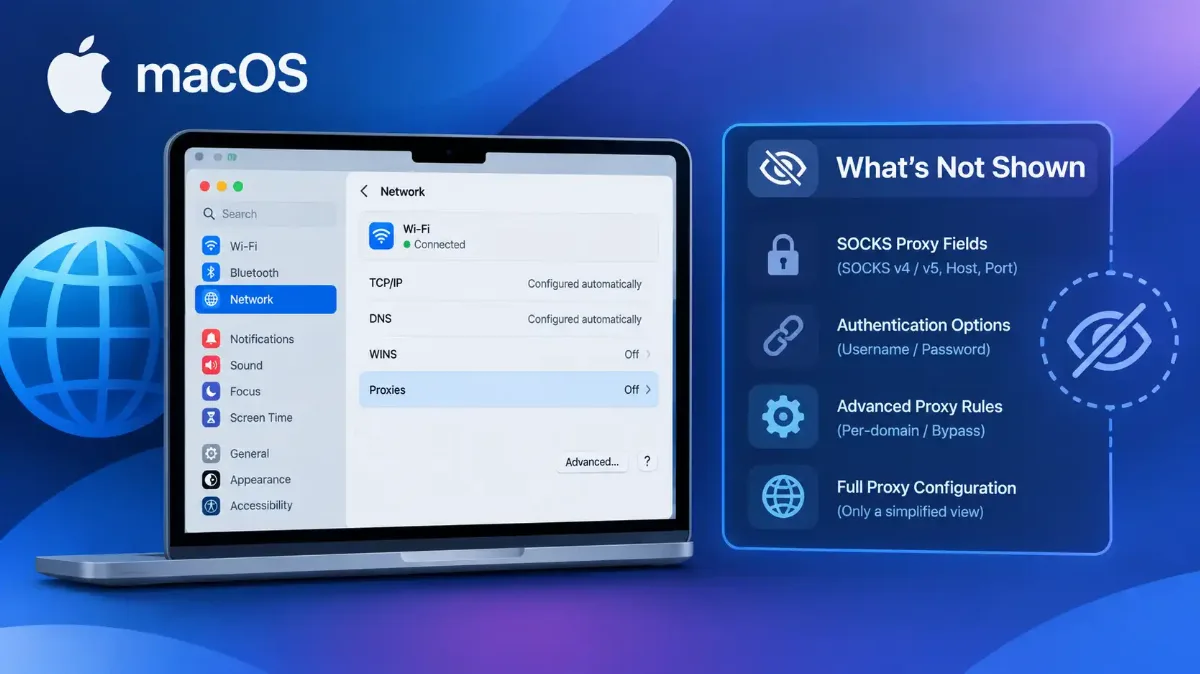
macOS proxy settings are kept in more than one place, and the Proxies tab edits exactly one of them. It edits the network service you had selected when you opened it, so a proxy can work on Wi-Fi and do nothing the moment you dock to Ethernet.
That is the part the walkthroughs leave out, and it is not the only part. The tab shows what you typed into that one service. It does not show what the system computed afterwards, it has no field for a proxy that applies to a named set of domains, and it stays empty for several kinds of proxy that are genuinely in force.
The field names, the navigation and the commands below are checked against Apple's support pages and against the open source of the System Configuration framework that implements this. Where I could not verify something first-hand, Section 5 says so rather than filling the gap with something plausible.

scutil.tproj/tests.c, in Apple's open-source release of the System Configuration framework. Before printing, the routine behind scutil --proxy copies the proxy dictionary and deletes three entries from the copy. Add the debug flag and it skips that step, so the full dictionary prints.
Quick Answer: macOS Proxy Settings
Where macOS Proxy Settings Live, and the Pages Apple Documents Them In
The path is short: Apple menu, System Settings, Network in the sidebar, a network service, Details, then Proxies. On macOS 12 Monterey and earlier the first menu is called System Preferences, and older layouts put the tab behind an Advanced button rather than Details.
The path has not changed for the current releases, and it is worth knowing which those are. Apple's own security-releases list, which dates macOS Golden Gate 27, macOS Tahoe 26.7 and macOS Sequoia 15.8 to 14 September 2026 puts all three within a fortnight of this being written. If a guide's screenshots show an Advanced button, it predates all of them.
Apple documents this single tab in more than one place. There is Apple's page on changing proxy settings, which names the protocol entries and the bypass field. There is a second, Enter proxy server settings on Mac, which repeats the same navigation. And there is a third written for Safari, which Section 6 returns to.
What none of them explains is what a network service is, or what happens when your Mac has several of them. That omission is where almost everything below comes from.
If your question is what should my proxy settings be on mac, the answer is nothing. The proxy settings Mac users want in that tab are empty ones, unless somebody handed you an address and a port or your employer pushed a configuration. A proxy is a machine you are volunteering to route through, so the case for carrying one you did not ask for is thin. For what changes about a connection once something is sitting in the middle of it, our groundwork on what a proxy is doing between you and the site is the background this post assumes.
What Each Control in the Proxies Tab Actually Covers
The tab looks like one list and behaves like three groups. Auto proxy discovery and Automatic proxy configuration are mechanisms rather than proxies, and neither takes a host and port. The Web proxy, Secure web proxy and SOCKS entries are the proxies themselves. The bypass list, the simple-hostnames tick and the password option sit underneath.
| Control | What it does | What it covers |
|---|---|---|
| Auto proxy discovery | Asks the network where its configuration file is, rather than you supplying one | Whatever the network hands back. A mechanism, not a proxy. Section 4 is about this one |
| Automatic proxy configuration | You supply the URL of a PAC script, and the script decides per destination | Whatever the script returns, which this tab cannot show you |
| Web proxy (HTTP) | A host and port for plain HTTP | HTTP only. Ticking this does not cover HTTPS |
| Secure web proxy (HTTPS) | A separate host and port for HTTPS | HTTPS only, and it is its own entry because it takes its own address |
| SOCKS proxy | A relay that forwards a connection without reading it | Apps that choose to honor the system SOCKS setting |
| Bypass proxy settings for these hosts and domains | A comma-separated list of destinations that go direct instead | The three protocol entries above. A PAC script makes its own decisions |
| Exclude simple hostnames | Sends single-word names, the ones with no dots, direct rather than through the proxy | Bare hostnames on a local network |
| Proxy server requires password | Reveals the username and password fields for a relay that authenticates | The protocol entry you are editing, not the others |
The pair at the top of the protocol group is where configurations quietly half-work. Web proxy and Secure web proxy are separate entries with separate addresses, so filling in the first and stopping sends your HTTPS traffic direct. The configuration looks applied and behaves as though it is not, with nothing on screen to say which half is missing.
The mechanics of how to use proxy on mac are then as thin as they look. Tick a protocol, put the mac proxy server address in the first field and its port in the second, and do the same for the second protocol whether you were given one address or two. Turn on the password option if the relay authenticates, and fill in the credentials it reveals. Nothing is saved until you confirm the sheet, and nothing you do here touches any other service.
Two things the tab has no field for are worth knowing now. It cannot express a proxy that applies only to a named set of domains, and it cannot show you what a PAC script decided. The system itself can hold the first and has already computed the second, which is what Section 5 is about. To see what an intermediary is adding to your requests once any of this is on, you can read the headers an intermediary added on the way through rather than inferring it from behavior.
The Tab Configures One Network Service, Not the Mac
You picked a network service before you reached the Proxies tab, and that choice is the scope of everything you typed there. Wi-Fi holds one set of values, Ethernet holds another, and a VPN or a USB dock adds a service of its own with an empty set. A managed Mac can also carry a configuration above all of them, which Section 7 covers.
So the failure that looks like a typo is a service you never edited. You set a proxy on Wi-Fi, it works, you dock the next morning and nothing is proxied. The reverse happens too: you clear the proxy on the service you are using while an old one sits on a service you are not.
There is a second-order version of this for anyone who reaches for the terminal. A command-line recipe for macbook proxy settings names one service, and the name it carries is whatever the person writing it happened to be on. Paste it and you have changed that service. Nothing obliges the recipe to mention the others.
So decide, before you touch anything, whether you want a mac proxy on one connection or on all of them. If the answer is all of them, you are doing this once per service, and the services on a laptop that has ever been docked or run a VPN go beyond Wi-Fi and Ethernet.
What Is Auto Proxy Discovery on a Mac?
Auto proxy discovery is the checkbox that hands the decision to the network. Instead of you naming a proxy, the Mac asks the network it just joined whether there is a configuration file it should follow, and then follows it. On a corporate or campus network that is the intended behavior. On a network you do not control it means somebody else chooses your route.
The answer to what is auto proxy discovery mac therefore carries a second part the label does not: it is a request, not a setting. Tick it and the tab still looks empty, because the values it produces never come back into the boxes you are looking at.
There is a documented wrinkle here, and it cuts both ways. Chromium's own networking documentation states that Chrome on macOS does not support DHCP-based discovery when it is set to autodetect. It then says macOS itself might perform that discovery and embed the resulting PAC URL in the system proxy settings, so Chrome set to use the system settings may behave as if it did support it. Both halves and the sources are in why Chrome's button hands you straight to this same pane.
Hold on to the consequence, because the next section is built on it. With auto proxy discovery on, what you configured and what your Mac is using are two different things, and only one of them appears in the Proxies tab.
Reading What Your Mac Is Actually Using
The tab and the command-line setter both show you a service's saved values. There is a separate question, which is what the system ended up with after PAC scripts, auto discovery and anything pushed to the machine have had their say.
The tool for the second question ships with macOS. scutil --proxy asks the System Configuration framework for the proxy dictionary the system is currently using, which is a computed result rather than one service's stored settings. The dictionary it fetches carries per-service and per-interface entries, and the default printing is where those go missing.
scutil --proxy
# the same, with nothing removed from the output
scutil -d --proxy
# which proxy applies to ONE host on ONE interface.
# the word "interface" is a literal keyword; replace
# only the hostname and the interface name
scutil --proxy www.example.com interface en0
# and to find your interface name in the first place:
scutil --nwi -a
The debug form is the one worth knowing about. Apple's source for scutil in tests.c, where the print routine copies the dictionary and removes three keys unless debugging is on is explicit about it, and the flag is plain -d. The interface command is there because the per-host query needs a name, and scutil's own usage text describes --nwi as showing network information, with -a to iterate over all interfaces.
if (!_sc_debug) {
cleaned = CFDictionaryCreateMutableCopy(NULL, 0, proxy);
CFDictionaryRemoveValue(cleaned, kSCPropNetProxiesScoped);
CFDictionaryRemoveValue(cleaned, kSCPropNetProxiesServices);
CFDictionaryRemoveValue(cleaned, kSCPropNetProxiesSupplemental);
proxy = cleaned;
}
/* those three constants, from
SystemConfiguration.fproj/SCSchemaDefinitions.c */
const CFStringRef kSCPropNetProxiesScoped = CFSTR("__SCOPED__");
const CFStringRef kSCPropNetProxiesServices = CFSTR("__SERVICES__");
const CFStringRef kSCPropNetProxiesSupplemental = CFSTR("__SUPPLEMENTAL__");
The double underscores are Apple's own marking for an internal key, and the declarations sit in the framework's private header rather than the public one. Read what the first two hold. Scoped carries proxy configuration attached to particular interfaces, and Services carries it per network service, which is Section 3's reality expressed as data rather than as a warning.
Supplemental is the one that changes what you thought the tab could do. It is declared as an array of dictionaries, and it pairs with a companion key named SupplementalMatchDomains, declared as an array of strings. That is a proxy scoped to a named set of destinations, held by the system, with no field anywhere in the Proxies tab that can express it.
So the practical consequence is this: run the plain command, see a short dictionary, conclude nothing is proxied, and you have read the output with those three entries taken out of it. The keys you do see carry names that are not the ones on the screen. The framework calls them HTTPEnable, HTTPProxy and HTTPPort for the web proxy, the same three with an S for the secure one, and SOCKSEnable, SOCKSProxy and SOCKSPort for the relay.
The rest follow the same pattern. Auto proxy discovery appears as ProxyAutoDiscoveryEnable, a PAC file as ProxyAutoConfigEnable with its address in ProxyAutoConfigURLString, the bypass list you typed into the tab as ExceptionsList, and the tick beside it as ExcludeSimpleHostnames.
One more thing in that schema the tab has no room for. Alongside the entries Apple's page names, the framework still defines enable, host and port keys for FTP, RTSP streaming and Gopher, none of them deprecated. A macos proxy server entry can therefore exist in the configuration for a protocol the Proxies tab will not offer you a field for.
Here is the limit I promised in the intro. I am not printing sample output for these commands, because I have not captured it on a machine I can vouch for, and inventing a plausible dictionary would be worse than leaving it out. Everything the post says about the output comes from the source: the three removals, the key names, and the numbering in the per-host result all appear in the code rather than in a screenshot of mine.
1 Run the debug form before anything else
scutil -d --proxy rather than the plain command. If the plain output looked empty and this one does not, your answer is in one of the three entries above, and you already know which category to chase.2 Get the name of the interface carrying your traffic
scutil --nwi -a walks the interfaces. You need that name for step 3, and it is also worth knowing because the Proxies tab will happily show you a service that is carrying nothing.3 Ask about the destination that is actually failing
One gap worth naming while you are at the prompt. Setting values from the terminal uses a different tool, networksetup, and its sequence is published in our platform hub rather than repeated here; Section 7 links it. I have not extended that sequence with verbs of my own, because the ones in the hub have been through an audit and I have no first-party file to check new ones against. The same discipline applied to proving where traffic goes, rather than where it is configured to go, is in our method for proving where traffic is really going.
Does Safari Have Its Own Proxy Settings?
No. There is a Proxies row in Safari, under Safari, then Settings, then Advanced, and what sits next to it is a button. Apple's page for setting up a proxy in Safari, which sends the reader to the Network settings rather than to anything inside Safari spends its length doing exactly that.
So a search for safari proxy settings has a one-line answer: whatever is set for the network service you are on is what Safari uses. There is no Safari-only proxy to find, no Safari bypass list, and nothing to configure a second time.
That puts Safari in the same position as Chrome, which also offers a button into the system panel rather than settings of its own. Firefox is the real exception: it keeps a complete proxy dialog inside the browser, and although it ships set to follow the system, it can be set to use its own address or none at all regardless of what the Mac says. If that is what you are dealing with, the browser with a complete proxy dialog of its own is the post for it.
The takeaway is diagnostic. If one browser on a Mac is proxied and another is not, a broken apple proxy server configuration is not the first thing to suspect. Suspect a browser with its own settings, an extension inside that browser, or a proxy variable in the shell the browser was launched from, in that order.
When the Pane Is Empty and the Mac Is Still Proxied
Every protocol unchecked on every service, and traffic still going somewhere it should not. This is the case the tab cannot answer, because the thing doing it was never in the tab.
Things that proxy a Mac without appearing in the Proxies tab
scutil source checks an environment variable called BYPASS_GLOBAL_PROXY, and when it is set the tool asks the framework for the configuration with an option named kSCProxiesNoGlobal. A switch for excluding the global proxy is evidence that a global proxy is a thing the framework holds. On a managed Mac, a configuration profile is what puts it there.Take them in the order of how easily each one can be seen. Start with a configuration profile, because Apple gives it a place of its own to look: Apple documents installed profiles under System Settings, then General, then Device Management. That is worth noting, because Privacy and Security is where a lot of the advice on this points, and the profile is not there.
Next, the debug output from Section 5, which is where a scoped, supplemental or global entry shows itself without you having to guess. Then the installed network extensions and relays, which are the two causes above that leave no badge and no tab entry, so the app list is the only place they surface. Last, anything bound to localhost, which means reading the proxy variables in your shell and the network settings inside whichever app is misbehaving.
To clear one properly rather than apparently, go further than unticking. Switch off each protocol, then empty the address and port fields instead of leaving values sitting behind an unticked box. Remove any saved credentials from the password option, and clear the bypass list if you added to it.
Then clear the Automatic proxy configuration URL and the Auto proxy discovery tick, and confirm the sheet. Then do all of that again on every other service, because unticking Wi-Fi leaves Ethernet exactly as it was.
For the full mechanics of how to disable proxy on mac across every place a proxy can be set, including the terminal sequence this post does not repeat, the platform hub carries it: the walkthrough for clearing a proxy on every platform at once. The Apple mechanisms in the box above behave the same way on a phone, and how the same Apple mechanisms behave on an iPhone is where we took them apart first.
The position to leave with is a short one. macOS proxy settings are stored per network service, so the Proxies tab answers for one connection at a time and nothing more. The computed picture needs scutil with the debug flag, because the default output has three entries removed from it.
And a managed or global configuration can override both without appearing in either. Those are three different places to look, and that is the order to look in them.