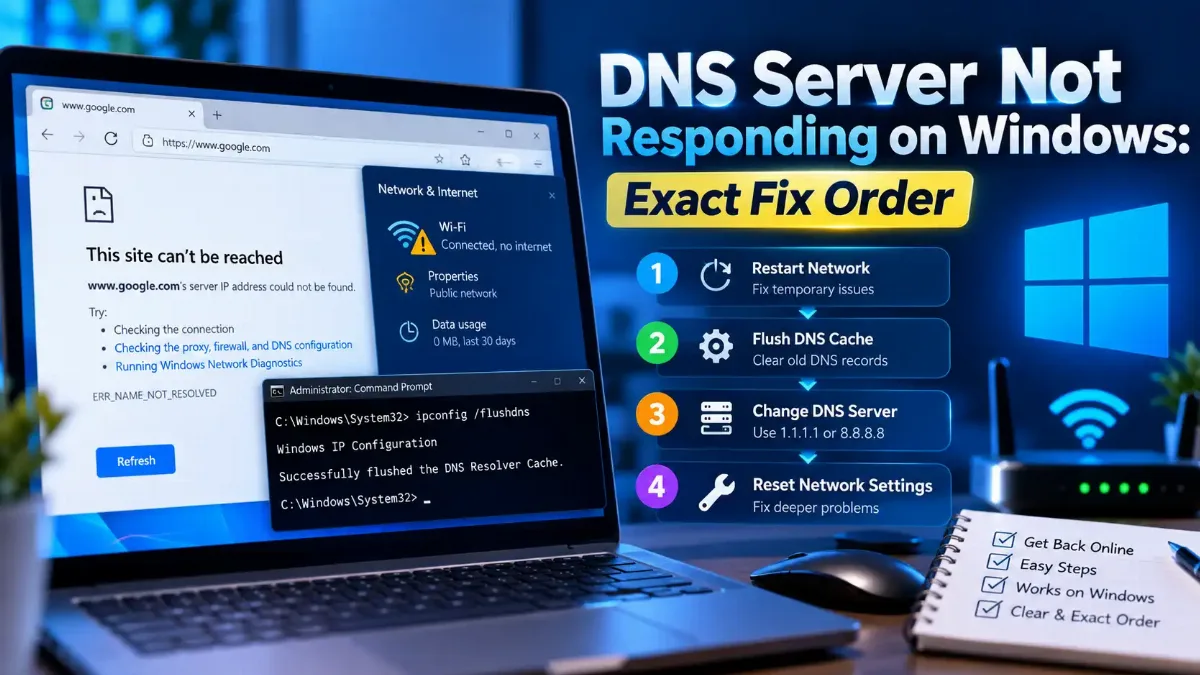
The troubleshooter told you the DNS server is not responding, and your internet is either gone or behaving strangely. DNS server not responding is a statement about one resolver, not about your connection. Something asked a specific server for a name, waited, and gave up.
So there are two jobs here, in that order. Get back online using the steps that cost you nothing, then find out which resolver failed so you stop guessing. Every command below is Windows, run in PowerShell or the Command Prompt, because that is where this exact wording comes from.
One thing before any of it. The fix that keeps appearing in guides on this error is one Microsoft's documentation advises against in writing, and Microsoft names a supported alternative instead. That section is the reason this post exists.

Quick Answer: Which Resolver Failed
nslookup example.com and nslookup example.com 1.1.1.1 in PowerShell. If the first fails and the second works, your configured resolver is the fault and nothing else is. Compare either answer with a lookup run from outside your own network to see which is telling the truth.
What "DNS Server Not Responding" Actually Reports
The sentence is a verdict from a troubleshooting wizard, not a reading taken off the network. Something ran a check, did not get an answer back inside its own timeout, and wrote a conclusion. On screen the longer form is usually "your computer appears to be correctly configured, but the device or resource (DNS server) is not responding", sometimes phrased as your DNS server might be unavailable. One resolver was asked one question, and name resolution as a whole was never tested.
One honest note about those two strings. I went looking for a Microsoft page that documents them and there is not one: every occurrence on a Microsoft domain is a user question on Microsoft Q&A or the answers forum rather than a Microsoft-authored article. So I am quoting the dialog on my own authority, and I am not going to name the component that prints it, because Microsoft does not.
That matters more in 2026 than it did when most of these guides were written. Microsoft's deprecation notice for the Microsoft Support Diagnostic Tool, last updated on 29 January 2026, lists "Network and Internet" among the troubleshooters it has moved. Its stated timeline is 2023 to begin redirecting some of them to the Get Help platform, 2024 to "complete the troubleshooter redirection and remove the rest", and 2025 to "remove the MSDT platform". The same page says that on "Windows 11 version 22H2 and older, Windows 10, Windows 8.1, Windows 7 or any other earlier OS version, your device will not be affected".
So a guide that ends with "run the network troubleshooter" is describing a route that now depends on which build you are on. The other message this same wizard produces goes through that framework in detail. What has not changed is the message itself, and neither has the list of things it declines to tell you.
| What the message establishes | What people read into it |
|---|---|
| One resolver did not answer one query inside one timeout | DNS is broken |
| Nothing about whether any other resolver works | The internet is down |
| Nothing about which program was failing | Every program is affected equally |
| Nothing about whether the name you asked for exists | The site is gone |
You will meet this screen under several phrases. Queries for dns server not responding windows 11 and dns server not responding windows 10 return the same fix lists, because the message and the wizard behind it are identical on both. A search for dns server not responding fix returns those pages again, and so does the shorter dns server unavailable.
The last row of that table is the one that changes what you do next. A resolver that never answers is a reachability problem: something between your machine and that server is not carrying the traffic, or the server is not running. A resolver that answers "that name does not exist" is working perfectly and delivering a true statement, so the thing to check is the name you typed. To see which of the two you have, resolve the same name from our side of the internet and compare it with what your own machine returns.
Before any command, it helps to know how a name becomes an address, step by step, because the number of places that chain can break is exactly why one sentence cannot say which one did. If you have no connection at all, the diagnosis can wait ninety seconds.
Start With the Fixes That Cost You Nothing
If your connection is down right now, work through the box below before diagnosing anything. Not one of these steps can make your situation worse, and the first two account for most of what brings people to this error in the first place. The order is not arbitrary: it goes by what each step costs you if it turns out to be the wrong step.
Everything in it is reversible in a single action. That is the whole selection rule.
1 Power-cycle the router, and the modem if it is separate
2 Open a site on a second device on the same network
3 Clear the resolver cache
ipconfig /flushdns. This throws away the answers your machine is holding, including a cached answer that a name does not exist, which is the case where it genuinely helps. Nothing to undo, and a later section covers the one entry it can never remove.4 Ask a resolver you chose, once
nslookup example.com 1.1.1.1. If that returns an address while the plain nslookup example.com does not, you have found your answer without changing a thing. This is a query, not a configuration change, so it leaves no trace.5 Set a resolver by hand, after writing down what was there
6 Pause a security product or a tunnel, briefly
Two notes on step five, because it is the step people get wrong. Microsoft's own instructions put it under Network and internet settings: pick Wi-Fi or Ethernet, select your network, open IP assignment and choose Edit, switch it to Manual, turn on IPv4, then fill in the Preferred DNS and Alternate DNS boxes. The addresses worth knowing are 1.1.1.1 and 1.0.0.1 from Cloudflare, 8.8.8.8 and 8.8.4.4 from Google, and 9.9.9.9 from Quad9.
Our guide to what 8.8.8.8 actually is, and how to set it properly walks that screen one platform at a time. And if you are reading this on a Mac, a phone or a console, steps one, two and six are identical and only the resolver field moves; the rest of this post is Windows.
If one of those six put you back online, you are finished and there is nothing here you need to undo. If none of them did, the next two commands will tell you which component to stop touching.
Ask the Name Twice, and Watch Which Server Answers
Two lookups settle what a long fix list cannot. Ask your configured resolver for a name, then ask a resolver you picked, and read the pair of answers together. Microsoft's nslookup reference documents exactly how: in noninteractive mode the first parameter is the name you want and the second is "the name or IP address of a DNS name server", and "if you omit the second argument, nslookup uses the default DNS name server".
Start with nslookup, because it is on every Windows machine and it is the tool every forum answer assumes. When a pass or a fail is not enough, PowerShell's Resolve-DnsName is documented as "functionally similar to the nslookup tool" and carries the parameters that turn a lookup into a diagnosis.
The cmdlet is not our discovery, and we introduced it in the command-line ways to turn a hostname into an address, which stops at the bare name. What no page on this error uses is its parameters. Three of the four below are quoted from Microsoft's documentation; the fourth is described instead, because that page states what it does without a sentence worth lifting.
-Server is the important one: "By default the interface DNS servers are queried if this parameter is not supplied." So one command asks whatever your adapter was handed, and the next asks a resolver you chose. -CacheOnly "resolves this query using only the local cache", which tells you whether the answer you keep getting is even fresh. -NoHostsFile "skips the hosts file when resolving this query", ruling out a local override in one shot, and -Type pins whether you are asking for an IPv4 record or an IPv6 one.
nslookup example.com
Resolve-DnsName example.com
# the same question, asked of a resolver you chose
nslookup example.com 1.1.1.1
Resolve-DnsName example.com -Server 1.1.1.1
# is the answer you keep getting simply cached
Resolve-DnsName example.com -CacheOnly
# rule out a local override, and ask for one family at a time
Resolve-DnsName example.com -NoHostsFile
Resolve-DnsName example.com -Type A
Resolve-DnsName example.com -Type AAAA
# which resolvers the adapter was actually given
Get-DnsClientServerAddress
Two things to read in the output, because this is where a command stops being a ritual. A successful lookup prints records with a type, so the type is the field that matters. An A record is IPv4 and an AAAA record is IPv6, and a name that returns one but not the other is the real version of the story the IPv6 advice tells badly. A failure prints an error instead of records, and the wording differs between a server that said nothing and a server that said the name does not exist.
Credit where it is due, because two pages on this error do run a real lookup. UptimeRobot's guide, published in June 2026, runs nslookup against 8.8.8.8. The guide at nslookup.io, updated in March 2026, runs both nslookup and dig, and adds the line almost nobody does: if flushing your own cache changes nothing, "the stale data isn't in your local cache" but in an upstream resolver's. Neither page came up in the first handful of results I saw for the plain phrase.
Read the first two commands together and you have your answer. One failing while the other succeeds means your configured resolver is at fault and nothing else is, so the repair is the resolver change from the last section rather than a network reset; both failing points at the path rather than the server. Whichever you got, there is one step nearly every guide on this error will push you toward, and it is the one to refuse.
The Fix These Guides Recommend, and What Microsoft Says About It
Read the guides on this error and one instruction keeps appearing: disable IPv6, or uncheck Internet Protocol Version 6 in the adapter's properties. Three of them are quoted below with the dates they were written, and two of those three tell you the step is harmless. Microsoft's own troubleshooting documentation says something different, and it says it plainly.
That page, last updated in February 2026, opens by conceding the practice: "It's common for IT administrators to disable IPv6 to troubleshoot networking-related issues such as name resolution issues." Then it states its position: "We don't recommend that you disable IPv6 or IPv6 components or unbind IPv6 from interfaces. If you do, some Windows components might not function."
On unbinding it from the adapter specifically, which is exactly what those guides walk you through, the same page carries a caution: "We don't recommend unbinding IPv6 from an Ethernet or WiFi network adapter without a justifiable need. Windows is tested with, and some products and features expect, IPv6 to be bound and functional." And then the sentence worth writing down: "Unbinding IPv6 from a network adapter can result in an unsupported Windows configuration."
Microsoft also names the sanctioned alternative, and no guide I read mentions it: "We recommend using Prefer IPv4 over IPv6 in prefix policies instead of disabling IPV6." A prefix policy changes which address family Windows reaches for first when a name has both an A and an AAAA record, so the protocol stays bound and every component that expects it keeps working. Microsoft recommends it; it does not promise it fixes this error, and neither do I.
What the guides say about it, in their own words and with their own dates
If you have already done it, that is worth knowing rather than worrying about, because rebinding the protocol puts you back exactly where you were. None of this helps the reader whose two lookups both succeeded and whose browser still refuses to load a page. That is a different failure with a different owner.
Why Your Browser and Windows Can Disagree
If a lookup succeeds in PowerShell while your browser insists a site cannot be found, the usual reason is that the browser never asked Windows. It resolved the name itself using DNS over HTTPS, over an encrypted connection to a provider of its own choosing. This part is covered elsewhere on the web and I am not going to pretend otherwise; what follows is the failure mode inside it.
Both vendors document the behavior. Google's Chrome help says plainly that "by default, secure DNS in Chrome is turned on in automatic mode", and that in that mode, "if Chrome has issues looking up a site in this mode, it'll look up the site in the unencrypted mode". Mozilla's support page, last updated in June 2026, describes Firefox's equivalent as automatically enabled and describes the off setting as the one where "you'll use your default DNS resolver", which is the admission that the other settings are not using it.
The failure mode worth knowing is in Google's own wording about a custom provider: "When you select a custom provider, Chrome won't default to unencrypted mode." So a browser pinned to one encrypted provider will keep failing while every other program on the machine is fine, and no amount of changing your Windows DNS settings will touch it. Turn the browser's secure DNS off for a single page load; if the page appears, you have found it.
| Where the setting lives | What the vendor documents | What happens when its provider fails |
|---|---|---|
| Chrome | Secure DNS "turned on in automatic mode" by default | Automatic mode falls back to unencrypted. A chosen provider does not |
| Firefox | Default protection enabled, with levels you can raise | Default falls back. It also stands down for a VPN, parental controls or enterprise policy |
| Edge | Policy documents an automatic mode and a secure mode. The default for an unmanaged install is not stated | Automatic falls back to insecure queries. Secure mode fails to resolve |
| Windows itself | The DNS client supports encrypted DNS and defers the choice to whoever configured the machine | Whatever was configured, which on a home machine is usually nothing |
Read the middle column and the confusion explains itself: the browser and the operating system answer to different owners, so a change in Windows settings reaches the last row and nothing above it. The one Edge cell I will not fill in is its consumer default, because Microsoft documents that only for managed devices.
The last row deserves more than it usually gets, because this is not a browser-only trick. Microsoft's documentation of encrypted DNS in the Windows DNS client, written for Windows Server 2022 in December 2023, is worth reading on this. A client can use encrypted DNS only "if the primary or secondary DNS server selected for the network interface is on the list of known DoH servers", and the cmdlet that registers one carries an -AllowFallbackToUdp switch. Set that to false and you have built Chrome's custom-provider trap inside Windows.
A second reason these two can disagree
nslookup talks to a server directly, while ordinary programs go through the Windows resolver where such a policy applies, so the two can genuinely disagree with nothing encrypted involved. On a home machine there is almost certainly no rule in that table; on a work or managed laptop there may well be. Resolve-DnsName without -Server goes through the same resolver your programs use, which makes it the better of the two as a test.If the browser is the only thing failing, the fix belongs in the browser and changing your system resolver is effort spent in the wrong place. The step everyone reaches for instead is the cache flush, and it is worth knowing exactly what that clears.
What Flushing Clears, and What It Cannot Touch
Microsoft's command reference is specific about what the flush does. ipconfig /flushdns "flushes and resets the contents of the DNS client resolver cache". The sentence after it is the useful one: "during DNS troubleshooting, you can use this procedure to discard negative cache entries from the cache, as well as any other entries that have been added dynamically."
Negative entries are the reason a flush sometimes works. When a resolver answers that a name does not exist, that answer gets cached too, and the standard that specifies this is RFC 2308 from March 1998. It sets the lifetime as the lower of two values: "the minimum of the MINIMUM field of the SOA record and the TTL of the SOA itself". The same document advises resolvers to cap it further, noting that "values of one to three hours have been found to work well".
Most guides tell you to flush and stop there. The exception worth naming is nslookup.io, which points out that when a flush changes nothing the stale answer is sitting in an upstream resolver's cache rather than yours. Neither that page nor any other I read covers the entry a flush can never remove at all.
Microsoft's own description of how a query is resolved says the local cache draws on two sources. The first is this: "If a Hosts file is configured locally, any host name-to-address mappings from that file are loaded into the cache when the DNS Client service is started." The command reference agrees, describing the cache as including "entries preloaded from the local Hosts file".
Why a flush cannot fix a bad hosts entry
Resolve-DnsName example.com -NoHostsFile settles it in one command, and the file itself is at C:\Windows\System32\drivers\etc\hosts.One more thing Microsoft is explicit about, because guides on this error routinely suggest the opposite. Its DNS troubleshooting guidance, last revised in February 2026, states that "we recommend that you don't disable DNS client-side caching on DNS clients" and that "a configuration in which DNS client-side caching is disabled isn't supported". Stopping or disabling the caching service is not a repair, whatever a fix list calls it.
One small mechanism is worth knowing behind the connectivity icon. Microsoft's documentation of the Network Connectivity Status Indicator, updated in February 2025, shows Windows judging connectivity partly with a DNS probe of its own, resolving dns.msftncsi.com alongside an HTTP fetch of www.msftconnecttest.com/connecttest.txt, so a resolver failure moves that icon whether or not anything else is wrong. If both of your lookups failed, the question is how far your queries are getting.
Machine, Router, or Upstream
When both of the first two commands fail, the fault is not a resolver preference and the next question is distance. On most home networks the resolver your machine was handed is the router, which then forwards to your provider, so there are three separate places to lose a query and each has a different owner. Work outward from your own machine rather than down a list.
Each check below tells you whether to keep going or stop.
Working outward from your own machine
ipconfig /all and read two fields, the address and the DNS servers. An address beginning 169.254 means no address was ever agreed, so DNS was never going to work and the resolver is not your problem. The address Windows invents when nothing answered explains that state, and where that resolver address came from in the first place explains how the DNS servers field gets filled.Resolve-DnsName example.com -Server. If a resolver on your own network stays silent while a public one answers, the box on your desk is the thing to restart, and you have narrowed an internet problem down to one device. Pinging that same address from a command prompt tells you whether the box is reachable at all before DNS is even involved.Each of those places has a different owner, which is the reason to care where it broke. A resolver on your own network that stops answering is yours to restart, and it is the one case where the reflexive router reboot is the right instinct. An upstream resolver that is slow or partly broken belongs to your provider, so pointing somewhere else is a decision rather than a patch over a mystery. A machine with no usable address never reached either one, and everything here is beside the point until that is fixed.
There is a documented reason a half-working resolver feels worse than a dead one. Microsoft's recommendations for DNS client settings, revised in February 2026, put it in one sentence: "Only a failure to respond will cause the DNS client to switch Preferred DNS servers", and "receiving an authoritative but incorrect response does not cause the DNS client to try another server." The same page notes that once the client has moved to the alternate server it stays there until that one fails to respond or a fifteen-minute timer expires. A resolver that replies with the wrong thing gets believed, which brings us to the commands you were probably about to run.
The Resets Everyone Recommends, and Which Ones You Can Undo
Sooner or later every guide on this error reaches the same block of commands, and several add a network reset or a driver reinstall. Some add a router factory reset. One page does this part properly and deserves the credit: nslookup.io tells you to "document the current configuration before you change anything" and warns that switching resolvers can "break split-horizon DNS setups". That is the right instinct, and what follows is the same instinct applied to the whole standard list.
This matters more than the commands themselves, because these are the steps that turn one broken thing into three. Here is what each actually does to a machine.
| Step | What it costs you | Getting back |
|---|---|---|
| Flushing the DNS cache | Nothing. Cached answers are rebuilt on demand | Nothing to undo. Start here |
| Setting a different resolver by hand | You stop using whatever the network handed you | Set it back to automatic. Write down what it was first |
| Unbinding IPv6 from the adapter | Microsoft calls the result an unsupported configuration | Rebind it. Better not to, and to use the prefix policy instead |
Resetting the stack with netsh int ip reset and netsh winsock reset |
Static addresses, manual resolvers and third-party networking hooks go back to defaults | No undo. It takes effect on restart, so reboot before judging it |
| Windows network reset | Adapters are removed and reinstalled and saved networks are forgotten | No undo. Have your Wi-Fi password to hand before you start |
| Uninstalling the adapter driver | On a machine with one connection, you may have no way to download the replacement | Get the vendor's driver onto the machine first |
| Router factory reset | Network name, password, forwarded ports and every custom setting | No undo without a saved configuration file. A last resort, not an early step |
Read that table against whatever you were about to run. The top two rows are the ones already in the box near the start of this post, and they are free and reversible, which is why they belong there. The third row is the one this post argues you should skip entirely, and the sections above explain why in Microsoft's words rather than mine.
From the stack reset downward, the order matters more than the list. Wait until the two lookups have told you the fault is on this machine, because those steps change configuration you never wrote down and no page can recover it for you. A driver uninstall on a laptop with one Wi-Fi adapter ends a troubleshooting session rather than a problem.
If you already worked down a fix list before finding this page, put back what you can. Set the resolver to automatic if you changed it, rebind IPv6 if you unbound it, and reboot if you ran a stack reset, because that one applies on restart. Then run those two lookups on a machine you understand again.
The Short Version
DNS server not responding is a wizard's verdict about one resolver, and the job is finding out which one. Power-cycle the router, then try a second device. Then ask your configured resolver for a name, ask one you chose for the same name, and read the pair together.
Do not disable IPv6 on the way past. Microsoft's documentation says it does not recommend it, that some Windows components might not function, that unbinding it from an adapter can leave Windows unsupported, and that preferring IPv4 in prefix policies is the thing to do instead. The guides saying otherwise mention none of it, and one has said so since 2022.
Flushing clears the resolver cache, including the cached answer that a name does not exist, which is why it sometimes works. It cannot fix a wrong line in the hosts file, because that file reloads into the cache whenever the DNS client service starts. A lookup that works in PowerShell but not in your browser means the browser resolved the name itself.
Keep the destructive steps for last. If the machine has no usable address at all, the errors that show up when an address cannot be resolved at all is the better starting point. When a name resolves but lands somewhere wrong, checking what an address answers for settles it faster than another reset. Two commands and a minute beat a long fix list, and they leave a machine somebody can still diagnose tomorrow.