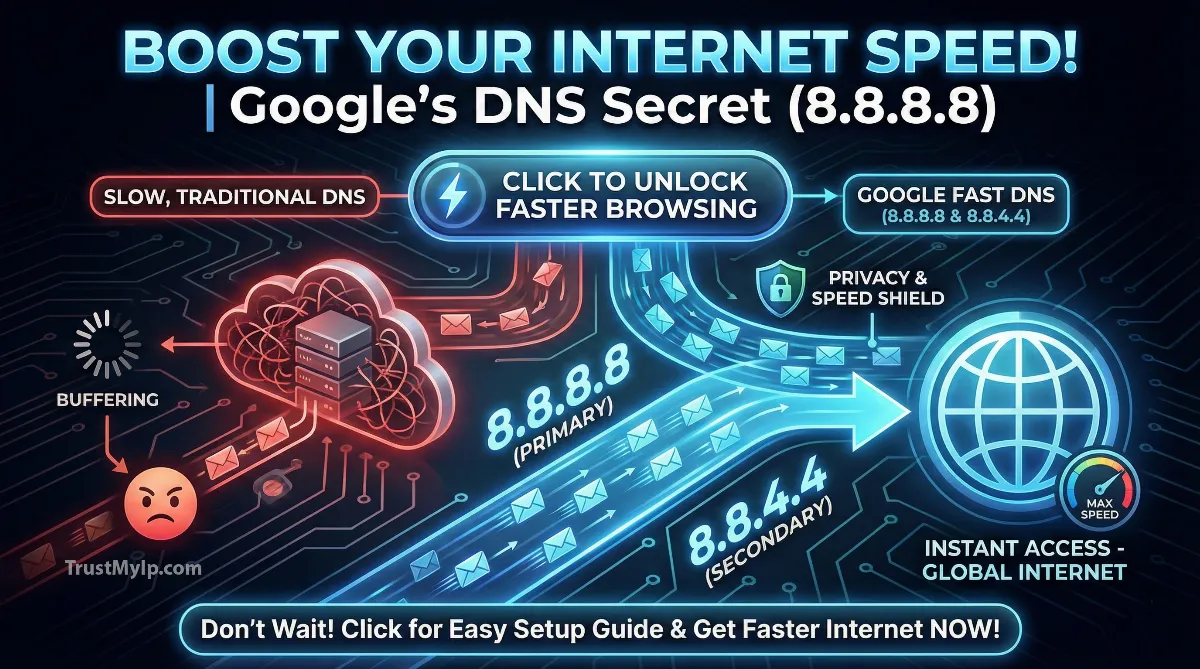
When people ask what is Google's IP address, they're usually looking for one of two things: the IP address of Google's search engine (google.com) or the famous Google Public DNS servers that millions use to speed up their internet. Think of an IP address like a phone number for computers—every website needs one so your device knows where to connect. Google actually has thousands of IP addresses spread across the world, but certain ones have become internet famous.
The most well-known Google IP addresses are 8.8.8.8 and 8.8.4.4—these aren't Google's search engine addresses, they're the DNS servers Google offers for free to make your internet faster and more secure. DNS servers work like phone books for the internet, translating website names you type (like "youtube.com") into numeric IP addresses that computers actually use. Understanding the difference between Google's website IPs and their DNS service IPs helps you troubleshoot network problems, speed up browsing, and take control of your internet connection settings.

"After managing enterprise networks for two decades, I can tell you that 8.8.8.8 has become the most recognized IP address on the planet—even more famous than most website addresses. What makes Google Public DNS special isn't just speed; it's the reliability of having your DNS queries handled by infrastructure processing over a trillion requests daily. When your ISP's DNS servers slow down or fail, switching to Google's 8.8.8.8 and 8.8.4.4 servers is like upgrading from a congested local road to a superhighway."
The Quick Resolution: Google's Main IP Addresses
Google's IP address depends on what you need. For Google Public DNS servers (the most common request), use 8.8.8.8 as primary and 8.8.4.4 as secondary. For IPv6, use 2001:4860:4860::8888 and 2001:4860:4860::8844. These DNS servers are free and make your internet faster by quickly translating website names to IP addresses. For Google's search engine (google.com), the IP address changes based on your location—Google uses thousands of servers worldwide. You can find your local Google IP by opening Command Prompt and typing ping google.com, which shows the specific IP address Google assigned to handle your region's traffic.
1. Understanding IP Addresses: The Internet's Phone Numbers
Before we dive into Google's specific addresses, let's understand what an IP address actually is. Every device connected to the internet needs a unique IP address—think of it as a mailing address or phone number that lets other computers find and communicate with it. Without IP addresses, the internet couldn't work because computers wouldn't know where to send information. For a full beginner-friendly breakdown, see our complete IP address guide.
Two Types of IP Addresses
There are two versions of IP addresses in use today. IPv4 addresses look like 8.8.8.8—four numbers separated by dots, each ranging from 0 to 255. These are the traditional addresses most people recognize. The newer IPv6 addresses look like 2001:4860:4860::8888—longer combinations of numbers and letters created because we ran out of IPv4 addresses. Both work the same way; IPv6 just provides way more possible addresses.
When you type "google.com" in your browser, your computer doesn't actually understand that name. It needs to convert "google.com" into an IP address like 142.250.80.46. That conversion process uses special servers called DNS servers, which we'll explain next. Check your current connection with our IP address checker tool.
2. What is Google Public DNS? The Famous 8.8.8.8
When most people search for "what is Google's IP address," they're actually looking for the Google Public DNS servers. These are special servers Google offers for free to help translate website names into IP addresses faster and more securely than your internet provider's default DNS.
| DNS Type | IP Addresses | When to Use |
|---|---|---|
| Primary IPv4 | 8.8.8.8 | Main Google DNS server (most popular) |
| Secondary IPv4 | 8.8.4.4 | Backup DNS server for reliability |
| Primary IPv6 | 2001:4860:4860::8888 | For modern IPv6 networks |
| Secondary IPv6 | 2001:4860:4860::8844 | IPv6 backup server |
These four addresses are completely free to use by anyone worldwide. Millions of people and businesses have switched to Google Public DNS because it's faster than most ISP-provided DNS servers, more reliable (it rarely goes down), and includes security features that protect against certain types of cyberattacks. Learn more about DNS in our complete DNS resolution guide.
3. Google.com IP Address: The Search Engine Servers
The IP address for Google's search engine (google.com) is different from their DNS servers and varies depending on where you live. Google operates thousands of servers worldwide to serve search results quickly to users everywhere.
How to Find Your Local Google IP
Windows Users:
1. Press Windows key + R
2. Type "cmd" and press Enter
3. Type "ping google.com" and press Enter
4. The first line shows Google's IP for your location
Example result: "Pinging google.com [142.250.80.46]"
Mac/Linux Users:
1. Open Terminal application
2. Type "ping google.com" and press Enter
3. The IP appears in brackets in the first line
Why It Changes: Google uses Anycast routing to direct you to the nearest datacenter. Someone in Pakistan might connect to 142.250.190.78 while someone in USA connects to 142.250.80.46. This ensures faster loading times by reducing distance data travels.
The IP address you see is just one of Google's many servers. They constantly rotate and balance traffic across thousands of addresses to handle billions of daily searches. That's why you might see different IPs at different times.
4. Why Use Google DNS? The Real Benefits
Your internet service provider gives you default DNS servers, so why switch to Google's? There are several compelling reasons why over 100 million devices worldwide use Google Public DNS instead of their ISP's servers.
Key Advantages of Google DNS
- • Faster Internet Browsing: Google's DNS infrastructure handles over a trillion queries daily with servers positioned globally. This means faster DNS resolution times—websites start loading quicker because your computer converts names to IPs faster.
- • Better Reliability: ISP DNS servers sometimes crash or slow down during peak hours. Google's massive infrastructure rarely experiences outages, ensuring your internet always works smoothly.
- • Security Protection: Google DNS includes built-in protection against DNS cache poisoning attacks that try redirecting you to fake malicious websites. It validates responses to ensure you reach legitimate sites.
- • No Censorship or Filtering: Some ISPs block certain websites through DNS filtering. Google DNS doesn't censor content (except for security threats), giving you access to the full internet.
- • Privacy Improvements: While Google logs some data temporarily, they delete your querying IP address within 24-48 hours. Many ISPs keep DNS logs indefinitely and sell that browsing data to advertisers.
- • DNSSEC Validation: Google automatically validates DNSSEC signatures, an advanced security feature ensuring DNS responses haven't been tampered with by hackers.
That said, Google DNS isn't perfect. It doesn't block malicious websites automatically (you'd need additional security software for that), and Google does collect aggregate statistics about DNS usage patterns. For most users, though, the speed and reliability benefits outweigh these minor concerns. Test your current DNS with our DNS lookup tool.
5. How to Change to Google DNS on Windows
Switching your computer to use Google Public DNS takes just a few minutes. Here's the simple step-by-step process for Windows users. Don't worry—if something goes wrong, you can always switch back to your original settings.
Windows 10/11 DNS Setup (5 Minutes)
Step 1: Click Start menu → Settings → Network & Internet
Step 2: Click either "WiFi" or "Ethernet" depending on your connection type
Step 3: Under "Advanced network settings," click "Change adapter options"
Step 4: Right-click your active network connection → select "Properties"
Step 5: Double-click "Internet Protocol Version 4 (TCP/IPv4)"
Step 6: Select "Use the following DNS server addresses"
Step 7: Enter 8.8.8.8 in "Preferred DNS server"
Step 8: Enter 8.8.4.4 in "Alternate DNS server"
Step 9: Click OK twice to save changes
Step 10: Open your browser and test by visiting any website
Pro Tip: Write down your original DNS settings before changing them, just in case you want to switch back later.
After changing settings, you might need to restart your browser or flush your DNS cache to see immediate effects. Open Command Prompt and type ipconfig /flushdns to clear old DNS records. This ensures your computer starts using the new Google DNS servers right away. For troubleshooting connection issues, see our IP address error fixing guide.
6. How to Change to Google DNS on Mac
Mac users can also switch to Google Public DNS easily through System Preferences. The process is slightly different from Windows but equally straightforward.
macOS DNS Configuration
- Step 1: Click Apple menu (top-left corner) → System Preferences → Network
- Step 2: Select your active connection (WiFi or Ethernet) from the left sidebar
- Step 3: Click the "Advanced" button in the bottom-right corner
- Step 4: Click the "DNS" tab at the top of the window
- Step 5: Click the "+" button under "DNS Servers" and add 8.8.8.8
- Step 6: Click "+" again and add 8.8.4.4 as the second server
- Step 7: Click "OK" then "Apply" to save your new DNS settings
Mac users should also flush their DNS cache after making changes. Open Terminal and type sudo dscacheutil -flushcache; sudo killall -HUP mDNSResponder then press Enter. This clears old DNS records so your Mac immediately uses Google's servers. Monitor your network performance with our internet speed test tool.
7. Changing DNS on Your Router: Network-Wide Solution
Instead of changing DNS on each device individually, you can configure your router to use Google DNS. This applies the settings to every device connected to your WiFi automatically—phones, tablets, computers, smart TVs, and game consoles all benefit at once.
General Router DNS Configuration Steps:
- • Access Router Admin: Type your router's IP address in a browser (usually 192.168.1.1 or 192.168.0.1). Log in with admin credentials.
- • Find DNS Settings: Look for sections labeled "DNS," "Internet Settings," "WAN Settings," or "Network Settings." Location varies by router brand.
- • Change DNS Servers: Replace existing DNS addresses with Google's: 8.8.8.8 (primary) and 8.8.4.4 (secondary).
- • Save and Reboot: Apply settings and restart your router. All connected devices will automatically use Google DNS after reconnecting.
- • Write Down Old Settings: Before changing, note your original DNS addresses in case you need to revert changes later.
Router-level changes are ideal for households or small businesses where you want consistent DNS performance across all devices. However, if your router is provided by your ISP and they've locked admin settings, you may need to contact them for help or change DNS individually on each device instead. Learn about router configuration in our router IP address guide.
8. Mobile Devices: Google DNS on iPhone and Android
You can also use Google Public DNS on your smartphone or tablet. The setup process differs between iOS and Android, and the settings only apply when connected to specific WiFi networks (not cellular data).
Mobile DNS Setup Instructions
iPhone/iPad (iOS):
- • Open Settings → WiFi
- • Tap the (i) icon next to your connected network
- • Tap "Configure DNS" → select "Manual"
- • Remove existing DNS servers by tapping the red minus
- • Tap "+ Add Server" and enter 8.8.8.8
- • Tap "+ Add Server" again and enter 8.8.4.4
- • Tap "Save" in the top-right corner
Android Phones/Tablets:
- • Open Settings → Network & Internet → WiFi
- • Long-press your connected network → select "Modify network"
- • Tap "Advanced options"
- • Change "IP settings" from DHCP to "Static"
- • Scroll to DNS fields and enter 8.8.8.8 in DNS 1
- • Enter 8.8.4.4 in DNS 2
- • Tap "Save"
Remember that these settings only apply to the specific WiFi network you configured. If you connect to a different WiFi network, you'll need to repeat the process. For cellular data connections, your mobile carrier controls DNS settings and typically doesn't allow changes. Check your mobile connection with our browser information tool.
9. Testing Your Google DNS Setup
After changing to Google DNS, you should verify it's working correctly. Here are simple tests to confirm your device is using Google's servers instead of your ISP's default DNS.
Quick DNS Verification Methods
Method 1 - Command Line Test:
Windows: Open CMD and type nslookup google.com
Mac/Linux: Open Terminal and type nslookup google.com
Look at the "Server" line—it should show 8.8.8.8 or 8.8.4.4
Method 2 - Online DNS Checker:
Visit websites like dnsleaktest.com or our own DNS lookup tool
Run a standard test to see which DNS servers your device is actually using
Google's servers should appear in the results
Method 3 - Speed Test:
Websites should load noticeably faster if Google DNS is working
Try accessing sites that previously loaded slowly
If no improvement, try flushing your DNS cache and testing again
If tests show you're still using your old DNS servers, double-check that you saved settings correctly and restarted your device or router. Some routers require a full power cycle (unplug for 30 seconds) before changes take effect. Verify your setup with our professional DNS lookup tool.
10. Google DNS Alternatives: Other Popular Options
While Google Public DNS is excellent, it's not your only option. Several other companies offer free DNS services with different features and privacy policies that might better suit your needs.
- Cloudflare DNS (1.1.1.1): Focuses heavily on privacy with a strict no-logging policy. Primary: 1.1.1.1, Secondary: 1.0.0.1. Often slightly faster than Google in speed tests.
- Quad9 DNS (9.9.9.9): Security-focused option that automatically blocks malicious websites and phishing attacks. Primary: 9.9.9.9, Secondary: 149.112.112.112. Great for families wanting extra protection.
- OpenDNS (208.67.222.222): Offers parental controls and content filtering options. Primary: 208.67.222.222, Secondary: 208.67.220.220. Good for blocking adult content or specific categories.
- DNS0 (193.110.81.0): Open-source European option with strong GDPR compliance. Blocks ads, trackers, and malware. Primary: 193.110.81.0, Secondary: 185.253.5.0.
Each DNS provider has different strengths. If privacy is your top concern, Cloudflare might be better. If you want automatic malware blocking, try Quad9. Google DNS strikes a good balance between speed, reliability, and features for most users. You can always test different providers and see which performs best for your location and needs. Compare options in our online privacy protection guide.
11. Troubleshooting Common Google DNS Issues
Sometimes after switching to Google DNS, you might encounter problems. Here are the most common issues and their simple solutions that work 95% of the time.
- Internet Not Working After Change: Double-check you entered the numbers correctly—8.8.8.8 not 8.8.8.8.8 or 88.8.8. One wrong digit breaks everything. Also verify you didn't accidentally change other settings like your IP address or gateway.
- Some Websites Not Loading: Clear your browser cache and flush DNS cache with ipconfig /flushdns on Windows or sudo killall -HUP mDNSResponder on Mac. Old cached records might be causing conflicts.
- Slower Internet Speed: Although rare, Google DNS might be slower than your ISP's servers depending on your location. Try Cloudflare DNS (1.1.1.1) as an alternative or switch back to automatic DNS settings.
- Can't Access Local Network Devices: If you can't reach your router's admin page or local file shares, you might have accidentally cleared the gateway setting. Restore your original network settings or set DNS back to automatic.
- Changes Don't Stick After Restart: Some systems reset DNS on reboot. Check if your router is overriding settings via DHCP. Configure DNS at the router level instead of on individual devices for persistent changes.
12. Privacy Considerations: What Google Knows
When you use Google Public DNS, you should understand what information Google collects and how they use it. Transparency about data privacy helps you make informed decisions about your DNS provider.
What Google Public DNS Collects
- • Temporary IP Address Logging: Google temporarily logs your IP address and the websites you look up via DNS for 24-48 hours. After that, they delete the full IP and only keep partial data for debugging.
- • Aggregate Statistics: They keep long-term anonymized data about overall DNS usage patterns—like which domain extensions are most popular or how many queries they handle daily.
- • Location Information: Your IP reveals approximate geographic location, which Google uses to route queries to the nearest datacenter for faster responses.
- • ISP Information: Google can see which internet service provider you use, though this doesn't identify you personally.
- • What They DON'T See: Google DNS doesn't see the actual content you read on websites, passwords you enter, or specific pages you visit within a site—only the domain names you look up.
Compared to many ISPs who keep detailed browsing logs indefinitely and sell that data to advertisers, Google's privacy policy is relatively protective. However, if maximum privacy is your goal, consider Cloudflare DNS which has an even stricter no-logging policy. Read more about privacy in our IP tracking legality guide.
13. Advanced: Using Google DNS with IPv6
If your internet connection supports IPv6 (the newer internet protocol), you can use Google's IPv6 DNS servers for even better performance. Most modern networks support both IPv4 and IPv6 simultaneously.
Google IPv6 DNS Addresses
Primary IPv6: 2001:4860:4860::8888
Secondary IPv6: 2001:4860:4860::8844
Setup on Windows:
Follow the same steps as IPv4 DNS setup, but in step 5, also double-click "Internet Protocol Version 6 (TCP/IPv6)" and enter the IPv6 addresses above.
Setup on Mac:
In the DNS tab (same location as IPv4 setup), click "+" and paste the full IPv6 address. Add both primary and secondary.
Benefits: IPv6 DNS can be slightly faster since it uses more efficient routing protocols. It also future-proofs your network as the internet transitions away from IPv4.
Don't worry if you're not sure whether your connection supports IPv6—you can configure both IPv4 and IPv6 DNS addresses simultaneously. Your computer will automatically use whichever protocol is available. Check your IPv6 connectivity with our IPv4 versus IPv6 comparison guide.
Conclusion: Mastering Google's IP Addresses
Understanding what is Google's IP address reveals two distinct but equally important aspects of Google's internet infrastructure. The famous 8.8.8.8 and 8.8.4.4 addresses represent Google Public DNS servers that millions worldwide use to speed up their internet browsing, improve reliability, and add security protections against malicious websites. These DNS servers work like phone books for the internet, instantly translating website names into the numeric IP addresses computers need to connect.
Meanwhile, Google's search engine (google.com) operates on thousands of different IP addresses that constantly change based on your geographic location, leveraging Anycast routing to direct you to the nearest datacenter for lightning-fast search results. Whether you're troubleshooting network problems, optimizing internet speed, or simply curious about how DNS works, knowing how to find and use Google's various IP addresses gives you greater control over your online experience. The process of switching to Google DNS takes just minutes but delivers lasting benefits in performance and reliability—especially compared to slower ISP-provided DNS servers that often become bottlenecks during peak usage hours.
Check Your DNS Configuration!
Verify your current DNS servers, test lookup speeds, and ensure your network is optimized with our comprehensive DNS diagnostic tools. Check if you're using Google DNS or discover better alternatives.