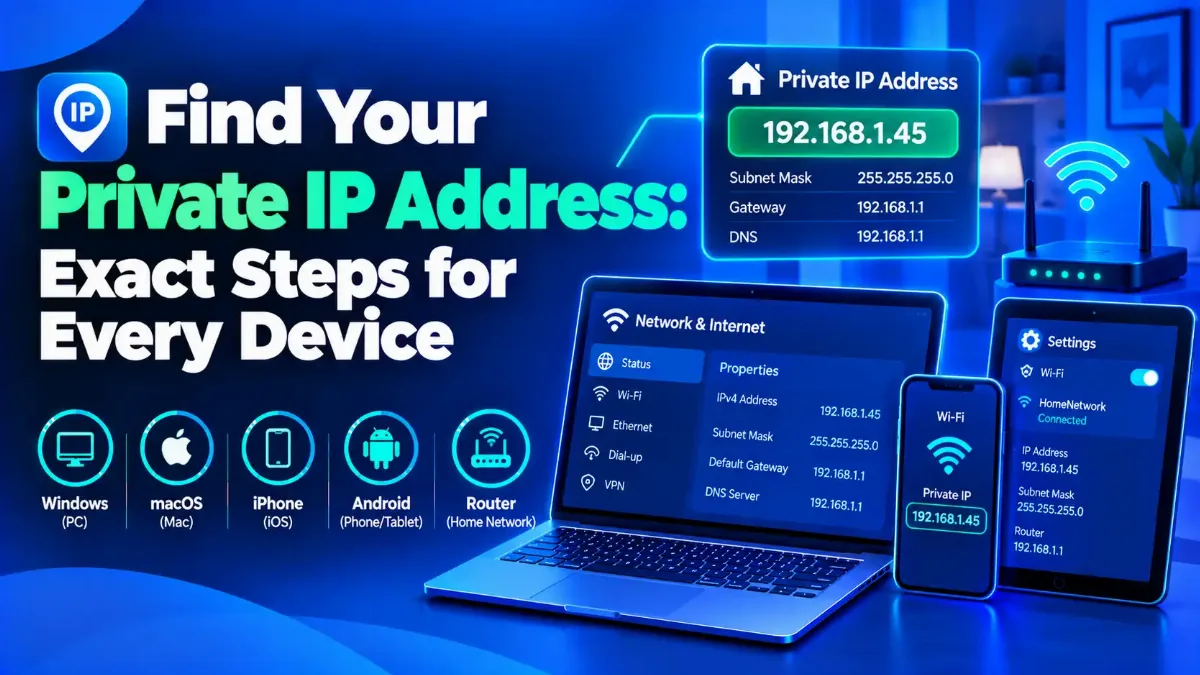
To find your private IP address, look in your device's own network settings, not on a website. On Windows 11, open Settings > Network & internet > Wi-Fi and select your network; on a Mac, open System Settings > Network > Details > TCP/IP; on an iPhone, tap Settings > Wi-Fi > the More Info button. The number you want usually starts with 192.168, 10 or 172.16 to 172.31.
Every "what is my IP" website you have tried shows a different number from the one on your device, for a simple reason. Your router hands out private addresses inside your home, then swaps them for one shared public IP address before traffic leaves the network. In normal web traffic, a website never receives the private number, so a typical IP checker cannot display it.
Two more traps catch people in 2026. Apple's Private Wi-Fi Address setting on iPhone and Mac sounds like the answer, yet Apple's own support page, published in December 2025, describes it as a substitute MAC address, which is not an IP. Browser tricks fail too, because desktop Chrome began swapping local IPs for random .local names in 2019 whenever a page lacks camera or microphone permission.
Below you will find the exact, current path for Windows 11, macOS 27, iPhone and iPad, Pixel phones on Android 17, Samsung Galaxy phones, Chromebook, Linux and your router. After that, you will learn how to read the number you found, what a 169.254 or IPv6 address means, and when a result deserves a second look.

"Most network problems people bring me in 2026 — a printer that will not pair, a port forward that never opens, a camera app asking for an address — stall at the same step. Someone pastes the number from an IP checker website, and that number belongs to their router's public IP, not the device. So before I change any setting, I ask for the private IP address from the device's own network screen, plus the router address beside it."
"One honest caveat: that number is a lease, not a permanent label. A router's DHCP server can give the same device a different address after a restart or a long absence, and an iPhone with a rotating private Wi-Fi address can look like a brand-new device to the router. If an address has to stay put for port forwarding or a printer, set a DHCP reservation on the router instead of trusting today's number."
Quick Answer: Finding Your Private IP
To find your private IP address, open the Wi-Fi or network details in your device's Settings, or run ipconfig on Windows, because only the device or its router can show it. Most start with 192.168, 10 or 172.16 to 172.31, while 169.254 means the router never answered. Then run a WebRTC leak test to confirm your browser keeps it hidden.
What Is My Private IP, and Why Can Only Your Device Show It?
Your private IP, also called your local IP address or internal IP address, is the address your router gives your device inside your home or office network, such as 192.168.1.23. Three blocks exist for this purpose, and routers on the public internet should not forward them. Websites only see a public address, never the private one, so the only reliable places to read a private IP are the device's settings, a command line or the router's device list.
Those blocks come from RFC 1918, and IANA's special-purpose address registry, last updated on 9 October 2025, still lists 10.0.0.0/8, 172.16.0.0/12 and 192.168.0.0/16 as private-use space marked not globally reachable. Because every home can reuse them, your laptop and your neighbor's laptop may both sit at 192.168.1.23 without any conflict.
Network address translation (NAT) — the router feature that rewrites many private addresses into one public address on the way out — makes that reuse possible. For the wider picture, our beginner's guide to how IP addresses work covers the basics, and our side-by-side look at public and private addresses shows which one each website, app and ISP actually sees.
Use the table below to find your private IP address on the device in your hand. Its device routes follow current Microsoft, Apple, Google and GNOME or Debian documentation where it exists, as of October 2026; router menus differ by brand, and Samsung renames menus between One UI versions, so treat those two rows as starting points.
| Device | Where to look (October 2026) | Line to read |
|---|---|---|
| Windows 11 and 10 | Settings > Network & internet > Wi-Fi > your network (or Ethernet) | IPv4 address |
| Windows (command) | Command Prompt > ipconfig | IPv4 Address |
| Mac (macOS 26 and 27) | System Settings > Network > your service > Details > TCP/IP | IP address |
| iPhone and iPad | Settings > Wi-Fi > More Info button next to your network | IP Address |
| Google Pixel | Settings > Network & internet > Internet > gear next to your network | IP address |
| Samsung Galaxy | Settings > Connections > Wi-Fi > gear next to your network (varies by model) | IP address |
| Chromebook | Time (bottom right) > your Wi-Fi network > Information | IP address |
| Linux | Terminal > hostname -I or ip address | inet line of your active interface |
| Router | Admin page > Connected Devices or DHCP Clients | One IP per device |
That table gets you to the right screen fast. Each section that follows adds the details a platform hides, starting with Windows, where most people go looking first.
How Do You Find Your Private IP Address on Windows 11?
On Windows 11, open Settings, select Network & internet, then choose Wi-Fi and your network name, or Ethernet for a cable connection. Your private IP appears next to IPv4 address. For a faster route, open Command Prompt and type ipconfig, which prints the IPv4 address, subnet mask and default gateway for every network adapter on the PC. Both methods also work on Windows 10.
As of 29 October 2026, a month after Windows 11 version 26H2 reached general availability, Microsoft's own support page still gives this Settings route for Windows 10 and 11. If you need every adapter on one screen, open Advanced network settings and select Hardware and connection properties, which lists the IP addresses and default gateway for each adapter.
Find your private IP on Windows 11 in five steps
1Open Settings
Press Windows + I, or right-click the Start button and choose Settings.
2Open Network & internet
Select Wi-Fi, then the name of your network. On a wired PC, select Ethernet instead.
3Read the IPv4 address line
A value such as 192.168.1.23 is your private IP. Lines labeled IPv6 may appear beside it, and a later section explains what they mean.
4Or use Command Prompt
Press Windows + R, type cmd and press Enter, then run ipconfig. Find the adapter you use and read its IPv4 Address line.
5Note the Default Gateway
Write down the Default Gateway on the same adapter. That is your router's private address, and you need it to open the router's admin page.
Which adapter in ipconfig is the right one?
Microsoft's ipconfig documentation confirms that the command reports addresses for all adapters, and that is where people go wrong. Hyper-V, WSL, VirtualBox and VPN apps can all create virtual adapters with their own private addresses. One thing I always check first is the Default Gateway line, because the adapter that actually reaches your router is usually the only one that lists a gateway.
PowerShell gives a cleaner list. Run Get-NetIPAddress -AddressFamily IPv4 and read the IPAddress and InterfaceAlias fields; the PrefixOrigin field shows Dhcp when your router handed out the address and Manual when someone typed it in by hand.
Mac users get the same two options, a settings screen and a command, but Apple tucks the address one click deeper.
Where Does a Mac Show Its Private IP Address in macOS 27?
On a Mac, open the Apple menu, choose System Settings and click Network in the sidebar. Select your active service, such as Wi-Fi or Ethernet, click Details, then click TCP/IP; the IP address field shows your private IP and the Router field shows your router. Apple's user guide gives this same route for macOS Tahoe 26 and macOS 27 Golden Gate, which arrived on 14 September 2026.
The TCP/IP pane is also where you would switch from DHCP to a manual address, so read it without changing anything. If the Configure IPv4 menu says Using DHCP, your router chose the address, and it can change later.
The Terminal shortcut
Terminal is the faster way to find your private IP address once you know the interface name. Type ipconfig getifaddr en0 and press Return to print just the IPv4 address of interface en0, which is Wi-Fi on most MacBooks. Despite the name, this ipconfig is a different tool from the Windows command and needs the getifaddr option.
Desktop Macs often assign en0 to Ethernet and en1 to Wi-Fi. When I support a Mac mini or iMac, I first run networksetup -listallhardwareports, which pairs each hardware port such as Wi-Fi with its device name, and then query the right one. A blank result simply means that interface has no IPv4 address right now.
An iPhone puts the same numbers on a single screen, but it also carries the most misleading label in this whole guide.
How Do You Find the Private IP on an iPhone or iPad?
Open Settings, tap Wi-Fi, then tap the More Info button, a small i in a circle, next to your current network. Scroll to the IPv4 Address section and read the IP Address line; that is your private IP, and the Router line below it is your router's address. The same taps work on iPad, and the result applies only to the Wi-Fi network you are on right now.
Apple documents this Settings > Wi-Fi > More Info route in its private Wi-Fi address guide. When I talk someone through an iPhone over the phone, I ask them to read the Subnet Mask and Router lines aloud too, because those three numbers together show whether the phone joined the network you expected.
Private Wi-Fi Address is not your private IP
The Private Wi-Fi Address line on that same screen is a stand-in hardware ID, not an IP. Apple's guide to private Wi-Fi addresses, published on 5 December 2025, explains that it replaces the device's real MAC address on each network. On iOS 18 and later you can set it to Off, Fixed or Rotating, and a rotating address changes every two weeks.
A MAC address — the hardware identifier your Wi-Fi chip uses on the local network — and an IP address do different jobs, which our guide on how MAC addresses and IP addresses differ unpacks. Here is the practical catch: if your router reserves an address for a phone's MAC and the phone starts rotating it, the reservation can stop matching and the phone may receive a new private IP.
Android phones show the same details, but every manufacturer moves the menu a little, so the path depends on whose phone you hold.
Where Is the Private IP on Android, Pixel and Samsung Phones?
To find your private IP address on a Pixel or another phone close to stock Android, open Settings, tap Network & internet, then Internet, and tap the gear icon next to your Wi-Fi network; the IP address appears on that network's details screen. On a Samsung Galaxy, the route usually runs Settings > Connections > Wi-Fi > gear icon. If your menus look different, type IP address into the Settings search bar to jump closer to the right screen.
Google's Pixel help uses the same Network & internet > Internet > gear route to open a network's details screen, and Android 17 began reaching Pixel 6 and later phones in June 2026, according to GSMArena. That network details page usually lists the gateway, subnet mask and IPv6 addresses too, so you can copy everything you need in one visit.
Samsung builds its phones on One UI, its own Android layer, and renames menus between versions. Its support site warns that available screens and settings vary by carrier, software version and phone model, which makes the Settings search bar the most dependable shortcut on a Galaxy. Other brands such as OnePlus, Xiaomi and Motorola usually follow the same pattern: Wi-Fi settings first, then the details of your connected network.
On mobile data, the address belongs to your carrier
Turn Wi-Fi off and your phone takes an address from your mobile carrier instead. Many carriers use carrier-grade NAT (CGNAT) — a second layer of address sharing inside the carrier's own network — so that address is usually neither your home's private IP nor a public IP you own. For local tasks such as casting, printing or camera setup, always read the Wi-Fi details.
Chromebooks and Linux PCs make this quicker still, since both put the address one click or one command away.
How Do You Find Your Private IP on a Chromebook or Linux PC?
On a Chromebook, select the time at the bottom right, select your Wi-Fi network, then select Information; Google's ChromeOS help, as of October 2026, says the box shows your IP address and IPv6 address. On Linux, open a terminal and run hostname -I for a quick list, or ip address for full detail, then read the inet line of the interface that connects to your router.
Prefer a desktop route to find your private IP address on Linux? In GNOME, the default desktop on Ubuntu and Fedora Workstation, open Settings, choose Network for a cable or Wi-Fi for wireless, and click the gear button beside the active connection to see the IP address and other details.
Debian's manual for hostname says the -I option lists all configured addresses on all interfaces, skips loopback and IPv6 link-local addresses, and makes no promise about order. That last detail matters. On a machine with Docker, virtual machines or a VPN, the first address printed may belong to a bridge or tunnel, so I confirm the interface with ip address before I trust it.
In ip address output, lines marked scope global carry addresses valid on the network, while scope link marks link-local addresses and scope host marks loopback. Run ip route as well; the line that starts with default via shows your router's address.
Here is every command from this guide in one place, ready for the next time someone asks you for an address.
| Command | Platform | What it shows |
|---|---|---|
| ipconfig | Windows Command Prompt | IPv4 and IPv6 addresses, subnet mask and default gateway for every adapter |
| ipconfig /all | Windows Command Prompt | Full TCP/IP configuration for every adapter |
| Get-NetIPAddress -AddressFamily IPv4 | Windows PowerShell | Each IPv4 address with its interface and origin, such as Dhcp or Manual |
| ipconfig getifaddr en0 | macOS Terminal | Only the IPv4 address of interface en0 |
| networksetup -listallhardwareports | macOS Terminal | Which device name (en0, en1) belongs to Wi-Fi or Ethernet |
| hostname -I | Linux | All addresses except loopback and IPv6 link-local, in no fixed order |
| ip address | Linux | Every interface, its addresses and their scope |
| ip route | Linux | Your router's address on the default via line |
| arp -a | Windows and macOS | IP and MAC addresses of devices your computer recently talked to |
Each method so far reads one device at a time. Your router, by contrast, keeps a list of the whole network.
How Can Your Router Show Every Device's Private IP at Once?
Your router keeps a DHCP client list — a record of every device it has handed an address to — on its admin page. Type your default gateway address, often 192.168.0.1 or 192.168.1.1, into a browser, sign in with the router's admin password, and open the page named Connected Devices, DHCP Clients or Device List. Each entry usually pairs a device name with its private IP and MAC address.
Find the router's address first
You already have it if you used an earlier section to find your private IP address. Look for the Default Gateway in Windows, the Router field on a Mac or iPhone, the gateway on Android, or the address after default via in Linux's ip route output. Typing that number into your browser's address bar opens the sign-in page on most home routers.
Router lists often show blank or cryptic device names, so match entries by MAC address instead. Remember the iPhone caveat from earlier: a phone with a private Wi-Fi address appears under that substitute MAC, so compare it with the Private Wi-Fi Address line on the phone itself.
No router password? On Windows or macOS, run arp -a to list the IP and MAC addresses your computer has recently exchanged traffic with on the local network. It only shows devices your computer has talked to, so treat the output as a partial list.
Check the router's own WAN address too
While you are in the admin page, open its status screen and read the router's WAN or internet address. If that address is itself private, or falls between 100.64.0.0 and 100.127.255.255, another layer of NAT sits between you and the internet. RFC 6598 reserved that 100.64.0.0/10 block in April 2012 for carrier-grade NAT, while a private WAN address usually means double NAT from a second router or ISP gateway. When a port forward fails despite correct settings, this WAN check is the first thing I look at.
With an address in hand, from a device or from the router, the next question is whether that number looks healthy.
What Does the Number You Found Actually Mean?
Once you find your private IP address, its first numbers tell you how the device joined the network. An address starting with 192.168, 10, or 172.16 through 172.31 means it received a private IP normally. One starting with 169.254 means the router's DHCP server never answered, 127.0.0.1 is the device talking to itself, and an IPv6 address starting with fe80 works only on the local link.
| Starts with | What it is | Standard | What it means for you |
|---|---|---|---|
| 192.168. | Private-use IPv4 | RFC 1918 | Normal home address; use it for local setup |
| 10. | Private-use IPv4 | RFC 1918 | Normal; common on office and larger networks |
| 172.16. to 172.31. | Private-use IPv4 | RFC 1918 | Normal; can also come from virtual machines or containers |
| 169.254. | Link-local, self-assigned (APIPA) | RFC 3927 | Problem: no DHCP answer; reconnect or restart the router |
| 100.64. to 100.127. | Shared address space | RFC 6598 | Carrier NAT on a router's WAN, or a VPN such as Tailscale on a device |
| 127. | Loopback | RFC 1122 | The device itself; never your network address |
| fe80: | IPv6 link-local | RFC 4291 | Local link only; every IPv6 interface has one |
| fd (part of fc00::/7) | IPv6 unique local address (ULA) | RFC 4193 | Private-use IPv6; stays inside your network |
| 2 or 3 (for example 2001: or 2600:) | Global IPv6 | IANA global unicast (2000::/3) | Public: websites can see this kind of address |
APIPA — Automatic Private IP Addressing, the self-assigned 169.254 fallback a device uses when no DHCP server answers — is the one result that almost always signals a problem. Our guide to fixing a 169.254 self-assigned address walks through the usual causes, from a router that stopped answering to a loose cable.
Should you worry about your IPv6 address?
IPv6 changes the private-IP story more than most guides admit. According to the Internet Society's April 2026 analysis, native IPv6 access to Google services passed 50% for the first time on 28 March 2026, reaching 50.10%. On a dual-stack connection, your device can hold a private IPv4 address and a global IPv6 address at the same time.
That global IPv6 address is publicly routable, so websites you reach over IPv6 see an address from your network's own IPv6 prefix instead of your router's shared IPv4. Windows and macOS usually add temporary IPv6 addresses for outgoing connections to limit tracking, and ipconfig labels them Temporary IPv6 Address. For privacy, the fe80 and fd addresses stay local, while the ones starting with 2 or 3 do not.
When the result looks wrong
Even after you find your private IP address, a few results call for a closer look before you use them.
- →No IPv4 address at all: the device usually has not joined the network yet; check Wi-Fi or the cable, then reconnect.
- →A different number than yesterday: normal under DHCP, since the router can hand out a new address after a lease runs out; set a reservation if you need a fixed one.
- →Two IPv4 addresses on one PC: one usually belongs to a VPN or virtual adapter; keep the one with a default gateway.
- →Same address on two devices: an IP conflict, often from a manual address that sits inside the router's DHCP range.
- →An address outside your router's range: the device may sit behind a second router or an extender that runs its own DHCP.
That leaves the question people ask after every walkthrough: if the address is this easy to read on the device, why can no website read it for you?
Why Can't Any Website Show Your Private IP Address?
A website only sees the source address on the packets that reach it, and your router replaces your private IP with its public address before those packets leave your network. The main browser feature that can expose local addresses is WebRTC, and desktop Chrome began replacing them with random .local names in 2019 for pages without camera or microphone permission. Ordinary IP checker sites therefore show only your public IP.
WebRTC — the browser technology behind video calls and peer-to-peer file transfers — has to discover your network addresses to connect two devices directly. Google announced the fix on its discuss-webrtc list on 28 January 2019: an experiment that hides host IPs behind mDNS hostnames — random names in multicast DNS, a naming system that only devices on your own network can resolve. A June 2019 update widened the rollout in Chrome 75 and tied it to camera and microphone permission.
The standards side explains why browsers needed that fix. RFC 8828, published in January 2021, lets a browser share the private address of its main network interface without asking you, so the protection comes from browser defaults rather than the protocol itself. Once you grant a site camera or microphone access, as on a video call, that page may receive your real local address.
As of October 2026, BlogGeek.me's WebRTC glossary still describes that .local swap as the mechanism that hides local IPs from JavaScript. When I test a browser, I read the raw ICE candidates — the address options WebRTC gathers before a connection — and a host candidate ending in .local tells me the protection works. VPN users have a separate worry, because WebRTC can also reveal a public address outside the tunnel; our guide to spotting and stopping WebRTC IP leaks covers that fix.
Read it from the device, confirm it on the router, and you will never mistake a public IP for a private one again.
You can find your private IP address on any device in under a minute once you know where each system keeps it: Settings or ipconfig on Windows, System Settings and TCP/IP on a Mac, the More Info screen on an iPhone, Wi-Fi network details on Android, the Information panel on a Chromebook, and hostname -I or ip address on Linux. Ordinary websites cannot show it, and Apple's Private Wi-Fi Address is a MAC address, not an IP.
Read the result before you act on it. A 192.168, 10 or 172.16 to 172.31 address is healthy, 169.254 points to a DHCP failure, and a global IPv6 address is public by design. Our explainer on how DHCP assigns addresses on your network shows why that number can change after a restart. If your router's own WAN address falls in the 100.64 block, read up on what carrier-grade NAT breaks before you try port forwarding.
Next, plug the address and subnet mask you found into the subnet calculator below to confirm your network's range before you set a reservation or a static IP.
Map Your Private Network Range
Enter your private IP and subnet mask to see your network address, usable host range and whether the block counts as private under RFC 1918, in seconds.